Ngwaahịa gafereview
The virtavo 2K Wireless Outdoor Battery Camera is designed to provide reliable and high-quality surveillance for your home or property. Featuring a powerful rechargeable battery, 2K QHD resolution, and advanced night vision capabilities, this camera ensures clear monitoring day and night. Its robust, waterproof design allows for outdoor installation in various weather conditions.

Figure 1: virtavo 2K Wireless Outdoor Battery Camera. This image shows the compact, white camera unit with its black lens and sensor area, mounted on a wall bracket.
Atụmatụ gụnyere:
- Ndụ batrị emelitere: Equipped with a 4400 mAh rechargeable battery, offering 1-3 months of autonomy per charge.
- 2K Resolution & Color Night Vision: Captures sharp 2K QHD images with a Starlight F1.6 lens and 2 IR LEDs (850nm) for clear day and color night vision.
- PIR Detection & Two-Way Audio: PIR sensor detects motion up to 10 meters, sending real-time notifications. Two-way audio allows for easy communication via the app.
- Easy Setup & Remote Control: Quick wireless installation and remote management through the HOME V app.
- Nchekwa echekwara Supports 32GB to 256GB SD cards for local storage and optional cloud storage with data encryption.
- Ihu igwe anaghị egbochi ya: Ensures reliable operation in various climates.
Ihe ngwugwu
Biko lelee ngwungwu maka ihe ndị a:
- virtavo 2K Wireless Outdoor Battery Camera
- Akwụkwọ ntuziaka (akwụkwọ a)
- Arịọnụ mgbodo
- Ngwa mgbakwunye (skru, plọg mgbidi)
Nkọwapụta
| Njirimara | Nkọwapụta |
|---|---|
| Aha Nlereanya | LJH10 |
| Mkpebi ịse vidiyo | 2K QHD |
| Isi Iyi Ike | Battery Powered (4400 mAh Lithium Ion) |
| Protocol Njikọta | Wi-Fi (2.4GHz) |
| Ụdị njikwa | HOME V App |
| Ụdị nkwụnye | Ugwu mgbidi |
| Oke ọhụụ abalị | 10 mita |
| Atụmatụ pụrụ iche | Motion Sensor, Night Vision, Two-Way Audio, Local Recording, Weather Resistant |
| Nhọrọ nchekwa | MicroSD (32GB-256GB), Cloud Storage |
| Akụkụ (LxWxH) | 6.8 x 3.4 x 8.2 cm |
| Ibu | 190 grams |
Ntuziaka nhazi
-
Chajịa igwefoto: Before initial use, fully charge the camera using a standard 5V/1A USB charger (not included). The charging time is approximately 7-10 hours.

Figure 2: Battery charging and duration. This image illustrates the camera's battery life, showing 7-10 hours for charging and 30-90 days for duration, powered by a 4400mAh battery.
- Download the HOME V App: Chọọ maka "HOME V" in your smartphone's app store (iOS or Android) and download the application.
-
Create an Account and Add Device: Open the HOME V app, register a new account, and follow the on-screen instructions to add your new virtavo camera. Ensure your phone is connected to a 2.4GHz Wi-Fi network during setup.

Figure 3: Smartwatch compatibility. This image displays a smartwatch showing a motion detection alert from the HOME V app, indicating remote access and notification capabilities.
-
Fanye kaadị MicroSD (Nhọrọ): If you plan to use local storage, gently insert a compatible MicroSD card (32GB-256GB, not included) into the designated slot on the camera. Ensure the camera is powered off before inserting or removing the card.

Figure 4: MicroSD card slot and app interface. This image highlights the camera's MicroSD card slot and shows the HOME V app interface with a timeline of recorded motion events.
-
Ugwu igwefoto:
Choose a suitable location for installation, ensuring good Wi-Fi signal strength. The camera can be mounted on a wall using the provided bracket and screws. For smooth surfaces like glass or tiles, a no-drill installation method may be possible (accessories not always included, refer to product packaging for specifics).

Figure 5: No-drill installation. This image shows a person cleaning a window, implying the camera can be mounted on smooth surfaces without drilling.
Ensure the camera is positioned to cover the desired surveillance area. The camera is wireless, offering flexibility in placement.

Figure 6: Wireless camera installation. This image shows the camera mounted on a wall, emphasizing its wireless nature and ease of placement without cables.
Ntuziaka ọrụ
- Dị ndụ View: Open the HOME V app and select your camera to view the live feed. You can monitor your property in real-time from anywhere with an internet connection.
-
Nchọpụta ngagharị na ọkwa: The camera uses a PIR sensor for accurate motion detection. When motion is detected, you will receive instant push notifications on your smartphone.

Figure 7: Real-time alerts. This image depicts a person attempting to break into a house, with the camera flashing and red alert waves, signifying instant notifications upon motion detection.
You can customize motion detection sensitivity and set activity zones within the app to reduce false alarms.
-
Audio Ụzọ Abụọ: Use the two-way audio feature in the app to communicate with people near the camera. This is useful for speaking to visitors or deterring intruders.
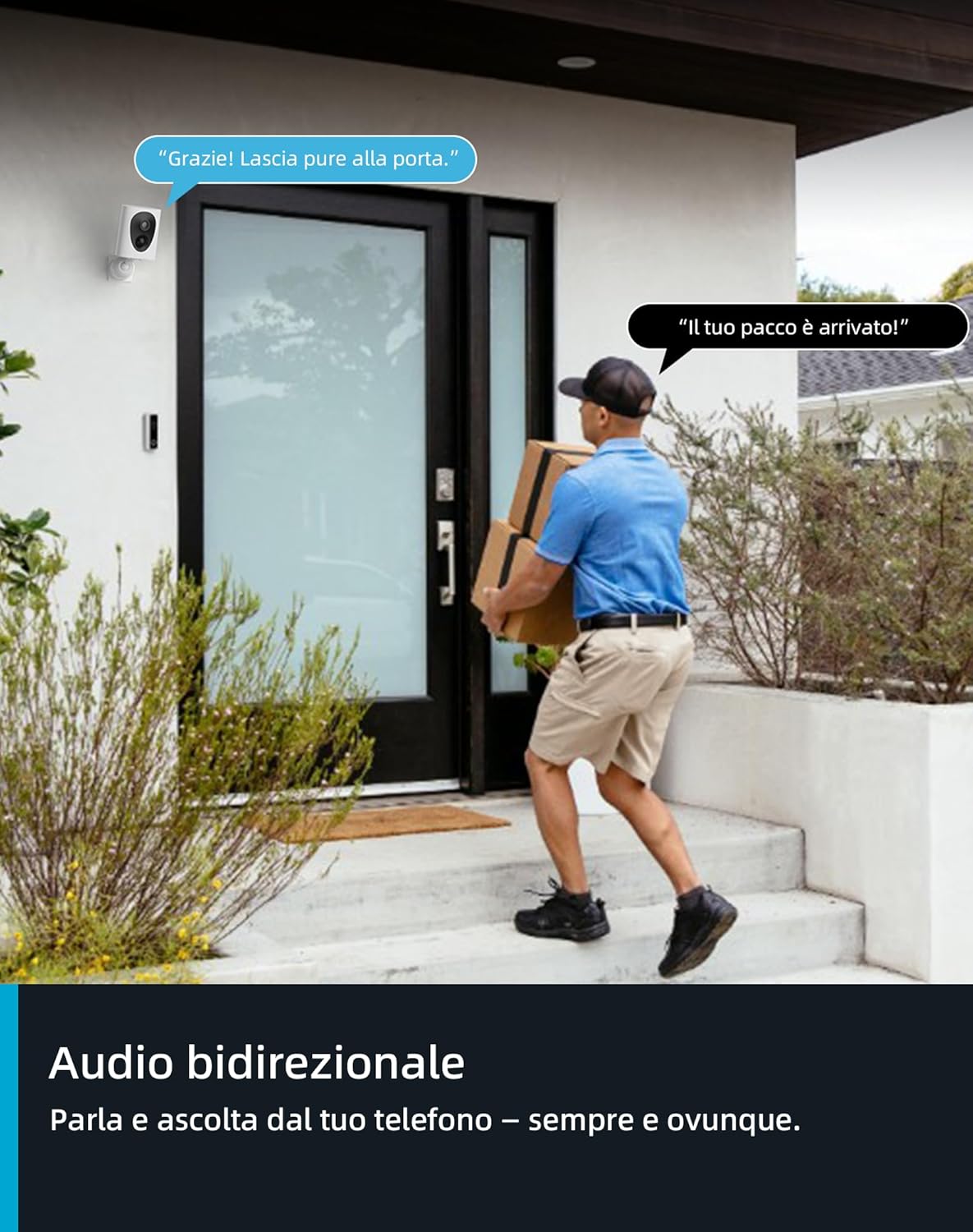
Figure 8: Two-way audio. This image shows a delivery person at a door, with speech bubbles indicating communication between the camera user and the person outside, demonstrating the two-way audio function.
-
Ọhụụ abalị: The camera automatically switches to night vision in low-light conditions. It supports both infrared (black and white) and Starlight color night vision for clear images even in darkness.

Figure 9: 2K QHD Day and Color Night Vision. This image provides a side-by-side comparison of the camera's daytime 2K QHD ultra-clear view and its Starlight color night vision in a parking lot setting.

Figure 10: Color Night Vision Comparison. This image compares the Starlight color night vision with normal night vision, showing a clearer, more detailed color image in low light.
- Edekọ na ịkpọghachi: Recorded videos are stored on the MicroSD card or in the cloud (if subscribed). Access and playback recordings through the HOME V app's timeline or event list.
Nlekọta
- Ịchaji batrị: Recharge the camera battery when the app indicates low power. For optimal battery life, avoid frequent full discharges.
- Nhicha: Periodically clean the camera lens and body with a soft, dry cloth to ensure clear image quality. Do not use harsh chemicals or abrasive materials.
- Mmelite femụwe: Keep your camera's firmware updated through the HOME V app. Updates often include performance improvements and new features.
- Nchekwa ihu igwe: While the camera is waterproof, ensure it is installed in a location that minimizes direct exposure to extreme weather conditions for prolonged durability.
Nchọpụta nsogbu
| Nsogbu | Ngwọta enwere ike |
|---|---|
| Camera won't connect to Wi-Fi. | Ensure your Wi-Fi network is 2.4GHz. Check Wi-Fi signal strength at the camera's location. Restart your router and the camera. Re-attempt pairing in the app. |
| Imagedị mma adịghị mma. | Clean the camera lens. Ensure there are no obstructions in front of the lens. Check network stability for live view àgwà. |
| Batrị na-agbapụ ngwa ngwa. | Frequent motion detections or live view usage can reduce battery life. Adjust motion detection sensitivity. Ensure the camera is fully charged. Consider installing in an area with less constant activity. |
| Enweghị ọkwa nchọpụta mmegharị. | Check app notification settings. Ensure PIR sensor is not obstructed. Adjust motion detection sensitivity and activity zones. Verify camera is online. |
| Audio ụzọ abụọ anaghị arụ ọrụ. | Ensure microphone and speaker permissions are enabled for the HOME V app on your phone. Check camera's audio settings in the app. Ensure camera is not installed behind glass. |
For further assistance, please refer to the in-app help section or contact virtavo customer support.
Akwụkwọ ikike na nkwado
virtavo products are designed for reliability and performance. For any issues or questions regarding your virtavo 2K Wireless Outdoor Battery Camera, please contact virtavo customer support. Details for contacting support can typically be found within the HOME V app or on the official virtavo websaịtị.
Please retain your proof of purchase for warranty claims. Specific warranty terms and conditions may vary by region and purchase date. Refer to the product packaging or virtavo's official channels for the most up-to-date warranty information.
For online resources and frequently asked questions, visit the virtavo support page.


