1. Okwu mmalite
This manual provides comprehensive instructions for the operation, setup, and maintenance of your Symcode 2D Screen Barcode Scanner, Model G2023. Please read this manual thoroughly before using the device to ensure proper functionality and to maximize its lifespan.

Image: The Symcode 2D Screen Barcode Scanner resting in its charging stand. The scanner features a display screen and a comfortable grip, with green accents.
2. Atụmatụ igodo
- Wireless Charging Stand & High Capacity Battery: Equipped with a convenient charging cradle and a 2600mAh high-capacity battery, providing up to 24 hours of continuous operation.
- Ụdị nyocha dị iche iche: Supports manual trigger, continuous scanning, and auto-sensing modes. Includes a storage mode for offline data collection.
- Njikọta abụọ: Connects via 433Mhz wireless (dongle built into stand) or Bluetooth (HID/SPP/BLE modes) for compatibility with laptops, PCs, smartphones, tablets, iPhones, iPads, and POS systems.
- Extensive Symbology Support: Decodes a wide range of 1D and 2D barcodes including QR Code, Data Matrix, PDF417, Code 128, UPC-A, EAN-13, and many more.
- 1.77 Inch TFT Colorful Screen: Displays current scanned barcode, code type, scan count, wireless signal status, time, connection status, connection mode, electricity level, stored count, and total count.
- Durable Anti-shock Design: Engineered to withstand multiple drops from a height of up to 2.5 meters (approximately 8 feet) onto concrete.
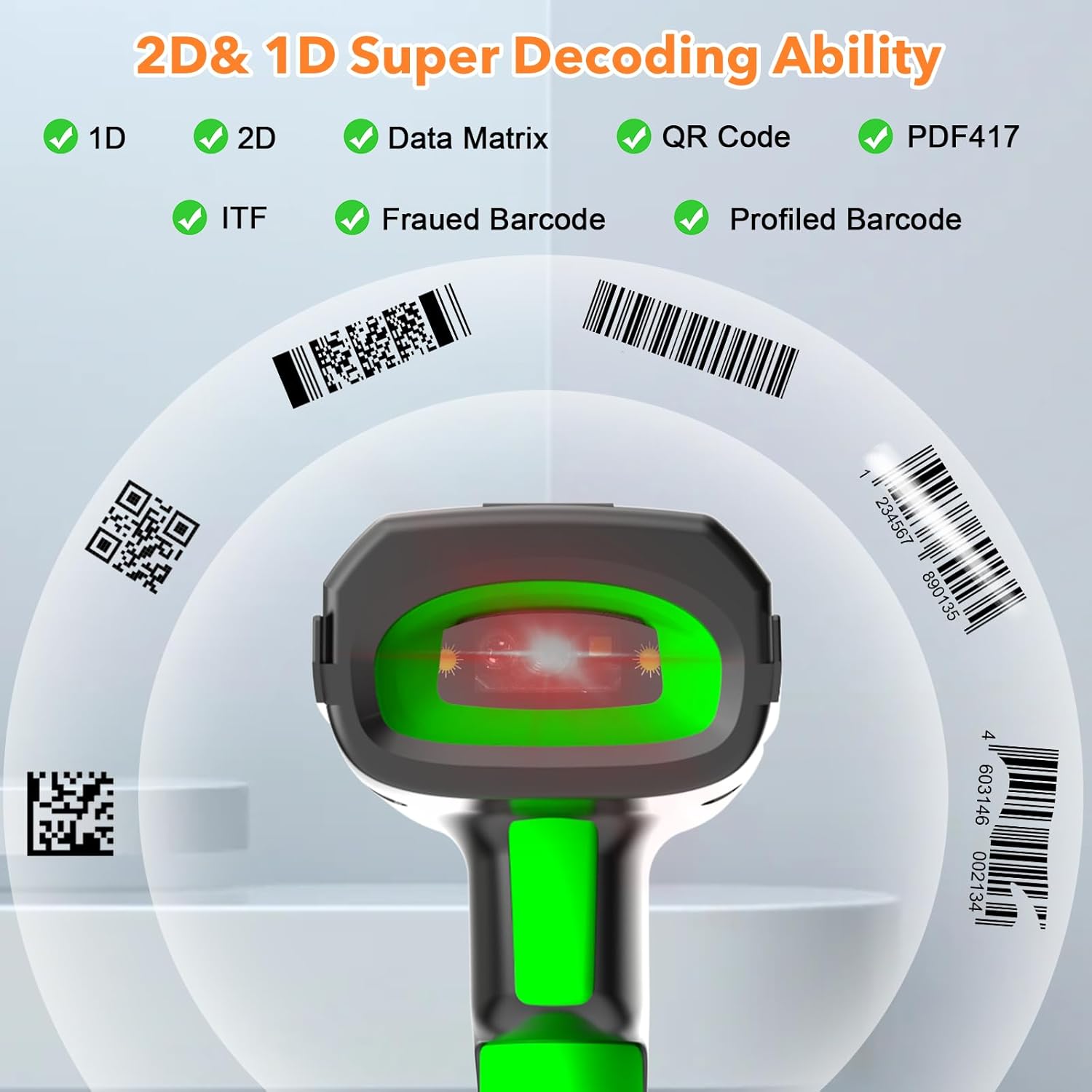
Image: Illustration demonstrating the scanner's ability to decode various 1D and 2D barcode types, including QR Code, Data Matrix, and PDF417.
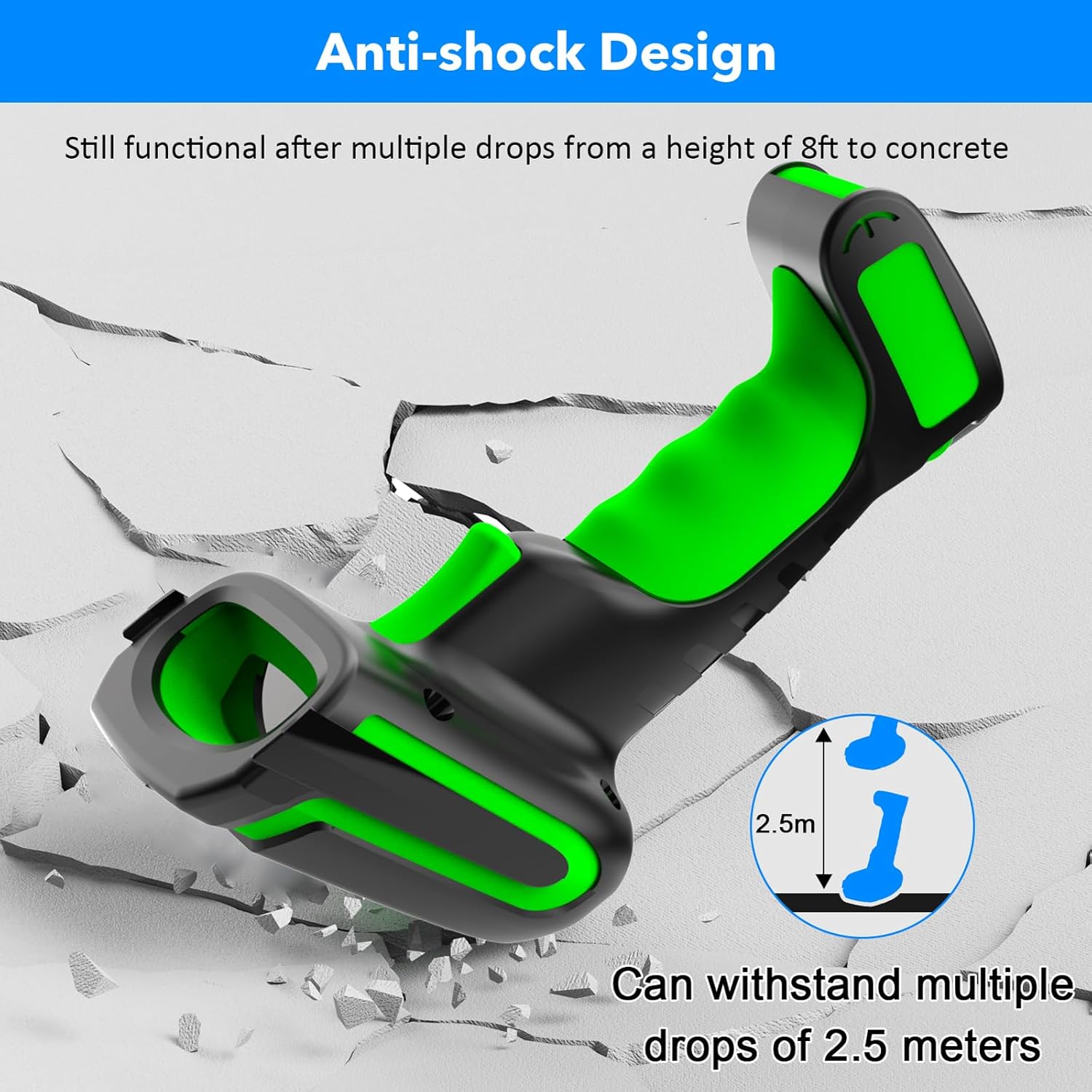
Image: The scanner shown with a cracked concrete background, illustrating its anti-shock design and ability to withstand drops from 2.5 meters.
3. Ihe ngwugwu
Chọpụta na ihe niile dị na ngwugwu:
- Symcode 2D Screen Barcode Scanner
- Charging Stand (with built-in 433Mhz wireless receiver)
- USB Cable (for charging stand)
- Akwụkwọ ntuziaka (akwụkwọ a)
4. Ntọala na Njikọ
4.1 Ịchaji ihe nyocha ahụ
Before first use, fully charge the scanner. Place the scanner into the charging stand. Connect the charging stand to a power source (e.g., computer USB port or USB wall adapter) using the provided USB cable. The scanner's screen will indicate charging status.

Image: The barcode scanner being charged in its stand, highlighting the 2600mAh battery and indicating a 4-hour charging time for 30 hours of scanning.
4.2 Ụdị njikọ
The Symcode G2023 scanner supports two primary connection methods:
- 433Mhz Wireless Connection:
The charging stand has a built-in 433Mhz wireless dongle. Connect the charging stand to your computer via USB. The scanner will automatically pair with the stand, providing a plug-and-play experience. This mode offers a long transmission range, up to 1000m (3280ft) in open areas.
- Njikọ Bluetooth:
The scanner can connect directly to Bluetooth-enabled devices such as laptops, smartphones, and tablets. It supports HID, SPP, and BLE modes. The Bluetooth range is approximately 15m (49ft) indoors.
Iji jikọọ site na Bluetooth:
- Ensure the scanner is powered on.
- Activate Bluetooth on your host device (computer, phone, tablet).
- Scan the Bluetooth pairing barcode (refer to the quick start guide or scanner settings for this barcode).
- On your host device, search for "Symcode Scanner" or similar in the Bluetooth device list and select it to pair.

Image: Comparison of wireless ranges: Bluetooth (15m/49ft) for indoor use and 433Mhz (1000m/3280ft) for outdoor or longer-range applications.

Image: Depiction of the two connection modes: 433Mhz wireless via the charging base connected to a laptop, and direct Bluetooth connection to a tablet.
5. Ntuziaka ọrụ
5.1 Usoro nyocha nke barcodes
Point the scanner's window at the barcode you wish to scan. Press the trigger button to activate the scanning beam. Ensure the beam covers the entire barcode for accurate reading. A successful scan is typically indicated by a beep and/or vibration (configurable).
5.2 Ụdị nyocha
The scanner supports the following operational modes:
- Ụdị Mkpalite Aka: Pịa bọtịnụ mkpali maka nyocha ọ bụla.
- Ụdị nyocha na-aga n'ihu: The scanner continuously emits a scanning beam, reading barcodes as they are presented.
- Auto-sensing Scanning Mode: The scanner activates the beam automatically when a barcode is detected in its field of view.
- Ụdị Nchekwa: When out of wireless or Bluetooth range, scanned barcodes are stored in the scanner's internal memory. Data can be uploaded later when connection is re-established.
Refer to the included quick start guide or the scanner's configuration barcodes for instructions on switching between these modes.
5.3 Screen Display Information
The 1.77-inch TFT colorful screen provides real-time information:

Image: Close-up of the scanner's screen, detailing the information displayed: 1. Time, 2. Connection status, 3. Connection mode, 4. Electricity level, 5. Stored scan count, 6. Total scan count.
- Oge: Oge ugbu a.
- Ọnọdụ njikọ: Indicates if the scanner is connected (e.g., Bluetooth icon, 433Mhz icon).
- Ụdị njikọ: Displays the active connection type (e.g., Bluetooth, 433Mhz).
- Ọkwa ọkụ eletrik: Ngosipụta ụgwọ batrị.
- Ụlọ ahịa: Number of barcodes currently stored in memory (in storage mode).
- Mgbakọta: Total number of barcodes scanned.
- Scanned Barcode Data: The actual data of the last scanned barcode.
- Ụdị koodu: The symbology of the last scanned barcode (e.g., QR Code, Code 128).
6. Nlekọta
6.1 Nhicha
To clean the scanner, use a soft, damp cloth. Do not use abrasive cleaners or solvents, as these can damage the device. Ensure the scanning window is clean for optimal performance.
6.2 Nlekọta batrị
The scanner is equipped with a 2600mAh Lithium Polymer battery. For optimal battery life:
- Zere ịchaji batrị ugboro ugboro.
- Charge the scanner regularly, especially when not in use for extended periods.
- Store the scanner in a cool, dry place when not in use.
7. Nchọpụta nsogbu
| Nsogbu | Ihe nwere ike ime | Ngwọta |
|---|---|---|
| Scanner not connecting via 433Mhz. | Charging stand not powered or connected to host device. Scanner not paired with stand. | Ensure the charging stand is properly connected via USB. Re-scan the pairing barcode for 433Mhz if available in your quick start guide. |
| Scanner not connecting via Bluetooth. | Bluetooth not enabled on host device. Scanner not in pairing mode. Out of range. | Enable Bluetooth on your device. Scan the Bluetooth pairing barcode on the scanner. Move scanner closer to the host device. |
| Nyocha anaghị agụ koodu barcode. | Barcode damaged or poor quality. Scanning window dirty. Incorrect scanning mode. | Try scanning a different, known-good barcode. Clean the scanning window. Verify the scanner is in the correct scanning mode. |
| Batrị na-agbapụ ngwa ngwa. | Frequent use. Battery nearing end of life. | Ensure the scanner is fully charged before use. Reduce continuous scanning time if possible. |
8. Nkọwapụta ngwaahịa
| Njirimara | Nkọwapụta |
|---|---|
| Ụdị | 1D 2D QR CMOS Display Screen Wireless Barcode Scanner |
| Usoro njikọ | Bluetooth 433Mhz Wireless |
| Interface | USB (for charging stand) |
| Nyochaa ọsọ | 200 ugboro / s |
| Ike | DC 5V |
| Ugbu a | 400mAh±5% |
| Ike batrị | 2600mAh Lithium Polymer |
| Oge eji na-aga n'ihu | More than 40,000 hours (product lifespan) / 24 hours (battery life) |
| Wepu Nguzogide | Can withstand drops under 2.2 meters (7.2 ft) / 2.5 meters (8 ft) |
| Ngosipụta ihuenyo | 1.77 Inch TFT Colorful Screen |
| Ngwa dakọtara | Desktop, Laptop, POS, Smartphone, Tablet |
| Ihe ngosi akwadoro | 2D: Codeblock A, Codeblock F, PDF417, Micro PDF417, GS1 Composite Codes, QR Code, Data Matrix, MaxiCode, Aztec, HANXIN 1D: Codabar, Code 39, Code 32 Pharmaceutical (PARAF), Interleaved 2 of 5, NEC 2 of 5, Code 93, Straight 2 of 5 Industrial, Straight 2 of 5 IATA, Matrix 2 of 5, Code 11, Code 128, GS1-128, UPC-A, UPC-E, EAN/JAN-8, EAN/JAN-13, MSI, GS1 DataBar Omnidirectional, GS1 DataBar Limited, GS1 DataBar Expanded, China Post (Hong Kong 2 of 5), Korea Post |
9. Akwụkwọ ikike na nkwado
For warranty information and technical support, please refer to the warranty card included with your product or visit the official Symcode websaịtị. Debe nnata nzụta gị ka ihe akaebe nke ịzụrụ.


