1. Okwu mmalite
This manual provides essential information for the installation, operation, and maintenance of your ADATA Legend 860 Solid State Drive. Please read this guide thoroughly before using the product to ensure optimal performance and longevity.
The ADATA Legend 860 is a high-performance NVMe SSD designed for expanding storage in compatible devices such as desktop PCs, laptops, and gaming consoles like the PlayStation 5. It utilizes PCIe Gen4 x4 interface for fast data transfer speeds.

Figure 1: ADATA Legend 860 NVMe Solid State Drive
2. Ozi nchekwa
- Always handle the SSD by its edges to avoid touching the gold connectors or components.
- Ensure your system is powered off and unplugged before installation.
- Discharge any static electricity from your body before handling the SSD. Use an anti-static wrist strap if available.
- Keep the SSD away from moisture, extreme temperatures, and strong magnetic fields.
- Do not attempt to disassemble or modify the SSD, as this will void the warranty.
3. Ihe ngwugwu
Chọpụta na ihe niile dị na ngwugwu gị:
- ADATA Legend 860 Solid State Drive

Figure 2: ADATA Legend 860 SSD Retail Packaging
4. Nkọwapụta
| Ụdị | ADATA |
| Usoro | Akụkọ mgbe ochie 860 |
| Nọmba nlereanya | SLEG-860-1000GCS |
| Ike Nchekwa Dijitalụ | 1 TB |
| Interface Hard Disk | NVMe |
| Teknụzụ Njikọta | PCIe Gen4 x4 |
| Ụdị Ihe | M.2 2280 |
| Ngwa dakọtara | Desktop, Gaming Console (PS5), Laptop |
| Ibu Ibu | 0.353 ounces |
| Akụkụ ngwaahịa | 5.24 x 0.31 x 1.57 sentimita asatọ |
5. Ntọala & nwụnye
The ADATA Legend 860 SSD is designed for easy installation into compatible M.2 slots. Follow these general steps for installation:
- Kwadebe Sistemu gị: Power off your computer or gaming console and unplug all cables. Open the casing to access the motherboard or M.2 expansion slot.
- Chọta oghere M.2: Identify an available M.2 slot on your motherboard. These slots are typically labeled and may be covered by a heatsink.
- Tinye SSD: Gently slide the ADATA Legend 860 SSD into the M.2 slot at a 30-degree angle. Ensure the gold connectors are fully seated.
- Chekwaa SSD: Once inserted, push the SSD down until it is parallel with the motherboard. Secure it with the provided screw (usually included with your motherboard or console).
- Mechie Casing: Replace any heatsinks or covers, and close your system's casing.
- Power On and Initialize: Reconnect all cables and power on your system. You may need to initialize and format the new SSD through your operating system's Disk Management (Windows) or Disk Utility (macOS) before it can be used. Refer to your operating system's documentation for detailed instructions.
Nwụnye Ọpụamples:
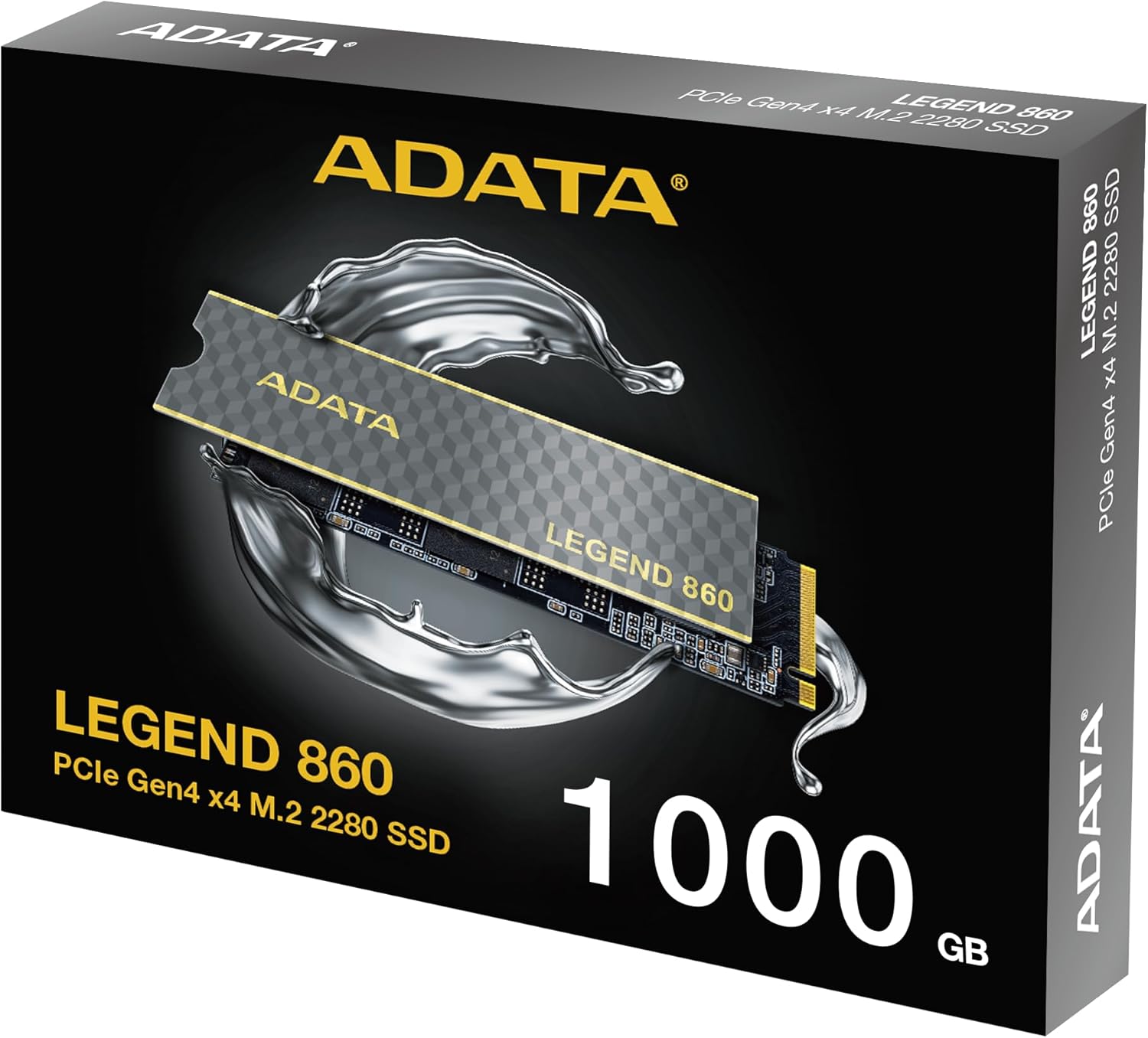
Figure 3: SSD installed in a desktop motherboard

Figure 4: SSD installed in a PlayStation 5 console
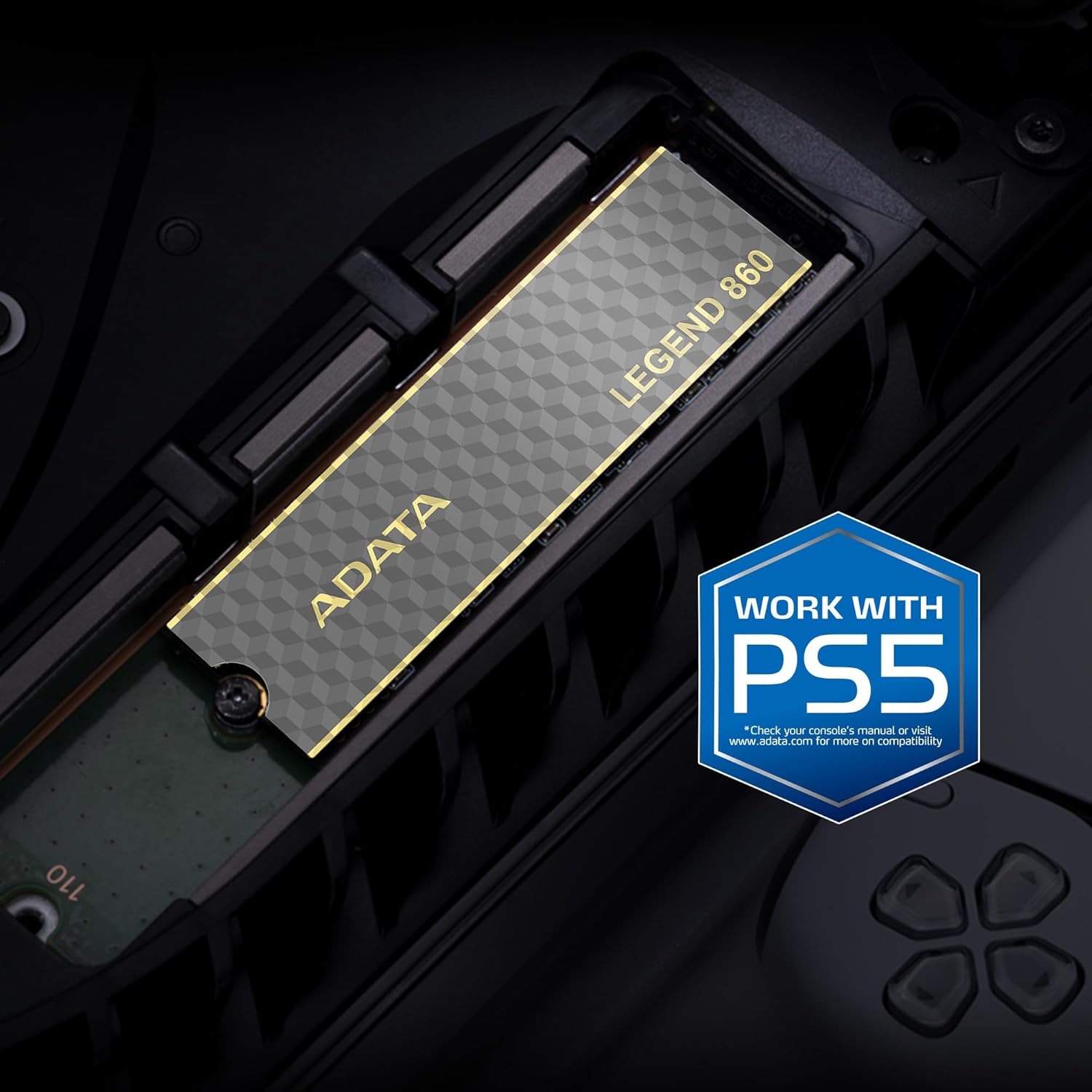
Figure 5: SSD installed in a laptop
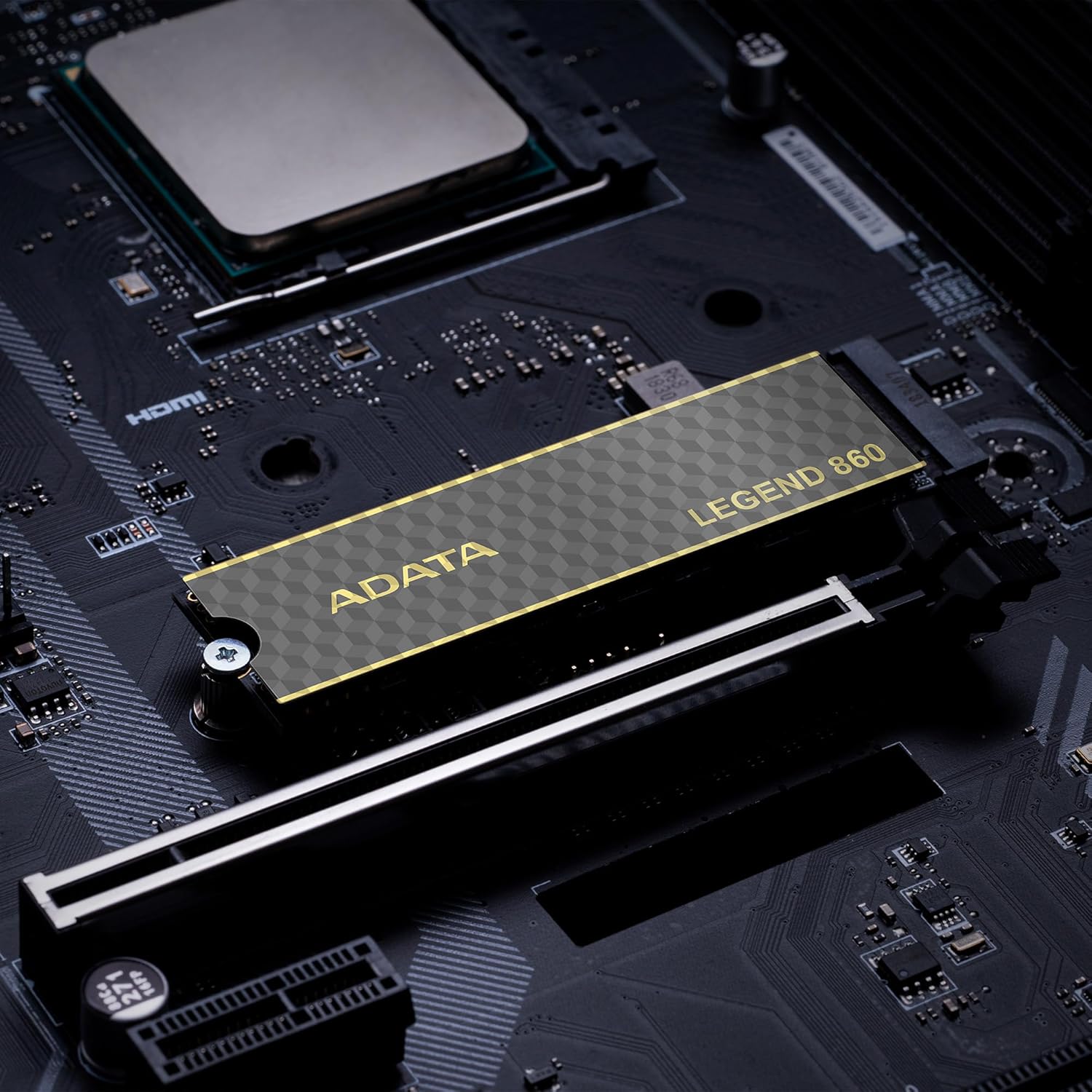
Figure 6: SSD in an external enclosure for portable use
6. Ọrụ
Once installed and formatted, your ADATA Legend 860 SSD will function as a high-speed storage device. You can use it for:
- Sistemu eji arụ ọrụ: Install your operating system for faster boot times and overall system responsiveness.
- Gaming Library: Store your games to significantly reduce load times and improve gaming experience.
- Application Storage: Install demanding applications for quicker launch and operation.
- Nchekwa data: Use it for high-speed storage of large files, such as 4K videos, high-resolution images, and large project files.
For optimal performance, ensure your system's drivers and firmware are up to date.
7. Nlekọta
To maintain the performance and longevity of your ADATA Legend 860 SSD:
- Debe Firmware: Periodically check the ADATA official website for firmware updates for your SSD. Firmware updates can improve performance, stability, and compatibility.
- Zenarị njupụta: While SSDs perform well even when nearly full, leaving some free space (typically 10-15%) can help maintain optimal performance and extend lifespan.
- Kwado TRIM: Ensure TRIM is enabled in your operating system. TRIM helps the SSD manage its storage space efficiently, preventing performance degradation over time. Most modern operating systems enable TRIM by default for SSDs.
- Nyochaa ahụike: Use SSD monitoring tools (often provided by ADATA or third-party software) to check the health and estimated lifespan of your drive.
- Ndabere oge niile: Regularly back up important data to another storage device. While SSDs are reliable, no storage device is immune to failure.
8. Nchọpụta nsogbu
If you encounter issues with your ADATA Legend 860 SSD, consider the following troubleshooting steps:
- Achọpụtaghị SSD:
- Ensure the SSD is correctly seated in the M.2 slot.
- Check your system's BIOS/UEFI settings to confirm the M.2 slot is enabled and configured correctly.
- Verify that your motherboard or console supports NVMe PCIe Gen4 SSDs.
- Try the SSD in a different M.2 slot or a compatible external enclosure to rule out a motherboard issue.
- Ịrụ ngwa ngwa:
- Ensure your system's M.2 slot supports PCIe Gen4 speeds. If it's a Gen3 slot, the SSD will operate at Gen3 speeds.
- Check if TRIM is enabled (as mentioned in Maintenance).
- Ensure the SSD is not nearly full.
- Update your motherboard's chipset drivers and SSD firmware.
- Akwụsịghị / Mkpọka Sistemu:
- Ensure the SSD is properly secured and not overheating.
- Run a diagnostic tool to check the SSD's health.
- Check for system-wide issues (RAM, CPU, power supply).
If problems persist, contact ADATA customer support for further assistance.
9. Akwụkwọ ikike na nkwado
The ADATA Legend 860 Solid State Drive typically comes with a manufacturer's warranty. Please refer to the official ADATA website or your product packaging for specific warranty terms and conditions, including the duration and coverage details.
For technical support, driver downloads, firmware updates, and additional product information, please visit the official ADATA support websaịtị: www.adata.com
Debe ihe akaebe nke ịzụrụ ihe maka akwụkwọ ikike.


