Okwu mmalite
This manual provides comprehensive instructions for the setup, operation, and maintenance of your ORICO B5PLUS Portable SSD 2TB. Please read this manual carefully before using the device to ensure optimal performance and longevity.
Ngwaahịa gafereview
The ORICO B5PLUS Portable SSD is a compact and high-speed external storage solution designed for various devices, including smartphones, PCs, and tablets. It offers quick data transfer and easy storage expansion.
Akụkụ ndị bụ isi:
- Nchekwa enwere ike ịgbasa: Easily expand your device's storage capacity.
- Nyefee data Ọsọ Ọsọ: Achieves speeds up to 460MB/s for efficient file na-enyefe.
- Ebube dị obere: Compact and lightweight, measuring 2.44 x 2.72 x 0.5 inches and weighing only 0.09 lb.
- 2-in-1 USB-C & USB-A Cable: Ensures broad compatibility with both USB-C and USB-A devices.
- Ngosipụta ọnọdụ: An LED indicator shows device activity.
Kedu ihe dị na igbe:
- ORICO B5PLUS Portable SSD
- 2-in-1 USB-C to USB-A/USB-C Cable
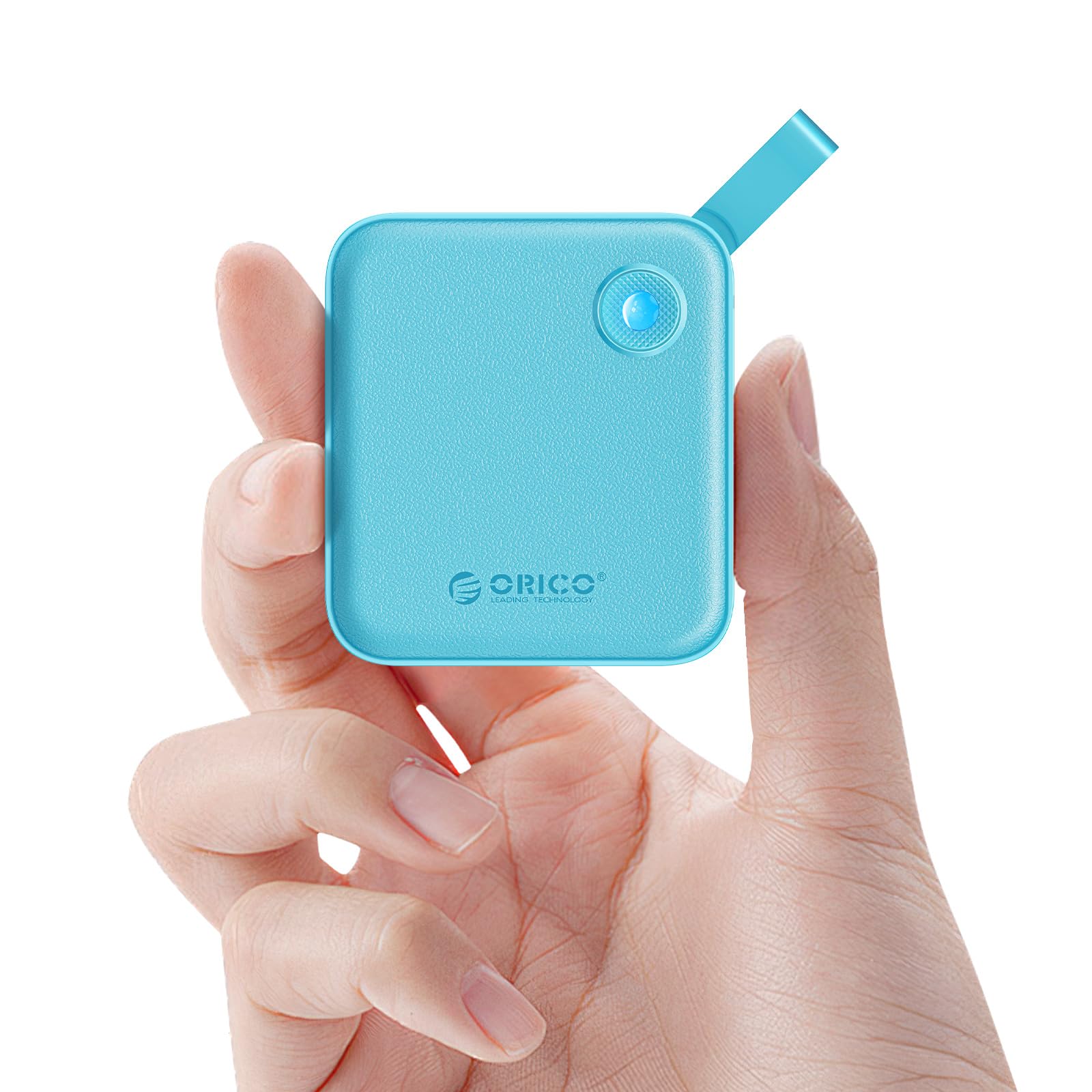
Figure 1: The ORICO B5PLUS Portable SSD in green, showcasing ya kọmpat imewe.
Ntuziaka nhazi
- Jikọọ SSD:
Identify the appropriate port on your device (USB-C or USB-A). The included 2-in-1 cable features both connectors. For USB-C, use the USB-C end directly. For USB-A, attach the USB-A adapter to the USB-C end of the cable.

Figure 2: The versatile 2-in-1 USB-C and USB-A cable for broad device compatibility.
- Plug into Device:
Insert the connected cable into the corresponding USB port on your computer, smartphone, or tablet. The SSD's status indicator light will illuminate, confirming a successful connection.

Figure 3: The ORICO B5PLUS SSD connected to various devices for storage expansion.
- Nkwenye izizi:
Your operating system (Windows, macOS, Android, iOS) should automatically detect the SSD. If prompted, you may need to format the drive for first-time use, especially if moving between different operating systems. Follow your device's on-screen instructions for formatting.
Ntuziaka ọrụ
Nyefee data:
- Na-eṅomi Files: Dọrọ na dobe files or folders from your device to the ORICO SSD, or vice versa.
- Ọsọ: The SSD supports data transfer speeds up to 460MB/s. Actual speeds may vary based on your device's USB port, operating system, and file ụdị.

Figure 4: Illustration of the high-speed data transfer capabilities of the ORICO B5PLUS SSD.
ndakọrịta:
The ORICO B5PLUS is compatible with a wide range of devices, including:
- Laptops (MacBook, Dell XPS, Lenovo Pro, etc.)
- Smartphones (iPhone 15 Series, Samsung S22/S23 Series, Huawei Mate/P Series, etc.)
- Tablets (iPad Pro/Air, etc.)
- Desktop Computers, Routers, TVs, and other devices with USB-A or USB-C ports.

Figure 5: The ORICO B5PLUS SSD demonstrating compatibility with a range of devices.
Ihe ngosi ọnọdụ LED:
The small LED light on the SSD indicates its operational status:
- Ìhè siri ike: Device is connected and idle.
- Ìhè na-egbuke egbuke: Data transfer is in progress. Do not disconnect the device during flashing to prevent data corruption.
Nlekọta
- Mwepụ nke ọma: Always safely eject the SSD from your operating system before physically disconnecting it to prevent data loss or corruption.
- Nhicha: Use a soft, dry cloth to clean the exterior of the SSD. Avoid liquid cleaners or abrasive materials.
- Nchekwa: Chekwaa SSD n'ebe dị jụụ, kpọrọ nkụ pụọ na ìhè anyanwụ kpọmkwem na oke okpomọkụ.
- Nchedo anụ ahụ: While durable, avoid dropping the SSD or subjecting it to strong impacts.
Nchọpụta nsogbu
- Achọpụtaghị SSD:
- Ensure the cable is securely connected to both the SSD and your device.
- Gbalịa ọdụ ụgbọ USB dị iche na ngwaọrụ gị.
- Test with another compatible cable if available.
- Malitegharịa ekwentị gị ma ọ bụ ngwaọrụ.
- Check your device's Disk Management (Windows) or Disk Utility (macOS) to see if the drive is recognized but unformatted.
- Ọsọ mbufe nwayọ:
- Ensure you are using a USB 3.0/3.1/3.2 compatible port on your device for optimal speeds. Older USB 2.0 ports will result in significantly slower transfers.
- Verify that your device's drivers are up to date.
- Zere ịnyefe ọtụtụ obere obere files simultaneously, as this can reduce overall speed compared to large files.
- Nrụrụ Aka/Mfu Data:
- Always safely eject the SSD before disconnecting.
- Ensure the SSD is not exposed to extreme temperatures or physical shock.
- Regularly back up important data to multiple locations.
Nkọwapụta
| Njirimara | Nkọwa |
|---|---|
| Ụdị | ORICO |
| Nọmba nlereanya | B5PLUS-2TB |
| Ike Nchekwa Dijitalụ | 2 TB |
| Interface Hard Disk | USB 1.1 (Note: This refers to the internal interface, external connectivity is USB 3.x for high speed) |
| Teknụzụ Njikọta | USB (USB-C and USB-A compatible) |
| Ọsọ agụ (Max) | Ruo 460MB / s |
| Ibu Ibu | 3.17 ounces (ihe dị ka 90g) |
| Akụkụ ngwugwu | 5.91 x 4.25 x 0.98 sentimita asatọ |
| Agba | Akwụkwọ ndụ akwụkwọ ndụ |
| Njirimara Pụrụ Iche | Portable, Status Indicator |
| Ngwa dakọtara | Laptop, Smartphone, Tablet, PC |
Vidiyo ngwaahịa ngwaahịa
Vidiyo 1: Onye ọrụ gọọmentị gafereview of the ORICO External Solid State Drive B5PLUS, highlighting its features and compact design. This video is provided by the manufacturer, ORICO Direct US Store.
Akwụkwọ ikike na nkwado
For warranty information, technical support, or further assistance, please refer to the official ORICO websaịtị ma ọ bụ kpọtụrụ ndị ahịa ha ozugbo. Debe nnata nzụta gị dị ka ihe akaebe nke ịzụrụ ihe maka akwụkwọ ikike ọ bụla.
Ị nwekwara ike ịga na ORICO Store on Amazon maka ozi ngwaahịa na akụrụngwa nkwado.


