Okwu mmalite
This manual provides essential information for the safe and efficient installation, operation, and maintenance of your GIGABYTE AORUS Elite P1000W Ice Power Supply. Please read this manual thoroughly before using the product and retain it for future reference.

Ọgụgụ 1: N'akuku view of the GIGABYTE AORUS Elite P1000W Ice Power Supply, highlighting the 1000W rating.
Ozi nchekwa
Na-agbaso ihe ndị a dị mkpa mgbe niile iji gbochie mmerụ ahụ na mmebi nke akụrụngwa gị:
- Ensure the power supply is disconnected from the AC outlet before installation or handling.
- Emeghela unit ọkọnọ ọkụ. Akwa voltages are present inside, and there are no user-serviceable parts.
- Wụnye ọkụ eletrik na mpaghara ikuku na-ekpo ọkụ nke ọma, na-esi na isi okpomọkụ na ìhè anyanwụ kpọmkwem.
- Use only the modular cables provided with this power supply. Using incompatible cables may cause damage.
- Zere ikpughe ọkụ eletrik na mmiri ma ọ bụ oke okpomọkụ.
Ihe ngwugwu
Chọpụta na ihe niile dị na ngwugwu:
- GIGABYTE AORUS Elite P1000W Ice Power Supply Unit
- Modular Cable Set (including ATX 24-pin, EPS/CPU 8-pin, PCIe 6+2-pin, 12VHPWR, SATA, Peripheral)
- AC Power Cord (EU Plug)
- Ịkwanye kposara
- Akwụkwọ ntuziaka (akwụkwọ a)
Njirimara ngwaahịa
- ATX 3.0 and PCIe Gen 5.0 ready (ATX 3.1 compatible)
- Certified 80 PLUS Platinum efficiency
- 100% Japanese Capacitors for enhanced reliability
- 120mm Dynamic Fluid Ball Bearing (FDB) Fan for quiet and efficient cooling
- Compact design for easier installation
- Fully modular design for improved cable management
- Powerful single rail +12V output
- Comprehensive protection features: OVP (Over Voltage Protection), OPP (Over Power Protection), SCP (Short Circuit Protection), UVP (Under Voltage Protection), OCP (Over Current Protection), OTP (Over Temperature Protection)
Ntọala na nwụnye
Follow these steps to install your power supply:
- Kwadebe Sistemu gị: Ensure your computer case is open and all existing power supply cables are disconnected.
- Wụnye ọkụ ọkụ: Carefully place the GIGABYTE AORUS Elite P1000W into the power supply bay of your computer case. Secure it with the provided mounting screws.

Ọgụgụ 2: N'ozuzu view of the GIGABYTE AORUS Elite P1000W Ice Power Supply. This image shows the main unit with its fan grill and modular cable ports.
- Jikọọ eriri modular: Identify the necessary cables for your motherboard and components (CPU, GPU, storage drives). Connect the appropriate modular cables to the power supply's output ports.

Ọgụgụ 3: Zuru ezu view of the modular cable connectors on the GIGABYTE AORUS Elite P1000W Ice Power Supply. This image illustrates the clearly labeled ports for M/B, CPU/PCI-E, Peripheral, and 12VHPWR connections.
- eriri ATX 24-pin: Connect to the motherboard's main power connector.
- 8-pin EPS/CPU Cable: Connect to the motherboard's CPU power connector.
- PCIe 6+2-pin Cables: Connect to your graphics card(s) if they require additional power.
- 12VHPWR Cable: Connect to PCIe Gen 5.0 graphics cards that utilize this connector.
- SATA eriri: Connect to SSDs, HDDs, and optical drives.
- Igwe n'akụkụ (Molex): Connect to other components requiring Molex power.
- Jikọọ na akụrụngwa: Route the connected modular cables neatly to their respective components and plug them in securely.
- Jikọọ ike AC: Ensure the power supply's main switch is in the OFF (0) position. Connect the AC power cord to the power supply and then to a wall outlet.
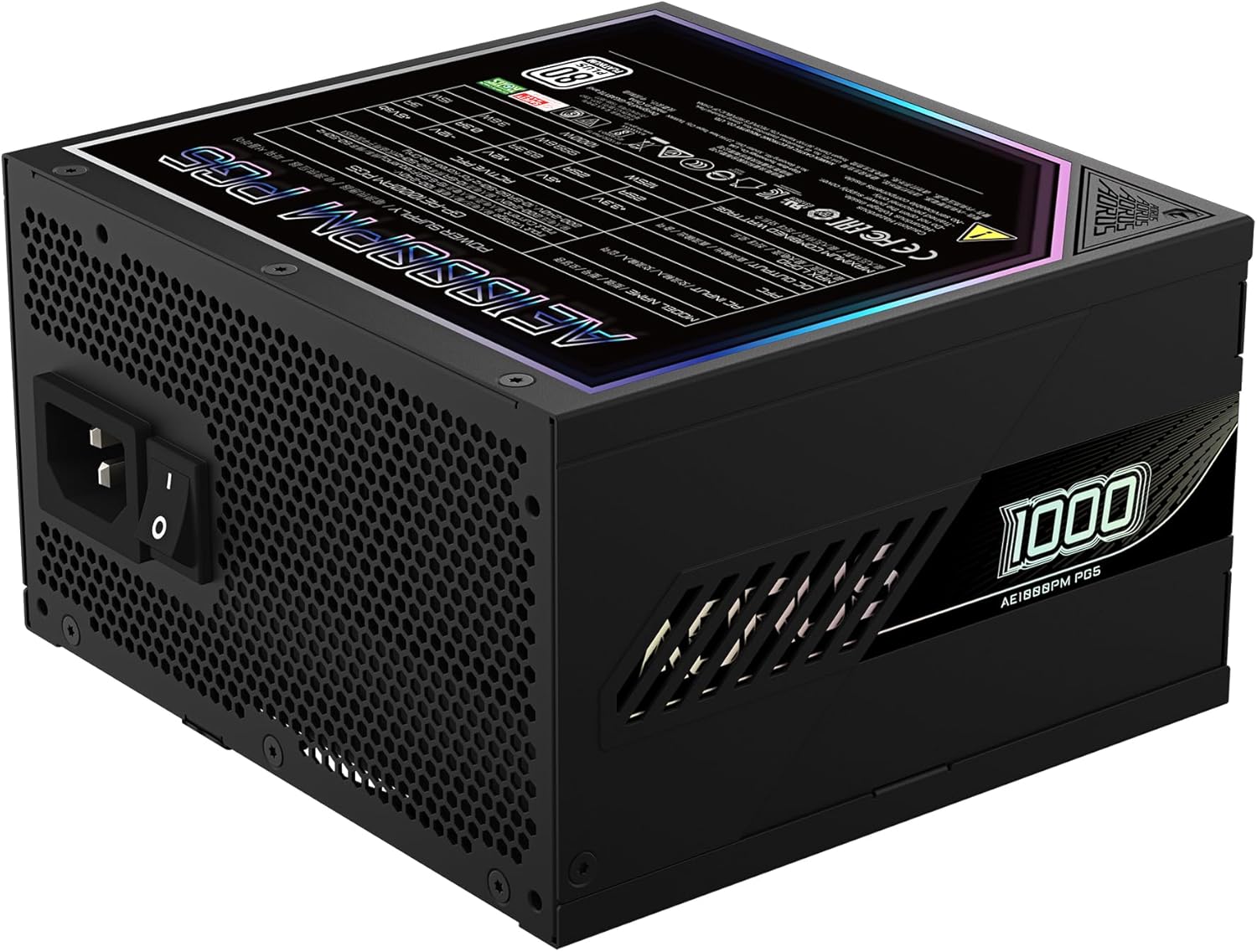
Figure 4: Rear panel of the GIGABYTE AORUS Elite P1000W Ice Power Supply, showing the AC power input and power switch. Ensure the switch is set to '0' before connecting the AC cord.
Ntuziaka ọrụ
After installation, follow these steps to power on your system:
- Ike Na: Flip the main power switch on the rear of the power supply to the ON (I) position.
- Boot sistemụ: Pịa bọtịnụ ike dị na akpa kọmputa gị iji malite sistemụ ahụ.
- Gbanyụọ: To shut down your system, perform a proper shutdown through your operating system. Once the system is off, you may flip the power supply's main switch to the OFF (0) position for complete power disconnection.

Ọgụgụ 5: N'elu-ala view of the 120mm fan with the AORUS logo on the GIGABYTE AORUS Elite P1000W Ice Power Supply. The fan provides active cooling during operation.
Nlekọta
Nlekọta oge niile na-enyere aka hụ na ogologo ndụ na arụ ọrụ kacha mma nke ọkọnọ ike gị:
- Nhicha uzuzu: Periodically clean dust from the power supply's fan grill and vents using compressed air. Ensure the power supply is turned off and unplugged before cleaning.
- Njikwa USB: Ensure cables are neatly routed and do not obstruct airflow within the computer case.
- Ọnọdụ gburugburu: Maintain a cool, dry, and well-ventilated environment for your computer system.
Nchọpụta nsogbu
Ọ bụrụ na ị zutere nsogbu, rụtụ aka na usoro nchọpụta nsogbu ndị a na-emekarị:
- Enweghị ike:
- Lelee ma ọ bụrụ na ejikọrọ eriri ọkụ AC na ebe ọkụ ọkụ na oghere mgbidi.
- Ensure the power supply's main switch is in the ON (I) position.
- Verify that all modular cables are correctly seated in both the power supply and the components.
- Jiri ngwaọrụ ọzọ nwalee oghere mgbidi ahụ iji gosi na o nwere ike.
- Sistemu na-emechi na mberede:
- This could indicate an overload or overheating. Ensure your system's power requirements do not exceed the PSU's 1000W capacity.
- Check for proper ventilation and clear any dust buildup.
- Verify that all power connections are secure.
- Mkpọtụ na-adịghị ahụkebe:
- A clicking sound might indicate a protective mechanism engaging. Disconnect power and recheck all connections.
- If the fan is making excessive noise, ensure it is free from obstructions.
If issues persist after following these steps, contact GIGABYTE customer support.
Nkọwapụta

Figure 6: Product label on the GIGABYTE AORUS Elite P1000W Ice Power Supply, displaying electrical specifications and certifications. Refer to this label for detailed electrical ratings.
| Njirimara | Nkọwa |
|---|---|
| Aha Nlereanya | AORUS ELITE P1000W |
| Nọmba Nlereanya ihe | GP-AE1000PM PG5 EU |
| Mpụta Wattage | 1000 Watt |
| Asambodo 80 PLUS | Platinum |
| Ụdị Ihe | ATX |
| ATX Version Compatibility | ATX 3.0 (ATX 3.1 compatible) |
| PCIe Version Compatibility | PCIe Gen 5.0 |
| Nha Fans | 120mm |
| Ụdị Fans | Dynamic Fluid Ball Bearing (FDB) |
| Capacitors | 100% Japanese Capacitors |
| Nhazi Modular | Ofụri Esịt Modular |
| Nchedo | OVP, OPP, SCP, UVP, OCP, OTP |
| Akụkụ ngwaahịa (L x W x H) | 5.51 x 5.91 x 3.39 sentimita asatọ |
| Ibu Ibu | 6.79 pound (gram 3080) |
Ozi akwụkwọ ikike
The GIGABYTE AORUS Elite P1000W Ice Power Supply comes with a 10-afọ akwụkwọ ikike from the date of purchase. This warranty covers defects in materials and workmanship under normal use. Please retain your proof of purchase for warranty claims. For full warranty terms and conditions, refer to the official GIGABYTE websaịtị ma ọ bụ kpọtụrụ nkwado ndị ahịa.
Nkwado
For technical assistance, troubleshooting beyond this manual, or warranty inquiries, please visit the official GIGABYTE support website or contact their customer service department. You can typically find contact information on the GIGABYTE websaịtị ma ọ bụ na nkwakọ ngwaahịa.
GIGABYTE Official Websaịtị: www.gigabyte.com