1. Okwu mmalite
The virtavo VistaFlask 2K Security Camera is a wireless, battery-powered outdoor camera designed to enhance your home security. Featuring 2K QHD imaging, AI motion detection, starlight lens for colorful night vision, and weatherproof construction, it provides reliable surveillance in various conditions. This manual provides detailed instructions for setting up, operating, maintaining, and troubleshooting your camera.

Image: Two virtavo VistaFlask 2K security cameras, designed for outdoor use.
2. Ozi nchekwa
- Ensure the camera is installed securely to prevent falling.
- Use only the specified charging cable and power adapter to charge the battery.
- Ewepụla igwefoto na oke okpomọkụ na-abụghị oke ọrụ ya.
- Avoid disassembling or modifying the camera, as this will void the warranty and may cause damage.
- Debe igwefoto na ihe ndị ọzọ dị na ya ka ụmụaka ghara iru ya aka.
3. Ihe ngwugwu
- virtavo VistaFlask 2K Security Camera(s)
- Ihe nkwado nkwado (s)
- Igwe nchaji USB
- Akwụkwọ ntuziaka onye ọrụ
- Ihe mgbakwasị ụkwụ na arịlịka
4. Ngwaahịa gafereview
The virtavo VistaFlask camera features a compact design with essential components for optimal performance. Key elements include the lens, IR LEDs for night vision, a microphone for audio input, a speaker for two-way communication, and a motion sensor. The power switch, sync button, and charging port are located at the bottom of the camera, alongside the microSD card slot for local storage.

Foto: Ime view highlighting the battery and electronic components.

Foto: N'okpuru view of the camera with power switch, charging port, sync button, and microSD card slot.
5. Ntuziaka Nhazi
5.1 Ntọala mbụ
- Chajịa igwefoto: Before first use, fully charge the camera using the provided USB cable. The battery lasts 1-3 months per charge depending on usage.
- Budata ngwa: Chọọ maka 'HOME V' in your smartphone's app store (iOS or Android) and download the application.
- Mepụta akaụntụ: Open the 'HOME V' app and follow the on-screen instructions to register a new account or log in if you already have one.
5.2 Camera Pairing and Connection
Follow these steps to pair your virtavo VistaFlask camera with the 'HOME V' app. For a visual guide, please refer to the official installation video below.
Video: Official virtavo VistaFlask Installation Guide Setup. This video demonstrates the step-by-step process of binding the camera to the 'HOME V' app using QR codes, including powering on the camera, confirming the red light flashing, connecting to the camera's hotspot, and connecting to your home Wi-Fi network.
- Tinye ngwaọrụ: In the 'HOME V' app, tap the '+' icon to add a new device.
- Nyochaa koodu QR: Grant camera access to the app. Scan the QR code located on the back of your virtavo VistaFlask camera.
- Ike Na: Ensure the camera is powered on. The power switch is located at the bottom.
- Confirm Flashing Light: Confirm that the camera's red indicator light is flashing rapidly. If not, press and hold the 'Sync' button for 5-10 seconds until you hear a 'Du' sound or see rapid flashing.
- Connect to Camera Hotspot: The app will prompt you to connect to the camera's Wi-Fi hotspot (e.g., 'IPC365_AP-XXXX'). Confirm and join this network.
- Select Home Wi-Fi: Choose your home 2.4GHz Wi-Fi network from the list and enter the correct password. Note: This device only supports 2.4GHz Wi-Fi.
- Kpọọ aha igwefoto gị: Once connected, name your camera for easy identification (e.g., 'Front Door', 'Living Room').
5.3 Nwụnye anụ ahụ
The virtavo VistaFlask camera is designed for easy installation, both indoors and outdoors. Its weatherproof design ensures durability.

Image: Easy installation on smooth surfaces like glass or tiles, no drilling required.

Image: Wireless connection for remote access.
- Họrọ ebe: Select a location with good Wi-Fi signal strength and a clear view nke mpaghara ịchọrọ inyocha.
- Ịkwanye: Use the provided mounting bracket, screws, and anchors to securely attach the camera to a wall or other suitable surface. Ensure the camera is positioned to capture the desired field of view.
- Ikpuchi ihu igwe: The camera is designed to withstand various weather conditions, making it suitable for outdoor use.
6. Ntuziaka ọrụ
6.1 Ndụ View na Audio-ụzọ Abụọ
Access real-time video feed and communicate through the camera using the 'HOME V' app.
- Dị ndụ View: Mepee ngwa ma họrọ igwefoto gị ka view nri nri.
- Audio Ụzọ Abụọ: Pịa akara ngosi igwe okwu na ihe nkiri dị ndụ view to speak through the camera's speaker, and listen through its microphone.
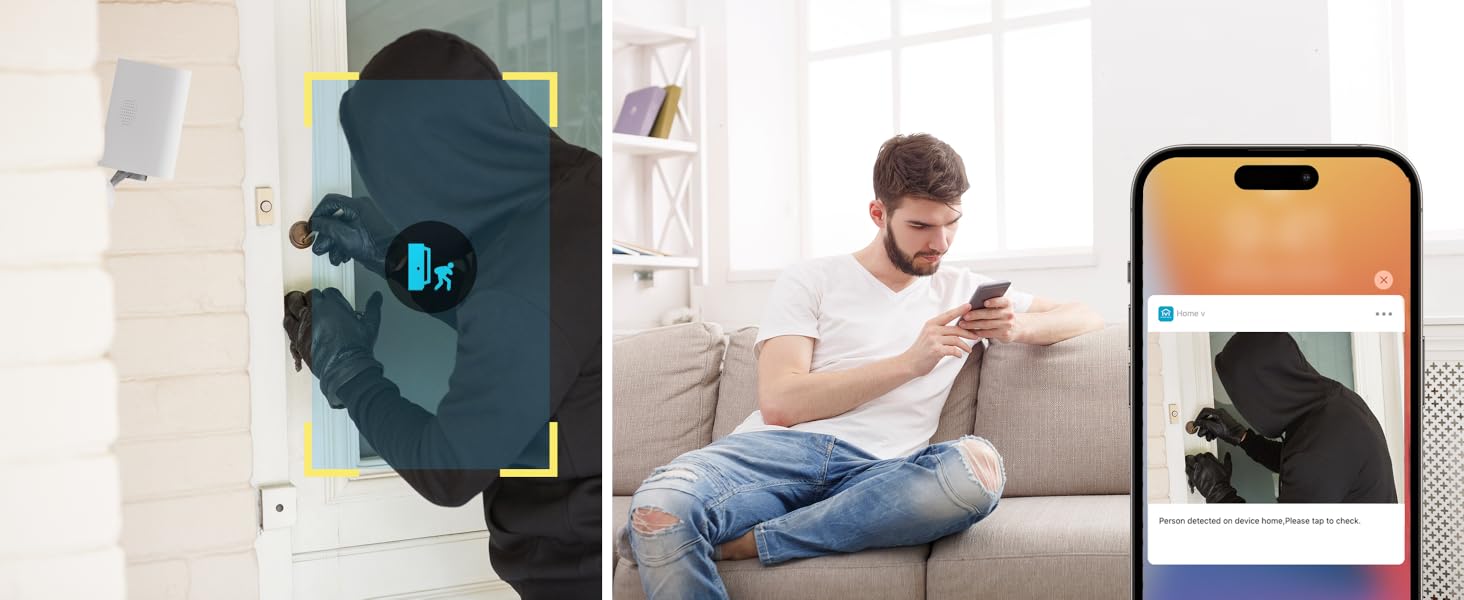
Image: Two-way audio feature for communication.
6.2 Nchọpụta na Ịdọ Aka Ná Ntị
The camera features advanced PIR motion detection and AI capabilities to minimize false alarms.
- Nchọpụta ngagharị PIR: Detects motion up to 30 feet.
- Mkpu Smart: Receive instant notifications on your smartphone when motion is detected.
- AI Detection (Cloud Subscription): With an optional cloud subscription, the camera can differentiate between humans, vehicles, and animals, reducing irrelevant alerts.
- Mpaghara nchọpụta enwere ike ịhazi: Set specific areas for motion detection to focus on critical zones and ignore others.
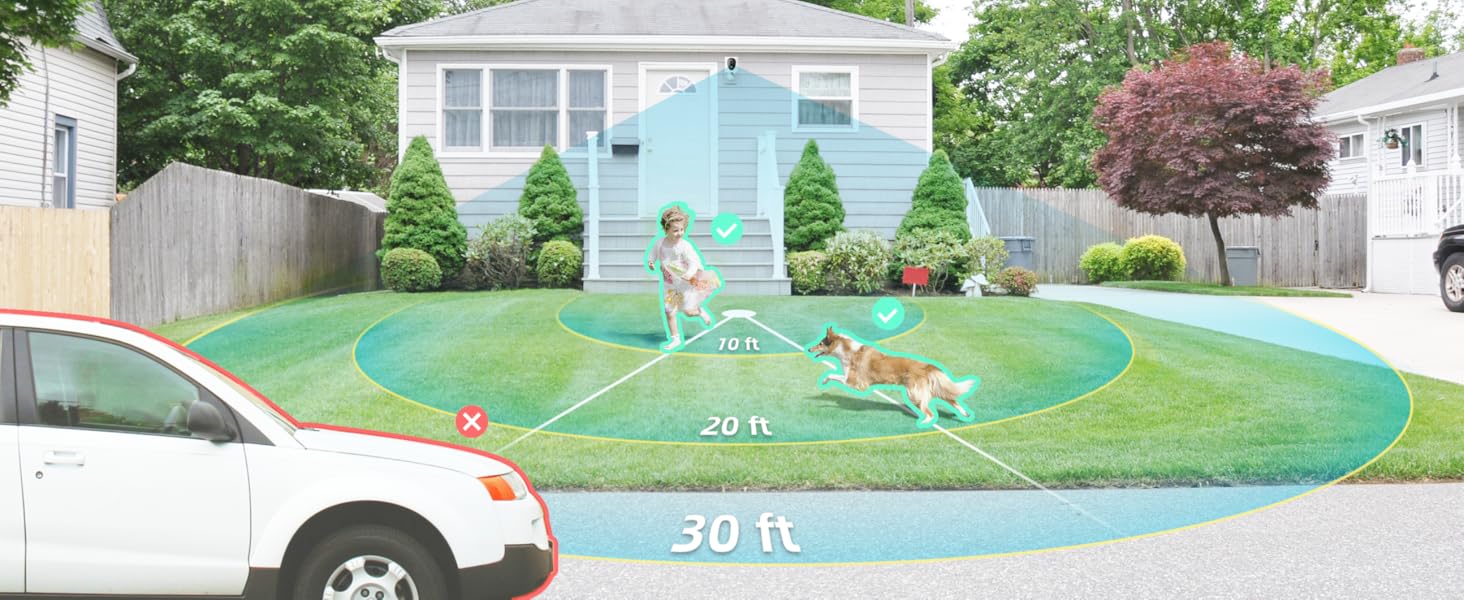
Image: Smart detection distinguishing between people, vehicles, and animals.
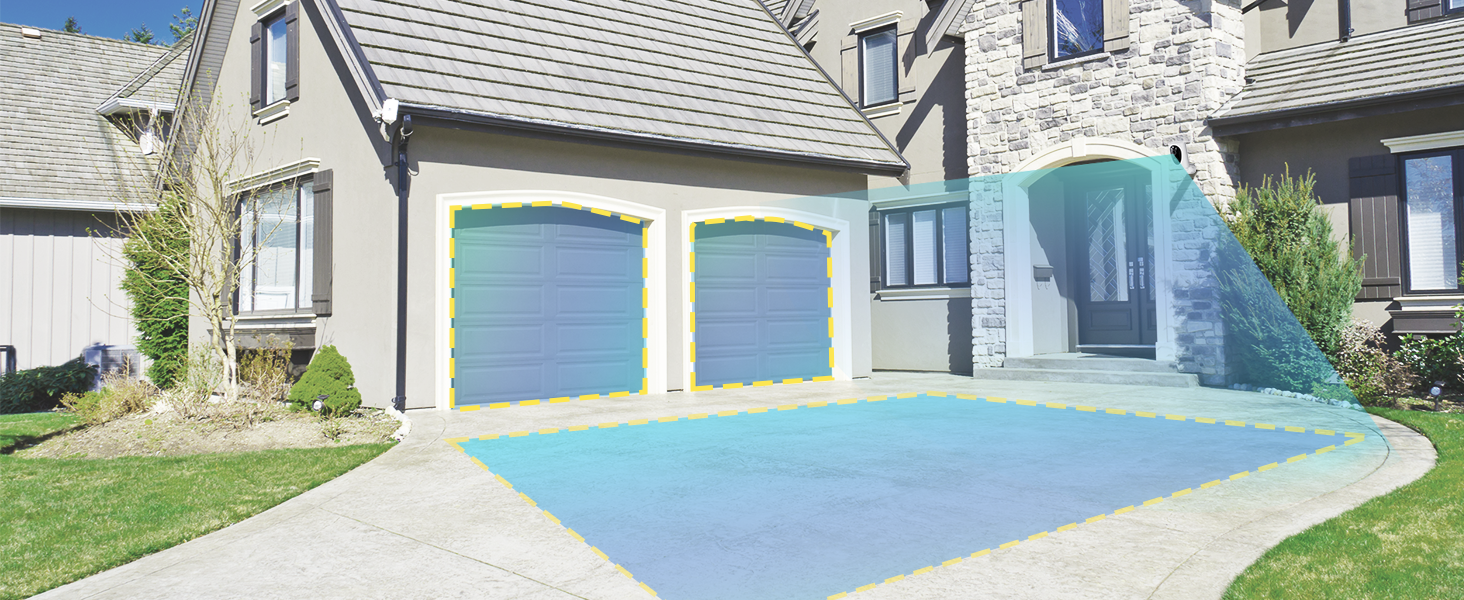
Image: Customizable motion detection zones.

Image: Instant alerts with image previews.
6.3 Ọhụụ abalị
The camera provides clear vision even in low-light conditions.
- Agba Ọhụụ abalị: Utilizes Starlight technology and a wide F1.6 aperture for vivid, color-rich images in low light.
- Ọhụụ IR Night: Equipped with 2 high-intensity IR LEDs for clear black-and-white viewing in complete darkness.

Image: Superior 2K QHD imaging and color-rich night vision.
6.4 Ndekọ na Nchekwa
Your data is secured with flexible storage options.
- Nchekwa mpaghara: Supports microSD cards from 32GB to 256GB for continuous recording, even without network access. (MicroSD card not included).
- Nchekwa igwe ojii: Optional cloud storage plans offer additional features like snapshot alerts and advanced AI capabilities. Video encryption ensures privacy.

Image: Comparison of no-fee basic storage (SD card) and cloud storage options.
6.5 App Features and Remote Access
Manage and control your security remotely via the 'HOME V' app.
- Nleba anya anya: Monitor your home from anywhere with an internet connection.
- Nnweta ọtụtụ onye ọrụ: Share camera access with family members.
- Ịhazi oge: Set schedules for recording or alerts.

Image: Remote access and multi-user monitoring via the 'HOME V' app.
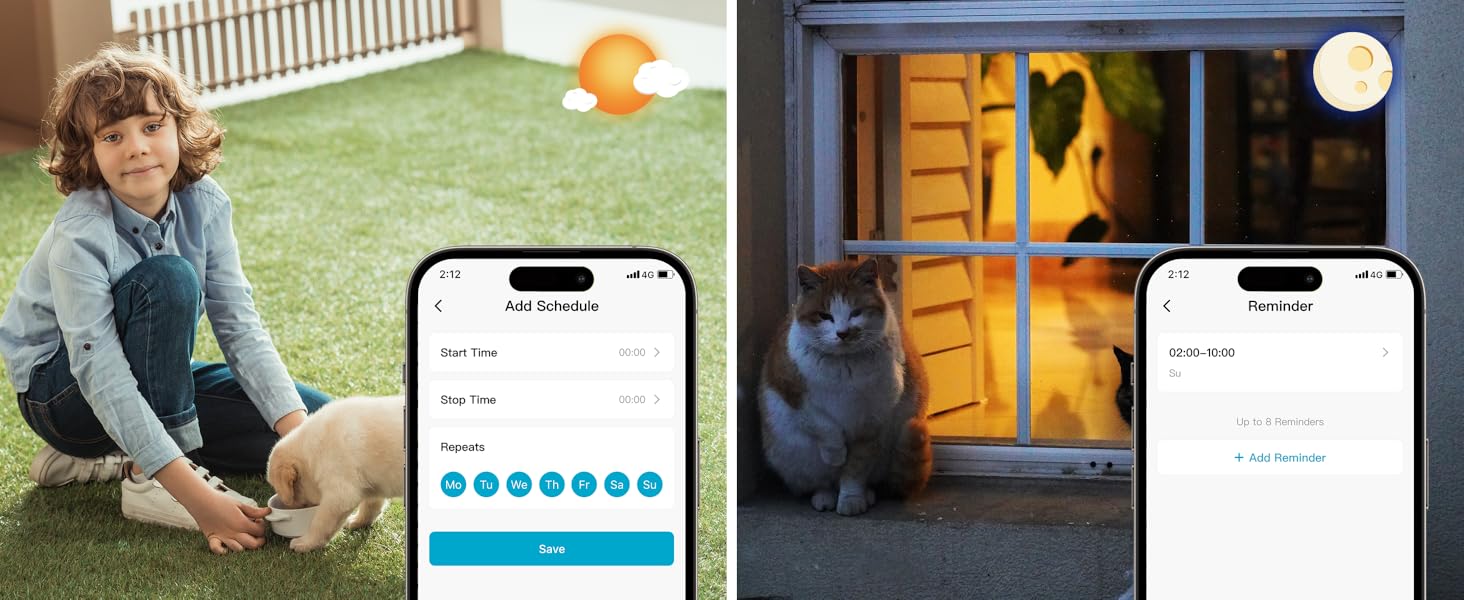
Image: App features including scheduling and reminders.
7. Nlekọta
- Ịchaji batrị: Recharge the camera battery when prompted by the app. A full charge can last 1-3 months depending on activity.
- Nhicha: Jiri nwayọ hichaa oghere igwefoto na ahụ ya jiri nwayọ, damp akwa . Zere ndị na-ehicha ihe na-ekpo ọkụ.
- Mmelite femụwe: Regularly check the 'HOME V' app for firmware updates to ensure optimal performance and security.
8. Nchọpụta nsogbu
| Okwu | Ihe nwere ike ime | Ngwọta |
|---|---|---|
| Camera won't power on | Battery depleted; Power switch off | Charge the camera fully; Ensure power switch is in the 'ON' position. |
| Enweghị ike ijikọ na Wi-Fi | Incorrect Wi-Fi password; 5GHz Wi-Fi network; Weak Wi-Fi signal | Verify password; Ensure you are connecting to a 2.4GHz network; Move camera closer to router or use a Wi-Fi extender. |
| Mkpu ụgha ugboro ugboro | High motion sensitivity; Unfiltered motion sources (e.g., trees, animals) | Adjust motion sensitivity in app; Set up detection zones to exclude irrelevant areas; Consider cloud subscription for AI detection. |
| Poor night vision clarity | Dirty lens; Obstruction in front of camera; Insufficient ambient light for color night vision | Clean the lens; Remove obstructions; Ensure adequate ambient light for color mode or switch to IR night vision. |
| Batrị na-agbapụ ngwa ngwa | High activity/recordings; Frequent live view access; Weak Wi-Fi signal | Reduce motion detection sensitivity; Limit live view sessions; Improve Wi-Fi signal strength. |
9. Nkọwapụta
| Njirimara | Nkọwa |
|---|---|
| Aha Nlereanya | LJH10 |
| Ojiji ime ime/n'èzí | Ime ụlọ, n'èzí |
| Isi Iyi Ike | Battery Powered (4400mAh rechargeable Lithium battery) |
| Protocol Njikọta | Wi-Fi (naanị 2.4GHz) |
| Ụdị njikwa | HOME V App |
| Ụdị nkwụnye | Ugwu mgbidi |
| Mkpebi ịse vidiyo | 2K QHD |
| Viewna n'akuku | 120 Degrees (Field of Viewokpomọkụ: 130 degrees) |
| Oke ọhụụ abalị | 30 ụkwụ |
| Teknụzụ ọkụ dị ala | Starlight (F1.6 aperture, 3.0mm focal length) |
| Ọnụọgụ nke IR LEDs | 2 |
| Ọkwa Nguzogide mmiri | Waterproof |
| Akụkụ (L x W x H) | 2.7 x 1.3 x 3.2 sentimita asatọ |
| Ibu Ibu | 1.41 pound |
| Nhọrọ nchekwa | MicroSD (32GB-256GB), Cloud Storage |
| Atụmatụ pụrụ iche | 2-Way Audio, Battery Powered, Local Recording, Motion Sensor, Night Vision, AI Motion Detection |
10. Akwụkwọ ikike na nkwado
virtavo products are designed for reliability and performance. For information regarding product warranty, please refer to the warranty card included in your product packaging or visit the official virtavo website. If you encounter any issues or have questions not covered in this manual, please contact virtavo customer support through the 'HOME V' app or their official support channels for assistance.


