Okwu mmalite
This manual provides detailed instructions for the installation, operation, and maintenance of your GOWENIC PCIe to USB 3.2 Gen 2 Card. This expansion card is designed to add high-speed USB 3.2 Gen 2 ports to your desktop computer, enhancing connectivity and data transfer capabilities. Please read this manual thoroughly before installation and use.
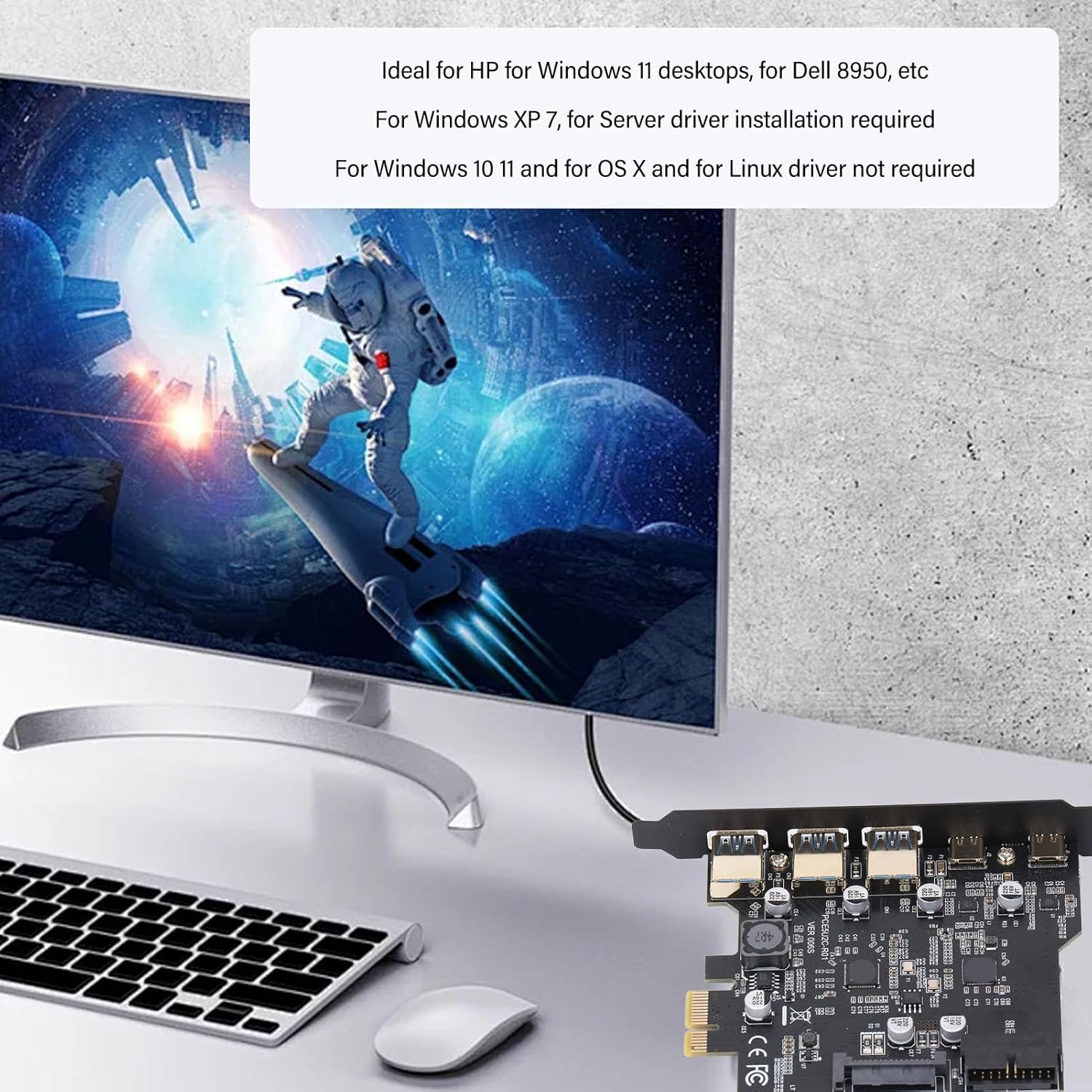
Figure 1: GOWENIC PCIe to USB 3.2 Gen 2 Card overview.
Njirimara ngwaahịa
- Ọtụtụ ọdụ ụgbọ mmiri: Provides 5 external USB 3.2 Gen 2 ports (3 USB Type-A and 2 USB Type-C) for connecting various peripherals such as keyboards, mice, external hard drives, webcams, printers, scanners, and game controllers.
- Nyefee Ọsọ Ọsọ: Offers a total bandwidth of up to 20Gbps. One USB Type-C port and three USB Type-A ports share 10Gbps bandwidth, while the remaining two Type-C ports share an additional 10Gbps bandwidth. Each individual port supports data transfer rates up to 10Gbps.
- Ndakọrịta sara mbara: Compatible with Windows 7, 8, 10, 11 (32/64 bit), macOS 10.8.2 and higher, and Linux. Drivers are required for Windows 7 and Windows Server; no drivers are needed for Windows 10, 11, macOS, and Linux.
- Stable and Easy to Use: Utilizes a PCI Express slot for a stable connection, preventing connection loss issues common with external USB hubs. Designed for quick and straightforward installation.
Nkọwapụta
| Ụdị | GOWENIC |
| Nọmba nlereanya | GOWENIC6c5d9ufq73 |
| Ngwaọrụ Akụrụngwa | PCIe, USB |
| ọdụ ụgbọ mmiri USB | 3x USB Type-A, 2x USB Type-C (USB 3.2 Gen 2) |
| Ọnụego mbufe data | Up to 20Gbps total bandwidth; up to 10Gbps per individual port |
| Sistemu eji arụ ọrụ dakọtara | Windows 7, 8, 10, 11 (32/64 bit), macOS 10.8.2+, Linux |
| Ngwa dakọtara | Kọmputa kọmputa |
| Ibu Ibu | 2.82 ounces (0.08 Kilogram) |
| Akụkụ ngwugwu | 5 x 4.06 x 1.06 sentimita asatọ |
Ntuziaka nwụnye
Follow these steps to properly install the GOWENIC PCIe to USB 3.2 Gen 2 Card into your desktop computer:
- Prepare Your PC: Turn off your computer completely and unplug it from the power outlet.
- Mepee akpa PC: Carefully remove the side panel of your PC case to access the internal components.
- Chọta oghere PCIe: Identify an available PCI Express slot on your motherboard.
- Fanye kaadị: Gently insert the GOWENIC PCIe card into the chosen PCIe slot, ensuring it is seated firmly.
- Kaadị echedoro: Tighten the screws to secure the card in place within the PC case.
- Mechie akpa PC: Replace the PC case cover.
- Power On and Install Driver: Plug your PC back in and turn it on. For Windows 7 or Windows Server, you will need to install the appropriate drivers. For Windows 10, 11, macOS, and Linux, drivers are typically not required as they are automatically detected.
- Note for Narrow Slots: If the slot area at the rear of your PC mainframe is narrow, you may need to carefully cut the crossbar between the two slots using small sheet metal hand pliers to ensure proper fitment.

Figure 2: Visual guide for installing the PCIe to USB 3.2 Gen 2 Card.
Video 1: Demonstration of the GOWENIC PCIe to USB 3.2 Gen 2 Card installation process.
Ntuziaka ọrụ
Once the GOWENIC PCIe to USB 3.2 Gen 2 Card is installed and recognized by your operating system, you can begin connecting your USB devices.
- Ngwa njikọ: Plug your USB 3.2 Gen 2 compatible devices into the available Type-A or Type-C ports on the expansion card. The card supports a wide range of USB peripherals.
- Ịrụ Ọsọ Ọsọ: For optimal performance, ensure your connected devices and cables are USB 3.2 Gen 2 compatible. This will allow you to utilize the full 10Gbps transfer speed per port.
- Driver Status:
- For Windows 10, 11, macOS, and Linux: The card should be automatically detected and configured by the operating system. No manual driver installation is typically required.
- For Windows 7 and Windows Server: You will need to install the specific drivers provided by GOWENIC or available through your system's device manager. Refer to the manufacturer's website for the latest driver downloads if needed.

Figure 3: High-speed data transfer with the GOWENIC USB 3.2 Gen 2 Card.

Figure 4: Stable and easy integration of the GOWENIC USB 3.2 Gen 2 Card.
Ndakọrịta
The GOWENIC PCIe to USB 3.2 Gen 2 Card offers broad compatibility with various operating systems and desktop environments:
- Sistemu eji arụ ọrụ:
- Windows 7, 8, 10, 11 (32-bit and 64-bit versions)
- macOS 10.8.2 and higher
- Linux
- Windows Server (driver required)
- Desktop Systems: Ideal for modern desktop PCs, including models like HP for Windows 11 desktops and Dell 8950.

Figure 5: Operating system compatibility for the GOWENIC USB 3.2 Gen 2 Card.
Nchọpụta nsogbu
If you encounter issues with your GOWENIC PCIe to USB 3.2 Gen 2 Card, consider the following troubleshooting steps:
- Card Not Detected:
- Hụ na kaadị ahụ nọdụrụ n'oghere PCIe nke ọma.
- Verify that the PCIE slot is functional by testing with another known working card if possible.
- Check your motherboard's BIOS/UEFI settings to ensure the PCIe slot is enabled.
- Devices Not Recognized:
- Confirm that the necessary drivers are installed, especially for Windows 7 or Windows Server.
- Test the USB device on another port or computer to rule out device issues.
- Ensure the USB cable is functioning correctly and is properly connected.
- Ọsọ mbufe nwayọ:
- Verify that both the connected device and the USB cable support USB 3.2 Gen 2 (10Gbps). Older USB 2.0 or 3.0 devices will operate at their respective maximum speeds.
- Ensure the card is receiving adequate power.
- Okwu Mma Ahụ: If the card does not fit due to a narrow slot area, refer to the "Installation Guide" for instructions on modifying the PC case crossbar.
Nlekọta
The GOWENIC PCIe to USB 3.2 Gen 2 Card requires minimal maintenance. To ensure longevity and optimal performance:
- Debe Ọcha: Periodically clean the interior of your PC case to prevent dust buildup on the card, which can affect cooling and performance. Use compressed air for this purpose.
- Njikọ ndị siri ike: Ensure all connections (PCIe slot, USB cables) remain firm and secure.
- Mmelite ngwanrọ: Keep your operating system and, if applicable, drivers updated to ensure compatibility and performance improvements.
Akwụkwọ ikike na nkwado
GOWENIC products are designed for reliability and performance. For warranty information, technical support, or further assistance, please refer to the official GOWENIC websaịtị ma ọ bụ kpọtụrụ ndị ahịa ha ozugbo. Debe akwụkwọ nnata ịzụrụ maka akwụkwọ ikike.
Ngwaahịa gafereview
Here are additional views of the GOWENIC PCIe to USB 3.2 Gen 2 Card, highlighting its design and components.

Ọgụgụ 6: N'akuku view of the GOWENIC PCIe Card.

Ọgụgụ 7: N'elu-ala view of the GOWENIC PCIe Card.

Foto 8: N'ihu view of the GOWENIC PCIe Card with all 5 ports visible.