1. Ngwaahịa gafereview
The Darmoshark M5PRO is a lightweight, tri-mode wireless gaming mouse designed for precision and versatility. It features a PAW3950 optical sensor, up to 30000 DPI, and 5 programmable buttons. The mouse supports 8K wireless, Bluetooth, and wired connections.

Image 1.1: The Darmoshark M5PRO mouse (red) and its 8K wireless receiver.

Image 1.2: Key features of the M5PRO mouse, including its sensor, polling rate, and microcontroller.
Vidiyo nke 1.1: Mwepuview of the Darmoshark M5PRO Wireless Gaming Mouse, showcasing its design and various color options.
2. Nhazi ntuziaka
2.1 Ịchaji òké
Before initial use, ensure the mouse is fully charged. Connect the provided USB-C cable to the mouse and a power source (e.g., computer USB port, USB wall adapter). The LED indicator will show charging status.

Image 2.1: The M5PRO mouse is equipped with a 300mAh lithium battery for extended use.
2.2 Ụdị njikọ
The M5PRO mouse supports three connection modes: 8K wireless, Bluetooth, and wired USB-C.
2.2.1 8K Wireless Connection
- Connect the 8K wireless receiver to an available USB port on your computer.
- Turn on the mouse and select the 8K wireless mode using the switch on the bottom of the mouse.
- Òké kwesịrị jikọọ na akpaghị aka na nnata.

Image 2.2: The 8K wireless receiver provides a high-speed connection for the M5PRO mouse.
2.2.2 Njikọ Bluetooth
- Turn on the mouse and select the Bluetooth mode using the switch on the bottom of the mouse.
- Na kọmputa ma ọ bụ ngwaọrụ gị, gaa na ntọala Bluetooth wee chọọ ngwaọrụ ọhụrụ.
- Select "Darmoshark M5PRO" from the list of available devices to pair.
2.2.3 Njikọ wired
- Connect the USB-C cable to the mouse and the other end to a USB port on your computer.
- Òké ga-agbanwe na-akpaghị aka na wired mode wee malite chajị.
3. Ntuziaka ọrụ
3.1 bọtịnụ Ọrụ
The M5PRO mouse features 5 programmable buttons:
- Pịa aka ekpe bọtịnụ
- Pịa aka nri bọtịnụ
- Scroll Wheel (Clickable)
- Bọtịnụ n'ihu (Akụkụ)
- Bọtịnụ Azụ (Akụkụ)
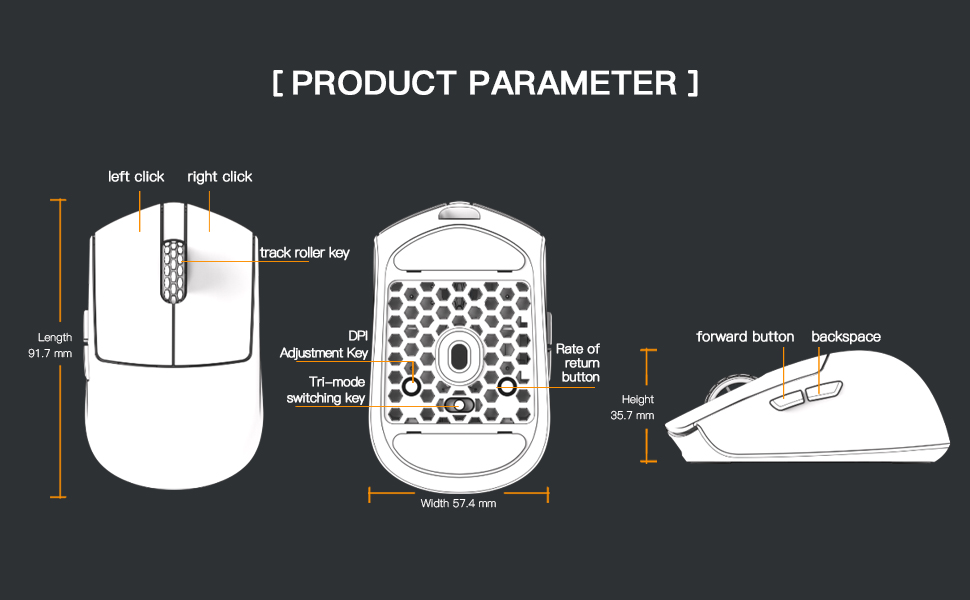
Image 3.1: Diagram illustrating the button layout and dimensions of the M5PRO mouse.
3.2 DPI mmezi
The DPI (Dots Per Inch) sensitivity can be adjusted using the dedicated DPI adjustment key located on the bottom of the mouse. Press the button to cycle through preset DPI levels. The current DPI level may be indicated by an LED color change (refer to software for specific mappings).
3.3 Ngbanwe ọnọdụ
Use the switch on the bottom of the mouse to select between 8K wireless, Bluetooth, and wired modes.
3.4 Nhazi Ngwanrọ
For advanced customization, including button remapping, macro creation, and DPI fine-tuning, download the proprietary drivers from the official Darmoshark website. The software allows for personalized settings to optimize your experience.
Image 3.2: The proprietary driver software allows for extensive customization of mouse settings.
4. Nlekọta
4.1 Nhicha
Iji hichaa òké, jiri akwa dị nro, kpọrọ nkụ. Maka unyi isi ike, ntakịrị damp cloth can be used, but ensure no moisture enters the mouse. Avoid using harsh chemicals or abrasive materials.
4.2 Nchekwa
When not in use for extended periods, store the mouse in a cool, dry place away from direct sunlight and extreme temperatures. Ensure the mouse is turned off to conserve battery life.

Foto nke abụọ: gbawara view of the M5PRO mouse, highlighting its internal structure and lightweight components.
5. Nchọpụta nsogbu
5.1 Òké Anaghị azaghachi
- Lelee batrị: Ensure the mouse is charged. Connect it via USB-C cable to charge.
- Lelee njikọ: Verify the correct mode (8K wireless, Bluetooth, or wired) is selected on the mouse.
- Receiver/Cable: For 8K wireless, ensure the receiver is securely plugged into a working USB port. For wired, ensure the cable is properly connected.
- Tinyegharịa Bluetooth: If using Bluetooth, try removing the device from your computer's Bluetooth settings and re-pairing it.
5.2 Nsogbu Mmegharị Kọnsọ
- Ihe mmetụta dị ọcha: Ensure the optical sensor on the bottom of the mouse is clean and free from debris.
- Elu: Use the mouse on a suitable surface, preferably a mouse pad, for optimal tracking.
- Ntọala DPI: Adjust the DPI sensitivity to a comfortable level.
5.3 Ngwanrọ Na-anaghị Achọpụta Òké
- Njikọ waya: Connect the mouse via USB-C cable to ensure the software can detect it.
- Wụnye ngwanrọ ọzọ: Try uninstalling and reinstalling the proprietary drivers.
- Femụwe Update: Check the Darmoshark website for any available firmware updates for the mouse.
6. Nkọwapụta
| Njirimara | Nkọwapụta |
|---|---|
| Ụdị | Darmoshark |
| Nlereanya | M5PRO |
| Teknụzụ Njikọta | 8K Wireless, Bluetooth, Wired (USB-C) |
| Teknụzụ nchọpụta ngagharị | PAW3950 Ihe mmetụta anya |
| DPI kacha elu | 30000 DPI |
| Ọnụego ntuli aka | Up to 8KHz (8K wireless mode) |
| Ọnụọgụ bọtịnụ | 5 (nwere ike ime mmemme) |
| Ibu | Ihe dị ka gram 38 |
| Batrị | 1 batrị lithium ion (gụnyere) |
| Ndakọrịta | Windows, Apple Mac |
Image 6.1: The PAW3950 optical sensor is a core component for precise tracking.
7. Akwụkwọ ikike na nkwado
For warranty information and technical support, please refer to the official Darmoshark websaịtị ma ọ bụ kpọtụrụ ndị ahịa ha ọrụ. Debe ihe akaebe nke ịzụrụ ihe maka akwụkwọ ikike.
Official Darmoshark Websaịtị: Darmoshark Store


