Okwu mmalite
This user manual provides comprehensive instructions for the setup, operation, and maintenance of your Kogan 55" QLED 4K 144Hz Smart AI Google TV (Model: KAQL55XQ98GSTA). Please read this manual thoroughly before using your TV to ensure proper functionality and to maximize your viewahụmahụ. Debe akwụkwọ ntuziaka a maka ntụnye aka n'ọdịnihu.

Figure 1: Kogan 55" QLED 4K 144Hz Smart AI Google TV
This image shows the Kogan 55-inch QLED 4K 144Hz Smart AI Google TV from the front, highlighting its slim bezels and the vibrant display. The Kogan logo is visible on the bottom left, and the screen displays a colorful abstract pattern, emphasizing its QLED technology.
Melite
Mwepu na nyocha izizi
Carefully remove the TV from its packaging. Inspect the TV and all accessories for any signs of damage. If any damage is found, do not proceed with setup and contact Kogan customer support immediately.
Attaching the Stand or Wall Mounting
Your TV comes with a stand for tabletop placement. For wall mounting, a VESA-compatible wall mount (not included) is required. Refer to the wall mount's instructions for proper installation.
- Nwụnye guzoro:
- Tinye ihu TV ala n'elu ala dị nro ma dị ọcha iji gbochie mmebi ihuenyo.
- Align the stand brackets with the screw holes on the bottom of the TV.
- Jiri skru ndị enyere sie ike. Hụ na ihe nkwụnye ahụ siri ike.
- Ịkwanye mgbidi:
This TV supports wall mounting. Ensure you use a compatible wall mount and follow the manufacturer's instructions for safe and secure installation. Professional installation is recommended for wall mounting.
Njikọ Peripherals
Connect your external devices such as set-top boxes, gaming consoles, or sound systems to the TV's input ports (HDMI, USB, etc.).
- Njikọ HDMI: Use HDMI cables for high-definition video and audio. This TV features multiple HDMI inputs.
- Njikọ USB: Jikọọ ngwaọrụ USB maka ịkpọghachi mgbasa ozi.
- Njikọ ike: Plug the power cord into the TV's power input, then into a wall outlet.
Ntuziaka ọrụ
First-Time Setup and Google TV
Upon first power-on, the TV will guide you through the initial setup process, including network connection, Google account login, and channel scanning. Google TV integrates your favorite streaming services and content into one personalized hub.

Figure 2: Google TV Interface in Use
This image depicts two individuals comfortably seated in a living room, viewing the Kogan Google TV. The TV screen displays the Google TV interface with various streaming app icons and content recommendations, illustrating the user-friendly nature of the smart TV system.

Figure 3: Detailed Google TV Home Screen
This image provides a closer look at the Google TV home screen, showcasing content recommendations like "Nine Perfect Strangers" and various app icons such as Netflix, YouTube, and Prime Video. The interface is clean and organized, making content discovery intuitive.

Figure 4: All Your Favorite Apps
This image highlights the extensive selection of streaming applications available on the Kogan Google TV. It displays numerous popular app logos, including Netflix, Prime Video, Disney+, YouTube, and Stan, emphasizing the TV's capability to serve as a comprehensive entertainment hub.
Isi atụmatụ na ọrụ
- Teknụzụ QLED: Experience mesmerizing color reproduction and vibrant visuals thanks to Quantum Dot Technology.
- Mkpebi UHD 4K: Enjoy stunning clarity and detail with 3840 x 2160 pixel resolution.

Figure 5: Ultra HD (4K) Visual Comparison
This image visually compares Full HD and Ultra HD (4K) resolutions using a scenic view of boats on clear water. The 4K side demonstrates significantly clearer picture quality and sharper colors, illustrating the enhanced immersive viewing experience provided by 4K resolution.
- 144Hz Variable Refresh Rate (VRR): Achieve smoother and tear-free visuals, especially beneficial for fast-paced scenes and gaming.

Figure 6: 144Hz Variable Refresh Rate in Action
This image illustrates the benefit of a 144Hz Variable Refresh Rate (VRR) for gaming. It shows a split screen with a racing game, comparing the visual quality "Without 144Hz VRR" (blurry) and "With 144Hz VRR" (sharp and smooth), highlighting the enhanced gaming experience.
- Dolby Vision™: Enjoy cinematic immersion with lifelike and vibrant visuals.
- High-Dynamic Range (HDR): Delivers brighter highlights, better contrast, and more realistic colors.
- Built-in Google Chromecast: Stream content directly from your smartphone, laptop, or tablet to your TV.
- Ụlọ ahịa Google Play: Access over 400,000 movies, TV episodes, live TV, and a wide range of applications.
- Motion Estimation & Motion Compensation (MEMC): Improves clarity and reduces blur in fast-moving scenes for smoother visuals.
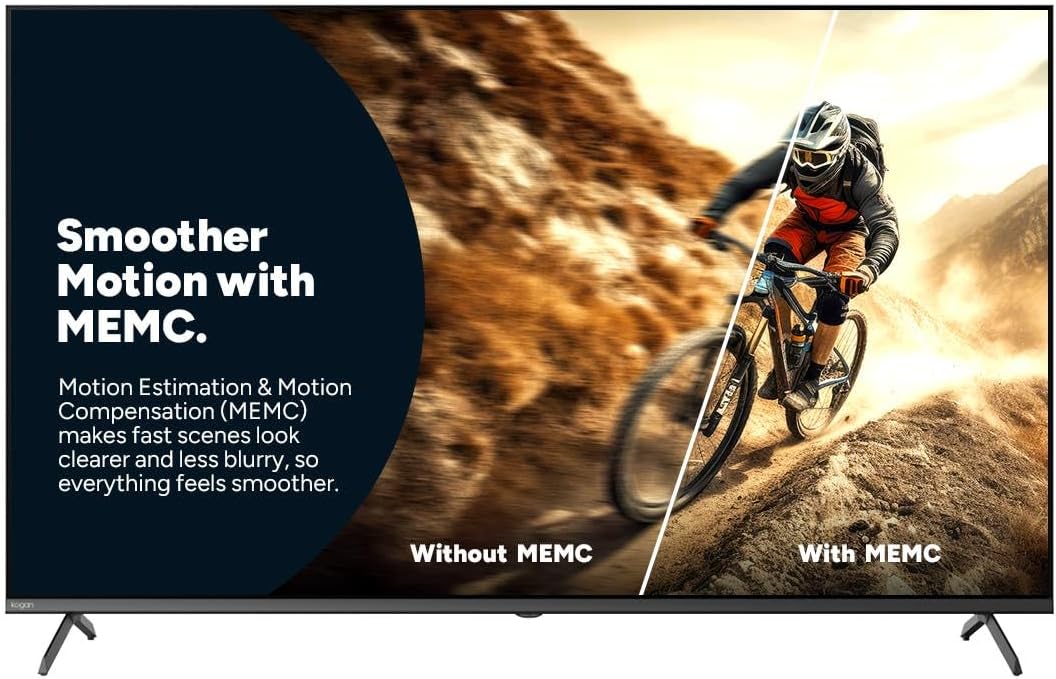
Figure 7: Smoother Motion with MEMC
This image demonstrates the effect of Motion Estimation & Motion Compensation (MEMC). It shows a split view of a cyclist in motion, comparing the visual "Without MEMC" (blurry) and "With MEMC" (clearer and smoother), illustrating how MEMC enhances the clarity of fast-paced scenes.
- Ụdị nkwụsịtụ obere akpaaka (ALLM): Automatically reduces response time for an ultra-smooth and lag-free gaming experience.
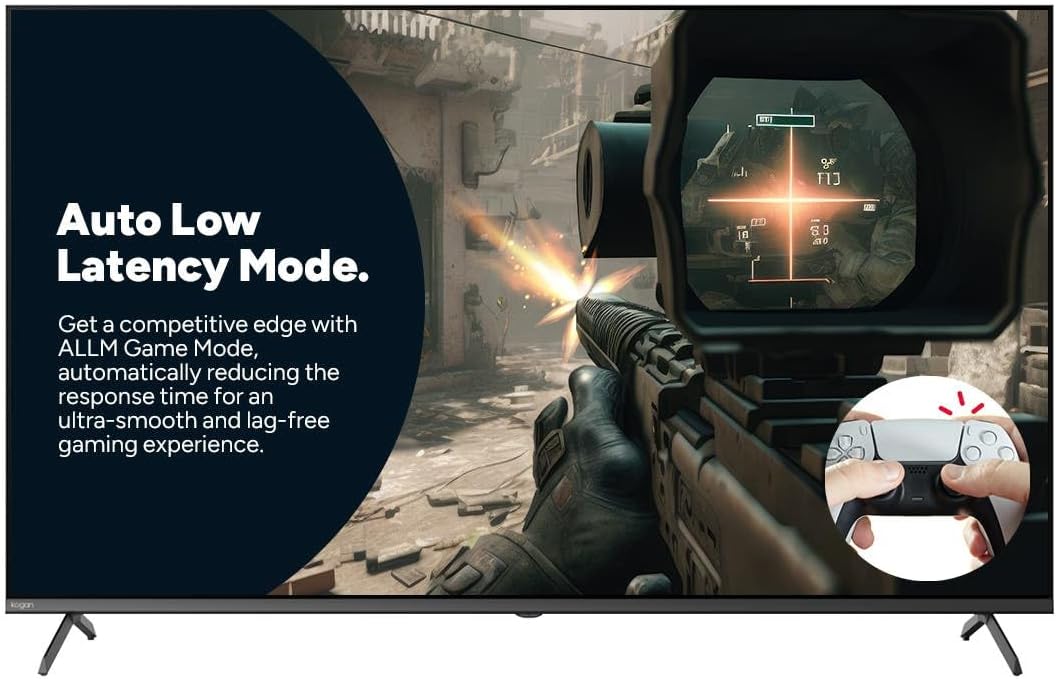
Figure 8: Auto Low Latency Mode for Gaming
This image highlights the benefits of Auto Low Latency Mode (ALLM) for gaming. It features a first-person shooter game scene, emphasizing how ALLM automatically reduces response time, providing a competitive edge with ultra-smooth and lag-free gameplay.
Ojiji njikwa anya
The included remote control allows you to navigate the Google TV interface, adjust settings, change channels, and control connected devices. Familiarize yourself with the button layout for optimal use.
Nlekọta
Na-ehicha TV
- Ihuenyo: Jiri nwayọ hichaa ihuenyo ahụ site na iji akwa dị nro na-enweghị lint. Maka akara isi ike, jiri ihe nhicha ihuenyo emebere maka TV, tinye ya na akwa, ọ bụghị ozugbo na ihuenyo.
- Frame: Jiri ákwà dị nro ma kpọọ nkụ hichaa fremu TV ahụ ma kwụnye ya.
- Ejila: Zere iji ihe nhicha, wax, ma ọ bụ ihe mgbaze mee ihe n'ihi na ha nwere ike imebi ihe dị na TV ahụ.
Nlekọta izugbe
- Gbaa mbọ hụ na ikuku zuru oke na gburugburu TV iji gbochie ikpo oke ọkụ.
- Mee ka TV ghara ịdị na ìhè anyanwụ kpọmkwem, ebe okpomọkụ, na uzuzu buru ibu.
- Kwụpụ TV ahụ na ebe ọkụ eletrik n'oge oké ifufe ma ọ bụ mgbe a hapụrụ ya n'enweghị onye na-elekọta ya ruo ogologo oge.
Nchọpụta nsogbu
If you encounter issues with your Kogan TV, refer to the following common problems and solutions. If the problem persists, contact Kogan customer support.
| Nsogbu | Ihe kpatara/ Ngwọta nwere ike ime |
|---|---|
| Enweghị ike | Check if the power cord is securely plugged into the TV and the wall outlet. Ensure the wall outlet has power. Try a different outlet. |
| Enweghị foto / ụda | Verify the correct input source is selected (e.g., HDMI 1, TV). Check cable connections to external devices. Ensure volume is not muted or too low. |
| Njikwa Remote anaghị arụ ọrụ | Lelee ma gbanwee batrị. Hụ na enweghị ihe mgbochi ọ bụla n'etiti ihe njikwa na ihe mmetụta IR nke TV. |
| Ogo Foto adịghị mma | Check antenna/cable connection. Adjust picture settings (brightness, contrast, sharpness). Ensure the source content is high quality. |
| Enweghị njikọ ịntanetị | Check Wi-Fi router and modem. Reconnect to the Wi-Fi network in TV settings. Try restarting the TV and router. |
Nkọwapụta
| Njirimara | Nkọwa |
|---|---|
| Ụdị | Kogan |
| Aha Nlereanya | Kogan 55" QLED 4K 144Hz Smart AI Google TV |
| Nọmba nlereanya | KAQL55XQ98GSTA |
| Nha ihuenyo | 55 sentimita asatọ |
| Ngosipụta teknụzụ | QLED |
| Mkpebi | 4K (3840 x 2160) |
| Ọnụego ume ọhụrụ | 144 Hz |
| Sistemụ nrụọrụ | Google TV |
| Ogo RAM | 3 GB |
| Atụmatụ pụrụ iche | Chromecast, Dolby Vision, HDR, MEMC, ALLM |
| Teknụzụ Njikọta | USB, HDMI |
| Ntinye ọdịyo dakọtara | USB, HDMI |
| Voltage | 240 volts |
| Ibu Ibu | 18.2 n'arọ |
| Akụkụ ngwugwu | 134 x 85 x 14 cm |
Akwụkwọ ikike na nkwado
For warranty information and technical support, please refer to the warranty card included with your product or visit the official Kogan website. You can also contact Kogan customer service directly for assistance with product issues or inquiries.
Kogan Support: https://www.kogan.com/au/help/