1. Okwu mmalite
This manual provides detailed instructions for setting up, operating, and maintaining your THOMSON 40-inch FHD Fire TV. Please read this manual thoroughly before using the television to ensure proper functionality and safety. Keep this manual for future reference.
2. Ozi nchekwa
Always follow basic safety precautions when using this product to reduce the risk of fire, electric shock, and injury.
- Ewepụla TV na mmiri ozuzo ma ọ bụ mmiri.
- Akwụsịla oghere ikuku.
- Hụ na e tinyere ntọala kwesịrị ekwesị maka plọg ike ahụ.
- Kwụpụ TV n'oge oké ifufe ọkụ ma ọ bụ mgbe ejighi ya ogologo oge.
- Tụtụ aka n'aka ndị ọrụ ruru eru.
3. Ihe ngwugwu
Chọpụta na etinyere ihe niile na ngwugwu gị:
- THOMSON 40-inch FHD Fire TV
- Njikwa anya (ya na batrị)
- Ụdọ ọkụ
- Ihe nkwụnye TV (2 iberibe)
- Ihe nkedo maka TV Stand
- Akwụkwọ ntuziaka (akwụkwọ a)

Image: The product box illustrating the TV, remote control, and various features like Fire TV, Alexa, and Dolby Audio.
4. Ngwaahịa gafereview
Familiarize yourself with the components and connections of your THOMSON Fire TV.
4.1 N'ihu View

Image: The front of the TV, showcasing its slim bezel and the Fire TV smart interface with popular streaming applications.
4.2 Akụkụ View na akụkụ
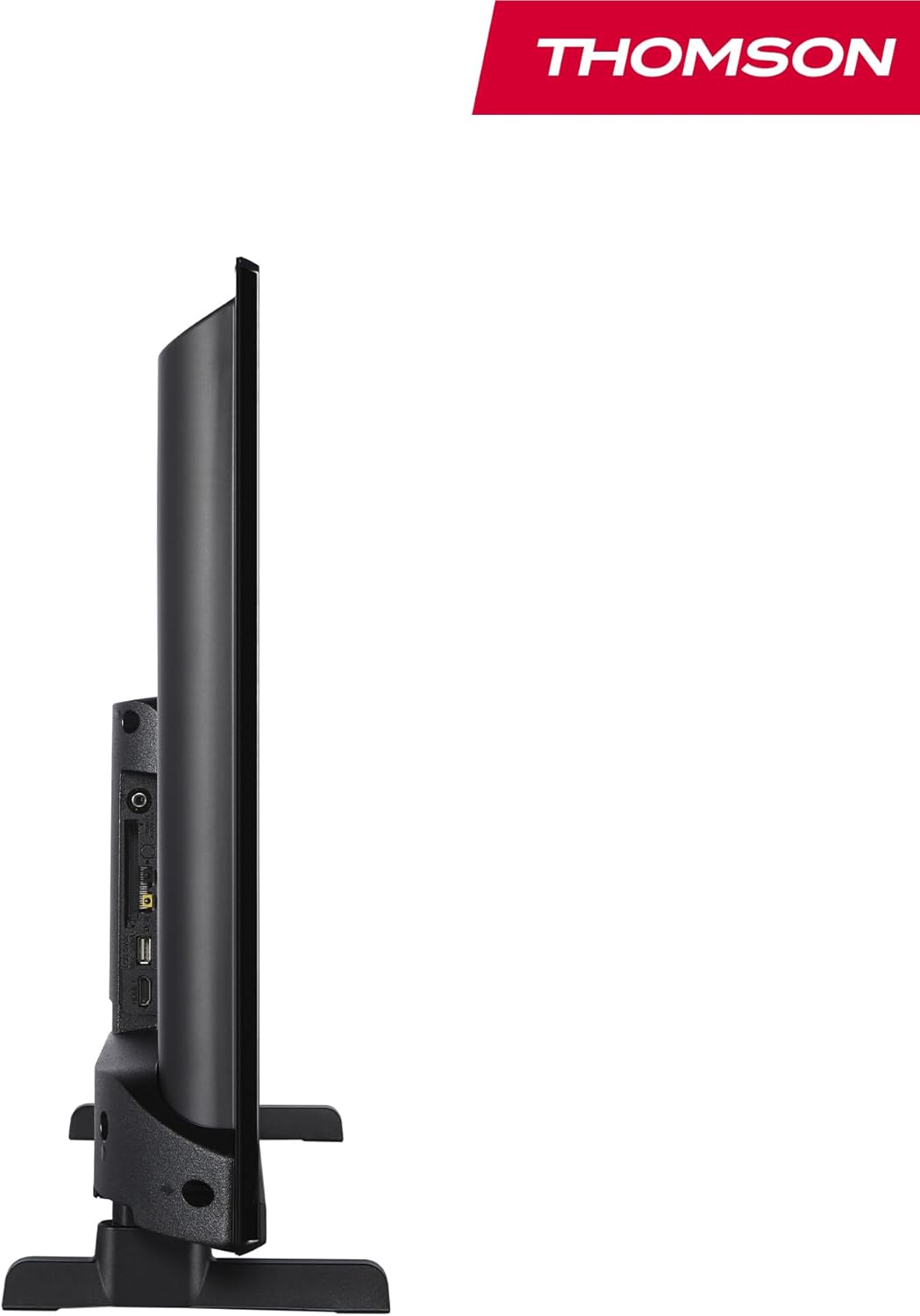
Foto: Akụkụ view of the television, demonstrating its thin profile.

Image: A diagram illustrating the physical dimensions of the TV, including width, height, and depth with the stand.
4.3 N'azụ View na Ọdụ ụgbọ mmiri
The rear panel of your TV features various input and output ports for connecting external devices.

Foto: nkọwa zuru ezu view of the TV's rear panel, highlighting all connectivity ports such as HDMI, USB, Audio Out, CI+, and antenna inputs.
- Apụọ ọdịyo: Maka ijikọ sistemụ ọdịyo mpụga.
- CI+: Common Interface Plus slot for conditional access modules.
- Igwe ekweisi: Jakị 3.5mm maka ige ntị nkeonwe.
- AV n'ime: For connecting older devices with composite video and stereo audio.
- USB 2.0: Maka ịkpọghachi mgbasa ozi sitere na draịva USB.
- HDMI 1.4 (x2): High-Definition Multimedia Interface for connecting Blu-ray players, game consoles, etc.
- Antenna: For connecting a terrestrial antenna (DVB-T2).
- Satellite: Maka ijikọ efere satịlaịtị (DVB-S2).
- LAN: Ọdụ ụgbọ mmiri Ethernet maka njikọ netwọk ikuku.
5. Nhazi
5.1 Na-agbakwunye ihe nkwụnye TV
- Jiri nlezianya dobe TV ihu n'elu ala dị nro ma dịkwa larịị iji gbochie mmebi ihuenyo.
- Dozie iberibe nkwụnye ahụ na oghere ndị kwekọrọ na ala TV.
- Chekwaa ihe nkwụnye ahụ site na iji skru ndị enyere.
5.2 Ike-mmalite na njikọ netwọkụ
- Connect the power cord to the TV and a wall outlet.
- Pịa bọtịnụ ike na TV ma ọ bụ njikwa ime ka ịgbanwuo ya.
- Follow the on-screen instructions for initial setup, including language selection and network connection (Wi-Fi or Ethernet).
- Log in with your Amazon account to activate Fire TV features.
5.3 Tuner Setup (Triple-Tuner)
Your TV is equipped with a triple-tuner for DVB-C (cable), DVB-S2 (satellite), and DVB-T2 (terrestrial) reception.

Image: The DVB-T2/C/S2 tuner inputs, allowing connection to various broadcast sources.
- Connect your antenna or satellite cable to the appropriate input on the TV.
- Navigate to the TV settings and select 'Channel Scan' or 'Tuner Setup'.
- Choose your broadcast type (Antenna, Cable, or Satellite) and follow the prompts to scan for available channels.
6. Ntuziaka ọrụ
6.1 Ọkụ TV Interface
The Fire TV interface provides easy access to your favorite streaming services, apps, and live TV.
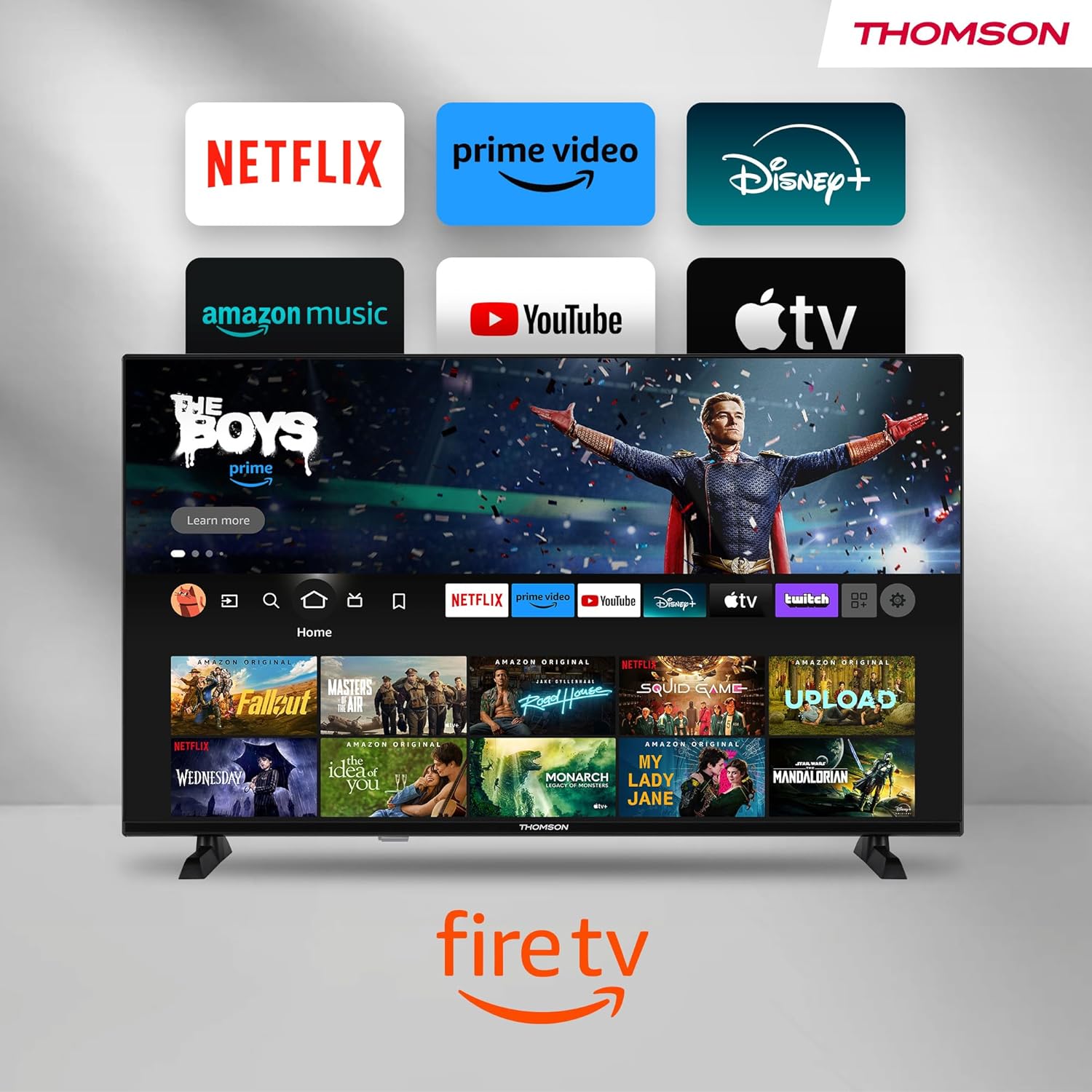
Image: The Fire TV home screen, showing a selection of popular streaming apps and content recommendations.
Navigate using the remote control's directional pad. The home screen provides personalized recommendations and quick access to your installed applications.
6.2 Alexa olu njikwa
Use the integrated Alexa voice control for hands-free operation.
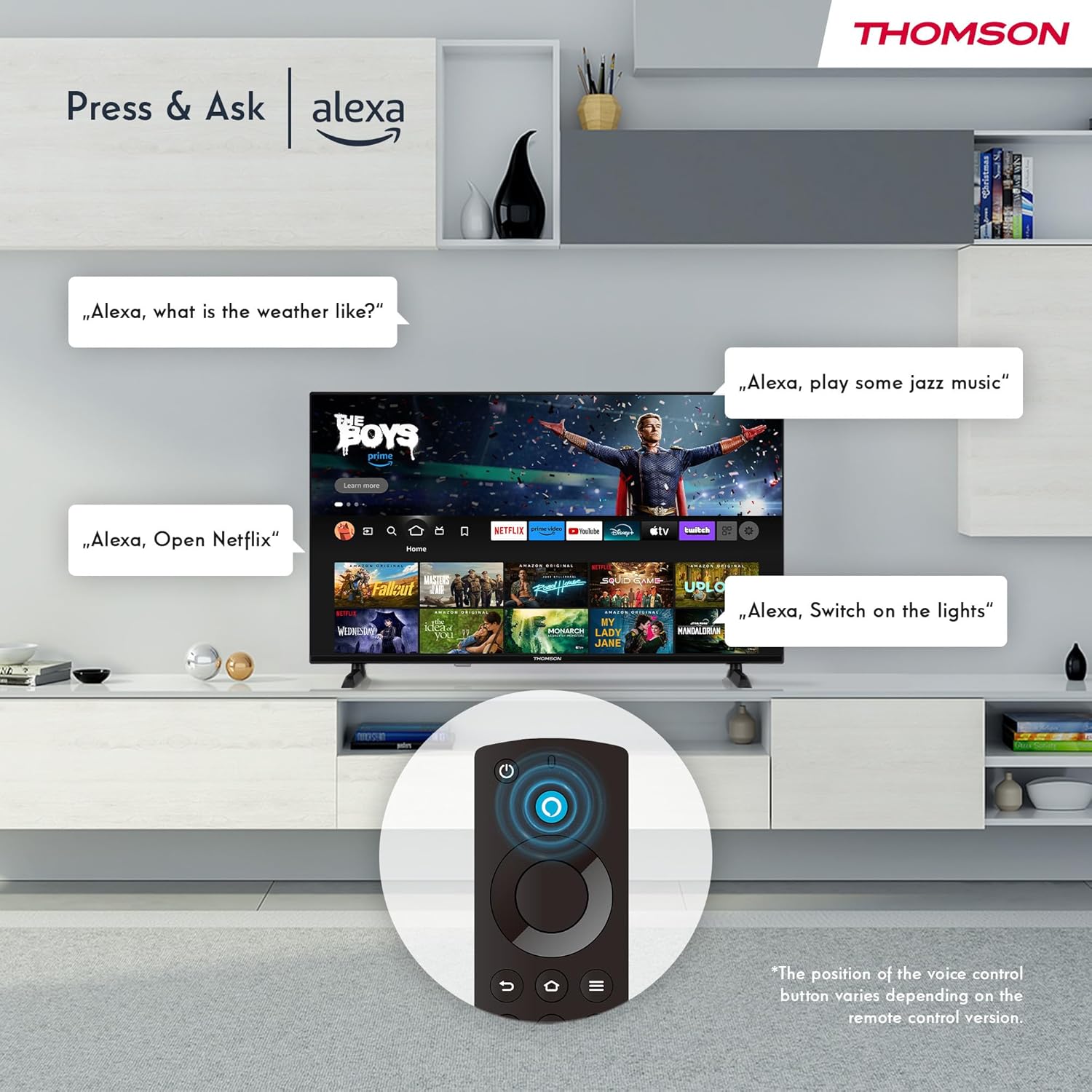
Image: Demonstrating Alexa voice commands for controlling the TV, searching content, and managing smart home devices.
Press the Alexa button on your remote and speak your command. You can ask Alexa to:
- Chọọ maka ihe nkiri ma ọ bụ ihe ngosi TV.
- Mwepụta ngwa.
- Control playback (pause, play, skip).
- Check the weather or news.
- Jikwaa ngwaọrụ ụlọ smart dakọtara.
6.3 Ngwakọta ụlọ Smart
Manage your connected smart home devices directly from your TV's integrated dashboard.

Image: The Smart Home dashboard, providing a centralized control panel for various smart devices in your home.
Access the Smart Home dashboard to monitor and control devices such as cameras, lights, and plugs.
6.4 AirPlay Functionality
Stream content directly from your Apple devices (iPhone, iPad, Mac) to your THOMSON Fire TV using AirPlay.

Image: A demonstration of Apple AirPlay, showing content being mirrored from an iOS device to the television screen.
Ensure both your Apple device and the TV are connected to the same Wi-Fi network. Select the AirPlay icon on your Apple device and choose your THOMSON TV from the list of available devices.
6.5 Creating User Profiles
Mepụta ọtụtụ onye ọrụ profiles for personalized content recommendations and settings.

Image: The user profile selection screen on Fire TV, allowing different users to have their own personalized viewahụmahụ.
From the Fire TV home screen, navigate to the profile selection to add or switch profiles. Onye ọ bụla profile can have its own watch history and app preferences.
6.6 HDR10 and Dolby Audio
Experience enhanced picture quality with HDR10 and immersive sound with Dolby Audio.

Image: A visual comparison demonstrating the improved contrast and color vibrancy offered by HDR10 technology.

Image: A graphic illustrating the immersive sound experience provided by Dolby Audio.
HDR10 provides a wider range of colors and contrasts, while Dolby Audio delivers rich, clear, and powerful sound.
6.7 Ime Remote
The ergonomic Bluetooth remote control provides easy navigation and direct access to key features.
- bọtịnụ Alexa: Press and hold to activate voice commands.
- Mpempe igodo ụzọ: For moving through menus and selecting items.
- Netflix/Prime Video Buttons: Direct access to these streaming services.
- Amazon Silk Button: Nweta ozugbo na web ihe nchọgharị.
7. Nlekọta
Iji hụ na ogologo ndụ na ịrụ ọrụ kacha mma nke TV gị, soro ntuziaka mmezi ndị a:
- Na-ehicha ihuenyo: Jiri nwayọ hichaa ihuenyo ahụ site na iji akwa dị nro na-enweghị lint. Maka akara isi ike, jiri ihe nhicha ihuenyo emebere maka TV, tinye ya na akwa, ọ bụghị ozugbo na ihuenyo.
- Na-ehicha kabinet: Jiri akwa dị nro ma kpọọ nkụ hichaa kabinet TV. Ejila ihe nchacha abrasive ma ọ bụ ihe mgbaze.
- Igwe ikuku: Gbaa mbọ hụ na egbochighị oghere ikuku na azụ TV ka ọ ghara ikpo oke ọkụ.
- eriri ike: Lelee eriri ọkụ mgbe niile maka mmebi ọ bụla. Ọ bụrụ na mebiri emebi, dochie ya ozugbo.
8. Nchọpụta nsogbu
Ọ bụrụ na ị na-enwe nsogbu na TV gị, rụtụ aka na nsogbu na ngwọta ndị a na-emekarị:
| Nsogbu | Ihe kpatara/ Ngwọta nwere ike ime |
|---|---|
| Enweghị ike | Check if the power cord is securely plugged into the TV and the wall outlet. Ensure the outlet is active. |
| Enweghị foto, mana ụda dị | Check input source. Ensure external devices are properly connected and powered on. |
| Enweghị ụda, mana foto dị | Check volume level. Ensure Mute is not activated. Check audio cables for external devices. |
| Njikwa anya anaghị arụ ọrụ | Check batteries. Ensure there are no obstructions between the remote and the TV. Re-pair the Bluetooth remote if necessary. |
| Enweghị ike ijikọ na Wi-Fi | Ensure Wi-Fi is enabled on the TV. Check Wi-Fi password. Restart your router. Move TV closer to router. |
| Ngwa na-adị nwayọọ ma ọ bụ na-ajụ oyi | Restart the TV. Clear app cache or data in settings. Ensure sufficient internet speed. |
Ọ bụrụ na nsogbu ahụ ka dị, biko kpọtụrụ nkwado ndị ahịa.
9. Nkọwapụta
| Njirimara | Nkọwa |
|---|---|
| Nọmba nlereanya | 40FF2S34 |
| Nha ihuenyo | 40.0 sentimita (100 cm) |
| Ngosipụta teknụzụ | Ikanam |
| Mkpebi | 1080p (HD zuru ezu) |
| Ọnụego ume ọhụrụ | 60 Hz |
| Akụkụ akụkụ | 16:9 |
| Njikọta | Wi-Fi, Bluetooth 5.0, 2x HDMI 1.4, USB 2.0, AV IN, Audio Out, CI+, LAN |
| Tuners | DVB-C, DVB-S2, DVB-T2 |
| Atụmatụ pụrụ iche | Fire TV, Alexa Voice Control, AirPlay, HDR10, Dolby Audio, Smart Home Dashboard, User Profiles |
| Akụkụ (ya na nkwụnye) | 90.2 x 55.4 x 17.5 cm (W x H x D) |
| Ibu | 9 n'arọ |
| Ogo arụmọrụ ike ike | E |
| Ngwa gụnyere | Njikwa anya |
| Asụsụ akwadoro | Spanish, French, English, Italian, Germanic languages |
10. Akwụkwọ ikike na nkwado
Your THOMSON Fire TV comes with a manufacturer's warranty. Please refer to the warranty card included in your package for specific terms and conditions.
For technical support, troubleshooting assistance, or warranty claims, please visit the official THOMSON support website or contact their customer service line. Keep your purchase receipt and model number (40FF2S34) handy when contacting support.
Nkwado n'ịntanetị: www.thomsonconsumer.com/support


