1. Ngwaahịa gafereview
The avedio links 8K HDMI 2.1 Audio Extractor is designed to separate audio signals from an HDMI 2.1 source while passing the video signal through to a display. This device supports high-resolution video up to 8K@60Hz and 4K@120Hz, along with various audio output options including HDMI (Audio Only), Optical, Coaxial, and L/R stereo. It enables users to connect their HDMI source devices to separate audio systems for an enhanced sound experience.
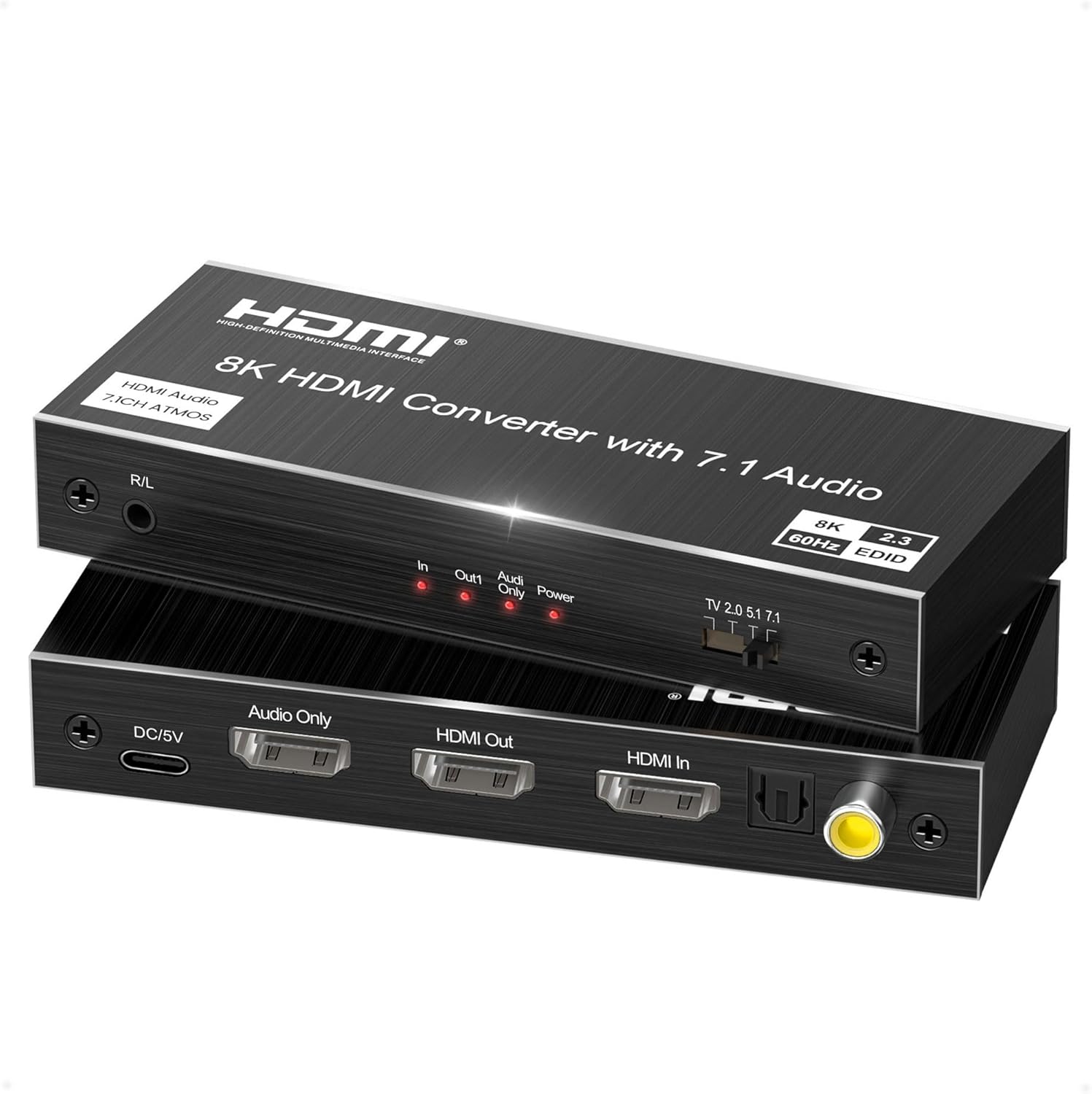
Figure 1: avedio links 8K HDMI 2.1 Audio Extractor (Front and Back)
2. Atụmatụ igodo
- HDMI 2.1 Audio Separation: Supports high-resolution HDMI loop output and high-quality audio extraction. HDMI (Audio Only) port supports up to 7.1CH, Optical port up to 5.1CH, and R/L ports up to 2.1CH. Connects to surround sound systems or ampndị na -enye ndụ. Note: ARC function is not supported.
- 8K Ultra High Resolution: Compatible with 8K@60Hz YCbCr4:2:0, 4K@120Hz YCbCr4:2:0, HDR10, VRR, and color depths of 8/10/12 bits. Supports a maximum bandwidth of 40Gbps. Video output resolutions include 8K@60Hz, 4K@120Hz, and 1080P@60Hz.
- Ndakọrịta sara mbara: Works with various HDMI source devices such as PCs, PlayStation consoles (PS5, PS4), Xbox, Nintendo Switch, HD players, TV sticks, and TV boxes. Output to displays like projectors, HDTVs, PC monitors, and gaming monitors. Features EDID function for optimal display settings. Note: 7.1CH audio is available from the HDMI Audio Only port, but not from TV ARC input.
- Ọrụ nkwụnye na Play: Designed for easy setup and use with built-in automation and amplification. The durable metal casing provides efficient heat dissipation and enhanced noise resistance, ensuring optimal video and audio transmission without quality degradation.

Figure 2: Supported Features and Technologies
3. Ihe ngwugwu
Biko hụ na ihe niile dị na ngwugwu gị:
- 1 x avedio links 8K HDMI 2.1 Audio Extractor
- 1 x Power Cable (USB-A to DC 5V)
- 1 x Akwụkwọ ntuziaka onye ọrụ

Ọgụgụ 3: Ihe ngwugwu
4. Ihe osise

Figure 4: Port Layout and Connection Examples
Ogwe ihu:
- R/L Audio Out: 3.5mm stereo audio output for headphones or 2.1CH audio systems.
- Ọkụ egosi: 'In' (HDMI Input), 'Out1' (HDMI Output), 'Audio Only' (HDMI Audio Only Output), 'Power' (Power Status).
- Mgbanwe ọdịyo: Selects audio output mode (TV 2.0, 5.1, 7.1).


Figure 5: Indicator Lights and Audio Switch
Ngbanwe azụ:
- DC/5V: Power input port. Connect the provided power cable here.
- Audio Only (HDMI): Dedicated HDMI output for audio only, supporting up to 7.1CH.
- HDMI Ọpụpụ: HDMI 2.1 output for video and audio to your display.
- HDMI na: HDMI 2.1 input for connecting your source device.
- Ngwa anya: Optical audio output, supporting up to 5.1CH.
- Coaxial: Coaxial audio output, supporting up to 5.1CH.
5. Nhazi ntuziaka
Follow these steps to set up your avedio links 8K HDMI 2.1 Audio Extractor:
- Jikọọ HDMI Isi mmalite: Connect an HDMI cable from your source device (e.g., PC, PS5, Xbox) to the HDMI Na ọdụ ụgbọ mmiri na extractor.
- Jikọọ HDMI ngosi: Jikọọ eriri HDMI site na eriri HDMI HDMI pụọ port on the extractor to your display device (e.g., TV, monitor, projector).
- Connect Audio System: Choose one or more audio output options:
- For 7.1CH audio, connect an HDMI cable from the Naanị ọdịyo port to your AV receiver or ampna -emegharị ihe.
- For 5.1CH audio, connect an Optical cable from the Ngwa anya port or a Coaxial cable from the Coaxial port to your audio system.
- For 2.1CH audio, connect a 3.5mm audio cable from the R/L Audio Out port to your headphones or stereo speakers.
- Njikọ Ike: Jikọọ eriri ọkụ enyere na DC/5V port on the extractor and then to a 5V power adapter (not included) or a USB port on your display/source device. Ensure the 'Power' indicator light illuminates.
- Configure Audio Format: On your source device, set the audio output format to PCM or LPCM for optimal compatibility and audio extraction.
- Họrọ Ụdị ọdịyo: Jiri ihe Mgbanwe ọdịyo on the front panel to select the desired audio channel mode (TV 2.0, 5.1, or 7.1) based on your audio system setup.

Figure 6: Important Setup Considerations
6. Ntuziaka ọrụ
6.1 Audio Mode Selection
The audio switch on the front panel allows you to select the preferred audio output mode:
- TV 2.0: For stereo audio output, typically used with TV speakers or 2.1CH audio systems.
- 5.1: For 5.1 channel surround sound systems, compatible with Optical and Coaxial outputs.
- 7.1: For 7.1 channel surround sound systems, primarily used with the HDMI Audio Only output.
6.2 EDID Functionality
The device incorporates EDID (Extended Display Identification Data) functionality to ensure optimal compatibility between your source and display devices, automatically adjusting resolution and audio settings for the best possible experience.
6.3 Ihe ngosi ọkụ
Monitor the indicator lights on the front panel to confirm proper operation:
- N'ime: Illuminates when an HDMI input signal is detected.
- Out1: Illuminates when an HDMI output signal is being sent to the display.
- Naanị ọdịyo: Illuminates when audio is being extracted via the HDMI Audio Only port.
- Ike: Illuminates when the device is receiving power.
7. Nlekọta
To ensure the longevity and optimal performance of your audio extractor, follow these maintenance guidelines:
- Keep the device in a cool, dry place away from direct sunlight, heat sources, and moisture.
- Jiri ákwà dị nro ma kpọọ nkụ hichaa ngwaọrụ ahụ. Ejila ihe nhicha mmiri ma ọ bụ ihe na-ehicha ikuku.
- Avoid blocking the ventilation holes to prevent overheating. The metal casing is designed for efficient heat dissipation.
- Gbaa mbọ hụ na ejikọrọ eriri niile na nchekwa iji gbochie mfu mgbaàmà ma ọ bụ nsogbu na-adịte aka.
8. Nchọpụta nsogbu
If you encounter issues with your avedio links 8K HDMI 2.1 Audio Extractor, refer to the following common problems and solutions:
- Enweghị mmepụta ọdịyo:
- Ensure your source device's audio output format is set to PCM or LPCM.
- Verify that your audio system (speakers, soundbar, amplifier) is powered on and correctly connected to the extractor. Passive speakers require an ampna -emegharị ihe.
- Check the audio switch setting on the extractor to match your audio system (TV 2.0, 5.1, or 7.1).
- Confirm that all audio cables (HDMI Audio Only, Optical, Coaxial, 3.5mm) are securely connected.
- No Video Output or Poor Video Quality:
- Ensure all HDMI cables are securely connected and are high-quality, supporting 40Gbps or more for 4K@120Hz/8K@60Hz signals.
- Verify that the extractor is receiving power and the 'Power' indicator is lit.
- If using a PS5 with an HDMI 2.0 monitor and experiencing HDR issues, try setting the PS5's 'Video Transfer Rate' to '-2' in its video output settings.
- Test with different HDMI cables or a different display to isolate the issue.
- Audio/Video Lag or Intermittent Signal:
- Use certified high-speed HDMI 2.1 cables for all connections, especially for 8K/4K@120Hz signals.
- Gbaa mbọ hụ na ọkọnọ ike kwụsiri ike.
- Reduce cable lengths if possible.
- ARC Function Not Working:
- Ngwaahịa a na-eme ọ bụghị support ARC (Audio Return Channel). Audio cannot be sent from the TV back to the extractor via HDMI.
9. Nkọwapụta
| Njirimara | Nkọwa |
|---|---|
| Ụdị | njikọ avedio |
| Nlereanya | 8K HDMI 2.1 Audio Extractor |
| Ụdị HDMI | HDMI 2.1 |
| Mkpebi Max | 8K@60Hz, 4K@120Hz, 1080P@60Hz |
| Bandwit | 40Gbps |
| Nkwado HDR | HDR10, VRR, ALLM |
| Nkwado HDCP | HDCP 2.3 |
| Mmepụta ọdịyo | HDMI (Audio Only) up to 7.1CH, Optical up to 5.1CH, Coaxial up to 5.1CH, R/L (3.5mm) up to 2.1CH |
| Ngwa dakọtara | DVD Player, Game Console, TV, Laptop, Monitor |
| Ịnye ọkụ | DC 5V (via USB-A to DC cable) |
| Agba | Nwa |
| Akụkụ | 16.2 x 11.5 x 3.7 cm |
| Ibu | 210 g |
10. Akwụkwọ ikike na nkwado
The avedio links 8K HDMI 2.1 Audio Extractor comes with a Akwụkwọ ikike nke ọnwa 12 from the date of purchase. If you have any questions, concerns, or require technical assistance, please contact our support team. Our Japanese support team is available to provide prompt assistance.
For support, please refer to the contact information provided with your product or visit the official avedio links websaịtị.


