1. Okwu mmalite
This manual provides essential information for the installation, operation, and maintenance of your ZOTAC GAMING GeForce RTX 4070 Ti SUPER SOLID OC 16GB graphics card. Please read this manual thoroughly before installation to ensure proper functionality and to prevent damage.

Image 1.1: ZOTAC GAMING GeForce RTX 4070 Ti SUPER SOLID OC 16GB Graphics Card and its retail packaging.
2. Ihe ngwugwu
Chọpụta na ihe niile dị na ngwugwu:
- ZOTAC GAMING GeForce RTX 4070 Ti SUPER SOLID OC 16GB Graphics Card
- Nkwado GPU Stand
- Ntuziaka onye ọrụ (akwụkwọ a)
- Power Adapter Cable (if applicable, check your specific model)
3. System chọrọ
- PCI Express na-akwado motherboard nwere oghere eserese x16 obosara
- Minimum 750W power supply with three available 8-pin PCIe power connectors (or equivalent 12VHPWR connector)
- Minimum 16GB system memory
- Microsoft Windows 10/11 64-bit or Linux 64-bit operating system
- Internet connection for driver installation
4. Ntuziaka nwụnye
4.1. Nkwadebe
- Gbanyụọ kọmputa gị ma kwụpụ eriri ọkụ.
- Mepee akpa kọmputa gị.
- Tinye onwe gị ka ị wepụta ọkụ eletrik ọ bụla.
4.2. Installing the Graphics Card
- Chọta oghere PCI Express x16 dị na motherboard gị.
- Wepu oghere mgbasawanye dị mkpa na akpa kọmputa gị.
- Carefully insert the graphics card into the PCIe x16 slot until it is fully seated. Ensure the retention clip locks into place.
- Jiri skru kechie kaadị eserese ahụ na akpa ahụ.
- Connect the required power cables from your power supply to the graphics card. This model typically requires three 8-pin PCIe power connectors or a single 12VHPWR connector. Ensure all connections are secure.
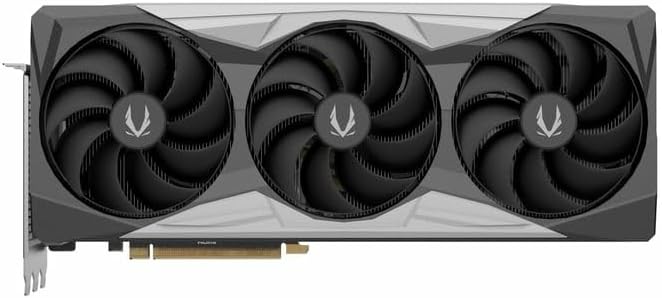
Foto 4.1: N'ihu view of the graphics card, showing the triple fan design.
4.3. Installing the GPU Support Stand
The included GPU support stand helps prevent sag and provides additional stability for the graphics card. Follow the instructions provided with the stand for proper installation within your PC case.
4.4. Closing the Case and Connecting Peripherals
- Mechie akpa kọmputa gị.
- Connect your monitor(s) to the display outputs on the graphics card (DisplayPort or HDMI).
- Reconnect the power cable and other peripherals to your computer.

Foto 4.2: N'azụ view of the graphics card, showing three DisplayPort outputs and one HDMI output.
5. Ntuziaka ọrụ
5.1. Nwụnye ọkwọ ụgbọala
- Gbanyụọ kọmputa gị.
- Once the operating system loads, download the latest graphics drivers from the official NVIDIA websaịtị (www.nvidia.com/drivers) or the ZOTAC websaịtị (www.zotac.com/support).
- Soro ntuziaka dị na ihuenyo iji mezue nrụnye draịva ahụ. Enwere ike ịchọ ịmalitegharịa sistemụ ahụ.
5.2. Ngwa Ngwanrọ
ZOTAC provides utilities such as FireStorm for monitoring and adjusting graphics card settings, including fan speed control (Active Fan Control, FREEZE Fan Stop) and performance profiles. These can be downloaded from the ZOTAC websaịtị.
6. Nlekọta
- Mwepụ uzuzu: Periodically clean dust from the graphics card fans and heatsink using compressed air. Ensure the computer is powered off and unplugged before cleaning.
- Mmelite ọkwọ ụgbọala: Keep your graphics drivers updated to ensure optimal performance and compatibility.
- Nyochaa okpomọkụ: Use monitoring software to keep track of the graphics card's temperature during operation. Excessive temperatures can indicate poor airflow or dust buildup.

Onyonyo 6.1: Akuku view of the graphics card, highlighting its robust cooling solution.
7. Nchọpụta nsogbu
- Enweghị mmepụta ihe ngosi:
- Hụ na eriri ihe nlele ahụ jikọtara nke ọma na kaadị eserese na ihe nlele ahụ.
- Nyochaa na kaadị eserese ahụ nọ n'oche zuru oke na oghere PCIe.
- Check that all power cables are properly connected to the graphics card.
- Jiri nlele ma ọ bụ eriri dị iche nwalee ma ọ ga-ekwe omume.
- Nsogbu ma ọ bụ Mkpọda Sistemụ:
- Ensure graphics drivers are correctly installed and up to date.
- Check for adequate power supply capacity.
- Nyochaa ọnọdụ okpomọkụ iji gbochie ikpo oke ọkụ.
- Verify system memory (RAM) stability.
- Fan Noise or Malfunction:
- Clean dust from the fans and heatsink.
- Ensure no cables are obstructing fan rotation.
- Use ZOTAC FireStorm utility to check fan speed settings.
8. Nkọwapụta
| Njirimara | Nkọwa |
|---|---|
| Nọmba nlereanya | ZT-D40730R-10P |
| Ihe nhazi eserese | NVIDIA GeForce RTX 4070 Ti SUPER |
| Ebe nchekwa vidiyo | 16GB GDDR6X |
| Ọnụnọ ebe nchekwa | 256-bit |
| Elekere ebe nchekwa | 21000 MHz (Effective) |
| Ngini elekere | Mgbali elu: 2640 MHz |
| Ngosipụta arụpụta | 3 x DisplayPort 1.4a, 1 x HDMI 2.1a |
| Nkwado HDCP | Ee |
| Mkpebi Dijitalụ Max | Up to 4K (7680x4320 @60Hz) |
| PCI Express | PCI Express 4.0 x16 |
| Nnye ọkụ akwadoro | 750W |
| Njikọ ọkụ | 1 x 12VHPWR (or 3 x 8-pin PCIe via adapter) |
| Akụkụ (LxWxH) | 16.73 x 11.54 x 3.94 inch (ihe dị ka) |
| Ibu | 2.2 pound (ihe dị ka.) |
| Sistemụ jụrụ oyi | IceStorm 2.0 Advanced Cooling, Triple 100mm Fans, FREEZE Fan Stop, Active Fan Control |
| Atụmatụ | NVIDIA DLSS 3.5, Ray Tracing, Metal Backplate, GPU Support Stand |
9. Akwụkwọ ikike na nkwado
For detailed warranty information, please refer to the warranty card included with your product or visit the official ZOTAC website's support section. ZOTAC provides technical support and resources for their products.
- Nkwado ZOTAC Websaịtị: www.zotac.com/support
- Ndebanye aha Ngwaahịa: Register your product on the ZOTAC website to activate your warranty and receive product updates.


