Okwu mmalite
This manual provides detailed instructions for the Mesqool Alarm Clock with Bluetooth Speaker, FM Radio, USB Chargers, Dimmer, Snooze, and Battery Backup (Model CR1025). Please read this manual thoroughly before operating the device to ensure proper use and optimal performance.
The Mesqool CR1025 is a versatile bedside device combining multiple functions:
- Alarm Clock with 2 optional sounds (radio or buzzer) and 9-minute snooze.
- Bluetooth 5.0 Speaker for wireless audio streaming.
- Digital FM Radio (87.5-108MHz) with auto-scan and 20 station presets.
- Adjustable Night Light.
- Dual USB Charging Station (Type-C & USB-A, 5V/1A each).
- Large LED display with 5-level dimmer and 12/24H time format.
- Battery backup for settings retention during power outages.

Image: The Mesqool Alarm Clock highlighting its five main features: Alarm Clock, Bluetooth V5.0, FM Radio, Night Light, and 2 USB Chargers.
Melite
Power Connection and Battery Backup
The Mesqool CR1025 operates on AC power. Connect the provided power adapter to the DC IN port on the back of the unit and plug it into a standard wall outlet. The device also includes a battery backup feature (1 AAA battery included) to retain time and alarm settings during a power interruption. The battery does not power the display or alarm functions during an outage.

Image: The alarm clock connected to power, demonstrating its compact design suitable for a bedside table.
Ntọala Oge izizi
- Pịa Oge 12/24 bọtịnụ. Ọnụọgụ elekere ga-amalite ịgba ọkụ.
- Rotate the right knob (Scan) to adjust the hour.
- Pịa Oge 12/24 bọtịnụ ọzọ. Nọmba nkeji ga-enwu gbaa.
- Rotate the right knob (Scan) to adjust the minute.
- Pịa Oge 12/24 button once more to confirm the time setting.
Video: Demonstrates how to set the time on the Mesqool Alarm Clock by pressing the Time button and rotating the knob to adjust hours and minutes.
Usoro Oge elekere 12/24
To switch between 12-hour and 24-hour time formats, press and hold the Oge 12/24 button for 2 seconds. The display will change between AM/PM indicators for 12-hour format and no indicator for 24-hour format.
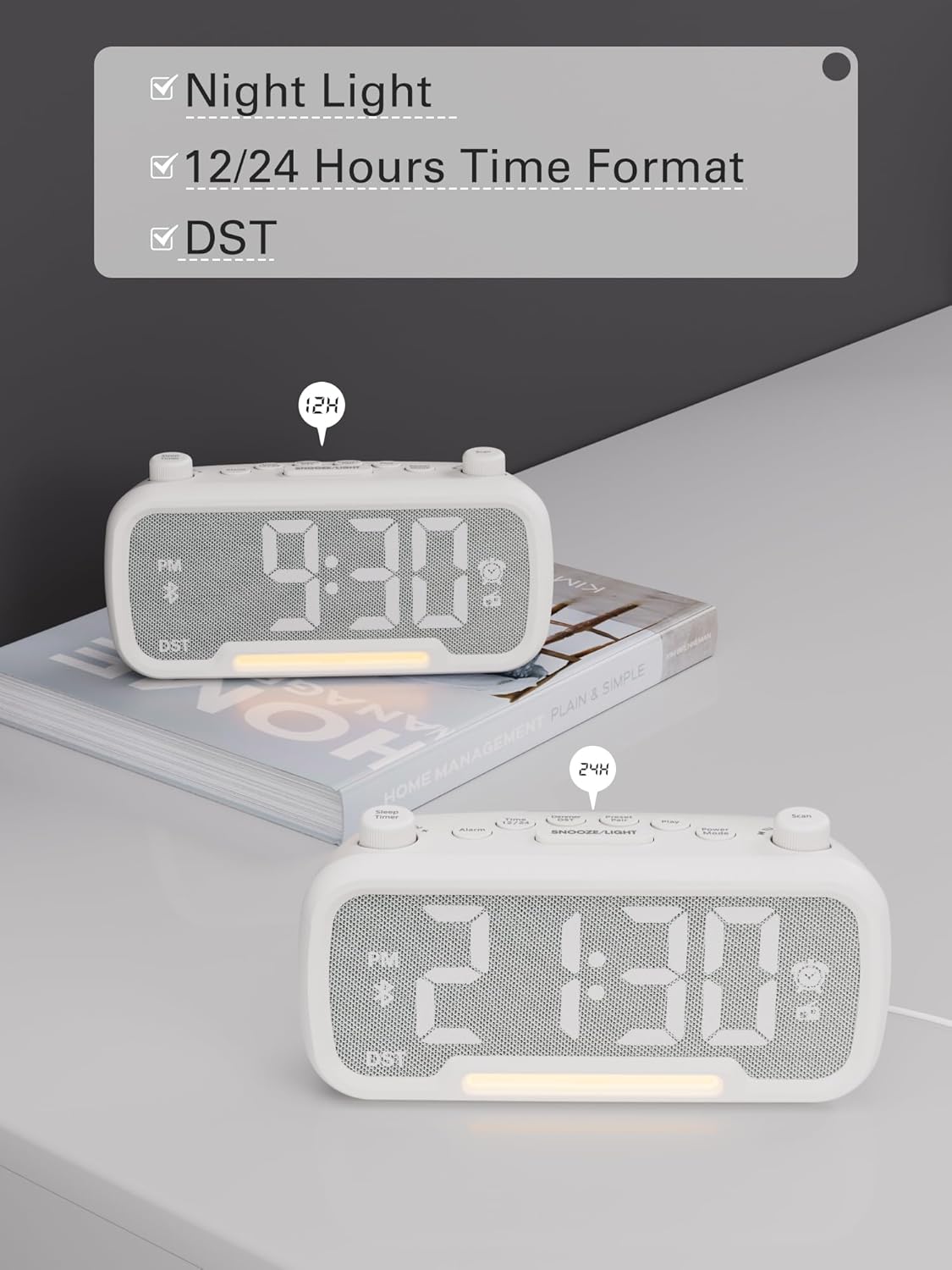
Image: The alarm clock displaying time in both 12-hour (with PM indicator) and 24-hour formats, also showing the DST indicator.
Daylight Saving Time (DST) Mode
To activate or deactivate Daylight Saving Time (DST), press the Dimmer DST button. The time will adjust by one hour forward or backward, and the "DST" indicator will appear or disappear on the display.
Video: Demonstrates how to activate or deactivate DST mode by pressing the DST button, showing the time adjustment.
Ntuziaka ọrụ
Ntọala mkpu
- Pịa ma jide Oti mkpu button for 2 seconds. The hour digits will flash.
- Rotate the left knob (Sleep Timer) to adjust the hour.
- Pịa Oti mkpu bọtịnụ ọzọ. Nọmba nkeji ga-enwu gbaa.
- Rotate the left knob (Sleep Timer) to adjust the minute.
- Pịa Oti mkpu button again to select the alarm sound: bell or last radio channel.
- Rotate the left knob (Sleep Timer) to adjust the alarm volume (L01-L16).
- Pịa Oti mkpu button once more to complete the alarm setting.
Video: Illustrates the steps to set the alarm time, choose the alarm sound (bell or radio), and adjust the alarm volume.
Ịkagbu Mkpu
To cancel the alarm, press the Oti mkpu button. The alarm icon on the display will turn off, indicating that the alarm has been canceled.
Ọrụ snooze
Mgbe oti mkpu dara, pịa nwuo/Ìhè button to activate the snooze function. The alarm will pause for 9 minutes and then sound again.

Image: The alarm clock with the SNOOZE/LIGHT button clearly marked, explaining its 9-minute snooze function.
Ọrụ Ọkà Okwu Bluetooth
- Pịa Ụdị ike button repeatedly until "bt" appears on the display. The Bluetooth icon will start flashing, indicating it's ready for pairing.
- On your mobile device, search for Bluetooth devices and select "CR1025" to connect.
- Once connected, the Bluetooth icon will stop flashing. You can now stream audio from your device.
Video: Shows how to enter Bluetooth mode and pair the alarm clock with a mobile device, indicated by the flashing and solid Bluetooth icon.

Image: The alarm clock wirelessly connected to a smartphone, demonstrating its Bluetooth 5.0 audio streaming capability.
FM Radio arụ ọrụ
- Pịa Ụdị ike button repeatedly until the radio icon lights up and a frequency is displayed.
- Nyocha onwe: Pịa Nyochaa button to automatically search for and store up to 20 FM stations (P01-P20).
- Ọchụchọ akwụkwọ ntuziaka: Rotate the right knob (Scan) to browse frequencies manually.
- Saving a Station: While listening to a desired station, press and hold the Preset Pair button for 2 seconds. Use the right knob (Scan) to select a preset number (P01-P20), then press Preset Pair ọzọ iji chekwaa.
- Icheta Preset: Pịa nkenke Preset Pair button to cycle through saved stations.
- Gbanwee olu: Rotate the left knob (Sleep Timer) to control the volume (16 levels).
Video: Demonstrates how to operate the FM radio, including auto-scanning, manual tuning, saving presets, and adjusting volume.

Image: The alarm clock showing an FM radio frequency, illustrating its use as a radio.
Ntọala ngụ oge ihi ụra
When using the FM radio or Bluetooth speaker functions, you can set a sleep timer to control playback duration before the device automatically turns off.
- Pịa Oge ihi ụra button on the top left.
- Rotate the left knob (Sleep Timer) to select the desired duration: 15, 30, 60, 90, or 120 minutes. You can also select "OFF" to disable the sleep timer.
Video: Demonstrates how to set the sleep timer for the FM radio or Bluetooth speaker, showing available duration options.
Ngosipụta Dimmer
The LED display has 5 levels of brightness. To adjust the brightness, press the Dimmer DST button repeatedly to cycle through the levels (L01-L05).
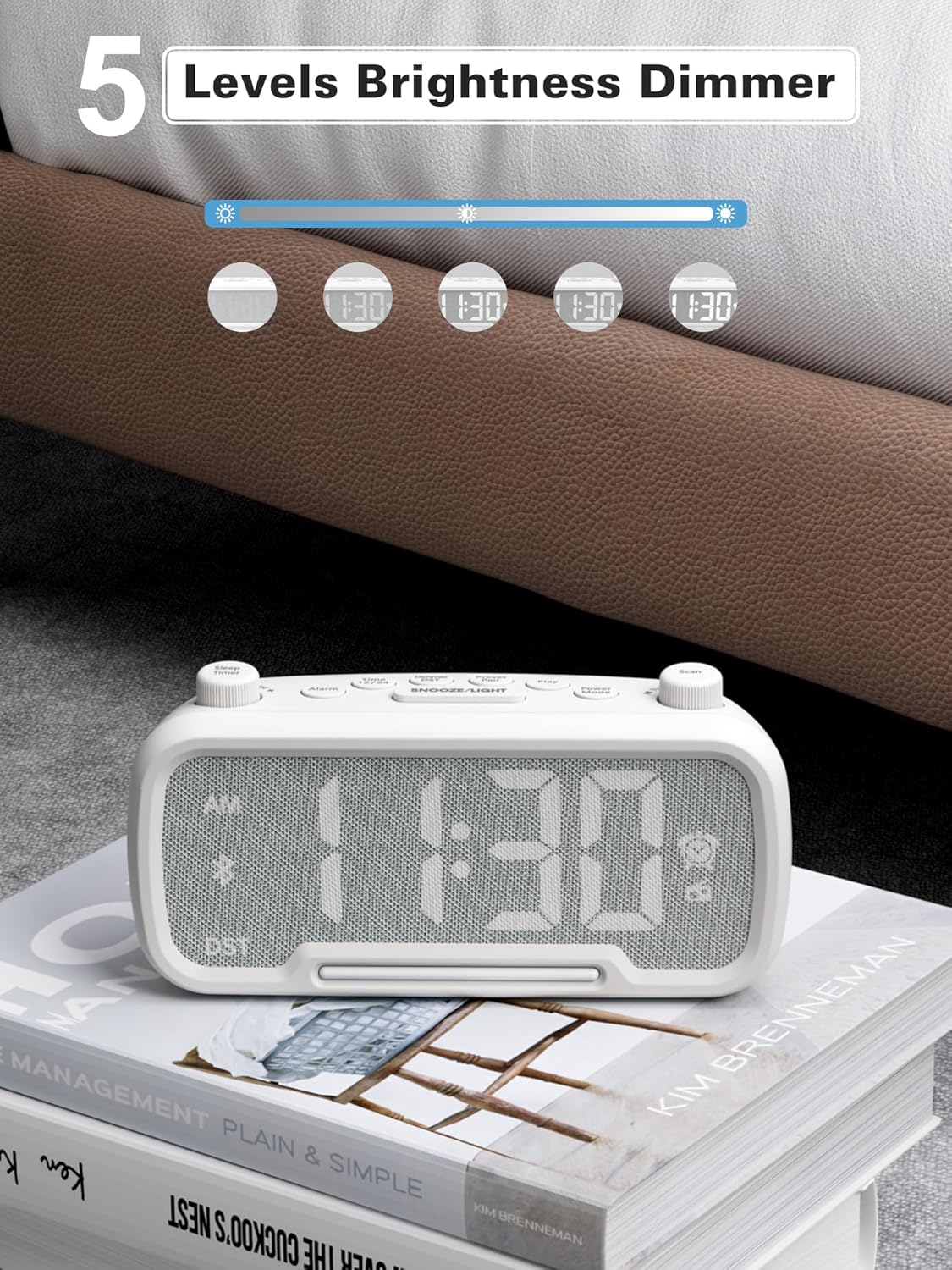
Image: The alarm clock illustrating the five different brightness levels for its LED display.
Ìhè abalị
The alarm clock features a gentle fixed night light. To turn the night light on or off, press the nwuo/Ìhè button. This light creates a sleep-friendly environment.

Image: The alarm clock's warm night light glowing, positioned next to a teddy bear, suggesting its use in a child's room.
Ọdụ ụgbọ mmiri USB
The device includes two USB charging ports: one Type-C and one USB-A. Both ports provide 5V/1A output, allowing you to conveniently charge your smartphone, tablet, or other USB-powered devices simultaneously.

Image: The alarm clock with a smartphone connected to its Type-C port and a smartwatch to its USB-A port, demonstrating simultaneous charging.
Nlekọta
- Nhicha: Jiri ákwà dị nro ma kpọọ nkụ hichaa elu elekere mkpu. Ejila ihe nhicha mmiri ma ọ bụ ihe ndị na-eme ka ọ dị nro.
- Nchekwa: If storing the device for an extended period, disconnect it from power and remove the backup battery. Store in a cool, dry place.
- Zere mmiri mmiri: Keep the device away from water, high humidity, and direct sunlight to prevent damage.
Nchọpụta nsogbu
| Nsogbu | Ihe nwere ike ime | Ngwọta |
|---|---|---|
| Enweghị ngosi/ngwaọrụ anaghị agba ọkụ | Ejikọghị ihe nkwụnye ọkụ ma ọ bụ ụzọ adịghị mma. | Ensure the power adapter is securely plugged into the device and a working wall outlet. Test the outlet with another device. |
| Oti mkpu anaghị ada ụda | Alarm not set, alarm volume too low, or alarm canceled. | Verify alarm time is set correctly, alarm icon is visible, and volume is adequate. Ensure the alarm was not accidentally canceled. |
| Bluetooth anaghị ejikọ | Device not in pairing mode, out of range, or already connected to another device. | Ensure the clock is in Bluetooth pairing mode ("bt" flashing). Move your mobile device closer. Disconnect from other Bluetooth devices. |
| Nnabata redio FM adịghị mma | Weak signal, antenna not extended. | Fully extend the FM antenna. Try repositioning the clock for better reception. Perform an auto-scan again. |
| Nchaji USB anaghị arụ ọrụ | Cable issue, device not compatible, or device already fully charged. | Check the USB cable for damage. Ensure your device is compatible with 5V/1A charging. Verify the device requires charging. |
Nkọwapụta
- Akara: Mesqool
- Nọmba nlereanya: CR1025
- Agba: Ọcha
- Ụdị ngosi: Ikanam
- Isi mmalite ike: Corded Electric (AC power)
- Ndabere batrị: 1 batrị AAA (gụnyere)
- Akụkụ ngwaahịa: 3.31"W x 2.32"H (Note: Length is 6.61" from feature bullets)
- Ibu ihe: 7.7 ounces
- Ihe: Fabric, Acrylonitrile Butadiene Styrene
- Ugboro redio FM: 87.5-108MHz
- USB mmepụta: Type-C & USB-A, 5V/1A each
- Oti mkpu: Bell, FM Radio
- Gosipụta ihie: 5 ọkwa
- Ụdị oge: 12H/24H
- Atụmatụ pụrụ iche: Bluetooth 5.0, Night Light, DST adjustment, Snooze
Akwụkwọ ikike na nkwado
For warranty information or technical support, please refer to the contact details provided with your purchase or visit the official Mesqool websaịtị. Debe akwụkwọ nnata ịzụrụ maka akwụkwọ ikike.


