Okwu mmalite
This manual provides detailed instructions for the setup, operation, and maintenance of your Nulea KM75 Advanced Ergonomic Wireless Keyboard and Mouse Combo. Please read this manual thoroughly before using the product to ensure optimal performance and longevity.
Ihe ngwugwu
- Nulea KM75 Ergonomic Wireless Keyboard
- Nulea Ergonomic Wireless Mouse
- 2.4G USB Receiver (shared for keyboard and mouse)
- USB-C eriri USB
- Akwụkwọ ntuziaka (akwụkwọ a)
Ngwaahịa gafereview
Atụmatụ ahụigodo
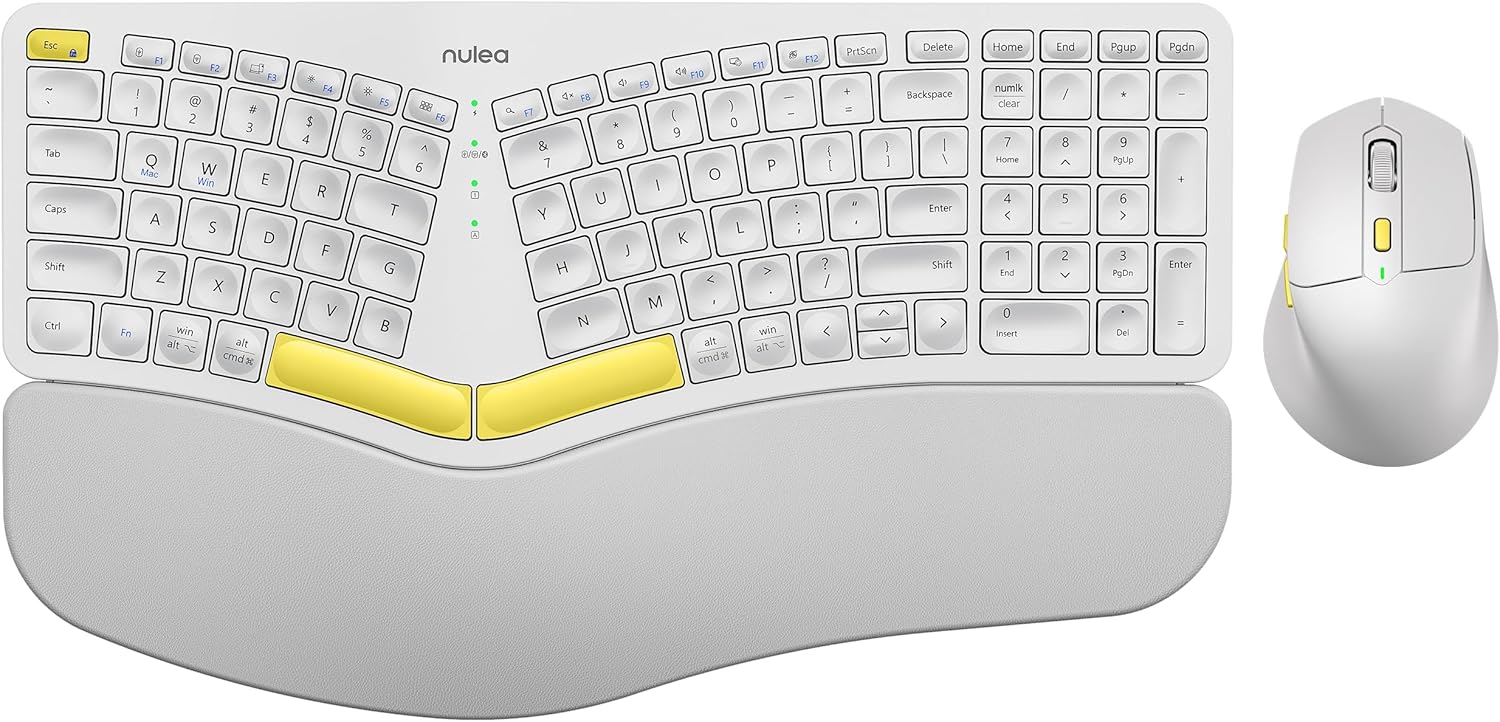
Image: The Nulea KM75 ergonomic keyboard and mouse combo. The keyboard features a curved and split layout with an integrated palm rest, and the mouse is sculpted for comfort. Both are white with yellow accents.
- Ergonomic Curved and Split Key-frame: Designed to position wrists and forearms naturally.
- Ezumike Nkwụ Agbakwunyere: Features a soft memory foam layer for wrist support.
- Adjustable Tilt Design: Allows for optimal keyboard positioning.
- Njikọ ọtụtụ ngwaọrụ: Supports USB cable, 2.4G USB receiver, and Bluetooth.
- Batrị enwere ike ịchaji: 500mAh capacity with USB-C charging.
- Ụdị ihi ụra akpaaka: Conserves power after 30 minutes of inactivity.
Òké Atụmatụ

Image: A close-up of the Nulea ergonomic mouse, showing its sculpted design for a natural hand posture with integrated palm and thumb rests. The mouse is white with yellow accents.
- Ergonomic Sculpted Design: Integrated palm and thumb rests for natural hand position.
- Ntọala DPI nwere ike imeghari: For precise cursor control.
- Bọtịnụ n'ihu/Azu: Maka adaba web igodo.
- Njikọ ọtụtụ ngwaọrụ: Supports 2.4G USB receiver and Bluetooth.
- Batrị enwere ike ịchaji: 300mAh capacity with USB-C charging.
- Ụdị ihi ụra akpaaka: Conserves power after 30 minutes of inactivity.
Melite
1. Ịchaji ngwaọrụ
Before initial use, fully charge both the keyboard and mouse using the provided USB-C cable. Connect the USB-C end to the device and the USB-A end to a power source (e.g., computer USB port, USB wall adapter).

Image: Illustration showing the keyboard and mouse connected via USB-C cables for charging. The keyboard has a 500mAh battery and the mouse has a 300mAh battery.
The indicator lights will show charging status and turn off when fully charged. A full charge provides approximately two months of operation.
2. Connecting via 2.4G USB Receiver
- Locate the 2.4G USB receiver. It is typically stored in a compartment on the underside of the mouse.
- Fanye eriri USB n'ọdụ ụgbọ mmiri USB-A dị na kọmputa gị.
- Gbanwuo ahụigodo na òké site na iji mgba ọkụ nke otu ha.
- Maka ahụigodo, pịa Fn + F2 to select 2.4G mode.
- For the mouse, switch the mode selector on the bottom to 2.4G.
- The devices should connect automatically.

Image: A close-up of the underside of the mouse, showing the storage compartment for the 2.4G USB receiver.
3. Ijikọ site na Bluetooth
- Gbanwuo ahụigodo na òké.
- Maka ahụigodo, pịa Fn + F3 to select Bluetooth mode. The indicator light will blink, indicating pairing mode.
- For the mouse, switch the mode selector on the bottom to Bluetooth. The indicator light will blink.
- Na ngwaọrụ gị (kọmputa, mbadamba, ama ama), mee ka Bluetooth rụọ ọrụ ma chọọ ngwaọrụ ọhụrụ.
- Select "Nulea Keyboard" and "Nulea Mouse" from the list of available devices to pair.
- Soro mkpali na ihuenyo ọ bụla iji mezue usoro njikọta.
4. Connecting via Wired Mode
- Connect the USB-C charging cable to the keyboard or mouse and the USB-A end to your computer.
- Maka ahụigodo, pịa Fn + F1 to select wired mode.
- For the mouse, switch the mode selector on the bottom to wired mode.
- The devices will function as wired peripherals.

Image: Diagram illustrating the simple connectivity options for the Nulea KM75. Pressing Fn+F1 connects via wired, Fn+F2 via 2.4G, and Fn+F3 via Bluetooth, allowing connection to multiple devices like PCs, laptops, and mobile devices.
5. Ịgbanwe n'etiti Ngwaọrụ
The Nulea KM75 combo supports multi-device connectivity. You can switch between up to three connected devices (one wired, one 2.4G, one Bluetooth) by pressing the corresponding function keys on the keyboard (Fn + F1/F2/F3) and adjusting the mode selector on the mouse.
Ntuziaka ọrụ
Ojiji ahụigodo
- Nhazi Ergonomic: The curved and split key-frame is designed for natural hand and wrist positioning. Allow some time to adapt to this layout for optimal comfort.
- Ụkwụ Ntụgharị A Na-agbanwe agbanwe: Located on the underside of the keyboard, these legs allow you to adjust the typing angle for personalized comfort.

Image: A user demonstrating the adjustable tilt legs of the Nulea KM75 keyboard, showing how to customize the typing angle for ergonomic comfort.
- Igodo ọrụ (Fn): Many keys have secondary functions accessible by holding down the Fn key and pressing the desired function key (e.g., media controls, volume). Refer to the keycap legends for specific functions.
Ojiji òké
- Ndozi DPI: Use the DPI switch button, usually located near the scroll wheel, to cycle through different sensitivity levels (DPI). This allows for precise control or faster cursor movement.

Image: A close-up of the Nulea ergonomic mouse, highlighting the DPI switch key and indicator light for adjusting cursor sensitivity.
- Bọtịnụ akụkụ: The side buttons (typically on the left for right-handed users) are often pre-programmed for forward and backward navigation in web ihe nchọgharị ma ọ bụ file ndị na-eme nchọpụta.
Nlekọta
- Nhicha: Jiri akwa dị nro dị nro hichaa elu nke ahụigodo na òké. Maka unyi isi ike, ntakịrị damp A pụrụ iji ákwà nwere ncha dị nro mee ihe, na-eme ka mmiri ghara ịbanye na ngwaọrụ ahụ. Zere kemịkalụ siri ike ma ọ bụ ihe ndị na-emebi ihe.
- Nlekọta batrị: To prolong battery life, avoid fully discharging the devices frequently. Recharge when the low battery indicator appears. Store in a cool, dry place if not used for extended periods.
- Nchekwa: When not in use, store the USB receiver in its designated compartment on the mouse to prevent loss.
Nchọpụta nsogbu
- Ngwaọrụ anaghị ejikọta:
- Hụ na ejiri ma keyboard na òké rụọ ọrụ.
- Verify the correct connection mode (2.4G, Bluetooth, Wired) is selected on both devices and your computer.
- For 2.4G, ensure the USB receiver is securely plugged into a working USB port.
- For Bluetooth, ensure Bluetooth is enabled on your device and the devices are in pairing mode. Try re-pairing if necessary.
- Ensure the devices are charged.
- Try restarting your computer and the devices.
- Njikọ nkwụsịtụ ma ọ bụ nke na-adịghị arụ ọrụ:
- Move the devices closer to the USB receiver or your computer to reduce interference.
- Avoid placing the receiver near other wireless devices or large metal objects.
- Ensure batteries are sufficiently charged.
- Keys not responding or mouse not moving:
- Lelee ọkwa batrị wee fanye ma ọ dị mkpa.
- Ensure the devices are properly connected (see "Device not connecting" above).
- Clean any debris from around the keys or mouse sensor.
Nkọwapụta
| Njirimara | Nkọwa |
|---|---|
| Ụdị | Nulea |
| Nlereanya | KM75 |
| Njikọta | Bluetooth, 2.4G USB, Wired (USB-C) |
| Batrị ahụigodo | Lithium nke 500mAh |
| Batrị òké | Lithium nke 300mAh |
| OS dakọtara | Windows, Mac OS, Android |
| Atụmatụ pụrụ iche | Ergonomic design, Curved/Split key-frame, Integrated palm rest, Adjustable tilt, Adjustable mouse DPI |
| Ibu Ibu | Paụnd 4.2 (ejikọtara ọnụ) |
| Akụkụ ngwugwu | 16.97 x 11.69 x 2.05 sentimita asatọ |
Akwụkwọ ikike na nkwado
Nulea products are designed for reliability and performance. For warranty information, technical support, or customer service inquiries, please refer to the contact details provided on the Nulea official websaịtị ma ọ bụ akwụkwọ ịzụrụ ihe gị. Biko debe ihe akaebe nke ịzụrụ ihe gị maka nkwupụta nkwa.


