Okwu mmalite
The Logitech Zone Wireless 2 is a premium noise-canceling headset designed for professional use, offering advanced audio clarity and comfort. This manual provides instructions for setting up, operating, maintaining, and troubleshooting your headset to ensure optimal performance.
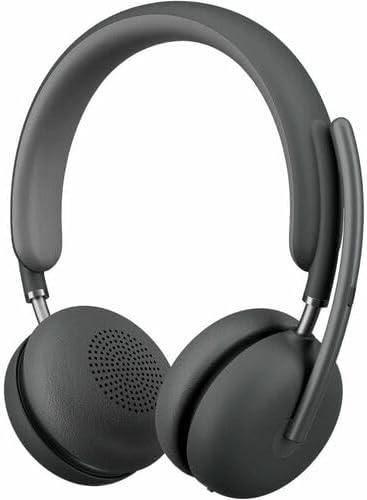
Image: The Logitech Zone Wireless 2 headset, shown in graphite color.
Akụkụ ndị bụ isi:
- Ndị otu Microsoft enwetara asambodo: Optimized for Microsoft Teams over native Bluetooth, freeing up a USB port.
- Advanced Call Clarity: Logi Tune app feature suppresses far-end ambient noise for clearer communication.
- Four Noise-Canceling Microphones: Elevate your voice and suppress background sounds.
- Nkagbu mkpọtụ mkpọtụ ngwakọ (ANC): Offers ANC high, ANC low, transparency on, and ANC/transparency off modes for focused work.
- Personalized Audio: Custom listening experience via Personal EQ in the Logi Tune mobile app with 40mm drivers.
- Nhazi na-adịgide adịgide: Features interchangeable earpads, a replaceable battery, 20% post-consumer recycled plastic, and low-carbon aluminum.
- Nnwere onwe ikuku: Connects simultaneously to laptop and mobile phone via Bluetooth with a range of up to 170 ft (50 meters).
- Ndụ batrị agbatịkwuru: Up to 15 hours talk time and 22 hours listening time (with ANC on).
Melite
1. Kedu ihe dị na Igbe ahụ
- Logitech Zone Wireless 2 Headset
- Okwu nchekwa
- USB-C eriri USB
- USB-C ka USB-A nkwụnye
- Akwụkwọ ntuziaka (akwụkwọ a)
- Ear Cushions (pre-installed, with additional set for replacement)

Image: The Logitech Zone Wireless 2 headset, protective case, USB-C cable, and USB-C to USB-A adapter.
2. Ịchaji ekweisi
- Connect the USB-C charging cable to the USB-C port on the headset.
- Jikọọ nsọtụ nke ọzọ nke eriri ahụ na isi iyi ike USB (dịka ọmụmaatụ, ọdụ ụgbọ USB kọmputa, ihe nkwụnye mgbidi).
- The LED indicator on the headset will show charging status. A full charge takes approximately 2 hours.
3. Ijikọ ngwaọrụ
The Zone Wireless 2 headset supports Bluetooth 5.2 for wireless connectivity.
Njikọ Bluetooth:
- Power on the headset by sliding the power switch.
- Press and hold the Bluetooth pairing button on the headset until the LED indicator flashes blue rapidly.
- On your device (laptop, smartphone), go to Bluetooth settings and select "Logitech Zone Wireless 2" from the list of available devices.
- Ozugbo ejikọrọ, ihe ngosi LED ga-atụgharị na-acha anụnụ anụnụ.

Image: Diagram illustrating the headset's ability to connect simultaneously to a smartphone and a laptop via Bluetooth.
Microsoft Teams Certification:
The headset is certified for Microsoft Teams over native Bluetooth. This allows for a full Teams meeting experience without requiring a separate USB dongle, preserving your device's USB ports.
4. Logi Tune App Installation
For full functionality, including Personal EQ, Advanced Call Clarity, and firmware updates, download and install the Logi Tune application on your computer or mobile device. The app provides a personalized experience and device management.

Image: A laptop screen displaying the Logi Tune application interface, showing device management and settings.
Na-arụ ọrụ ekweisi
1. Njikwa ekweisi
The headset features intuitive controls for managing calls, media, and noise cancellation.

Image: A close-up of the right earcup, showing the power switch, ANC button, and other controls.
- Ike mgba ọkụ: Gbanye ka ịgbanwuo ma ọ bụ gbanyụọ ekweisi.
- Bọtịnụ olu: Gbanwee olu ọdịyo.
- Bọtịnụ ọrụ ọtụtụ: Play/pause media, answer/end calls.
- Bọtịnụ ANC: Cycle through Active Noise Cancellation modes.
- Mechie igwe okwu: Flip the microphone boom up to mute, down to unmute.
2. Nkagbu mkpọtụ mkpọtụ (ANC)
The Hybrid ANC feature allows you to control your listening environment. Press the ANC button to switch between modes:
- ANC High: Maximum noise cancellation for noisy environments.
- ANC Low: Reduced noise cancellation for less intrusive background sounds.
- Nghọta na: Allows ambient sounds to pass through, keeping you aware of your surroundings.
- ANC and Transparency Off: No active noise cancellation or transparency mode.
3. Eji igwe okwu
The headset features four noise-canceling microphones designed to isolate your voice and suppress background noise during calls. Simply lower the microphone boom to activate the microphone for calls. Raise it to mute.

Image: A man wearing the headset, illustrating the clear audio experience with sound wave graphics around his head.
4. Audio Customization with Logi Tune
Use the Logi Tune app to personalize your audio experience:
- Personal EQ: Adjust audio frequencies to optimize sound for your hearing range.
- Advanced Call Clarity: Further refine noise suppression for incoming audio.
- Mmelite femụwe: Ensure your headset has the latest features and performance improvements.
Nlekọta
1. Nhicha
- Jiri ihe dị nro hichaa ekweisi ahụ, damp akwa .
- Zere iji ihe nhicha ma ọ bụ ihe mgbaze.
- Ensure all ports are dry before charging or connecting.
2. Earpad and Battery Replacement
The Zone Wireless 2 is designed for longevity with user-replaceable components:
- Akpa ntị: Interchangeable earpads can be replaced to maintain hygiene and comfort. Refer to the Logi Tune app or Logitech support website for instructions on how to replace them.
- Batrị: The battery is designed to be replaceable, extending the product's lifespan. Contact Logitech support for information on obtaining and replacing the battery.

Image: The headset disassembled, showing the removable earpads, internal components, and a replaceable battery, highlighting its modular design.
3. Nchekwa
When not in use, store the headset in its protective case to prevent damage and keep it clean.
Nchọpụta nsogbu
- Enweghị ike: Ensure the headset is charged. Connect it to a power source using the USB-C cable.
- Cannot Connect via Bluetooth:
- Ensure the headset is in pairing mode (LED flashing blue).
- Lelee ntọala Bluetooth nke ngwaọrụ gị wee hụ na agbanyere Bluetooth.
- Try restarting both the headset and your device.
- If previously paired, remove the headset from your device's Bluetooth list and re-pair.
- Ogo ọdịyo adịghị mma:
- Ensure the headset is within the Bluetooth range (up to 170 ft / 50 meters).
- Lelee maka ndabichi sitere na ngwaọrụ ikuku ndị ọzọ.
- Adjust Personal EQ settings in the Logi Tune app.
- Ensure the microphone boom is properly positioned for clear voice pickup.
- ANC anaghị arụ ọrụ nke ọma:
- Ensure ANC mode is activated (not in Transparency or Off mode).
- Check that the earpads are properly seated and forming a good seal around your ears.
- Logi Tune App Issues: Ensure the app is updated to the latest version. Restart the app and your headset.
Maka enyemaka ọzọ, gaa na nkwado Logitech website or the Logi Tune application.
Nkọwapụta
| Njirimara | Nkọwa |
|---|---|
| Aha Nlereanya | Zone Wireless 2 |
| Nọmba Nlereanya ihe | 981-001435 |
| Teknụzụ Njikọta | Ikuku (Bluetooth 5.2) |
| Oke Bluetooth | Ruo mita 50 (170 ft) |
| Jack ekweisi | USB Type C (for charging) |
| Ụdị ọkwọ ụgbọ ala ọdịyo | Dynamic Driver (40 mm) |
| Oke ugboro ugboro | 20-20000 Hz |
| Njikwa mkpọtụ | Nkagbu mkpọtụ ngwakọ na-arụ ọrụ |
| Igwe okwu | Four noise-canceling mics |
| Ndụ Batrị (Ntị) | Ruo awa 22 (na ANC agbanwuru) |
| Ndụ Batrị (Oge Okwu) | Ruo awa 15 (na ANC agbanwuru) |
| Oge Nchaji | Ihe ruru. awa 2 |
| Ibu Ibu | 230 grams (8.1 ounces) |
| Akụkụ ngwaahịa | 9 x 8.75 x 2.5 sentimita asatọ |
| Ihe onwunwe | Plastic (20% post-consumer recycled) |
| Ngwa dakọtara | Desktops, Laptops (PC, Mac), Smartphones |
| Usoro njikwa | App (Logi Tune), Media Control Buttons |
| UPC | 097855196316 |
Akwụkwọ ikike na nkwado
Ozi akwụkwọ ikike
Logitech products are typically covered by a limited hardware warranty. Please refer to the warranty card included with your product or visit the official Logitech website for specific warranty terms and conditions applicable to your region and product model.
Nkwado ndị ahịa
For technical assistance, troubleshooting guides, FAQs, and driver downloads, please visit the official Logitech support websaịtị:
You can also utilize the Logi Tune application for device management, personalized settings, and access to support resources directly from the app.


