1. Ngwaahịa gafereview
The FLYINGVOICE FIP15G Plus is an advanced VoIP phone designed for business environments, featuring a 4.3-inch IPS touch screen for intuitive navigation and enhanced user experience. This IP phone supports up to 10 SIP lines, dual-band 2.4GHz and 5GHz Wi-Fi connectivity, and 6-way audio conferencing, making it a versatile communication solution. It integrates seamlessly with various business communication systems and offers robust features for efficient daily operations.

Foto 1.1: N'ihu view of the FLYINGVOICE FIP15G Plus VoIP Phone, showcasing its 4.3-inch IPS touch screen and physical keypad.
Akụkụ ndị bụ isi:
- Elegant Touchable Screen: Features a 4.3-inch IPS touchable screen with a wide viewing angle, vivid HD images, and a user-friendly interface. Supports seamless integration with i86V Intercom (sold separately) for one-touch calls and video linkage.
- Abụọ-Band WiFi: Built-in dual-band 2.4GHz & 5GHz Wi-Fi for strong and stable wireless connectivity. Supports IPv4 & IPv6 protocols.
- HD Voice Quality & PoE Power Supply: Advanced voice technologies including Wide-band Code G.722, Opus, Acoustic Shield, and Intelligent noise enclosure design ensure crystal clear voice. Supports Power over Ethernet (PoE) for simplified cabling.
- Multiple Expanded Functions: Dual USB 2.0 ports for call recording via USB disks and connecting DECT wireless headsets with EHS10 adapters. Supports 6-way audio conferencing and a 2000-entry phonebook. Built-in Bluetooth 4.2 for wireless headset connectivity.
- Powerful Online Management Systems: Simple deployment and management via Flyingvoice’s online platforms such as FACS and FRPS, and auto-provisioning modes TFTP/HTTP/HTTPS.
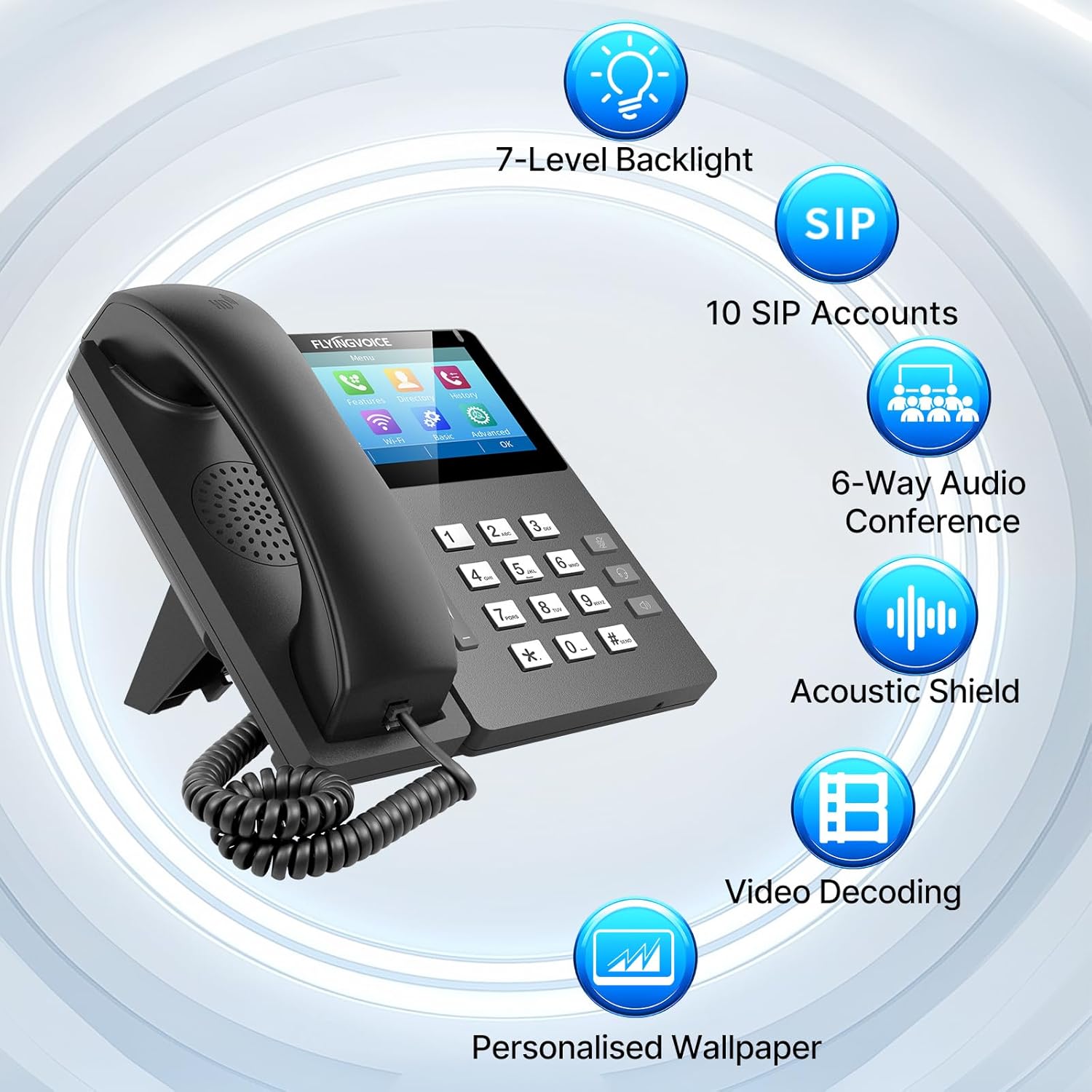
Figure 1.2: Visual representation of key features including 7-level backlight, 10 SIP accounts, 6-way audio conference, Acoustic Shield, Video Decoding, and Personalized Wallpaper.
IP Phone vs. Analog Phone:
Understanding the difference between IP phones and traditional analog phones is crucial for optimal use. The FIP15G Plus is an IP phone, leveraging internet protocol for communication.

Figure 1.3: A comparison table highlighting the differences between IP Phones (Ethernet, multiple SIP accounts, conference, low cost via Internet, complex setup, recommended for IP PBX) and Analog Phones (RJ11, single line, basic call, high cost, plug & play, ideal for home use).
2. Ntuziaka Nhazi
This section provides step-by-step instructions for setting up your FLYINGVOICE FIP15G Plus VoIP Phone.
2.1 Ihe ngwugwu:
Tupu ịmalite, hụ na akụrụngwa niile dị:
- FLYINGVOICE FIP15G Plus IP Phone unit
- Ekwentị
- Eriri eriri
- eriri Ethernet
- Ihe nkwụnye ọkụ (ma ọ bụrụ na ejighị PoE)
- Ogwe oche
2.2 Physical Connection:
- Tinye Desk Stand: Securely attach the included desk stand to the back of the phone unit. The phone can be positioned for 45° desktop use or 15° wall-mount (stand included for both).

Figure 2.1: The FIP15G Plus can be set up for 45° desktop use or 15° wall-mount with the included stand.
- Jikọọ ekwentị: Plug one end of the coiled handset cord into the handset and the other end into the handset port on the phone unit.
- Jikọọ na netwọk: Connect one end of the Ethernet cable to the LAN port on the phone and the other end to your network switch or router. If using Power over Ethernet (PoE), this single cable will also provide power.
- Jikọọ Ike (ọ bụrụ na ọ bụghị iji PoE): If your network does not support PoE, connect the power adapter to the DC IN port on the phone and then plug the adapter into a power outlet.
- Optional USB Devices: If desired, connect USB flash drives for call recording or EHS10 headset adapters to the USB 2.0 ports.
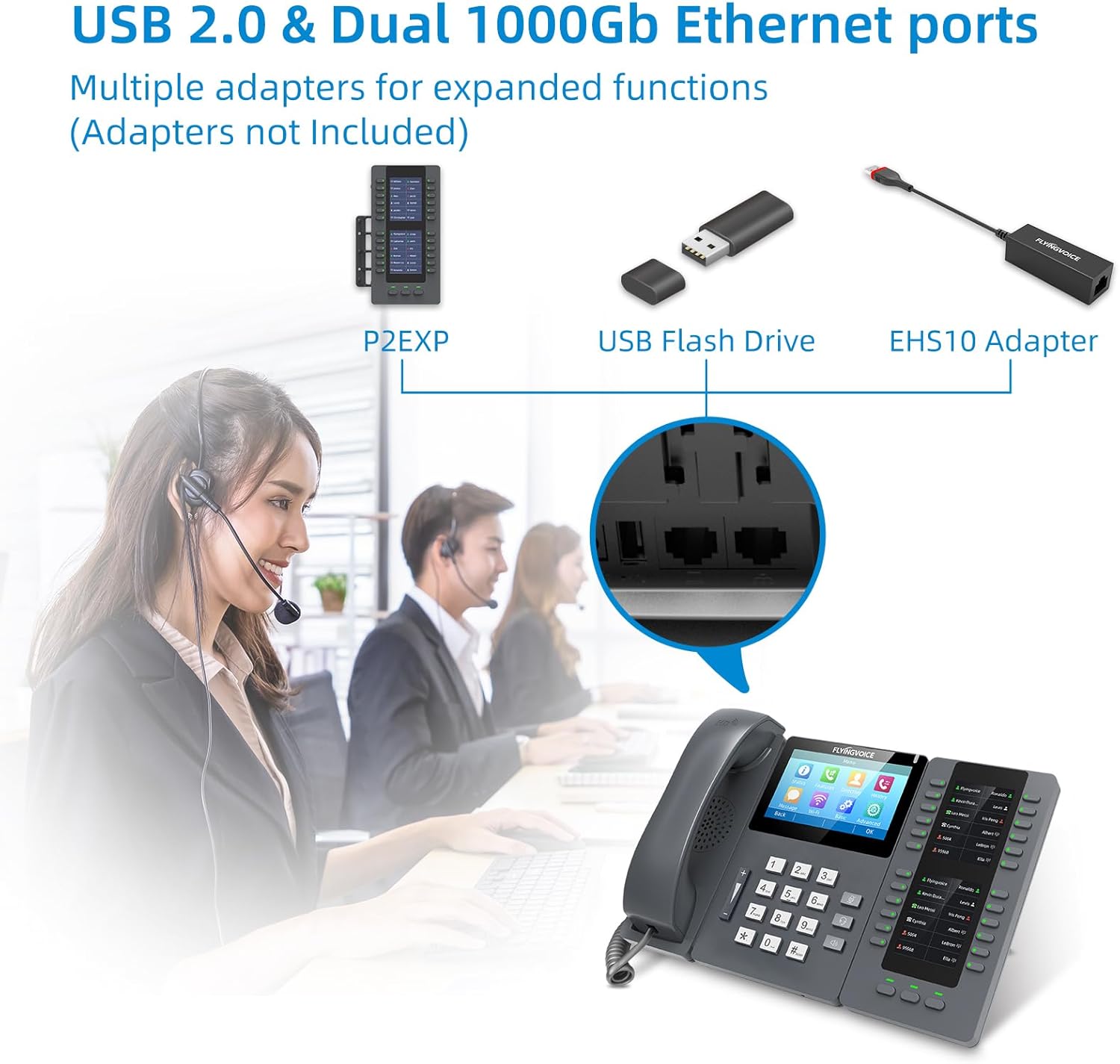
Ọgụgụ 2.2: nso nso view of the USB 2.0 and Dual 1000Gb Ethernet ports on the FIP15G Plus, showing connectivity options for P2EXP, USB Flash Drive, and EHS10 Adapter.
2.3 Initial Configuration:
Once powered on, the phone will boot up. You may need to configure network settings and SIP accounts. This can typically be done via the 4.3-inch IPS touch screen or through a web interface accessible from a computer on the same network.
- Ntọala netwọkụ: The phone will usually obtain an IP address automatically via DHCP. If static IP is required, configure it through the phone's menu (Advanced > Network).
- Ndebanye aha Akaụntụ SIP: Navigate to the SIP settings on the touch screen (e.g., Advanced > Accounts) to enter your SIP server address, user ID, password, and other required credentials provided by your VoIP service provider or PBX administrator. The FIP15G Plus supports up to 10 SIP lines.
- Njikọ Wi-Fi: If using Wi-Fi, navigate to the Wi-Fi settings on the touch screen (e.g., Wi-Fi menu) to scan for available networks and connect to your desired 2.4GHz or 5GHz network.

Figure 2.3: The FIP15G Plus supports dual-band 2.4GHz and 5GHz Wi-Fi for stronger compatibility and more stable connections in an office environment.
3. Ntuziaka ọrụ
This section details the basic and advanced operations of your FLYINGVOICE FIP15G Plus VoIP Phone.
3.1 Basic Call Functions:
- Ịkpọ oku: Pick up the handset or press the Speaker button. Dial the desired number using the keypad and press the Dial/Send button or wait for automatic dialing.
- Na-aza oku: When the phone rings, pick up the handset or press the Speaker button to answer.
- Ịkwụsị oku: Place the handset back on the cradle or press the Speaker button again.
- Ndozi olu: Use the volume buttons on the side of the phone to adjust the handset, speaker, or headset volume during a call.
3.2 Advanced Features:
- Iji ihuenyo mmetụ ahụ: The 4.3-inch IPS touch screen provides an intuitive interface for accessing phone features, settings, and directories. Tap icons to navigate menus, view call history, manage contacts, and configure advanced options.

Figure 3.1: The elegant touch screen interface of the FIP15G Plus, showing various menu options for Status, Features, Directory, History, Message, Wi-Fi, Basic, and Advanced settings.
- 6-Way Audio Conferencing: Initiate or join a multi-party conference call. Consult your VoIP service provider's instructions for specific steps, typically involving placing calls on hold and adding participants.
- Bluetooth Headset Connectivity: Pair your Bluetooth 4.2 compatible headset with the FIP15G Plus for hands-free communication. Access Bluetooth settings via the touch screen to enable pairing mode.

Figure 3.2: The FIP15G Plus features built-in Bluetooth 4.2, allowing for wireless headset connectivity.
- USB Call Recording: Insert a USB flash drive into one of the USB 2.0 ports. You can then configure the phone to automatically or manually record calls to the USB drive.
- Intercom Integration: The FIP15G Plus supports seamless integration with i86V Intercom (sold separately) for one-touch calls and video linkage, adapting to various industrial usage scenarios. This includes features like one-touch unlock for door access and communication with unattended car park systems.

Ọgụgụ 3.3: Ọpụamples of intercom integration, including one-touch unlock for reception areas and one-button call for unattended car parks.
4. Nlekọta
Proper maintenance ensures the longevity and optimal performance of your FIP15G Plus VoIP Phone.
4.1 Nhicha:
- Use a soft, dry cloth to clean the phone's surface and screen.
- Maka akara isi ike, ntakịrị dampen akwa na mmiri ma ọ bụ dị nwayọọ, na-adịghị abrasive Cleaner.
- Avoid using harsh chemicals, solvents, or abrasive materials, as these can damage the phone's finish and screen.
4.2 Mmelite ngwanrọ:
FLYINGVOICE provides powerful online management systems like FACS and FRPS, which can facilitate mass deployment and firmware updates. Regularly check for and apply firmware updates to ensure your phone has the latest features, security patches, and performance improvements. Consult your IT administrator or the FLYINGVOICE support website for update procedures.

Figure 4.1: Illustration of remote management tools, indicating the capability for centralized control and monitoring of FIP15G Plus devices.
5. Nchọpụta nsogbu
This section addresses common issues you might encounter with your FIP15G Plus VoIP Phone.
5.1 No Dial Tone / Cannot Make Calls:
- Lelee njikọ netwọkụ: Ensure the Ethernet cable is securely connected to both the phone's LAN port and your network switch/router. Verify network activity lights on the phone and switch.
- Lelee Ike: Confirm the phone is powered on. If using PoE, ensure your network switch provides PoE. If using a power adapter, ensure it's properly connected and the outlet is active.
- SIP Registration Status: On the phone's touch screen, navigate to the SIP account status. If it shows 'Unregistered' or 'Failed', verify your SIP account credentials and server address with your VoIP service provider or IT administrator.
- Nhazi netwọk: Ensure the phone has a valid IP address. If configured for static IP, double-check the settings.
5.2 Poor Voice Quality (Echo, Static, Choppy Audio):
- Mgbochi netwọkụ: High network traffic can affect voice quality. Ensure your network has sufficient bandwidth for VoIP calls.
- Ike mgbama Wi-Fi: If using Wi-Fi, check the signal strength. A weak signal can lead to poor audio. Consider moving closer to the access point or using a wired Ethernet connection.
- Acoustic Environment: The FIP15G Plus features Acoustic Shield and Intelligent noise enclosure design to minimize background noise. Ensure the phone is not placed in an excessively noisy environment that could overwhelm these features.
- Femụwe Update: Ensure your phone's firmware is up to date, as updates often include voice quality improvements.

Figure 5.1: The FIP15G Plus is designed to deliver crystal clear voice even in noisy environments, thanks to advanced audio technologies.
5.3 Screen Unresponsive / Frozen:
- Restart the Phone: Disconnect the power cable (or Ethernet cable if using PoE) for a few seconds, then reconnect it to restart the phone.
- Lelee maka mmelite: Ensure the phone's firmware is current.
6. Nka na ụzụ nkọwa
Detailed technical specifications for the FLYINGVOICE FIP15G Plus VoIP Phone.
| Njirimara | Nkọwa |
|---|---|
| Ụdị | ỤFỌDỤ NA-efe efe |
| Nlereanya | FIP15G gbakwunyere |
| Agba | Nwa |
| Ụdị ekwentị | Ekwentị IP ejiri eriri (VoIP) |
| Ngosipụta | IPS Touch 4.3-inch |
| Ahịrị SIP | Ahịrị 10 SIP |
| Wi-Fi | Built-in Dual-Band 2.4GHz & 5GHz Wi-Fi |
| Bluetooth | Bluetooth 4.2 |
| ọdụ ụgbọ mmiri Ethernet | Dual 1000Gb Ethernet ports (LAN/PC) |
| ọdụ ụgbọ mmiri USB | Abụọ ọdụ ụgbọ mmiri USB 2.0 |
| Isi Iyi Ike | DC Power Supply or PoE (Power over Ethernet) |
| Codec olu | G.722, Opus (Wide-band Code) |
| Njirimara ọdịyo | Acoustic Shield, ANC, Intelligent noise enclosure |
| Ike oku ogbako | 6-ụzọ Audio Conference |
| Ikike akwụkwọ ekwentị | Ndenye 2000 |
| Ngwa dakọtara | Bluetooth Headsets, DECT Wireless Headsets (with EHS10), USB Devices, Desktop Computers, Laptops, VoIP Systems, Intercom Systems |
7. Akwụkwọ ikike Ozi
For detailed warranty information regarding your FLYINGVOICE FIP15G Plus VoIP Phone, please refer to the warranty card included with your product packaging or visit the official FLYINGVOICE website. Warranty terms and conditions may vary by region and retailer. It is recommended to register your product upon purchase to facilitate any future warranty claims.
8. Nkwado ndị ahịa
FLYINGVOICE is committed to providing excellent customer support for its products. If you encounter any issues or have questions not covered in this manual, please utilize the following resources:
- Ndị ọchịchị Websaịtị: Visit the FLYINGVOICE official website for FAQs, updated documentation, and software downloads.
- Nkwado ndị teknuzu: Contact FLYINGVOICE technical support for assistance with setup, configuration, or troubleshooting. FLYINGVOICE aims to provide responsive support to ensure smooth operation of your device.
- Online Management Platforms: Utilize FLYINGVOICE's online platforms such as FACS and FRPS for remote management and support, especially for larger deployments.

Figure 8.1: Icon representing dedicated technical support services.


