1. Okwu mmalite
The FLYINGVOICE P23GW is an advanced business IP phone designed for modern communication needs. It features dual-band WiFi, Bluetooth 4.2, a USB port for expansion, and a vibrant color screen. This manual provides detailed instructions to help you maximize the functionality of your P23GW VoIP phone.
2. Ihe ngwugwu
Tupu ịmalite na ntọala ahụ, biko hụ na ihe niile dị na ngwugwu gị:
- FLYINGVOICE P23GW VoIP Phone Unit
- Ekwentị
- Eriri eriri
- eriri Ethernet
- Ihe nkwụnye ọkụ
- Ntuziaka nwụnye ngwa ngwa

Foto 2.1: The P23GW VoIP Phone with its power adapter, as typically found in the package.
3. Nhazi
3.1 Njikọ anụ ahụ
- Jikọọ ekwentị: Tinye otu nsọtụ nke eriri ekwentị agbakịrị n'ime ekwentị yana nsọtụ nke ọzọ n'ọdụ ụgbọ mmiri ekwentị dị na ntọala ekwentị.
- Jikọọ na netwọk: Connect one end of the Ethernet cable to the LAN port on the phone and the other end to your network router or switch. If you are using the phone to provide network access to a computer, connect the computer to the PC port on the phone.
- Njikọ Ike: Plug the power adapter into the power port on the phone and then into a power outlet. The phone will automatically power on.
3.2 Nhazi izizi
Upon first boot, the phone will attempt to obtain network settings via DHCP. You may need to configure SIP accounts manually or through auto-provisioning, depending on your service provider.
- Ntọala netwọkụ: Navigate to the 'Network' menu on the phone's color screen to configure IP settings if DHCP is not used.
- Ndebanye aha SIP: Access the 'SIP Account' menu to enter your SIP server address, username, and password. The phone supports quick SIP registration directly from the LCD screen.
4. Ntuziaka ọrụ
4.1 Ọrụ oku bụ isi
- Ịkpọ oku: Pick up the handset or press the Speaker button, then dial the number and press the 'Dial' or 'Send' soft key.
- Na-aza oku: Pick up the handset or press the 'Speaker' button when the phone rings.
- Ịkwụsị oku: Hang up the handset or press the 'End Call' soft key.
- Jide/ maliteghachi: During a call, press the 'Hold' soft key. Press it again to resume the call.
- Nyefee: During a call, press the 'Transfer' soft key, dial the new number, and press 'Transfer' again.
4.2 Display and Keypad Navigation
The P23GW features a 2.8-inch color display with a 7-level adjustable backlight for optimal visibility in various lighting conditions.

Foto 4.1: Adjusting the backlight on the P23GW's color display for improved readability.
Use the navigation keys (Up, Down, Left, Right, OK) to browse menus and select options. The soft keys below the display change functionality based on the current context.
4.3 Atụmatụ dị elu
4.3.1 Wireless Connectivity (Dual-Band WiFi & AP Mode)
The P23GW supports 2.4G and 5GHz dual-band WiFi, providing flexible network connection options. It also features AP (Access Point) and Wi-Fi to LAN capabilities, allowing the phone to share its network connection with other devices.

Foto 4.2: The P23GW operating in Wireless AP Mode, demonstrating its ability to share network connectivity with other devices.
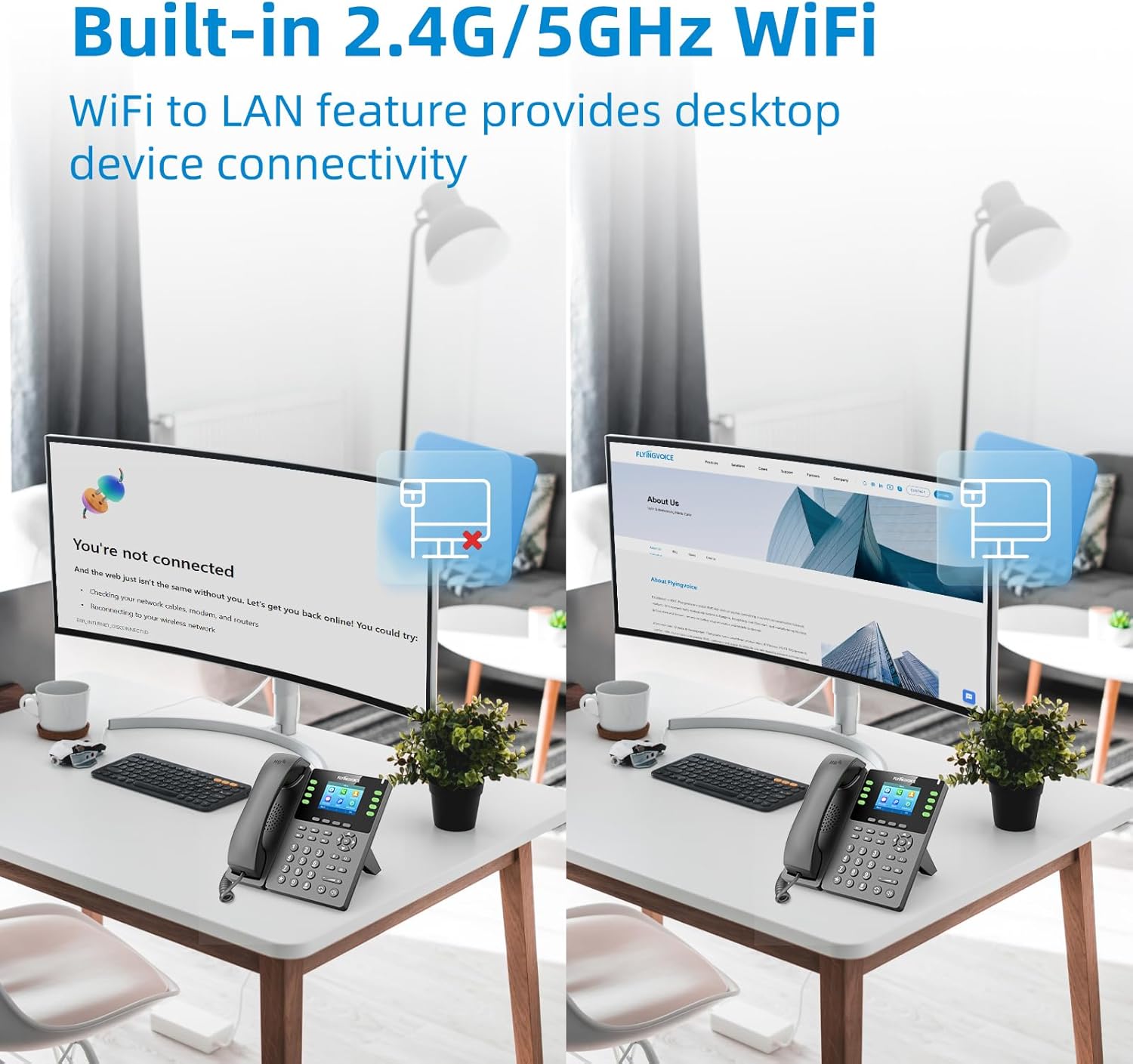
Foto 4.3: The P23GW's built-in 2.4G/5GHz WiFi enabling desktop device connectivity via its Wi-Fi to LAN feature.
4.3.2 Bluetooth 4.2
Integrated Bluetooth 4.2 allows for seamless pairing with wireless headsets, offering enhanced mobility and comfort during calls. To pair a device, navigate to the 'Bluetooth' menu in the phone settings.
4.3.3 USB Expansion
The USB 2.0 port expands the phone's functionality. It can be used for connecting various external devices, including:
- USB drives for automatic or manual call recording.
- Bluetooth adapters (if not already integrated).
- Wireless headsets.
- Expansion modules (e.g., P2EXP for additional programmable keys).

Foto 4.4: The P23GW's USB 2.0 and dual Ethernet ports, illustrating connectivity options for expanded functions.
4.3.4 Atụmatụ Njikwa Oku
- Multiple VoIP Accounts: Supports up to 8 VoIP accounts, allowing for flexible line management.
- Speed Dial Keys: Utilize the 6 dedicated speed dial keys for quick access to frequently called numbers.
- Mgbakọ n'ụzọ 6: Facilitate multi-party conversations with the built-in 6-way audio conferencing feature.

Foto 4.5: Visual representation of the P23GW's six-way audio conference capability, enabling easier communication and collaboration.
4.3.5 Local Phonebook
The phone includes a local phonebook capable of storing up to 2,000 contacts, ensuring all your important contacts are readily accessible.
5. Nlekọta
5.1 Nhicha
To maintain the phone's appearance and functionality, regularly clean its surfaces. Use a soft, dry cloth for the display and a slightly damp cloth for the body. Avoid using harsh chemicals or abrasive cleaners.
5.2 Mmelite firmware
FLYINGVOICE periodically releases firmware updates to improve performance, add features, and address security concerns. The P23GW supports unified firmware. Check the official FLYINGVOICE website for the latest firmware versions and instructions on how to update your device.
6. Nchọpụta nsogbu
This section addresses common issues you might encounter with your P23GW VoIP phone.
| Nsogbu | Ihe nwere ike ime | Ngwọta |
|---|---|---|
| Enweghị ụda ọkpụkpọ | Phone not powered on; Network cable loose; SIP account not registered. | Check power connection; Ensure Ethernet cable is securely plugged in; Verify SIP account registration status in settings. |
| Enweghị ike ịkpọ/nata oku | SIP account issues; Network connectivity problems; Firewall blocking VoIP traffic. | Confirm SIP account credentials; Check network connection; Consult your network administrator about firewall settings. |
| Poor call quality (echo, static) | Network congestion; Low bandwidth; Faulty handset/headset. | Ensure stable internet connection; Reduce network traffic; Test with a different handset or headset. |
| Njikọ WiFi anaghị akwụsi ike | Weak signal; Interference; Incorrect WiFi settings. | Move phone closer to WiFi router; Check for interfering devices; Re-enter WiFi password and settings. |
For more advanced diagnostics, the P23GW supports remote management tools, allowing administrators to monitor and configure the device remotely.

Foto 6.1: Examples of remote management interfaces that can be used for troubleshooting and configuration of the P23GW.
7. Nka na ụzụ nkọwa
| Njirimara | Nkọwa |
|---|---|
| Ụdị | ỤFỌDỤ NA-efe efe |
| Nlereanya | P23GW |
| Agba | Nwa |
| Ụdị ekwentị | Cordless (VoIP IP Phone) |
| Isi Iyi Ike | Ihe nkwụnye ọkụ AC |
| Ngosipụta | 2.8-inch Color Screen with 7-level adjustable backlight |
| Akaụntụ VoIP | 8 SIP Accounts |
| WiFi | 2.4G/5GHz Dual-Band WiFi, AP & Wi-Fi to LAN features |
| Bluetooth | Bluetooth 4.2 |
| Ọdụ ụgbọ mmiri USB | USB 2.0 for expansion (e.g., recording, headsets) |
| Speed Dial Keys | 6 igodo mmemme |
| Nzukọ | Mkparịta ụka ụzọ 6 |
| Ikike akwụkwọ ekwentị | Up to 2,000 contacts |
| Ngwa dakọtara | Computers, Wireless Headsets, Answering Machines, Bluetooth-enabled Devices |
8. Nkwado na akwụkwọ ikike
8.1 Nkwado nka na ụzụ
For technical assistance or inquiries, FLYINGVOICE offers dedicated 1-to-1 tech support. Please refer to the contact information provided with your product or visit the official FLYINGVOICE websaịtị maka akụrụngwa nkwado.
8.2 Akwụkwọ ikike ngwaahịa
The FLYINGVOICE P23GW VoIP Phone comes with a standard manufacturer's warranty. Please refer to the warranty card included in your product packaging for specific terms, conditions, and duration of the warranty. Keep your purchase receipt as proof of purchase for warranty claims.


