1. Okwu mmalite
This manual provides essential information for the safe and efficient operation of your VISION VP-621 4K Ultra HD Multimedia Projector. Please read this manual thoroughly before using the projector and retain it for future reference.
The VISION VP-621 is a versatile smart projector featuring 4K Ultra HD support, 11000 lumens brightness, 5G WiFi, Bluetooth 5.0, Auto Focus, Wireless Miracast, and an integrated Android 9.0 operating system. It is designed for various applications including home entertainment, business presentations, and educational purposes.
2. Ozi nchekwa
- Do not block the ventilation openings. Ensure adequate airflow around the projector to prevent overheating.
- Elela anya ozugbo na oghere projector mgbe lamp Ọ na-agba ọkụ. Ọkụ na-egbuke egbuke nwere ike imebi anya.
- Place the projector on a stable, level surface to prevent it from falling.
- Keep the projector away from water, moisture, and extreme temperatures.
- Jiri naanị ihe nkwụnye ike enyere na ihe ngosi ahụ.
- Do not attempt to open or repair the projector yourself. Refer all servicing to qualified personnel.
- Wepụ ihe mkpuchi projektọ ahụ n'oge oké ifufe ma ọ bụ mgbe ejiri ya ruo ogologo oge.
3. Ihe ngwugwu
Nyochaa na etinyere ihe niile edepụtara n'okpuru na ngwugwu gị:
- VISION VP-621 Projector
- Ụdọ ọkụ
- Ihe nkwụnye
- Njikwa anya
- Igwe AV
- Ihe mkpuchi oghere projector
4. Ngwaahịa gafereview
Familiarize yourself with the main components and interfaces of your VISION VP-621 projector.

Foto: Ihu na akụkụ view of the VISION VP-621 projector, showcasing ya kọmpat imewe na oghere.
4.1 Front and Top Panel
- Okirikiri anya: Emits the image.
- Nnata infrared: Maka akara njikwa dị anya.
- bọtịnụ njikwa: Power, Navigation (OK, Up, Down, Left, Right), Back.
- Igwe ikuku ikuku: For cooling the internal components.

Foto: Top view of the projector highlighting the integrated control buttons for power and navigation.
4.2 Rear Panel and Connectivity Ports
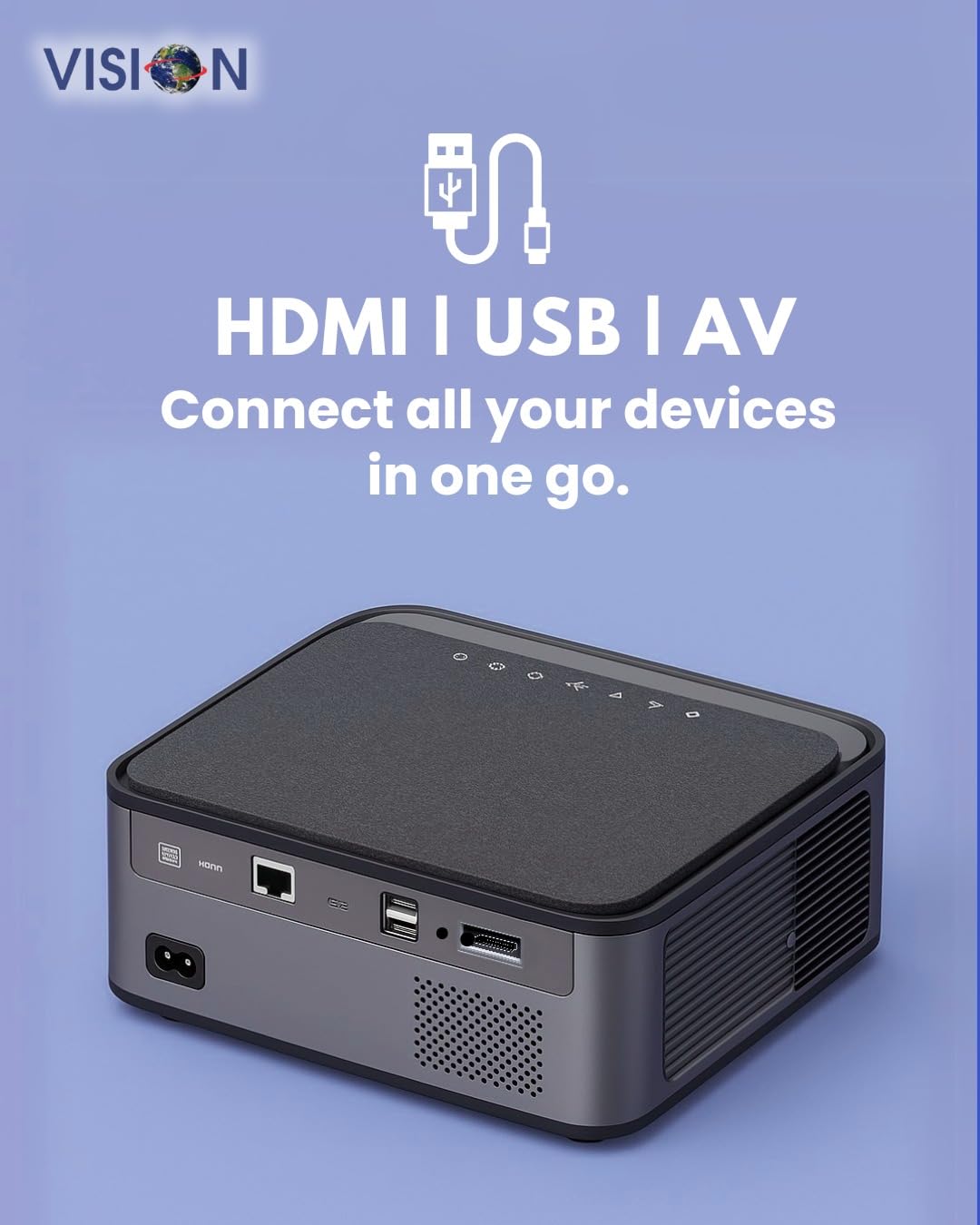
Foto: N'azụ view of the projector displaying the various input and output ports, including HDMI, USB, and AV.
- Ntinye ike: Jikọọ ihe nkwụnye ọkụ ebe a.
- Ọdụ ụgbọ mmiri HDMI: Connect to HDMI-enabled devices (laptops, gaming consoles, streaming sticks).
- ọdụ ụgbọ mmiri USB (x2): Connect USB drives for media playback or external devices.
- Ntinye AV: Connect to older devices using the provided AV cable.
- Mwepụ Ọdịyo (3.5mm): Jikọọ igwe okwu ma ọ bụ ekweisi mpụga.
- Ọdụ ụgbọ mmiri LAN: For wired internet connection (if available).
5. Nhazi
5.1 Ndobe ihe nrụpụta
Choose a flat, stable surface for the projector. Ensure there are no obstructions in front of the lens and that the ventilation grilles are clear.

Image: A projector positioned on a desk, illustrating a typical setup environment.
5.2 Njikọ ike
- Jikọọ ihe nkwụnye ọkụ na ọdụ ụgbọ mmiri ntinye ike nke projector.
- Tinye eriri ọkụ n'ime oghere mgbidi.
- Ihe ngosi ọkụ na-egosi ọkụ na projector ga-enwu.
5.3 Ike mbido
- Pịa bọtịnụ ike dị na projector ma ọ bụ remote control ka ịgbanwuo ya.
- The projector will boot up and display the Android 9.0 home screen.
5.4 Mgbanwe nke Isi Ihe na Ndozi
The VISION VP-621 features automatic focus and 4D keystone correction for a clear and properly aligned image.

Image: Illustrates the projector's automatic focus and keystone correction capabilities, ensuring a sharp and aligned picture.
- Lekwasịrị anya na akpaaka: The projector will automatically adjust the focus for a sharp image upon startup or movement.
- Ndozi Keystone 4D: The projector automatically corrects image distortion when placed at an angle. Manual adjustments may be available in the settings menu if needed.
6. Ntuziaka ọrụ
6.1 Android 9.0 Smart OS
The integrated Android 9.0 system allows direct access to streaming services and apps.
- Ntugharị: Use the remote control's directional buttons and "OK" button to navigate the interface.
- Nwụnye ngwa: Access the Google Play Store to download and install applications like YouTube, Netflix, and Prime Video.
- Njikọ netwọk: Go to Settings > Network to connect to a 5G WiFi network or a wired LAN connection.
6.2 Ijikọ ngwaọrụ mpụga
Njikọ HDMI
- Connect an HDMI cable from your device (laptop, gaming console, Fire TV Stick) to the HDMI port on the projector.
- On the projector's home screen, select the HDMI input source.
Njikọ USB
- Insert a USB drive into one of the USB ports on the projector.
- The projector will typically prompt you to open the media player or file browser. If not, navigate to the file manager app on the Android home screen.
Njikọ AV
- Connect the provided AV cable to the AV input port on the projector and to your external device.
- Select the AV input source on the projector.
Bluetooth 5.0 Audio Output
- Go to Settings > Bluetooth on the projector.
- Kwado Bluetooth wee chọọ ngwaọrụ dị.
- Select your Bluetooth speaker or headphones from the list to pair and connect.
Wireless Miracast (Screen Mirroring)
Miracast allows you to wirelessly mirror the screen of your compatible smartphone, tablet, or laptop.
- On the projector's home screen, select the "Miracast" or "Screen Mirroring" application.
- On your mobile device, enable screen mirroring (often found in quick settings or display settings, named "Cast," "Smart View," "Wireless Display," etc.).
- Select the projector from the list of available devices to establish the connection.
7. Nlekọta
7.1 Na-ehicha ihe nrụpụta
- oghere: Jiri ákwà dị nro, nke na-enweghị ihe e ji ehicha ihe nke e mere maka anya anya. Ejila ihe nhicha aka.
- Casing: Hichapụ projector casing with a soft, dry cloth. For stubborn dirt, slightly dampen akwa na mmiri wee hichaa akọrọ.
- Igwe ikuku: Regularly check and clean the ventilation grilles to ensure proper airflow and prevent dust buildup. Use a soft brush or compressed air.
7.2 Lamp Ndụ
The VISION VP-621 utilizes advanced LED technology, providing an estimated lamp life of up to 50,000 hours. This significantly reduces the need for lamp replacement compared to traditional projectors.
8. Nchọpụta nsogbu
| Nsogbu | Ihe nwere ike ime | Ngwọta |
|---|---|---|
| Ọnweghị onyonyo egosiri |
|
|
| Onyonyo edoghi anya |
|
|
| Enweghị ụda |
|
|
| Enweghị ike ijikọ na Wi-Fi |
|
|
9. Nkọwapụta
| Ụdị | Ọhụụ |
| Aha Nlereanya | VP-621 AN |
| Ngosipụta teknụzụ | LCD |
| Ụdị ngosi | Ikanam |
| Icha ọkụ | 11000 Lumen |
| Foto dị iche na foto | 18000:1 Pixels |
| Mkpebi obodo | 1920 x 1280 (HD zuru ezu) |
| Mkpebi akwadoro | Up to 4K Ultra HD |
| Akụkụ akụkụ | 16:9, 4:3 |
| Sistemụ nrụọrụ | Android 9.0 |
| Teknụzụ Njikọta | Bluetooth 5.0, HDMI, USB, Wi-Fi (5G) |
| Ngwaọrụ Akụrụngwa | Bluetooth 5, HDMI, USB 3.0 |
| Atụmatụ pụrụ iche | Built-In 3D, Built-In Cooling System, Built-In Speaker, Electric Focus, Wi-Fi Ready, Auto Focus, 4D Keystone Correction, Wireless Miracast |
| Akụkụ ngwaahịa | 30 x 18 x 7 cm |
| Ibu Ibu | 8 n'arọ |
| Lamp Ndụ | Ruo awa iri abụọ |

Image: Illustrates the projector's Full HD (1920x1080) resolution capability for crisp visuals.

Image: Highlights the projector's 11000 lumens brightness, ensuring clear visuals in various lighting conditions.
10. Akwụkwọ ikike na nkwado
For warranty information and technical support, please contact the manufacturer:
- Onye nrụpụta: Scorpio Infosolutions
- Ebe: Delhi, India
- Ekwentị: +91-7982647130
- Websaịtị: visionsheen.in
Please have your product model (VP-621) and purchase details ready when contacting support.


