Okwu mmalite
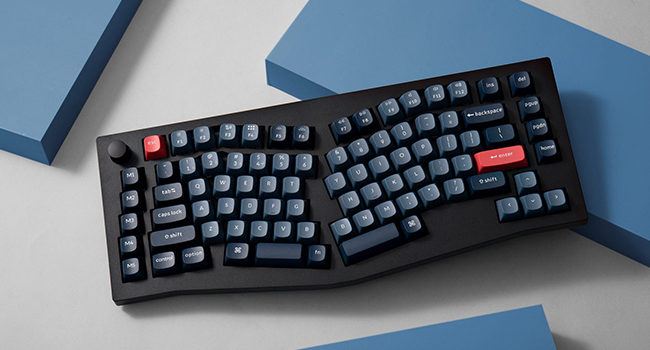
This manual provides comprehensive instructions for the Keychron V10 Max Ergonomic Wireless Mechanical Keyboard. It covers initial setup, operational procedures, maintenance guidelines, and troubleshooting steps to ensure optimal performance and user experience. The Keychron V10 Max is a highly customizable 75% layout keyboard featuring an ergonomic Alice layout, QMK/VIA support, triple-mode connectivity (2.4GHz, Bluetooth, USB-C), hot-swappable switches, and OSA PBT keycaps.

N'ihu view of the Keychron V10 Max keyboard, showcasing its ergonomic Alice layout and keycap design.
Kedu ihe dị na Igbe ahụ
The Keychron V10 Max package includes the following components:
- Ahụigodo: 1x Fully Assembled Keyboard (including 1x Case, 1x PCB, 1x PC Plate, 1x Sound Absorbing Foam, 5 Sets x Stabilizers, 1 Set x Keycaps (PBT Double-shot), 1 Set x Switches)
- USB: 1x Type-C to Type-C Cable, 1x Type-A to Type-C Adapter, 1x Extension Adapter for Receiver
- onye nnata: 1x Type-A 2.4GHz Receiver, 1x Type-C 2.4GHz Receiver
- Ngwa: 1x Keycap & Switch Puller, 1x Screwdriver, 1x Hex Key

Image illustrating the various components and tools included with the Keychron V10 Max keyboard.
Melite
1. Operating System Switch
Locate the operating system switch on the back of the keyboard. Slide the switch to either "Windows" or "macOS" depending on your computer's operating system. This ensures proper key mapping and functionality.
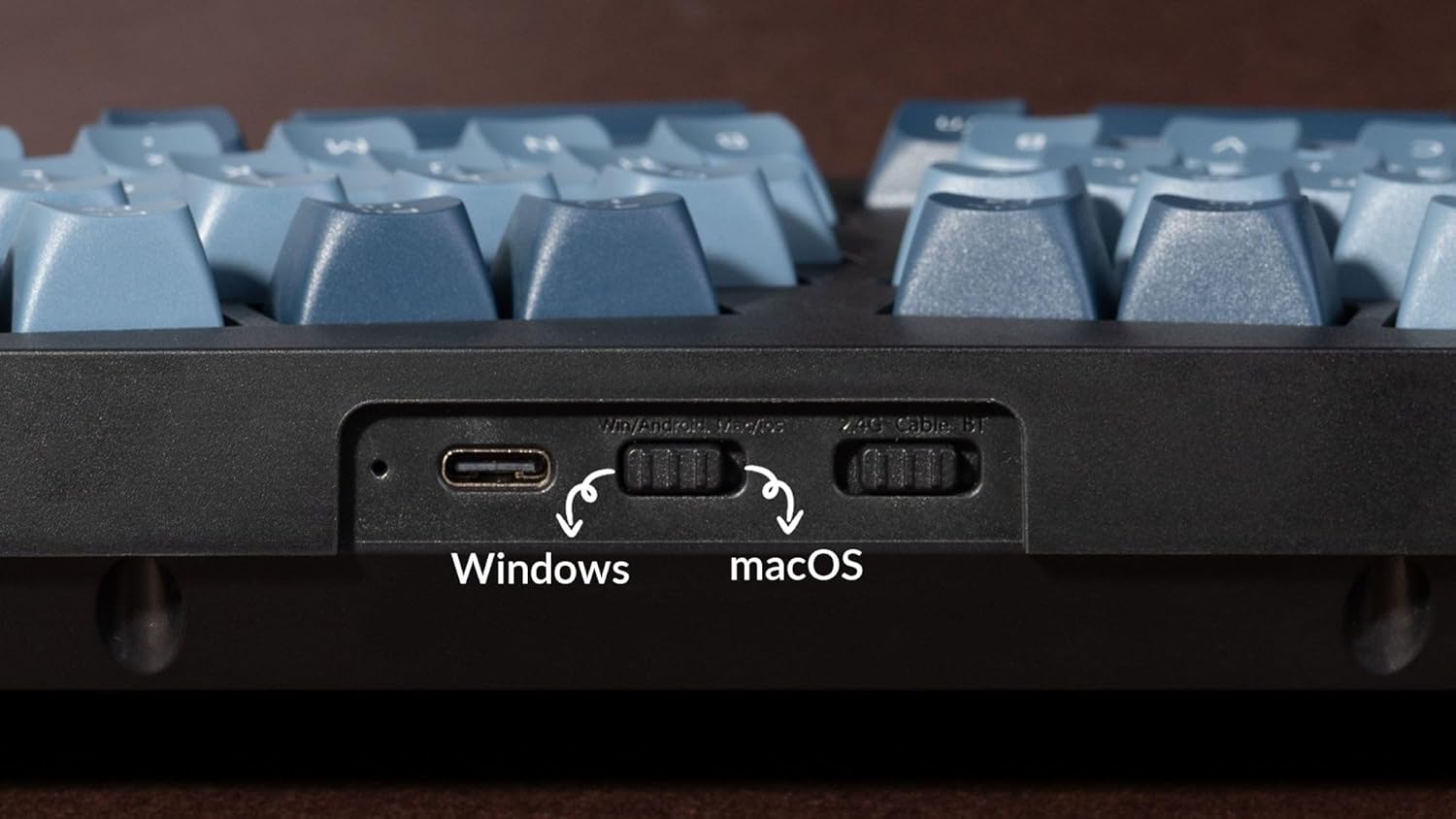
Agara nso view of the switch for selecting between Windows and macOS operating systems.
2. Njikọta Nhọrọ
The Keychron V10 Max supports three connection modes: USB-C wired, 2.4GHz wireless, and Bluetooth 5.1 wireless.
- Njikọ eriri USB-C: Connect the keyboard directly to your computer using the provided USB-C to USB-C cable. Use the USB-A to USB-C adapter if your computer only has USB-A ports.
- Njikọ ikuku 2.4GHz: Insert the 2.4GHz USB receiver (Type-A or Type-C) into an available port on your computer. The keyboard will automatically connect. The receivers can be stored magnetically in the top right corner slot of the keyboard when not in use.
- Bluetooth 5.1 Wireless Connection: Turn on Bluetooth on your device. On the keyboard, switch to Bluetooth mode. Press and hold the 'Fn' key and '1' (or '2' or '3') for 4 seconds to enter pairing mode. The keyboard will appear as 'Keychron V10 Max' in your device's Bluetooth settings. Select it to pair.

Image showing the physical switches on the keyboard for selecting between wired, 2.4GHz, and Bluetooth modes.
Ntuziaka ọrụ
Nhazi QMK/VIA
The Keychron V10 Max supports QMK/VIA for advanced key remapping, macro creation, and lighting customization. Download the VIA software from the official Keychron website to access these features. The powerful ARM architecture MCU with 256K Flash provides flexibility for developers and ensures a 1000 Hz polling rate for responsive input.
This video demonstrates how to program the Keychron V10 Max keyboard using QMK and VIA software for custom key assignments.
Keycaps and Switches
The keyboard features hot-swappable sockets, allowing you to easily change switches without soldering. It comes equipped with Gateron Jupiter Red switches, known for their linear feel and 45 ±15 gf operating force. The OSA (OEM spherical angled) profile double-shot PBT keycaps offer excellent oil resistance and a comfortable typing experience.
An exploded diagram showing the internal components of the Keychron V10 Max, including keycaps, switches, gaskets, and PCB.

Table detailing the specifications and characteristics of the Gateron Jupiter Red switches.
RGB ọkụ
The Keychron V10 Max features south-facing RGB LED lighting, which provides vibrant illumination and is compatible with various keycap designs. Lighting effects can be customized via the VIA software.
This video showcases the south-facing RGB LED lighting effects on the Keychron V10 Max keyboard.
Nlekọta
To maintain the performance and appearance of your Keychron V10 Max keyboard, follow these guidelines:
- Nhicha: Regularly clean the keycaps and case with a soft, dry cloth. For deeper cleaning, remove keycaps using the provided keycap puller and clean the switches and plate with compressed air or a soft brush.
- Ndochi Mgbanwe: Use the provided switch puller to carefully remove switches. Align new switches correctly before pressing them into the hot-swappable sockets to avoid bending pins.
- Nchekwa: When not in use for extended periods, store the keyboard in a dry, dust-free environment.
Nchọpụta nsogbu
- Ahụigodo anaghị aza: Ensure the keyboard is charged. Check the connection mode switch (wired, 2.4GHz, Bluetooth) and the OS switch (Windows/macOS) are set correctly. Try connecting via USB-C cable to rule out wireless issues.
- Nsogbu njikọ ikuku: For 2.4GHz, ensure the receiver is securely plugged in and within range. For Bluetooth, ensure the keyboard is in pairing mode and your device's Bluetooth is enabled. Try re-pairing the device.
- Igodo anaghị edebanye aha: If specific keys are not working, carefully remove the keycap and switch using the provided tools. Inspect the switch for bent pins or damage. Replace the switch if necessary.
- RGB ọkụ anaghị arụ ọrụ: Check VIA software settings for lighting customization. Ensure the keyboard is not in a low-power mode that disables lighting.
- Femụwe Update: If experiencing persistent issues, check the Keychron website for the latest firmware updates and installation instructions.
Nkọwapụta
| Njirimara | Nkọwa |
|---|---|
| Akụkụ ngwaahịa | 15.3 x 6.22 x 2.7 inch (15.3"L x 6.22"W x 2.7"H) |
| Ibu Ibu | 1.19 pound |
| Onye nrụpụta | Keychron |
| Nọmba Nlereanya ihe | V10M-D1 |
| Batrị | 1 batrị lithium polymer (gụnyere) |
| Ụdị | Keychron |
| Ngwa dakọtara | Laptop, Desktop, Smartphone, Tablet |
| Teknụzụ Njikọta | Bluetooth, 2.4GHz Ikuku, USB-C Waya |
| Nkọwa ahụigodo | Ahụigodo Mechanical Ergonomic |
| Atụmatụ pụrụ iche | Backlit, Ergonomic, Hot-Swappable, Programmable Keys, Rechargeable |
| Agba | Carbon ojii |
| Ahụigodo azụ azụ | RGB |
Akwụkwọ ikike na nkwado
For warranty information, technical support, and additional resources, please visit the official Keychron websaịtị. Ị nwere ike ịchọta FAQ, nbudata ọkwọ ụgbọala na ozi kọntaktị maka ọrụ ndị ahịa ebe ahụ.
Igodo gọọmentị Websaịtị: www.keychron.com


