1. Okwu mmalite
Daalụ maka ịzụrụasing the Timex TW14 Alarm Clock with Wireless Charger. This compact device combines a digital alarm clock with a convenient 15W wireless charging pad, suitable for various smartphones and earbuds. This manual provides essential information for setting up, operating, and maintaining your new alarm clock.
2. Ihe ngwugwu
Biko hụ na ihe niile dị na ngwugwu:
- Timex TW14 Alarm Clock with Wireless Charger
- USB-A ka eriri USB-C
- Akwụkwọ ntuziaka (akwụkwọ a)
Mara: A 18W QC3.0 adapter and 2 AAA batteries for backup are etinyeghị ya a ga-azụrịrị ya iche.
3. Ngwaahịa gafereview
Familiarize yourself with the components and controls of your Timex TW14 alarm clock.

Foto nke 3.1: N'elu view of the Timex TW14 alarm clock, highlighting the control buttons and the wireless charging pad. The display shows "10:09". A USB power cable is also shown.
Ogwe ihu:
- Ikanam Display: Shows time, alarm status, and PM indicator.
Ogwe elu:
- Mpempe chaja ikuku: For charging compatible devices.
- "M" Button: Mode/Set button for time and alarm settings, also functions as snooze.
- "-" bọtịnụ: Decrease value, navigate backward, also functions as snooze.
- "+" bọtịnụ: Increase value, navigate forward, also functions as snooze.
Ngbanwe azụ:
- Ntinye ike USB-C: Na-ejikọ na eriri ọkụ eletrik.
Ogwe ala:
- Akụkụ batrị: For 2 AAA backup batteries.
4. Nhazi
4.1 Njikọ ike
- Connect the supplied USB-A to USB-C power cable to the USB-C input port on the rear of the alarm clock.
- Connect the USB-A end of the cable to a compatible 18W QC3.0 USB power adapter (not included).
- Plug the power adapter into a standard wall outlet. The clock display will illuminate.
4.2 Nwụnye Ndabere Batrị
The battery backup system maintains time and alarm settings during a temporary power outage. It does not power the clock display or wireless charging function.
- Chọta ebe batrị dị na ala nke unit ahụ.
- Mepee mkpuchi nke batrị batrị.
- Insert 2 new AAA batteries (not included), observing the correct polarity (+ and -) as indicated inside the compartment.
- Mechie mkpuchi nke batrị batrị nke ọma.
5. Ntuziaka ọrụ
5.1 Isetịpụ oge
- Pịa ma jide M button until the hour digits begin to flash.
- Jiri ihe - or + buttons to adjust the hour. Pay attention to the PM indicator if using 12-hour format.
- Pịa M button again to confirm the hour, and the minute digits will flash.
- Jiri ihe - or + bọtịnụ iji dozie nkeji.
- Pịa M button once more to confirm the minutes and exit time setting mode.
5.2 Ịtọ ntọala mkpu
- Pịa M button once (do not hold) to enter alarm setting mode. The alarm time will be displayed, and the alarm icon will flash.
- Pịa ma jide M bọtịnụ ruo mgbe ọnụọgụgụ awa mkpu ahụ malitere ịgba ọkụ.
- Jiri ihe - or + bọtịnụ iji dozie elekere mkpu.
- Pịa M button again to confirm the alarm hour, and the alarm minute digits will flash.
- Jiri ihe - or + bọtịnụ iji gbanwee nkeji mkpu.
- Pịa M button once more to confirm the alarm minutes and exit alarm setting mode. The alarm icon will remain lit, indicating the alarm is active.
- Iji gbanye/Gbanyụọ mkpu ahụ, pịa pịa M button briefly when the current time is displayed. The alarm icon will appear or disappear.
5.3 Ọrụ snooze
When the alarm sounds, press any of the M, -, ma ọ bụ + buttons to activate the snooze function. The alarm will temporarily stop and sound again after approximately 9 minutes.
To turn off the alarm completely, allow the alarm to ring for its full duration or turn off the alarm via the M button when not ringing.
5.4 Ngosipụta Dimmer
To adjust the brightness of the LED display, repeatedly press the M button (when not in setting mode) to cycle through High, Low, and Off brightness levels.
5.5 Nchaji ikuku
The Timex TW14 features a 15W wireless charging pad compatible with Qi-enabled devices such as iPhone, Android smartphones, and AirPods.

Foto nke 5.1: An iPhone placed on the wireless charging pad of the Timex TW14 alarm clock, indicating active charging.
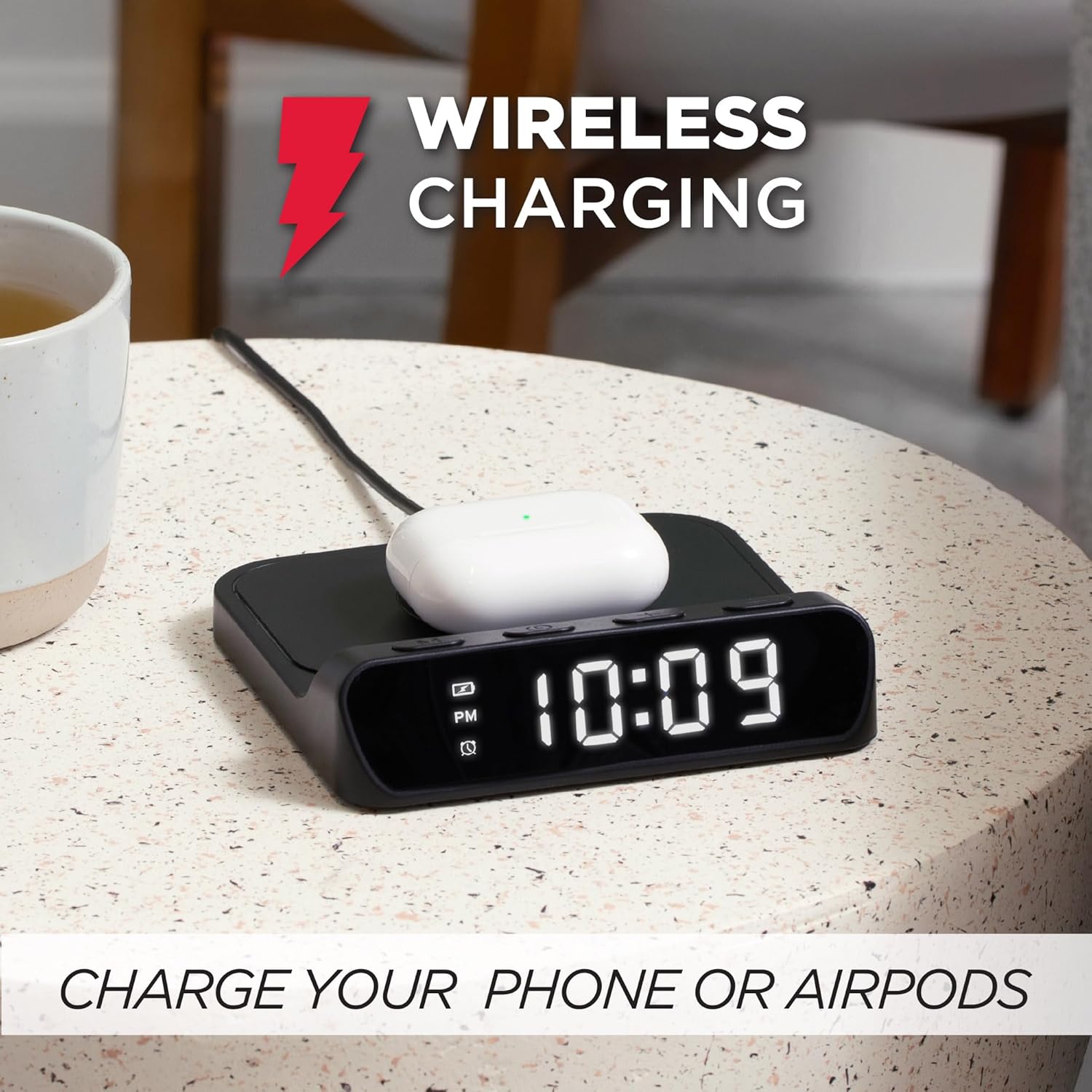
Foto nke 5.2: AirPods case placed on the wireless charging pad of the Timex TW14 alarm clock, indicating active charging.
- Place your Qi-enabled device (e.g., smartphone, AirPods case) directly onto the center of the wireless charging pad on the top of the alarm clock.
- Ensure the device is properly aligned with the charging coil. A charging indicator (if available on your device) will confirm charging has begun.
- If charging does not start, slightly reposition your device on the pad.
Ihe ndị dị mkpa:
- For optimal charging performance, use an 18W QC3.0 power adapter.
- Thick phone cases or cases containing metal may interfere with wireless charging. Remove such cases if charging issues occur.
- Charging speed may vary depending on the device, its battery level, and environmental factors.
6. Nlekọta
6.1 Nhicha
To clean the unit, gently wipe the surfaces with a soft, dry cloth. Do not use liquid cleaners, abrasive materials, or chemical sprays, as these may damage the finish or internal components.
6.2 nnọchi batrị
Replace the 2 AAA backup batteries annually or if you notice settings are not retained during power outages. Always use new batteries and dispose of old batteries responsibly.
7. Nchọpụta nsogbu
If you experience issues with your Timex TW14 alarm clock, please refer to the following common problems and solutions:
| Nsogbu | Ihe nwere ike ime | Ngwọta |
|---|---|---|
| Emechaala ihe ngosi elekere maọbụ anaghị arụ ọrụ. | No power, loose connection, or display dimmer set to "Off". | Ensure the USB-C power cable is securely connected to the clock and a functional power adapter. Check if the adapter is plugged into a live outlet. Press the M button to cycle through display brightness settings (High/Low/Off). |
| Nchaji ikuku anaghị arụ ọrụ. | Device not Qi-compatible, improper alignment, phone case interference, insufficient power adapter. | Verify your device supports Qi wireless charging. Reposition the device on the center of the charging pad. Remove thick or metallic phone cases. Ensure you are using an 18W QC3.0 power adapter. |
| Nchaji ikuku na-adị nwayọọ. | Power adapter not powerful enough, device alignment, background apps on device. | Use an 18W QC3.0 power adapter for optimal speed. Ensure perfect alignment of the device on the charging pad. Close unnecessary apps on your device. |
| Alarm settings are lost after power outage. | Batrị ndabere anwụọla ma ọ bụ na etinyebeghị ya. | Install 2 new AAA batteries in the battery compartment, ensuring correct polarity. Replace old batteries if necessary. |
| Isi ike ịtọ oge/mkpu. | Usoro pịa bọtịnụ na-ezighi ezi. | Refer to sections 5.1 and 5.2 for detailed instructions on setting the time and alarm. Ensure you press and hold the M button at the correct steps. |
8. Nkọwapụta
| Ụdị | Timex |
| Nọmba nlereanya | TW14 |
| Agba | Nwa |
| Ụdị ngosi | Digital LED (0.8" white) |
| Atụmatụ pụrụ iche | Alarm, 15W Wireless Charging, Display Dimmer, Battery Backup |
| Akụkụ ngwaahịa | 5" (Obosara) x 5" (Omimi) x 1.2" (Ogologo) |
| Isi Iyi Ike | USB-A to USB-C power cable (included), requires 18W QC3.0 adapter (not included) |
| Ndabere batrị | Batrị 2 x AAA (anaghị etinye ya) |
| Frame Ihe | Plastic |
| Ibu Ibu | 0.2 Kilogram (7 ounces) |

Foto nke 8.1: Timex TW14 alarm clock with its dimensions (5"W x 5"D x 1.2"H) clearly indicated.
9. Akwụkwọ ikike na nkwado
Timex products are manufactured to high quality standards. For information regarding warranty coverage, technical support, or customer service, please refer to the warranty card included with your purchase or visit the official Timex websaịtị. Biko dowe ihe akaebe nke ịzụrụ ihe maka akwụkwọ ikike.


