1. Okwu mmalite
This manual provides detailed instructions for setting up and operating your Creative Live! Meet 4K UHD Conference Webcam (Model VF0950). Please read this manual thoroughly before using the device to ensure optimal performance and proper handling.

Figure 1: Creative Live! Meet 4K UHD Conference Webcam
2. Kedu ihe dị na Igbe ahụ
Chọpụta na ihe niile dị na ngwugwu:
- Ihe okike dị ndụ! Zute ogbako 4K UHD Webcam
- Ntuziaka mmalite ngwa ngwa
3. Nhazi
3.1 Ijikọ Webcam
- Place the Creative Live! Meet 4K webcam securely on top of your monitor or a flat surface. The adjustable clip allows for stable positioning.
- Jikọọ webcam to your computer using the provided USB cable. The webcam is UVC compliant and does not require additional driver installation for basic functionality.
- Nke webcam is compatible with PC and Mac operating systems.
- Open your preferred video conferencing application (e.g., Zoom, Skype, WebEx, Teams) and select the Creative Live! Meet 4K as your video and audio input device.
Video 1: Demonstrates connecting the webcam, adjusting the ring light, and basic remote control functions like flip, mirror, and zoom.
4. Ịrụ ọrụ Webcam
4.1 4K UHD Video Quality
The Creative Live! Meet 4K delivers 4K UHD resolution at 2160p @ 30 frames per second, providing highly detailed and smooth visuals for your conferences and streams.

Figure 2: Illustrates the 4K UHD clarity of the webcam's video output.
4.2 E-PTZ and Digital Zoom
Utilize the Electronic Pan-Tilt-Zoom (E-PTZ) feature with 7X digital zoom to adjust your view. This allows you to frame participants optimally, from a group presentation to a close-up head-to-shoulder view, without physically moving the device.

Figure 3: Demonstrates the wide-angle view and digital zoom capabilities for various framing needs.
4.3 zuru oke Viewna n'akuku
Nke webcam features a wide viewing angle of 115°, ensuring comprehensive coverage suitable for multiple participants or capturing a broad visual area.
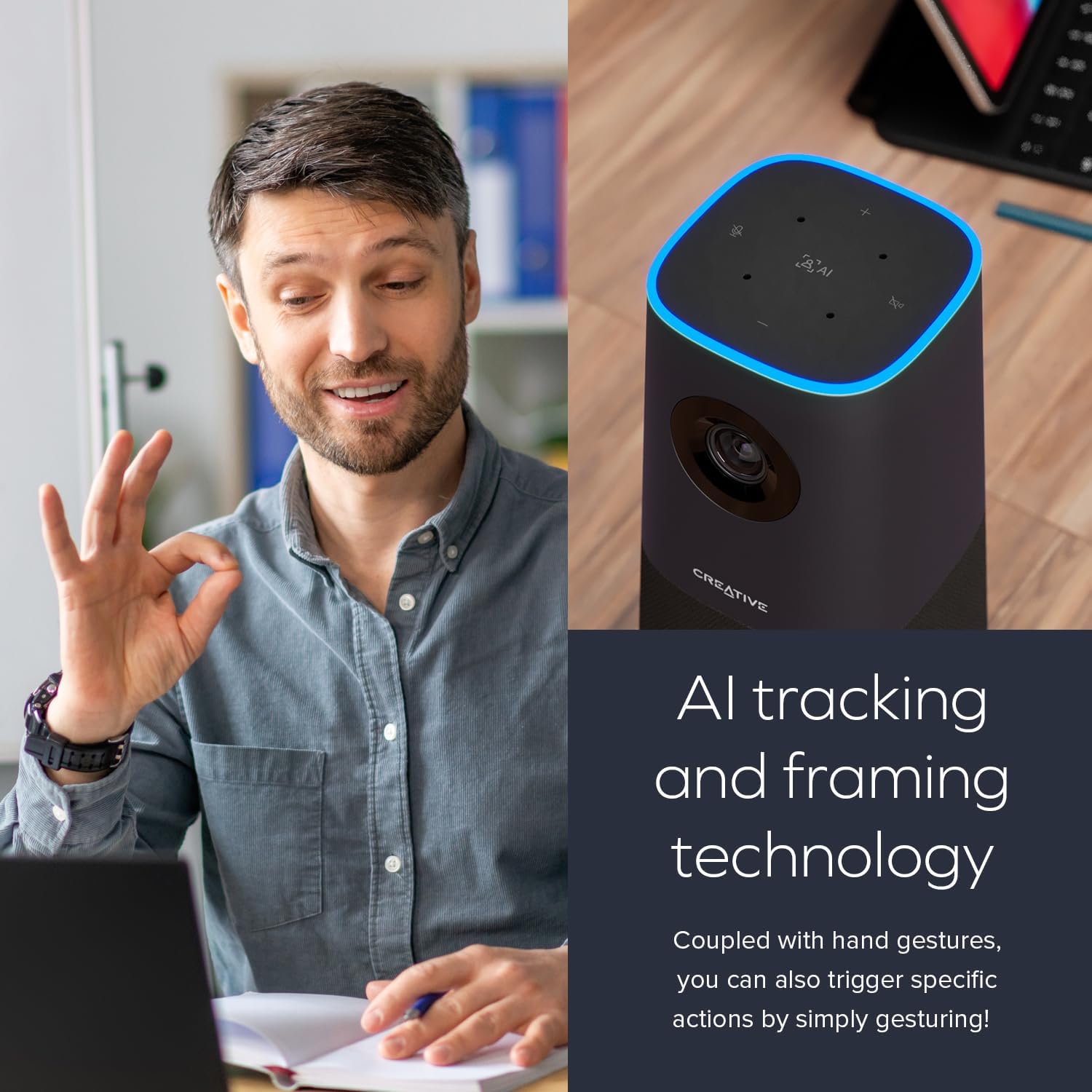
Figure 4: Shows the extensive field of view provided by the 115° wide-angle lens.
4.4 Built-in Microphones and Speaker
Equipped with four ultra-sensitive omni-directional microphones, the webcam captures your voice clearly and accurately. The integrated speaker provides natural and realistic audio playback.

Figure 5: Highlights the built-in microphone array and speaker for integrated audio.
4.5 AI Technology and SmartComms Kit
Nke webcam incorporates AI tracking and framing technology to keep the subject in focus. For Windows users, the downloadable Creative app includes the SmartComms Kit, offering features like NoiseClean-out to reduce background noise for clearer communication.
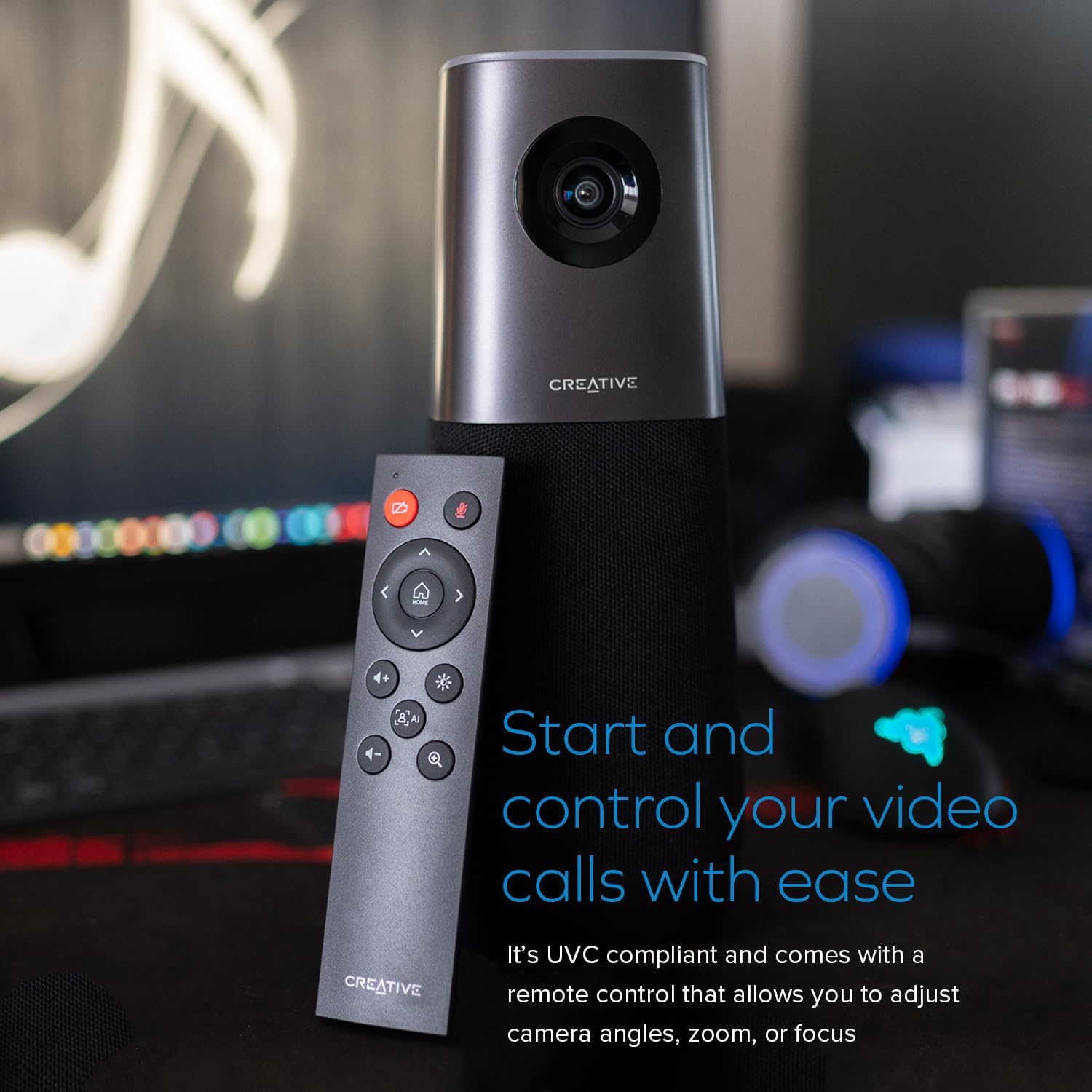
Figure 6: Illustrates the AI tracking and framing capabilities of the webcam.

Figure 7: Shows the Creative app interface for managing SmartComms features.
Video 2: Highlights 4K resolution, 120-degree FOV, and auto-focus features of a 4K webcam.
5. Nlekọta
5.1 Nhicha
To maintain optimal image quality, gently clean the webcam lens with a soft, lint-free cloth. Avoid using harsh chemicals or abrasive materials that could scratch the lens or damage the device.
5.2 Nchekwa
Mgbe anaghị eji, chekwaa ụlọ ahịa webcam n'ebe dị jụụ, kpọrọ nkụ pụọ na ìhè anyanwụ kpọmkwem na oke okpomọkụ.
6. Nchọpụta nsogbu
6.1 No Video/Audio Output
- Hụ na eriri USB ejikọtara na nke ọma na abụọ ahụ webcam na kọmputa gị.
- Chọpụta na webcam is selected as the primary video and audio device in your operating system settings and within your video conferencing application.
- Nwaa ijikọ ya webcam gaa na ọdụ ụgbọ USB dị iche na kọmputa gị.
- Restart your computer and the video conferencing application.
6.2 Ọdịdị Foto Na-adịghị Mma
- Ensure the lens is clean and free from dust or smudges.
- Check your video conferencing application settings to confirm that 4K resolution is selected, if supported.
- Hụ na ọkụ zuru oke na gburugburu ebe obibi gị.
6.3 AI Tracking Issues
- Ensure you are within the optimal range and visibility for the webcam's AI tracking.
- Check for any obstructions in front of the camera.
- Update the Creative app for Windows to the latest version to ensure optimal AI performance.
7. Nkọwapụta
| Njirimara | Nkọwa |
|---|---|
| Akụkụ ngwaahịa | 3.85 x 3.85 x 10 sentimita asatọ |
| Ibu Ibu | 3.32 pound |
| Nọmba nlereanya | VF0950 |
| Onye nrụpụta | Ụlọ nyocha okike |
| Mkpebi vidiyo | 4K UHD (2160p @ 30 fps) |
| Dijitalụ mbugharị | 7X |
| Viewna n'akuku | 115° |
| Igwe okwu | 4 x Omni-directional |
| Ndakọrịta | PC, Mac (UVC compliant) |
8. Akwụkwọ ikike na nkwado
For warranty information and technical support, please refer to the official Creative Labs website or contact their customer service. Details can typically be found in the Quick Start Guide included with your product.


