1. Ngwaahịa gafereview
The ProtoArc EM11 NL is an ergonomic vertical mouse designed to provide a more natural and comfortable hand position, reducing wrist strain during extended computer use. It offers versatile connectivity options, including Bluetooth 5.0 and 2.4GHz USB-A, allowing connection to up to three devices simultaneously. Featuring a built-in rechargeable battery and adjustable DPI settings, this mouse is engineered for productivity and user well-being.
2. Kedu ihe dị na Igbe ahụ
- 1 x ProtoArc Rechargeable Bluetooth Ergonomic Mouse
- 1 x 2.4G USB-A Receiver
- 1 x Type-C Charging Cable (for charging only)
- 1 x Akwụkwọ ntuziaka onye ọrụ

3. Akụrụngwa Ngwaahịa
3.1 Ergonomic Vertical Design
The EM11 NL mouse features a unique ergonomic vertical design that positions your hand in a natural handshake posture. This design helps to keep your wrist straight, reducing discomfort and strain often associated with traditional horizontal mice. It promotes a relaxed forearm and wrist position, which can improve productivity and minimize the risk of repetitive strain injuries.


3.2 Njikọta Ngwaọrụ dị iche iche
The mouse supports dual Bluetooth 5.0 and 2.4G USB-A connectivity modes, enabling simultaneous connection to up to three different devices. This allows for seamless switching between a computer, PC, or laptop, enhancing workflow efficiency.

3.3 batrị enwere ike ịchaji
Equipped with a built-in 500mAh Li-Ion battery, the EM11 NL mouse can be conveniently recharged using the included Type-C cable. A single charge provides long-lasting battery life, supporting months of use on standby.

3.4 Adjustable DPI & High Performance
The mouse offers 1000/1600/2400 DPI levels, providing higher sensitivity and precise optical tracking. It includes back and forward buttons for easy navigation, though these are not programmable and not compatible with Mac OS systems.

3.5 Quiet Clicking
The left and right mouse buttons feature a silent click design, allowing you to focus on your work without disruptive noise. Note that the middle scroll wheel and the back/forward buttons do not have silent clicks.
4. Ntọala na nwụnye
4.1 Connecting via 2.4G USB-A Receiver
- Locate the 2.4G USB-A receiver stored in the compartment on the bottom of the mouse.
- Tinye ihe nnata USB-A n'ime ọdụ ụgbọ USB-A dị na kọmputa gị.
- Turn on the mouse using the power switch located on the bottom. The mouse should automatically connect to your computer.
4.2 Jikọọ site na Bluetooth
- Gbanwee òké site na iji mgba ọkụ na ala.
- Press the 'Switch Button' on the bottom of the mouse to select either Bluetooth 1 (B1) or Bluetooth 2 (B2) mode. The corresponding indicator light will flash.
- Na kọmputa ma ọ bụ ngwaọrụ gị, gaa na ntọala Bluetooth wee chọọ ngwaọrụ ọhụrụ.
- Select 'ProtoArc EM11 NL' from the list of available devices to pair.
- Ozugbo ejikọtara ọnụ, ọkụ egosi ga-akwụsị ịcha ọkụ wee nọgide na-esi ike.
5. Ntuziaka ọrụ
5.1 bọtịnụ Ọrụ
The ProtoArc EM11 NL mouse is equipped with several buttons for intuitive control:
- Bọtịnụ aka ekpe: Ọrụ aka ekpe ọkọlọtọ.
- Bọtịnụ aka nri: Ọrụ pịa nri ọkọlọtọ.
- Mpempe akwụkwọ mpịakọta: Maka mpịakọta kwụ ọtọ.
- Bọtịnụ DPI: Cycles through DPI settings (1000/1600/2400).
- Bọtịnụ mbugharị: Na-aga n'ihu web browsers/applications (not compatible with Mac OS).
- Bọtịnụ azụ: Na-agagharị azụ n'ime web browsers/applications (not compatible with Mac OS).
- Mgbanwe bọtịnụ: Toggles between 2.4G, Bluetooth 1, and Bluetooth 2 connections.
- Ike mgba ọkụ: Gbanyụọ/ gbanyụọ òké.

5.2 DPI mmezi
Press the DPI button (located near the scroll wheel) to cycle through the available sensitivity settings: 1000 DPI, 1600 DPI, and 2400 DPI. Select the setting that best suits your preference for cursor speed and precision.
5.3 Ịgbanwe n'etiti ngwaọrụ
To switch between connected devices, press the 'Switch Button' on the bottom of the mouse. The indicator light will change to reflect the currently active connection (2.4G, B1, or B2).
6. Ịchaji
When the battery is low, the low-battery indicator light on the mouse will illuminate. Connect the included Type-C charging cable to the Type-C port on the front of the mouse and plug the other end into a USB power source (e.g., computer USB port, USB wall adapter). The Type-C cable is for charging only and does not support data transfer.

7. Hand Size Guide
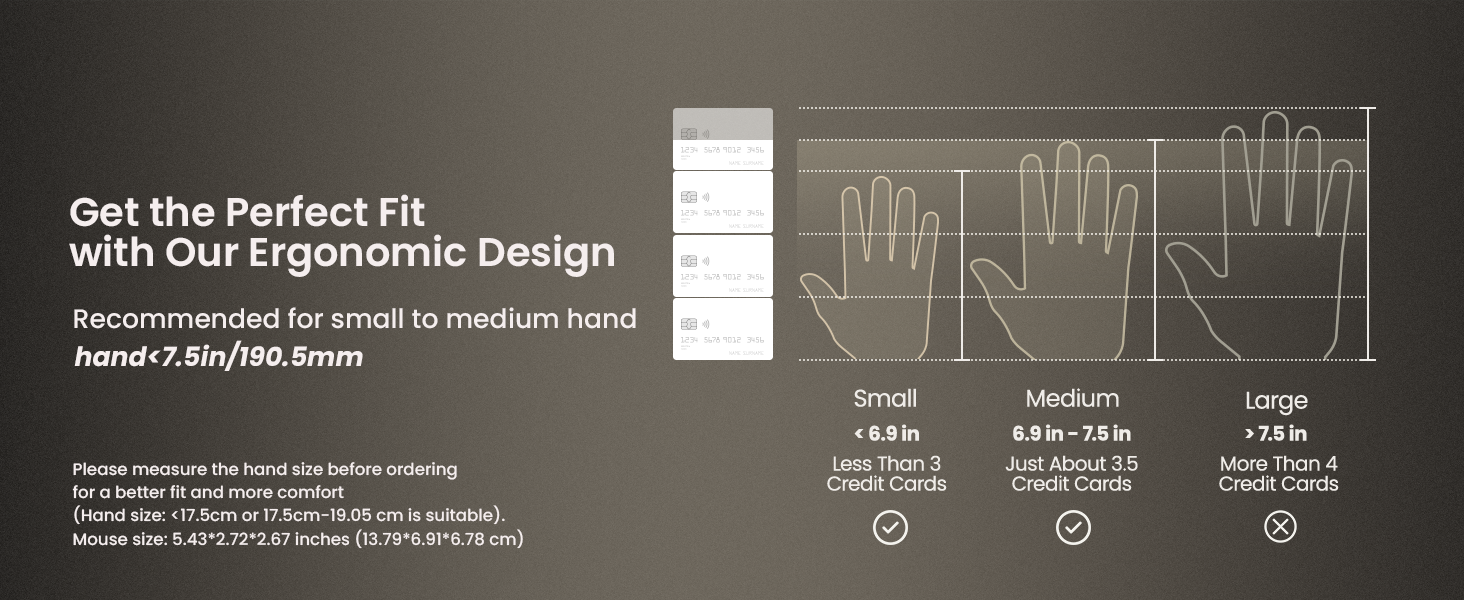
The ProtoArc EM11 NL mouse is specifically designed for small to medium-sized hands. For optimal comfort and ergonomic benefits, it is recommended for hand lengths under 7.5 inches (19.05 cm). Please measure your hand size before ordering to ensure a better fit.

8. Nkọwapụta
| Njirimara | Nkọwa |
|---|---|
| Akụkụ ngwaahịa | 3.54 x 2.76 x 0.04 sentimita asatọ |
| Ibu Ibu | 10.2 ounces |
| Nọmba Nlereanya ihe | EM11 NL |
| Batrị | 1 Batrị na-abụghị ọkọlọtọ (gụnyere) |
| Teknụzụ Njikọta | 2.4G USB-A Receiver, Bluetooth |
| Atụmatụ pụrụ iche | Ergonomic Design, Multi-Device, Rechargeable, Vertical Design, Wireless |
| Teknụzụ nchọpụta ngagharị | Ngwa anya |
| Agba | Ọcha |
| Onye nrụpụta | ProtoArc |
9. Nchọpụta nsogbu
If you encounter any issues with your ProtoArc EM11 NL mouse, please try the following steps:
- Okwu njikọ: Ensure the mouse is turned on and fully charged. For 2.4G connection, verify the USB-A receiver is securely plugged into your device. For Bluetooth, ensure Bluetooth is enabled on your device and the mouse is in the correct pairing mode (B1 or B2). Try re-pairing the mouse.
- Ịkwụsị/Anaghị azaghachi: Check for interference from other wireless devices. Ensure the mouse is within the effective range of your device. Try changing the DPI setting.
- Ịchaji nsogbu: Ensure the Type-C cable is properly connected to both the mouse and a working USB power source. Try a different USB port or charging cable.
- Cursor Inaccuracy: Ensure the optical sensor on the bottom of the mouse is clean and free from obstructions. Use the mouse on a suitable surface.
10. Akwụkwọ ikike na nkwado
For warranty information and technical support, please refer to the official ProtoArc websaịtị ma ọ bụ kpọtụrụ ndị ahịa ha ozugbo. Debe nnata nzụta gị dị ka ihe akaebe nke ịzụrụ ihe maka akwụkwọ ikike ọ bụla.


