1. Okwu mmalite
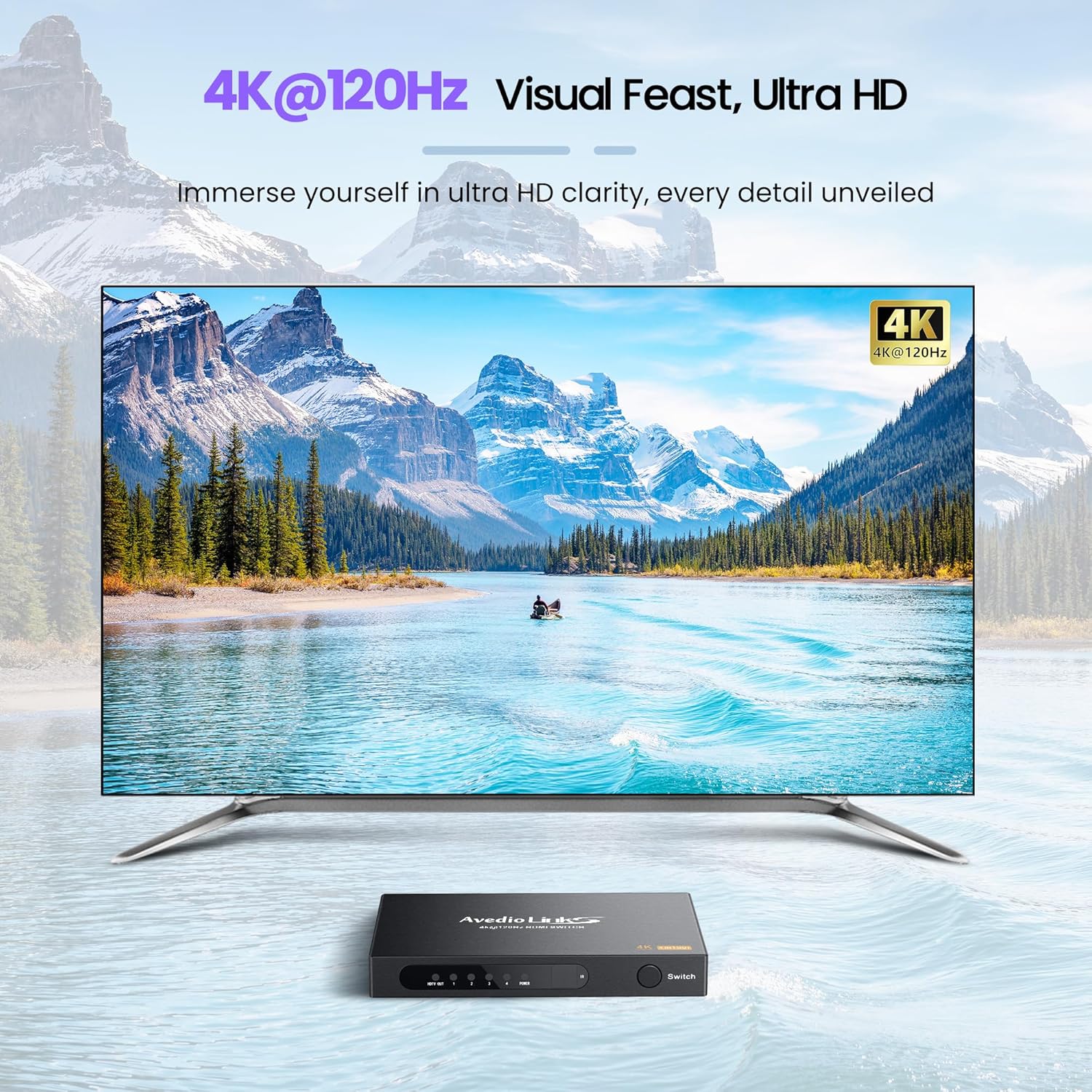
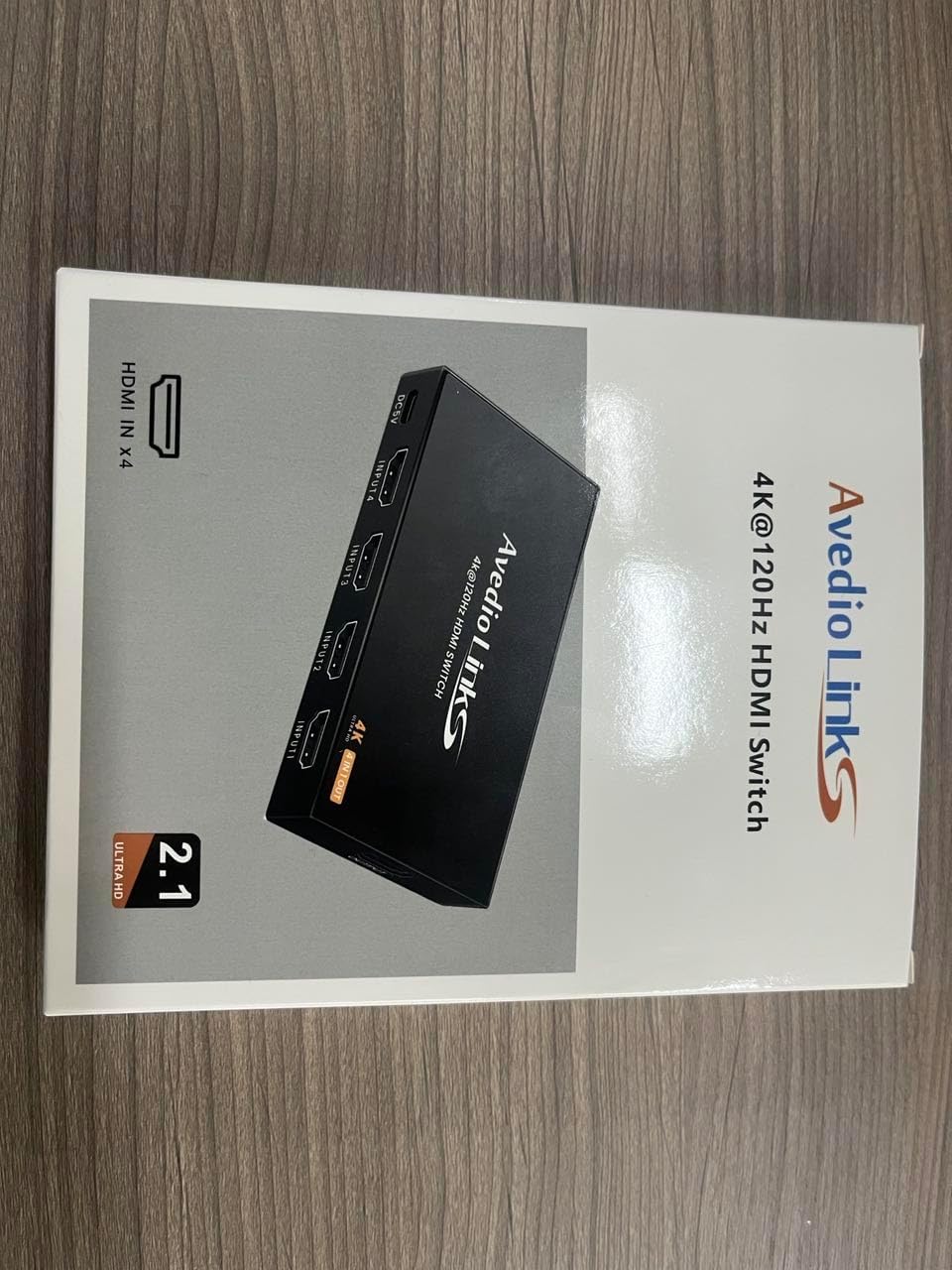
Thank you for choosing the avedio links 4X1 HDMI Switch 4K@60Hz. This device allows you to connect up to four HDMI source devices to a single HDMI display, providing seamless switching between inputs. It supports high-resolution video up to 4K@60Hz, HDR, and 3D, enhancing your viewing and gaming experience. This manual provides detailed instructions for setup, operation, and troubleshooting to ensure optimal performance of your HDMI switch.

2. Ihe ngwugwu
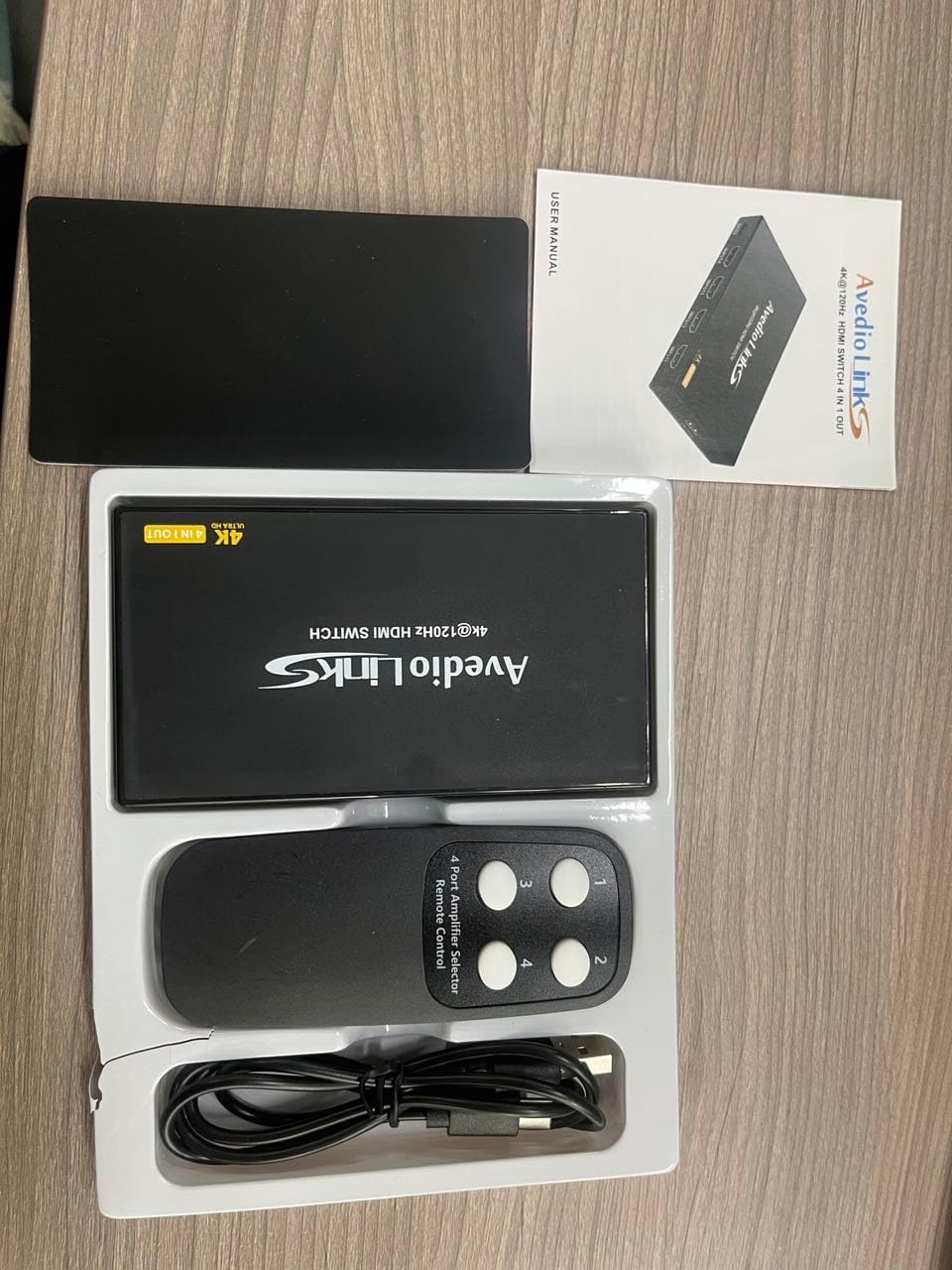
Biko chọpụta na ihe niile dị na ngwugwu gị:
- 1 x avedio links 4X1 HDMI Switch 4K@60Hz
- 1 x Njikwa Ime Ime IR
- 1 x USB Power Cable (DC5V)
- 1 x Akwụkwọ ntuziaka onye ọrụ

3. Atụmatụ igodo
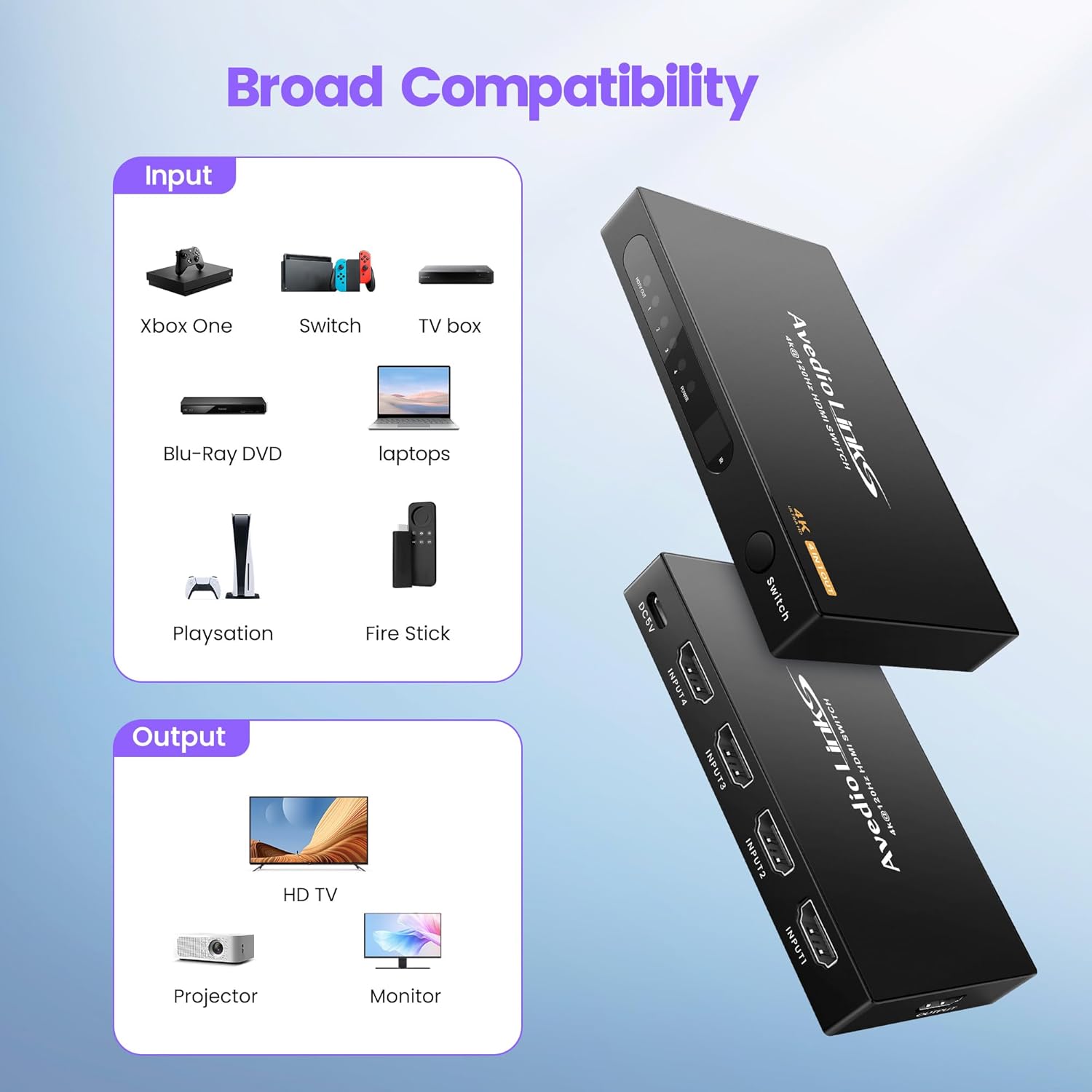
- 4 In 1 Out HDMI Switching: Na-ejikọ ngwaọrụ isi mmalite HDMI anọ na otu ngosipụta HDMI.
- Nkwado mkpebi dị elu: Compatible with 4K@60Hz, 4Kx2K, and 1080P resolutions.
- Ụkpụrụ HDMI dị elu: Supports HDMI 2.0/1.4, HDCP 2.2/1.4, 3D, 18Gbps bandwidth, and HDR.
- Ndakọrịta ngwaọrụ sara mbara: Works with devices such as Fire Stick, Xbox, PS4/PS5, Blu-ray players, laptops, HDTVs, projectors, and monitors.
- Multiple Switching Methods: Features automatic switching, manual button switching, and remote control switching.
- Mbufe mgbaàmà kwụsiri ike: Utilizes an advanced integrated circuit chip for smooth 18Gbps signal transmission.
- Ọkụ USB: Ensures stable performance and prevents signal loss.

4. Nkọwapụta
| Njirimara | Nkọwa |
|---|---|
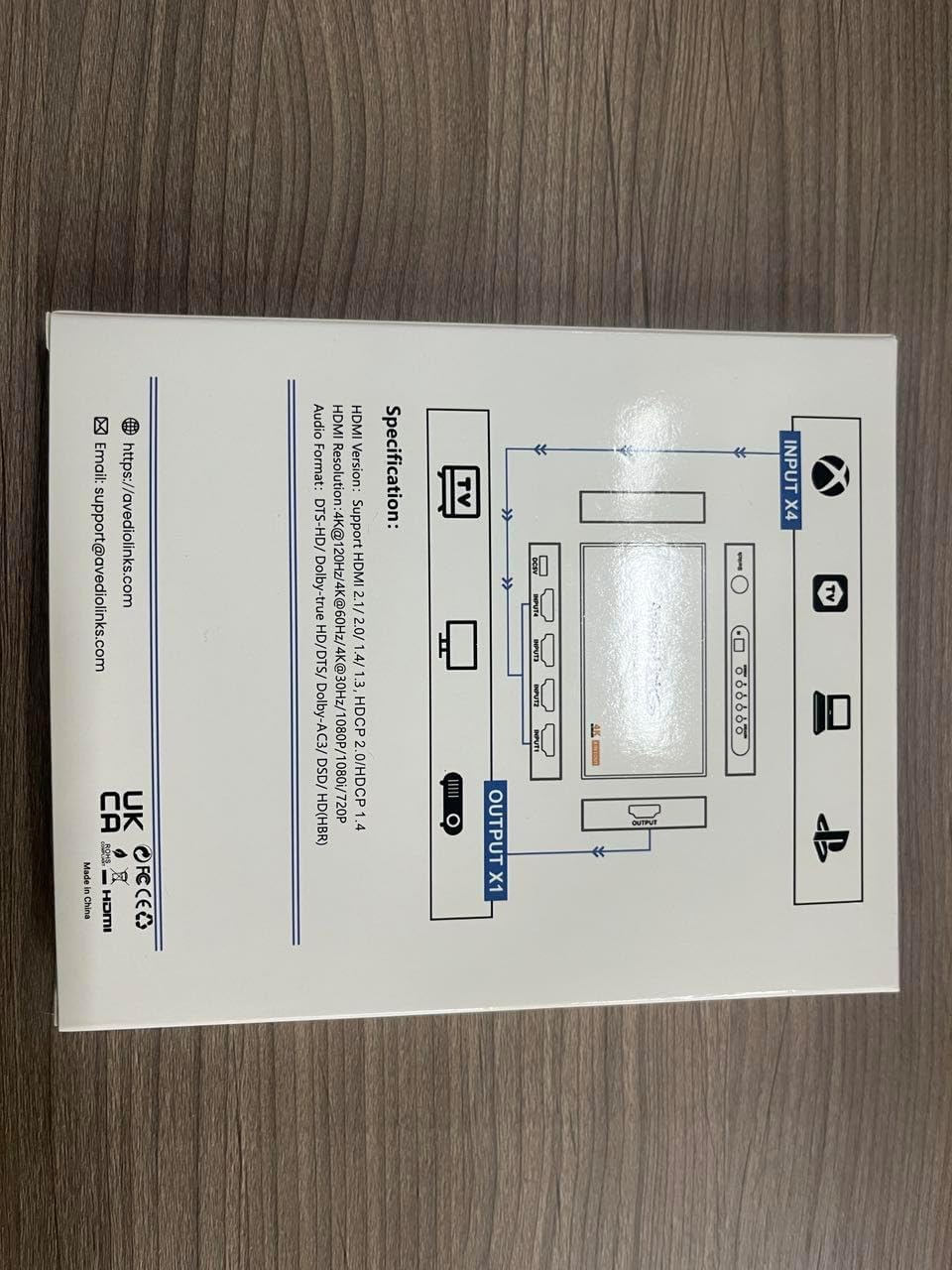
| Nọmba nlereanya | 4X1 HDMI Switch 4K@60Hz |
| Ụdị HDMI | HDMI 2.0/1.4 |
| Cdị HDCP | HDCP 2.2/1.4 |
| Mkpebi Max | 4K@60Hz (4Kx2K) |
| Bandwit | 18Gbps |
| Nkwado agba | Deep Color 8/10/12 bit |
| 3D Nkwado | Ee |
| Nkwado HDR | Ee |
| Usoro ọdịyo | DTS-HD/Dolby-trueHD/DTS/Dolby-AC3/DSD/HD(HBR) |
| Ịnye ọkụ | DC 5V (via USB cable) |
| Akụkụ (L x W x H) | Ihe dịka 4.52 x 2.44 x 0.59 sentimita asatọ |
| Ibu Ibu | 7 ounces |


5. Nhazi ntuziaka
- Connect HDMI Input Devices: Connect up to four HDMI source devices (e.g., game consoles, Blu-ray players, streaming sticks) to the HDMI IN 1-4 ports on the switch using HDMI cables.
- Connect HDMI Output Display: Connect your HDMI display (e.g., TV, monitor, projector) to the HDMI OUT port on the switch using an HDMI cable.
- Njikọ Ike: Connect the provided USB power cable to the DC 5V port on the switch and then to a USB power source (e.g., a USB port on your TV, a USB wall adapter).
- Fanye batrị dị anya: Open the battery compartment of the IR remote control and insert two AAA batteries (not included), ensuring correct polarity.
Mara: For optimal performance, especially with 4K@60Hz content, it is recommended to use high-quality HDMI 2.0 cables (AWG 26-28, up to 2 meters for input and 2 meters for output).

6. Ntuziaka ọrụ
6.1. Switching Inputs
The avedio links 4X1 HDMI Switch offers three methods for switching between connected HDMI input devices:
- Manual Button Switching: Press the "Switch" button on the front panel of the device to cycle through the HDMI inputs (Input 1, Input 2, Input 3, Input 4).
- Mgbanwe njikwa anya: Use the included IR remote control. Press the corresponding number button (1, 2, 3, or 4) to directly select the desired HDMI input.
- Mgbanwe na-akpaghị aka: The switch supports an automatic switching function. When a new HDMI device is turned on or connected, the switch will intelligently detect the active signal and switch to that input. If the currently active input device is turned off, the switch will automatically switch to the next active input.

7. Nlekọta
To ensure the longevity and optimal performance of your avedio links 4X1 HDMI Switch, follow these maintenance guidelines:
- Nhicha: Use a soft, dry cloth to clean the exterior of the device. Avoid using liquid cleaners or abrasive materials, as they may damage the finish or internal components.
- Igwe ikuku: Gbaa mbọ hụ na etinyere ngwaọrụ ahụ na mpaghara ikuku nke ọma iji gbochie ikpo oke ọkụ. Akwụsịla oghere ikuku ikuku ọ bụla.
- Nchekwa: Mgbe a naghị eji ya ogologo oge, chekwaa mgba ọkụ ahụ n'ebe dị jụụ, kpọrọ nkụ pụọ na ìhè anyanwụ kpọmkwem na oke okpomọkụ.
- Njikwa USB: Avoid bending or kinking HDMI and power cables excessively, as this can damage the cables and affect signal quality.
8. Nchọpụta nsogbu
If you encounter issues with your avedio links 4X1 HDMI Switch, please refer to the following common problems and solutions:
- No Signal or Flickering Image:
- Hụ na e jikọtara eriri HDMI niile nke ọma na ngwaọrụ isi mmalite, swiichi, na ngosipụta ahụ.
- Try using shorter, high-quality HDMI 2.0 cables, especially for 4K@60Hz content.
- Verify that the switch is receiving power via the USB cable and that the power indicator light is on.
- Try power cycling the switch by unplugging the USB power cable, waiting a few seconds, and then plugging it back in.
- Test each input device directly connected to the display to confirm they are functioning correctly.
- Hụ na edobere ihe ngosi gị na ntinye HDMI ziri ezi.
- Njikwa anya anaghị arụ ọrụ:
- Check if the batteries in the remote control are correctly inserted and not depleted. Replace them if necessary.
- Ensure there are no obstructions between the remote control and the IR receiver on the HDMI switch.
- Point the remote directly at the IR receiver on the switch.
- Automatic Switching Not Functioning:
- Ensure that the input devices are fully powered on or off for the switch to detect the signal change.
- Some devices may not provide a consistent "power on" signal that triggers auto-switching. In such cases, use manual or remote switching.
- Audio Issues (No Sound or Distorted Audio):
- Verify that your display's audio settings are correctly configured.
- Ensure that the HDMI cables support audio transmission.
- Try power cycling the switch and all connected devices.
9. Akwụkwọ ikike na nkwado
For warranty information or technical support, please contact avedio links customer service.
- Email: support@avediolinks.com
- Websaịtị: Refer to the official avedio links websaịtị maka ozi nkwado kachasị ugbu a.
Biko dowe akwụkwọ ikike ịzụrụ ihe ọ bụla.


