Okwu mmalite
This manual provides detailed instructions for setting up, operating, and maintaining your iFFALCON 32-inch Google TV (Model IFF32S53G). This Full HD smart television features integrated Google TV, Chromecast built-in, and Dolby Audio for an enhanced viewing experience. It supports a wide range of streaming services, voice control via Google Assistant, and offers advanced picture quality through its high-performance image processing engine. The slim, bezel-less design ensures maximum screen immersion.
Akụkụ ndị bụ isi:
- Google TV with Chromecast Built-in: Access a vast library of content from YouTube, Amazon Prime Video, Netflix, Hulu, Disney+, Apple TV+, U-NEXT, and more. Google AI provides personalized recommendations based on your viewing history. Seamlessly cast content from your smartphone to the TV.
- High-Quality Image Engine: Utilizes advanced image analysis algorithms to deliver stunning picture quality for both broadcast TV and streaming services, featuring FHD precision, excellent contrast, precise color management, and enhanced HDR expression.
- Full HD LCD Panel: The Full HD LCD panel displays diverse content with high precision. Direct-lit LCD ensures bright and vivid images across the entire screen.
- Bezel-less Design: The TV features an ultra-thin 1mm bezel, enhancing both design aesthetics and immersion in the viewahụmahụ.
- Nkwado ọdịyo Dolby: Experience clear and powerful sound, bringing an immersive audio experience to your home.
Melite
1. Unboxing na mbụ ntinye
Carefully remove the TV from its packaging. Place the TV on a stable surface or mount it on a VESA-compatible wall mount. Ensure adequate ventilation around the TV.
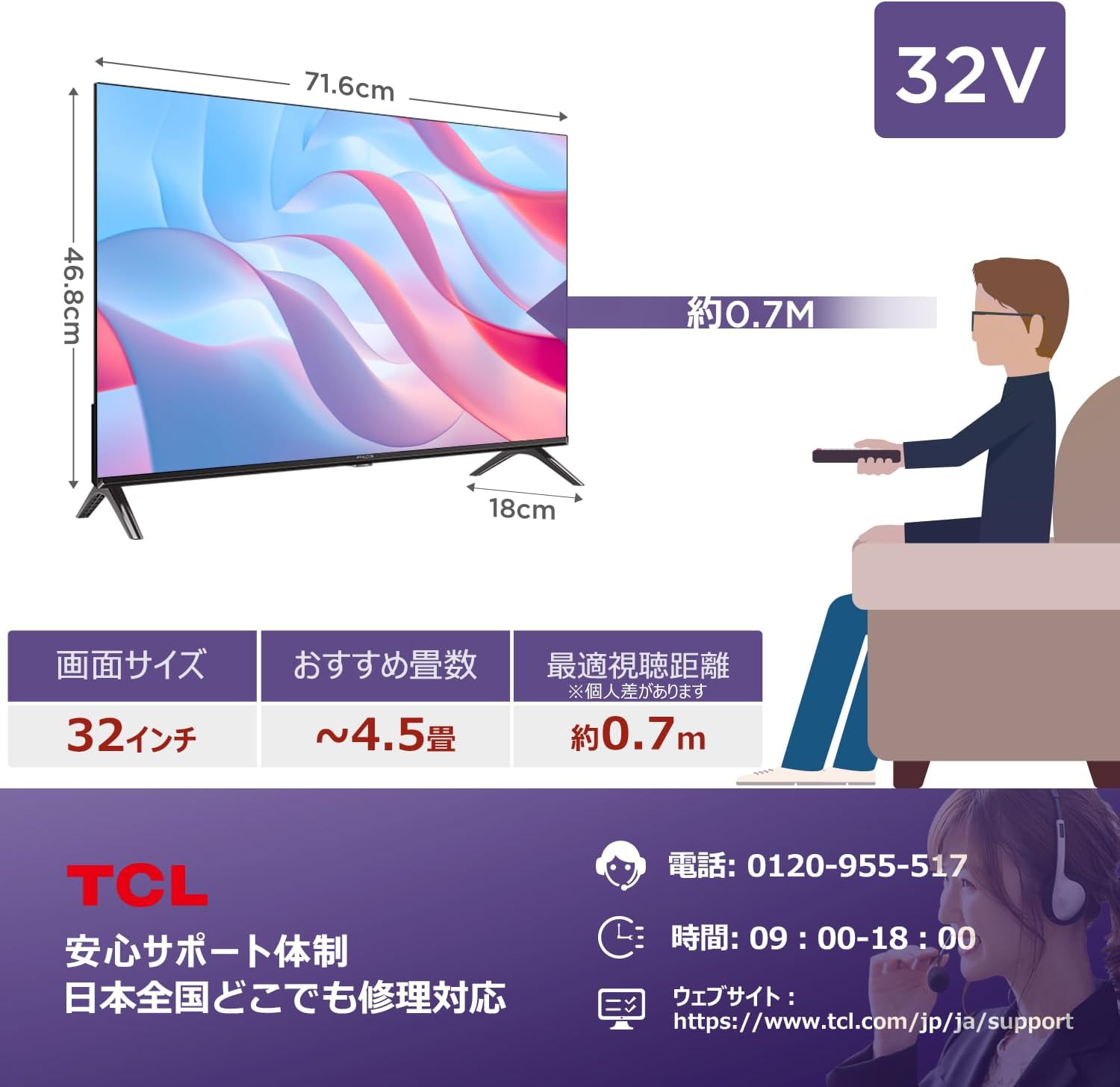
Image: iFFALCON 32-inch TV with dimensions (71.6cm width, 46.8cm height, 18cm depth) and a diagram showing a recommended viewing distance of approximately 0.7 meters for a 32-inch screen in a 4.5 tatami mat room.
2. Njikọ Peripherals
Connect your external devices such as set-top boxes, gaming consoles, or sound systems to the appropriate ports on the TV. Refer to the diagram below for port locations.

Image: Diagram illustrating the various connection ports on the iFFALCON TV, including optical digital audio output, LAN port, headphone output, video input, antenna input, HDMI input 1~2, miniB-CAS card slot (required for digital broadcast reception), and USB port.
3. Ịgbanye Ike na Nhazi Mbụ
Plug the power cord into an electrical outlet. Press the power button on the remote control or the TV. Follow the on-screen instructions to complete the initial setup, including language selection, network connection (Wi-Fi or Ethernet), and Google account login. A Google account is required to access all Google TV features.
Na-arụ ọrụ
1. Google TV Interface
The Google TV home screen provides access to all your favorite streaming apps, live TV, and personalized content recommendations. Navigate using the remote control's directional buttons.

Image: The Google TV interface displaying popular streaming services like YouTube, Amazon Prime Video, Netflix, Hulu, Disney+, Apple TV+, and U-NEXT, along with content recommendations.
2. Njikwa olu site na iji Google Assistant
Use the built-in Google Assistant for hands-free control. Press the Google Assistant button on your remote and speak commands to search for content, control playback, get weather updates, and more.
Video: An introduction to the Google TV system, demonstrating its user interface, content aggregation, and voice search capabilities. This video highlights how Google TV organizes various streaming services and provides personalized recommendations.
3. Chromecast Functionality
With Chromecast built-in, you can easily cast videos, photos, and music from your compatible smartphone or tablet directly to your TV screen. Ensure both your device and TV are connected to the same Wi-Fi network.

Image: A visual representation of the Chromecast built-in feature, where content from a smartphone, such as a soccer game, is being displayed on the iFFALCON TV.
4. Foto na Ntọala ụda
Adjust picture settings (brightness, contrast, color, sharpness) and sound settings (Dolby Audio, equalizer) through the TV's menu to optimize your viewing and listening experience. The TV supports HDR10 for enhanced dynamic range.

Image: An illustration of Micro Dimming technology, showing how it adjusts brightness in specific areas of the screen to improve contrast and create a more vivid visual experience.

Image: A display demonstrating HDR10/HLG technology, which reproduces bright and dark details with stunning clarity and vibrant colors for a more impactful image.
Image: A visual showing the Dolby Audio feature, emphasizing clear and powerful sound for an immersive home theater experience, with sound waves emanating from the TV.
5. Recording and Game Mode
The TV supports recording of broadcast programs (requires external USB HDD, sold separately). Activate Game Mode for reduced input lag and optimized settings when playing video games.
Nlekọta
Cleaning the TV Screen
Jiri nwayọ hichaa ihuenyo ahụ site na iji akwa dị nro, kpọrọ nkụ, akwa enweghị akwa. Maka akara isi ike, ntakịrị dampen akwa na mmiri ma ọ bụ pụrụ iche ihuenyo Cleaner. Zere iji kemịkalụ siri ike ma ọ bụ ihe na-emebi emebi.
Na-ehicha ahụ TV
Wipe the TV body with a soft, dry cloth. Do not use liquid cleaners directly on the TV to prevent damage to internal components.
Nchọpụta nsogbu
If you encounter issues with your iFFALCON TV, refer to the following common solutions before contacting support.
- Enweghị ike: Ensure the power cord is securely plugged into both the TV and the electrical outlet. Try plugging another device into the same outlet to confirm it is working.
- Enweghị foto/ụda: Check all cable connections (HDMI, antenna, audio). Ensure the correct input source is selected on the TV. Restart the TV and any connected devices.
- Okwu njikọ netwọkụ: Verify your Wi-Fi password and ensure your router is functioning correctly. Try restarting your router and modem. For wired connections, ensure the Ethernet cable is properly connected.
- Njikwa anya anaghị aza: Dochie batrị ndị dị na njikwa anya. Gbaa mbọ hụ na onweghị ihe mgbochi n'etiti ime ime na ihe mmetụta IR nke TV.
- Google TV App Issues: Try restarting the app. If the problem persists, clear the app's cache or reinstall it from the Google Play Store.
For more detailed troubleshooting or issues not covered here, please contact iFFALCON customer support.
Nkọwapụta
| Njirimara | Nkọwapụta |
|---|---|
| Nha ihuenyo | 32 sentimita asatọ |
| Ụdị ngosi | VA LCD |
| Mkpebi | HD zuru oke (1920x1080) |
| Ọnụego ume ọhụrụ | 60 Hz |
| Sistemụ nrụọrụ | Google TV |
| ọdụ ụgbọ mmiri HDMI | 2 |
| ọdụ ụgbọ mmiri USB | 1 |
| Njikọ netwọkụ | Bluetooth, HDMI, USB, Wi-Fi |
| Njirimara ọdịyo | Dolby Audio |
| Atụmatụ pụrụ iche | Chromecast, Game Mode, Bezel-less Design, Built-in Speakers |
| Akụkụ akụkụ | 16:9 |
| Ngwaahịa (W x H x D) | 71.6 cm x 46.8 cm x 18 cm |
| Ibu ngwaahịa | 4.9 n'arọ |
| Oriri ike kwa afọ | 64 kWh / afọ |
| Ngwa gụnyere | Remote control, Warranty card, Instruction manual |
Akwụkwọ ikike na nkwado
Ozi akwụkwọ ikike
Your iFFALCON TV comes with a warranty. Please refer to the included warranty card for specific terms, conditions, and duration of coverage. Keep your proof of purchase for warranty claims.
Nkwado ndị ahịa
For technical assistance, troubleshooting, or service requests, please contact iFFALCON customer support. You can find contact details on the warranty card or the official iFFALCON websaịtị.

Image: Support information for iFFALCON products, indicating nationwide repair support in Japan. Contact phone number: 0120-955-517, operating hours: 09:00-18:00. Websaịtị: https://www.tcl.com/jp/ja/support.


