Okwu mmalite
The javiscam 4K Mini Security Camera is a versatile and compact device designed for indoor monitoring. It offers high-quality video, advanced motion detection, and long-lasting battery life, making it ideal for keeping an eye on your home, children, or pets. This manual provides detailed instructions for setting up, operating, and maintaining your camera to ensure optimal performance.

Figure 1: The compact javiscam 4K Mini Security Camera and its live feed on a smartphone.
Njirimara ngwaahịa
- High Video Quality and Infrared Night Vision: Provides 4K video and image with a wide 160-degree angle view. Offers clear visibility day or night with infrared night vision.
- PIR Motion Detection with AI Analysis Recognition: Equipped with advanced smart AI motion detection to accurately analyze and recognize people and vehicles. Sends real-time notifications to your phone.
- 100% Wireless Security and Rechargeable Battery: Features a built-in 2800mAh premium rechargeable battery for true low power consumption. No wires needed for installation.
- Cloud & SD Storage: Supports up to 128G SD card and financial encryption for secure data. Cloud storage ensures recorded files are accessible even if the device or memory card is lost.
- Long Standby Battery: Technical design with low power consumption allows continuous recording for 24 hours after charging, or over 60 days at low sensitivity settings.
- 2.4G WiFi Support: This spy camera only supports 2.4G WiFi; 5G is not supported.
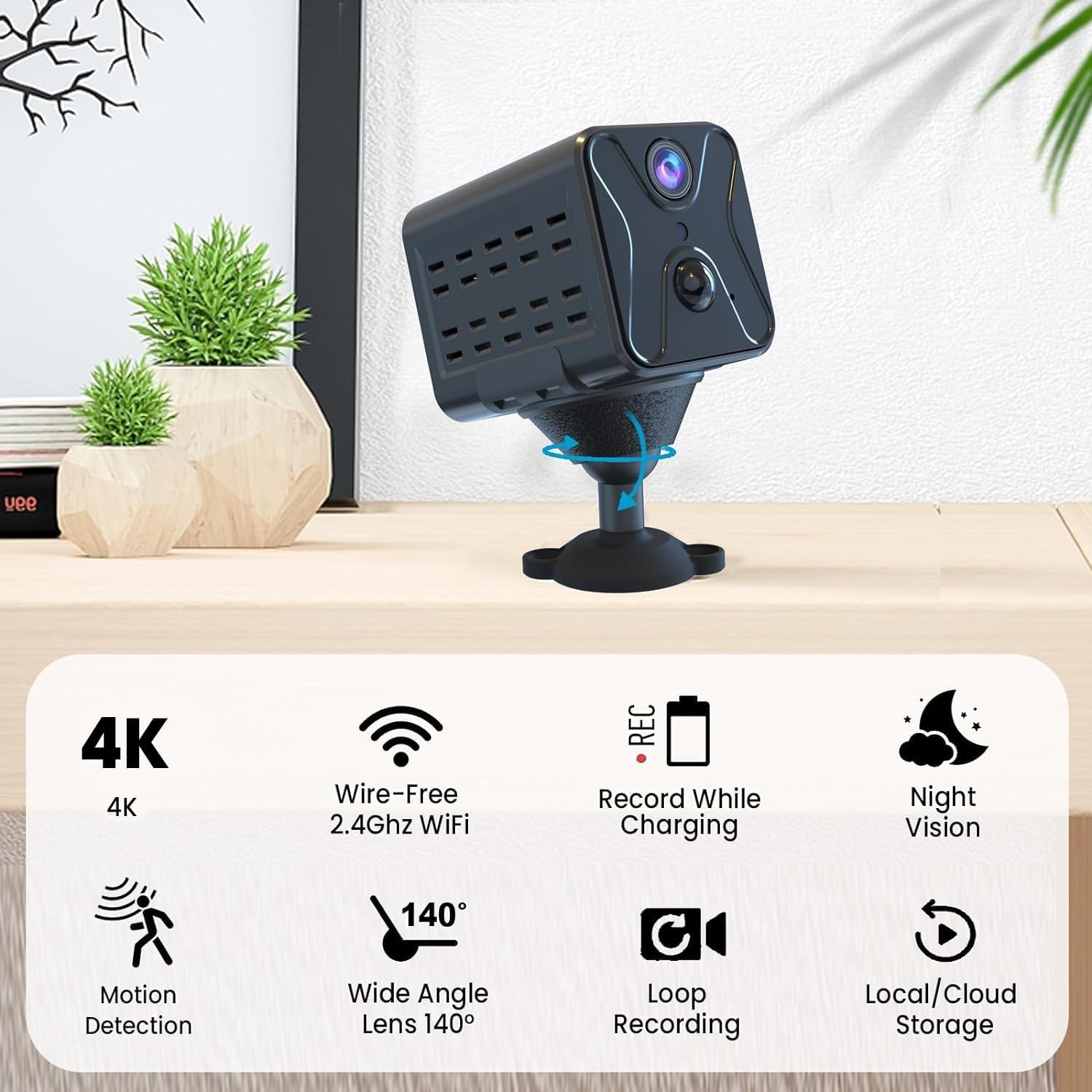
Figure 2: Key features of the javiscam 4K Mini Security Camera.
Vidiyo 1: Agafeeview of the 2K Camera for Home Security, demonstrating its capabilities and features.

Figure 3: Illustration of the camera's internal 2800mAh rechargeable battery for extended use.

Figure 4: Demonstration of PIR Motion Detection with AI Analysis, triggering automatic video recording and app alerts.

Figure 5: Day and Night vision capabilities, highlighting the camera's ability to see clearly in the dark using infrared LEDs.
Kedu ihe gụnyere
- 1x Smart Security Camera
- 1 x Mpempe akwụkwọ
- 1x Screw bag
- 1x Akwụkwọ ntuziaka onye ọrụ
- 1 x eriri chaja

Figure 6: All components included in the javiscam 4K Mini Security Camera package.
Ntuziaka nhazi
- Chajịa igwefoto: Fully charge the camera using the provided USB charging cable before first use.
- Download the UBox App: Scan the QR code in the user manual or search for "UBox" in your mobile app store (iOS/Android) to download and install the application.
- Jikọọ na Wi-Fi: Open the UBox app and follow the on-screen instructions to add your device. Ensure your phone is connected to a 2.4G Wi-Fi network, as the camera does not support 5G Wi-Fi.
- Ugwu igwefoto: Use the included bracket and screw bag to mount the camera in your desired location. The bracket allows for flexible positioning, including tabletop, wall, or ceiling mounting.
- Insert SD Card (Optional): For local storage, insert a compatible Micro SD card (up to 128GB, not included) into the designated slot on the camera.

Figure 7: Download the UBox App to manage your camera.

Figure 8: Flexible installation options for the javiscam wireless security camera.

Figure 9: Steps to fully charge and connect your camera to a 2.4G Wi-Fi network.
Ntuziaka ọrụ
Dị ndụ View na nlekota oru
Once connected, open the UBox app to access the live feed from your camera. You can view real-time video, take screenshots, and record video directly to your phone or the inserted SD card.
Figure 10: Accessing the live feed from your camera via the UBox app.
Ntọala nchọpụta ngagharị
Configure motion detection sensitivity and schedule within the app's settings. You can choose between high, medium, or low sensitivity, and set specific times for motion detection to be active to conserve battery life.

Figure 11: Setting up a schedule for motion detection alerts to optimize battery usage.
Ọnọdụ Ọhụhụ abalị
The camera automatically switches to infrared night vision in low-light conditions. You can also manually control this setting within the app if needed.
Cloud & SD Storage
Access recorded videos from either your inserted SD card or the cloud service (30-day free trial available for new customers). Ensure your data is safely protected with financial encryption.

Figure 12: Cloud and local storage options for your recorded footage.
Two-Way Audio (Not Supported)
Please note that this model does not support two-way audio communication.
Nlekọta
- Ịchaji mgbe niile: Although the camera boasts a long standby time, regular charging is recommended to ensure continuous operation.
- Hichaa oghere: Gently wipe the camera lens with a soft, dry cloth to maintain clear video quality.
- Lelee Nchekwa: Periodically check your SD card storage or cloud service to ensure there is enough space for new recordings.
Nchọpụta nsogbu
| Okwu | Ngwọta enwere ike |
|---|---|
| Enweghị ike ijikọ na Wi-Fi | Ensure your Wi-Fi is 2.4G. The camera does not support 5G networks. Check Wi-Fi password and signal strength. |
| Nchọpụta ngagharị anaghị arụ ọrụ | Check motion detection sensitivity settings in the app. Ensure the camera is within the detection range and not obstructed. Verify the schedule for active detection times. |
| Ndụ batrị dị mkpụmkpụ | Reduce motion detection sensitivity or adjust the detection schedule to conserve power. Ensure the camera is fully charged. |
| Ogo vidiyo na-adịghị mma | Clean the camera lens. Ensure adequate lighting for optimal video. Check your internet connection speed for live streaming quality. |
Nkọwa nka nka
| Nkọwapụta | Uru |
|---|---|
| Nọmba nlereanya | USB6 |
| Mkpebi ịse vidiyo | 4K |
| Ojiji ime ime/n'èzí | Ime ụlọ |
| Isi Iyi Ike | Akwanyere batrị |
| Ike batrị | 2800mAh |
| Teknụzụ nzikọrịta ozi ikuku | Wi-Fi (2.4G only) |
| Nkwado nchekwa | Cloud & SD Card (up to 128G) |
| Nchọpụta ngagharị | PIR with AI Analysis |
| Ọhụụ abalị | Infrared |
| Akụkụ (L x W x H) | 1.5 x 2 x 1.4 sentimita asatọ |
| Ibu Ibu | 6.7 ounces |
| UPC | 636144870409 |
Akwụkwọ ikike na nkwado
For any questions, technical support, or warranty inquiries regarding your javiscam 4K Mini Security Camera, please contact javiscam customer service. Refer to the contact information provided in your product packaging or on the official javiscam websaịtị.


