Okwu mmalite
This manual provides comprehensive instructions for the setup, operation, maintenance, and troubleshooting of your Logitech G915 X Lightspeed Wireless Mechanical Gaming Keyboard. Designed for high-performance gaming and versatile connectivity, this keyboard features LIGHTSPEED wireless technology, GL mechanical switches, customizable G-keys, and LIGHTSYNC RGB lighting. Please read this manual thoroughly to ensure optimal use and longevity of your device.

Foto: N'elu-ala view of the Logitech G915 X Lightspeed Wireless Mechanical Gaming Keyboard, showcasing nhazi ya zuru oke yana ọkụ azụ RGB.
Kedu ihe dị na Igbe ahụ
Upon unboxing your Logitech G915 X Lightspeed keyboard, verify that all the following components are present:
- Logitech G915 X Lightspeed Wireless Mechanical Gaming Keyboard
- Ihe nnata USB LIGHTSPEED
- Njikọ USB
- USB-C Data/Charging Cable
- Akwụkwọ Ndị Ọrụ (akwụkwọ ntuziaka a)

Image: All components included in the Logitech G915 X keyboard packaging, including the keyboard, USB-A to USB-C cable, USB extender, and USB wireless receiver.
Melite
Nchaji mbụ
Before first use, it is recommended to fully charge the keyboard.
- Connect the supplied USB-C data/charging cable to the USB-C port on the keyboard (located on the top edge).
- Connect the other end of the cable (USB-A) to a powered USB port on your computer or a USB wall adapter.
- The battery indicator light on the keyboard will show charging status. A full charge typically takes approximately 4 hours.
Jikọọ ahụigodo
The G915 X offers three connectivity options: LIGHTSPEED Wireless, Bluetooth, and Wired USB.

Image: Close-up of the Logitech G915 X keyboard's connectivity buttons (LIGHTSPEED, Bluetooth, Wired) located above the F5-F8 keys.
LIGHTSPEED Wireless (Recommended for Gaming)
- Locate the LIGHTSPEED USB receiver. For optimal signal, use the USB extender to position the receiver closer to the keyboard.
- Plug the LIGHTSPEED USB receiver into an available USB-A port on your computer.
- On the keyboard, slide the power switch to the ON position (located on the top right).
- Press the LIGHTSPEED button (indicated by a wireless signal icon) on the keyboard. The indicator light above the button will turn solid cyan when connected.
Njikọ Bluetooth
- Gbaa mbọ hụ na agbanyere ahụigodo.
- Press and hold the Bluetooth button (indicated by a Bluetooth icon) on the keyboard until the indicator light above it starts blinking blue rapidly. This indicates pairing mode.
- On your computer or device, navigate to Bluetooth settings and select "G915 X" from the list of available devices.
- The indicator light will turn solid blue when successfully paired.
Ụdị USB eriri
- Connect the USB-C data/charging cable to the keyboard and the USB-A end to your computer.
- Ahụigodo ahụ ga-agbanwe na-akpaghị aka gaa na ọnọdụ wired wee malite chajị.
Ntuziaka ọrụ
Njirimara igodo gafereview
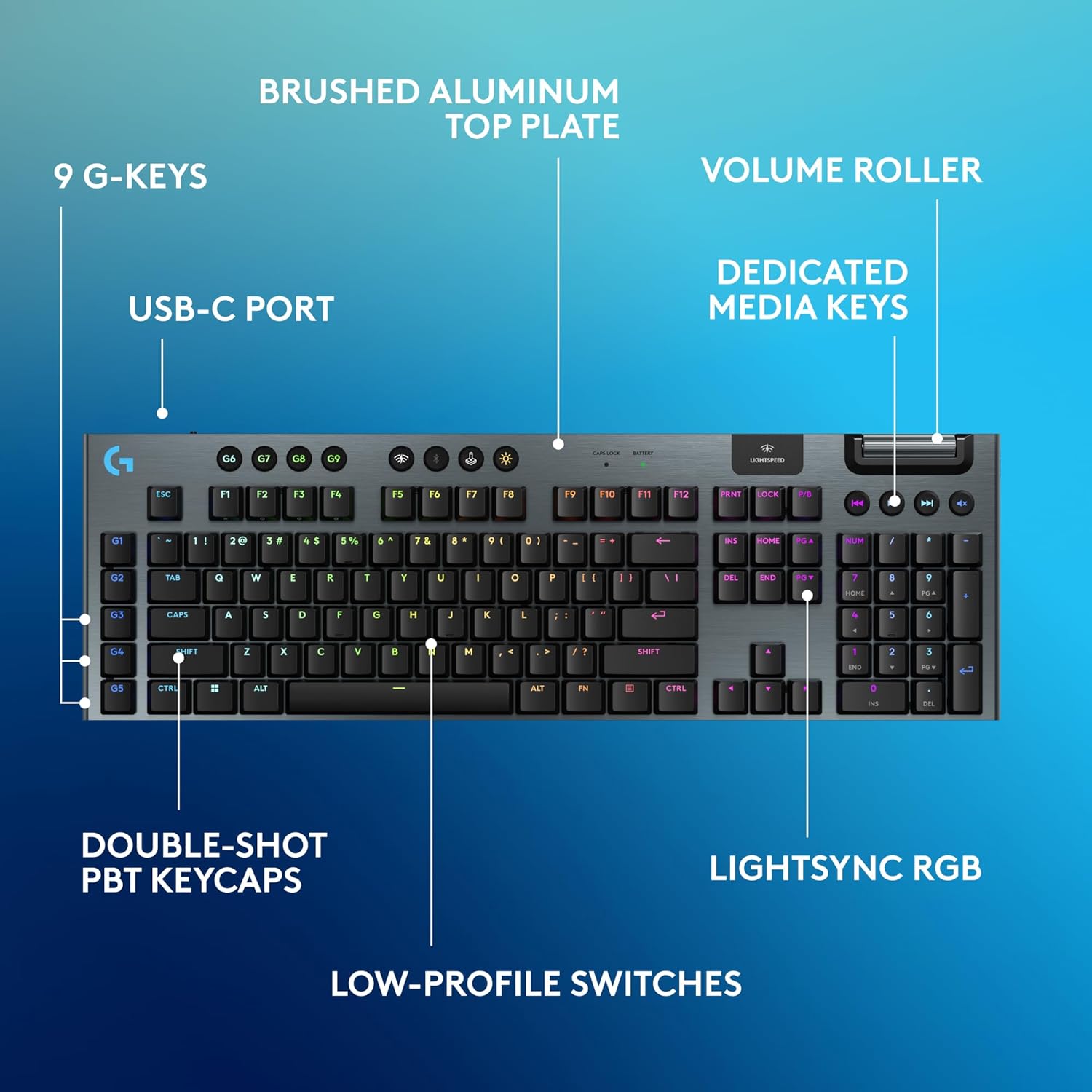
Image: Diagram highlighting key features of the Logitech G915 X keyboard, including G-keys, USB-C port, double-shot PBT keycaps, low-profile switches, brushed aluminum top plate, volume roller, dedicated media keys, and LIGHTSYNC RGB.
- GL Mechanical Switches: Dị ala-profile switches designed for speed, precision, and comfort with a 1.3mm actuation point.
- Ikuku LIGHTSPEED: Pro-grade wireless technology for ultra-fast and reliable connection.
- Bluetooth: For connecting to other devices that support Bluetooth.
- Igodo Mgbasa Ozi raara onwe ya nye: Control audio and video playback with ease.
- Mpịakọta olu: Smoothly adjust audio volume.
- LIGHTSYNC RGB: Customizable per-key RGB lighting with approximately 16.8 million colors.
- G-Keys (G1-G5): Five dedicated programmable macro keys on the left side of the keyboard.
- Double-Shot PBT Keycaps: Durable keycaps resistant to wear and shine.
Customizing with G HUB Software
To unlock the full potential of your G915 X keyboard, download and install the Logitech G HUB software from the official Logitech website. G HUB allows for extensive customization.
- G-Key Programming: Assign custom macros, commands, or system functions to the G1-G5 keys. You can create multiple profiles maka egwuregwu ma ọ bụ ngwa dị iche iche.
- LIGHTSYNC RGB Customization: Personalize lighting effects, colors, and animations. Sync lighting with other Logitech G devices.
- Ụdị egwuregwu: Disable specific keys (e.g., Windows key) during gaming to prevent accidental interruptions.
- KEYCONTROL: Set up to 15 functions per key for advanced control.

Image: Screenshot of the Logitech G HUB software interface showing options for customizing commands and assigning functions to G-keys on the G915 X keyboard.
Media Controls and Volume
Dedicated media controls and a volume roller are located on the top right of the keyboard for quick access.
- Mpịakọta olu: Roll up to increase volume, roll down to decrease.
- Bọtịnụ Mgbasa Ozi:
- Egwu gara aga
- Gwuo/kwụsịtụ
- Track na-esote
- Ogbi
Njikwa batrị
The Logitech G915 X keyboard provides up to 36 hours of continuous battery life with lighting enabled. Battery life may vary based on usage and lighting intensity.
- Ihe ngosi batrị: A dedicated battery indicator light is located near the LIGHTSPEED logo on the top right. It changes color to indicate battery level.
- Ịchaji: Connect the USB-C cable to the keyboard and a powered USB port. You can continue to use the keyboard in wired mode while it charges.
- Ịchekwa ike: The keyboard will enter a low-power state after a period of inactivity to conserve battery.
Nlekọta
Ndozi nke ọma na-eme ka ahụ dị ogologo na arụmọrụ nke ahụigodo gị.
- Isi igodo nhicha: Jiri akwa dị nro na-enweghị ntụpọ dampejiri mmiri ma ọ bụ ihe nhicha dị nro mee ya. Zere kemịkalụ siri ike.
- Removing Dust/Debris: Use compressed air to clear dust and debris from between the keycaps and switches.
- Nchacha elu: Wipe the aluminum top plate with a soft, dry cloth.
- Nchekwa: When not in use for extended periods, store the keyboard in a dry, cool place away from direct sunlight.
Nchọpụta nsogbu
If you encounter issues with your Logitech G915 X keyboard, refer to the following common troubleshooting steps.
| Nsogbu | Ngwọta enwere ike |
|---|---|
| Ahụigodo anaghị azaghachi (ikuku) |
|
| Nsogbu njikọ Bluetooth |
|
| Igodo anaghị edebanye aha ma ọ bụ pịnye ugboro abụọ |
|
| Ọkụ RGB anaghị arụ ọrụ ma ọ bụ ezighi ezi |
|
| G-keys or macros not working |
|
Nkọwapụta
| Njirimara | Nkọwa |
|---|---|
| Nọmba nlereanya | 920-012670 |
| Njikọta | LIGHTSPEED Wireless (2.4 GHz RF), Bluetooth, Wired USB-C |
| Ngbanwe Ụdị | GL Tactile Mechanical Switches (Low-Profile) |
| Isi mmalite | 1.3 mm |
| Mgbakọta anya njem | 3.2 mm |
| Isi okwu | Double-Shot PBT |
| Ọkụ | LIGHTSYNC RGB (Per-key customizable) |
| Igodo mmemme | 5 dedicated G-keys, up to 15 functions per key via KEYCONTROL |
| Ndụ batrị | Up to 36 hours (with lighting) |
| Oge Nchaji | Ihe ruru. awa 4 |
| Akụkụ (LxWxH) | 18.7 x 5.91 x 0.87 sentimita (47.5 x 15 x 2.2 cm) |
| Ibu | 2.38 pound (1.08 n'arọ) |
| Ihe onwunwe | Aluminum top plate |
| Ndakọrịta sistemụ arụmọrụ | PC, Mac OS |
Akwụkwọ ikike na nkwado
Logitech products are designed for durability and performance. For information regarding warranty coverage, technical support, and frequently asked questions, please visit the official Logitech support websaịtị.
Nkwado Logitech Websaịtị: https://support.logi.com/
Maka nchekwa ọzọ, tụlee ịzụtaasing an extended protection plan available at the time of purchase.


