1. Ngwaahịa gafereview na Njirimara igodo
The Plugable USBC-PDMON is a 15.6-inch Full HD (1920x1080) IPS portable monitor designed for enhanced productivity on the go. It features 100W Power Delivery pass-through charging and a 3x USB-C 10Gbps hub, making it a versatile solution for expanding your workspace.

Image: The Plugable USBC-PDMON portable monitor in use, showcasing its slim design and the protective case functioning as a stand.
Akụkụ ndị bụ isi:
- 15.6-inch Full HD (1920x1080) IPS Display: Provides crisp, clear visuals with wide viewing angles and up to 300 nits brightness.
- 100W Power Delivery Pass-Through: Allows charging of your laptop, smartphone, or tablet (up to 85W output) while using the monitor.
- Integrated 3x USB-C 10Gbps Hub: Expands connectivity with two 10Gbps USB-C ports for data transfer or connecting peripherals.
- Enwere ike ibugharị ma dị fechaa: Weighing 1.85lbs (with cover), it's ideal for travel and mobile workstations.
- Protective Case/Stand: The included cover protects the screen and conveniently folds into a stand for various viewakụkụ .
- Ndakọrịta Universal: Works with Mac, Windows, Chrome, iPad, iPhone, and Android devices equipped with full-featured USB-C or Thunderbolt ports.
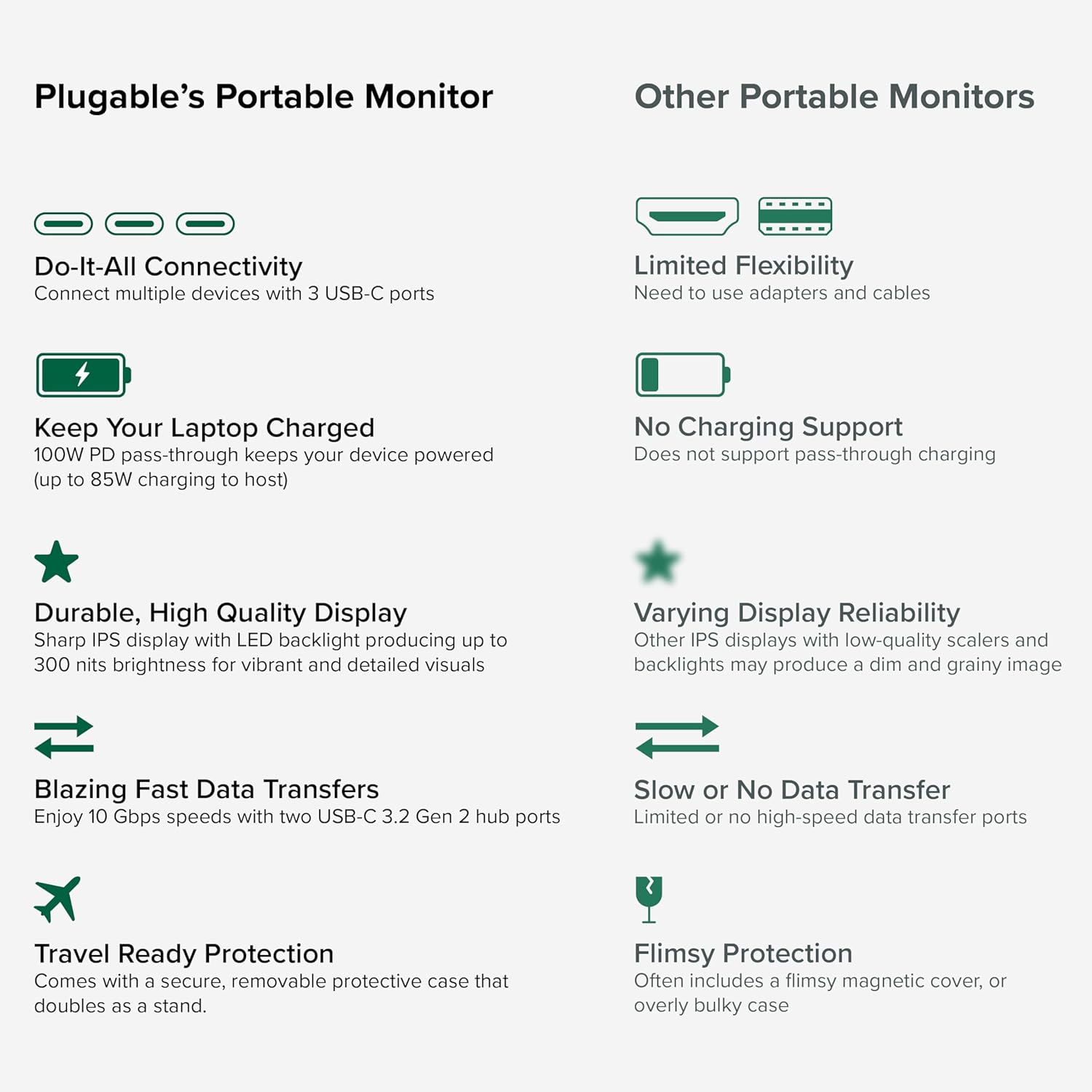
Image: A comparison highlighting the superior connectivity, charging support, display quality, data transfer speeds, and travel-ready protection of the Plugable monitor.
2. Gịnị gụnyere
Biko lelee ọdịnaya nke ngwugwu ahụ ka ị hụ na ihe niile dị:
- 1920x1080 IPS Travel Display with Protective Case/Stand
- 1 Meter USB-C Host Cable
- Ntuziaka mmalite ngwa ngwa
3. Ntuziaka Nhazi
Follow these steps to set up your Plugable portable monitor:
- Mepee ihe nleba anya: Carefully remove the monitor and its accessories from the packaging.
- Debe Nkwụsị: The protective cover doubles as a stand. Fold the cover to create a stable base for the monitor. The built-in magnets will help secure it in place.
- Jikọọ na ngwaọrụ gị: Use the included 1-meter USB-C host cable to connect the monitor to your laptop, smartphone, or tablet. Ensure your device has a full-featured USB-C port that supports video output (DisplayPort Alternate Mode) and Power Delivery.
- Power the Monitor (Optional/Recommended): For optimal performance and to utilize the pass-through charging feature, connect a USB-C power adapter (not included) to the monitor's dedicated power input port. This will also allow the monitor to charge your host device (up to 85W).
- Nhazi nhazi: Your device should automatically detect the monitor. You may need to adjust display settings (e.g., extend, mirror, resolution) in your operating system's display settings.

Image: Visual instructions on how to correctly fold the protective cover to form a stable stand for the monitor.

Image: An illustration demonstrating the power flow when the monitor is used as a hub, providing 85W charging to the connected laptop from a 100W input.
ndakọrịta:
The monitor is compatible with a wide range of operating systems and devices:
- Platform akwadoro: Mac, Windows, Chrome OS, Android.
- Njikọ na onye ọbịa: USB-C, USB4, Thunderbolt.
- Sistemu dakọtara: MacBooks, Dell XPS, Lenovo ThinkPad, Apple iPhone 15/16+, Samsung Galaxy S24, Google Pixel 8, iPads with USB-C, Samsung Galaxy Tab, Lenovo Tab.

Image: A visual guide to the monitor's broad compatibility across different operating systems and popular devices like laptops, phones, and tablets.
4. Ntuziaka ọrụ
Once connected, your Plugable portable monitor is ready for use. Here are some operational tips:
Ụdị ngosi:
- Extend Display: Use this mode to expand your desktop workspace across both your primary device and the portable monitor.
- Mirror Display: This mode duplicates your primary device's screen onto the portable monitor, useful for presentations or sharing content.
Njikwa nlekota:
The monitor features control buttons on the side for adjustments:
- Brightness Up/Down: Adjust the screen brightness to your preference.
- Ụdị agba: Cycle through preset color modes (Cool, Normal, Warm, sRGB, and User) to optimize visual appearance.
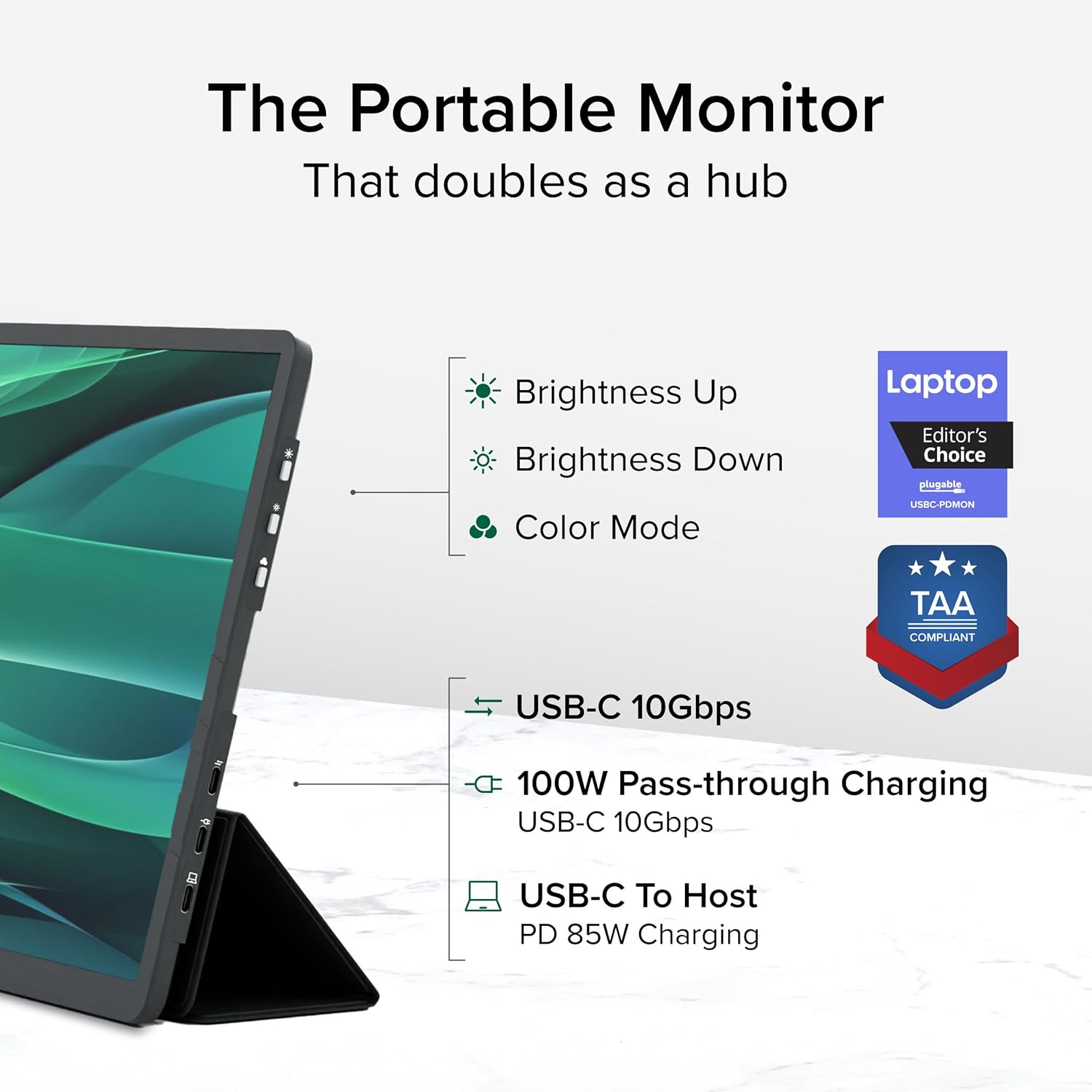
Foto: nkọwa zuru ezu view of the monitor's side, indicating the location of the brightness controls, color mode button, and the three USB-C ports for host connection, power delivery, and data hub functionality.
USB-C Hub Functionality:
The monitor acts as a hub, providing additional USB-C ports for your peripherals:
- Connect USB-C devices such as external drives, keyboards, or mice to the available 10Gbps USB-C ports on the monitor.
5. Nlekọta
To ensure the longevity and optimal performance of your Plugable portable monitor, follow these maintenance guidelines:
- Na-ehicha ihuenyo: Jiri akwa dị nro na nke enweghị mmiri ọkụ dampened with water or a screen-cleaning solution. Avoid harsh chemicals, abrasive materials, or direct spraying onto the screen.
- Na-ehicha ahụ: Wipe the monitor's exterior with a soft, dry cloth.
- Nchekwa: When not in use, always use the protective cover to prevent scratches and damage to the screen. Store in a cool, dry place away from direct sunlight and extreme temperatures.
- Ijikwa: Jiri nlezianya jide ihe nlele ahụ. Zere ịtụfu ya ma ọ bụ mee ka ọ nwee mmetụta siri ike.
6. Nchọpụta nsogbu
If you encounter issues with your Plugable portable monitor, refer to the following common problems and solutions:
No Display or "No Signal" Message:
- Lelee njikọ USB: Ensure the USB-C cable is securely connected to both the monitor and your host device. Try unplugging and re-plugging the cable.
- Verify USB-C Port Capability: Confirm that your device's USB-C port supports video output (DisplayPort Alternate Mode). Not all USB-C ports have this capability.
- Ike Mpụga: If your host device cannot provide sufficient power, connect an external USB-C power adapter to the monitor's power input port.
- Malitegharịa ngwaọrụ: Try restarting your laptop, smartphone, or tablet.
Flickering or Unstable Display:
- Ịnye ọkụ: Ensure the monitor is receiving adequate power. Connect an external USB-C power adapter if not already in use.
- Ogo USB: Use the included high-quality USB-C cable. A different or lower-quality cable might cause instability.
- Mmelite ọkwọ ụgbọala: Ensure your host device's graphics drivers are up to date.
No Charging or Slow Charging:
- Ogo nkwụnye ọkụ: Ensure the external USB-C power adapter connected to the monitor is rated for at least 100W to provide 85W pass-through charging to your host device.
- Ndakọrịta eriri: Verify the USB-C cable supports Power Delivery.
If these steps do not resolve your issue, please contact Plugable support for further assistance.
7. Nkọwapụta
Detailed technical specifications for the Plugable USBC-PDMON portable monitor:
| Njirimara | Nkọwapụta |
|---|---|
| Nha ihuenyo | 15.6 sentimita asatọ |
| Mkpebi | FHD 1080p (1920 x 1080 pikselụ) |
| Ngosipụta teknụzụ | IPS |
| Akụkụ akụkụ | 16:9 |
| Ihe onyonyo | 300 Candela (nits) |
| Ihu Ihuenyo | Matte |
| Mgbakọta ọdụ ụgbọ mmiri USB | 3 (USB-C) |
| Nnyefe ike | 100W Pass-Through (85W to host) |
| Ọsọ mbufe data | 10Gbps (USB-C hub ports) |
| Ibu Ibu | 1.85 pound |
| Akụkụ ngwaahịa | 0.42 x 14.21 x 8.46 sentimita asatọ |
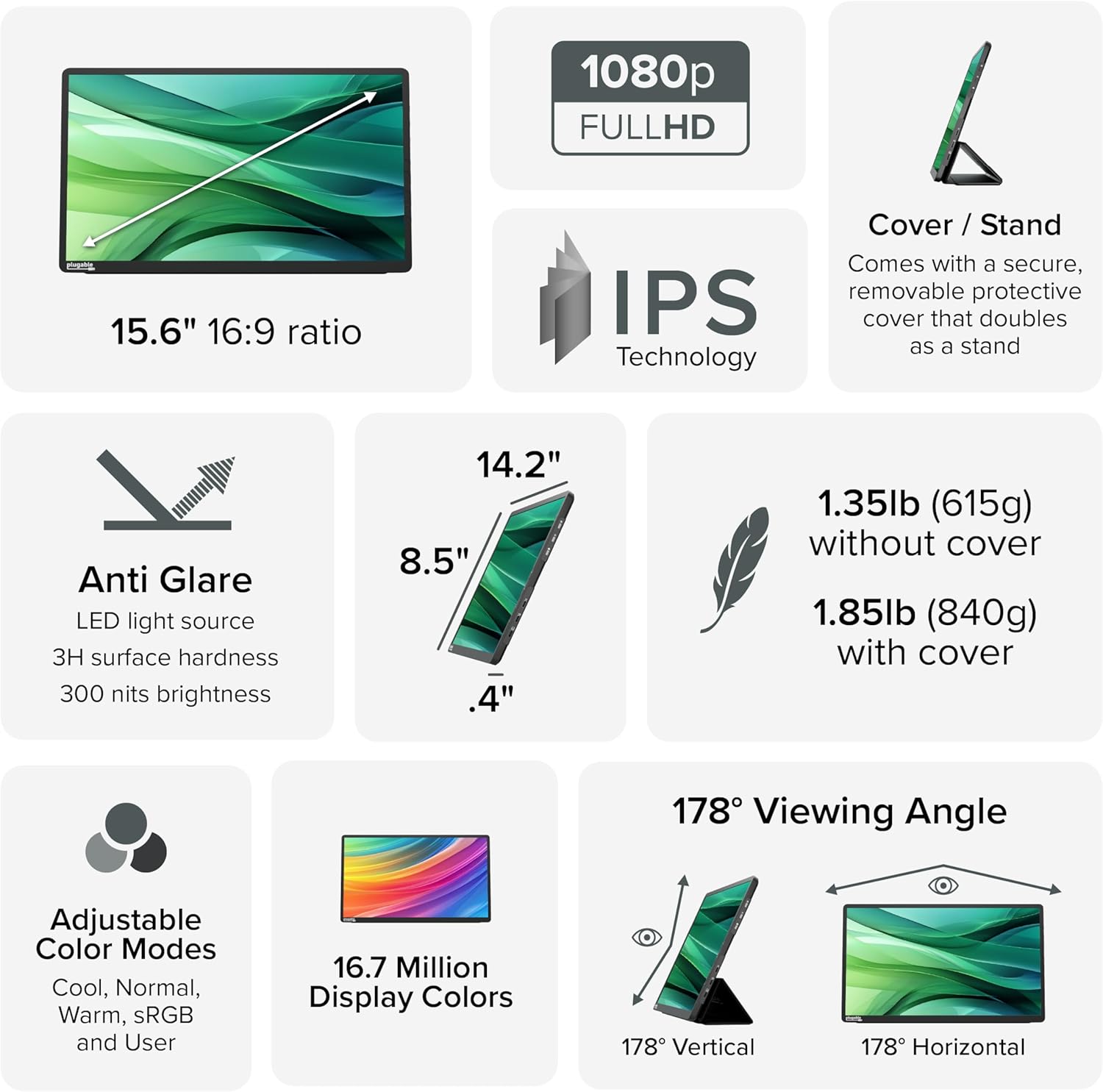
Image: A comprehensive infographic summarizing the monitor's technical specifications, such as screen size, resolution, IPS technology, anti-glare properties, weight, and viewakụkụ .
8. Akwụkwọ ikike na nkwado
The Plugable USBC-PDMON portable monitor is designed with reliability at its core and built to meet the demands of both IT departments and home offices.
- Nkwado oge ndụ: Includes lifetime support from our North American team of connectivity experts.
- Akwụkwọ ikike: Backed by a 2-Year Warranty.
For technical assistance or warranty claims, please visit the official Plugable websaịtị ma ọ bụ kpọtụrụ ndị otu nkwado ha ozugbo.


