1. Okwu mmalite
This manual provides essential information for the safe and efficient operation of your TESLA QLED Smart TV, Model Q55S939GUS. Please read these instructions thoroughly before using your television and retain them for future reference. This television features a 55-inch (140 cm) QLED display, Google TV operating system, Ultra HD resolution, HDR10, Dolby Atmos audio, built-in Wi-Fi, Bluetooth, and Chromecast.

Foto 1.1: N'ihu view of the TESLA QLED Smart TV, highlighting key features.
2. Ozi nchekwa
Always follow basic safety precautions when using this television to reduce the risk of fire, electric shock, and injury. Keep the television away from moisture and heat sources. Ensure proper ventilation. Do not block ventilation openings. Use only attachments/accessories specified by the manufacturer. Refer all servicing to qualified service personnel.
3. Ihe ngwugwu
Chọpụta na ihe niile dị na ngwugwu:
- TESLA QLED Smart TV (Model Q55S939GUS)
- Njikwa anya
- Igwe ọkụ
- TV Stand/Base
- Batrị maka njikwa anya
- Akwụkwọ ntuziaka (akwụkwọ a)
4. Nhazi
4.1 Nhazi anụ ahụ
Na-agbakwunye nkwụsi ike: Carefully place the TV screen-down on a soft, flat surface. Align the stand with the mounting holes on the bottom of the TV and secure it with the provided screws. Ensure the stand is firmly attached before placing the TV upright.

Image 4.1: TESLA QLED Smart TV with stand.
Ịkwanye mgbidi: If you plan to wall mount the TV, refer to the instructions provided with your wall mount kit. Ensure the wall mount is compatible with the VESA mounting pattern of your TV. The back of the TV includes mounting points for this purpose.
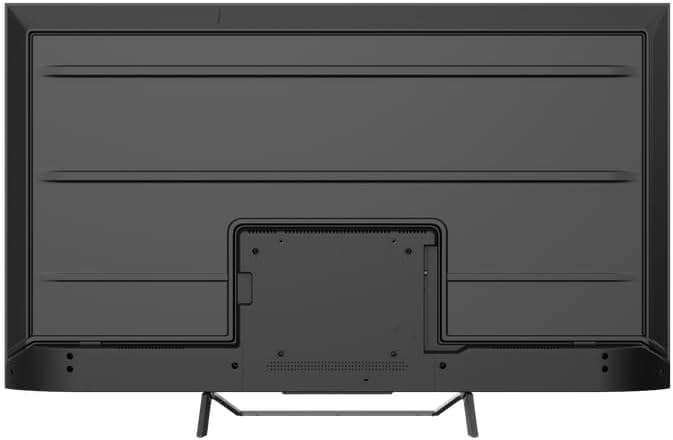
Foto 4.2: N'azụ view of the TV, indicating mounting points.
4.2 Initial Power On & Network Connection
- Jikọọ eriri ọkụ na TV wee banye na nkwụnye ọkụ.
- Pịa bọtịnụ ike na njikwa anya ma ọ bụ na TV n'onwe ya.
- Follow the on-screen instructions to select your language, country, and connect to your Wi-Fi network. You can also connect via Ethernet for a wired connection.
4.3 Google TV Setup
During the initial setup, you will be guided through setting up your Google TV account. This allows access to Google Assistant, Google Play Store apps, and personalized content recommendations. You will need a Google account to fully utilize these features.
5. Na-arụ ọrụ na TV
5.1 Remote Control Overview
The remote control provides access to all TV functions. Insert the provided batteries into the remote control. Familiarize yourself with the button layout for easy navigation.

Image 5.1: TESLA Smart TV Remote Control.
5.2 Ọrụ ndị bụ isi
- Ike: Pịa bọtịnụ ike iji gbanye ma ọ bụ gbanyụọ TV.
- Olu: Jiri bọtịnụ VOL +/- ka ịhazie ọkwa ụda.
- Ọwa: Use the P +/- buttons to change channels.
- Ntugharị: Jiri pad ntụziaka na bọtịnụ OK iji chịgharịa menus wee họrọ nhọrọ.
- Ụlọ: Press the Home button to return to the Google TV home screen.
5.3 Smart TV Features (Google TV, Apps, Chromecast)
Your TESLA QLED Smart TV runs on Google TV, offering an intuitive interface and access to a vast library of content.
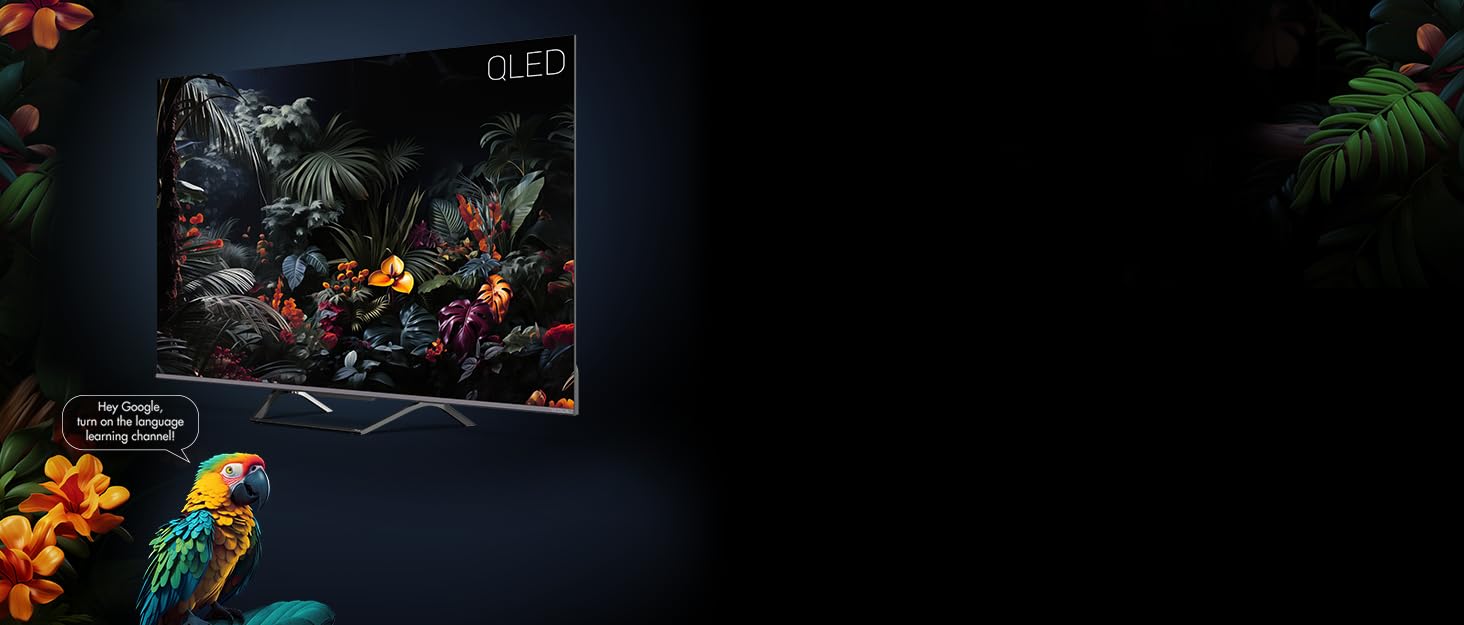
Image 5.2: Google Assistant integration on TESLA QLED TV.
- Ihe ntanetị Google TV: The home screen provides personalized recommendations, quick access to installed apps like Netflix, YouTube, and Prime Video, and live TV options.
- Onye enyemaka Google: Use voice commands via the remote control to search for content, control smart home devices, get answers, and more.
- Chromecast arụnyere: Cast content (videos, photos, music) directly from your compatible mobile devices or computer to the TV screen.
- Ụlọ ahịa Google Play: Download and install over 10,000 additional applications and games.
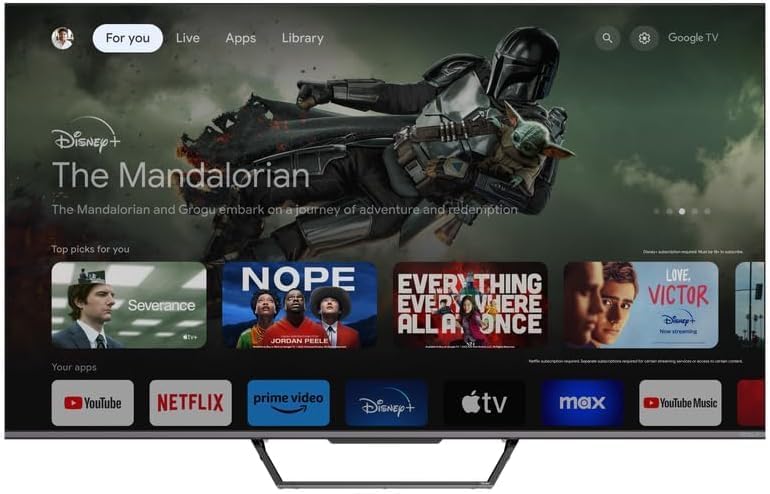
Image 5.3: Google TV home screen with app access.
5.4 Njikọta
TV na-enye ọdụ ụgbọ mmiri dị iche iche maka ijikọ ngwaọrụ mpụga:
- ọdụ ụgbọ mmiri HDMI (x3): Connect gaming consoles, Blu-ray players, soundbars, and other HDMI-enabled devices.
- ọdụ ụgbọ mmiri USB (x2): Connect USB drives for media playback or external storage.
- Wi-Fi: Connect wirelessly to your home network for internet access.
- Bluetooth: Connect wireless headphones, speakers, or other Bluetooth accessories.
- Ethernet: Maka njikọ ịntanetị kwụsiri ike.
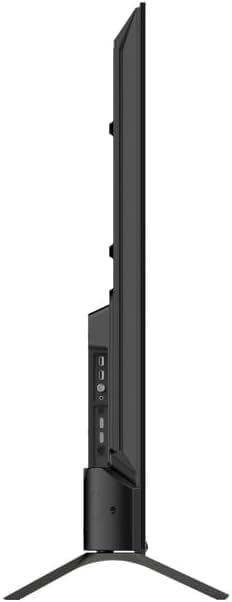
Foto 5.4: Akụkụ view of TV with connectivity ports.
5.5 Audio and Picture Settings
- Dolby Atmos & Ultra Surround: Experience immersive, three-dimensional audio. Adjust audio settings in the TV menu to optimize sound for your environment.
- Teknụzụ QLED: Quantum Dot technology delivers over a billion shades of color, enhanced brightness, and superior contrast.
- HDR10: High Dynamic Range 10 provides a wider range of colors and contrasts, resulting in a more realistic image.
- Ụdị foto: Select from various preset picture modes (e.g., Standard, Vivid, Movie, Game) or customize settings like brightness, contrast, color, and sharpness to suit your preferences.
6. Nlekọta
6.1 Nhicha
Wepụ TV gị mgbe niile tupu ị hichaa ya. Jiri ákwà dị nro ma kpọọ nkụ hichaa ihuenyo na kabinet. Maka akara siri ike, jiri obere ihe kpuchie ya.ampen the cloth with water or a specialized screen cleaner. Never use abrasive cleaners, waxes, or solvents.
6.2 Mmelite ngwanrọ
Your Google TV will periodically receive software updates to improve performance and add new features. Ensure your TV is connected to the internet to receive these updates. You can check for updates manually in the TV's settings menu.
7. Nchọpụta nsogbu
Ọ bụrụ na ị na-enwe nsogbu na TV gị, rụtụ aka na nsogbu na ngwọta ndị a na-emekarị:
| Nsogbu | Ngwọta enwere ike |
|---|---|
| Enweghị ike | Check if the power cable is securely connected to the TV and the power outlet. Ensure the outlet is working. |
| Enweghị foto, mana ụda dị | Lelee isi iyi ntinye. Hụ na ngwaọrụ mpụga ejikọtara ma gbanye ha nke ọma. |
| Enweghị ụda, mana foto dị | Check the volume level. Ensure Mute is not activated. Check audio output settings. |
| Njikwa anya anaghị arụ ọrụ | Dochie batrị. Hụ na enweghị ihe mgbochi ọ bụla n'etiti remote na TV. |
| Enweghị ike ijikọ na Wi-Fi | Check your router and internet connection. Re-enter the Wi-Fi password. Try restarting the TV and router. |
For further assistance, consult the TESLA support websaịtị ma ọ bụ kpọtụrụ ndị ahịa.
8. Nkọwapụta
Key technical specifications for the TESLA QLED Smart TV Model Q55S939GUS:
| Njirimara | Nkọwapụta |
|---|---|
| Ụdị | TESLA |
| Nọmba nlereanya | Q55S939GUS |
| Nha ihuenyo | 55 sentimita (140 cm) |
| Ngosipụta teknụzụ | QLED |
| Mkpebi | 4K (3840 x 2160) |
| Sistemụ nrụọrụ | Google TV |
| Ọnụego ume ọhụrụ | 60 Hz |
| Atụmatụ pụrụ iche | Chromecast, Built-in Speaker, Game Mode, Flat Panel, Wide Color Enhancer |
| Teknụzụ ọdịyo | Dolby Atmos, Ultra Surround, 2 x 10W Speakers |
| Njikọta | Bluetooth, HDMI (x3), RF, USB (x2), Wi-Fi, Ethernet |
| Akụkụ ngwaahịa (D x W x H) | 26.5 x 122.5 x 72 cm |
| Agba | Ọla ọla ọcha |

Image 8.1: Illustrative diagram of TV dimensions and remote control. Note: This product is 55 inches, not 75 inches as shown in the diagram.
9. Akwụkwọ ikike na nkwado
For warranty information, please refer to the warranty card included with your product or visit the official TESLA website. Keep your proof of purchase for warranty claims. For technical support, troubleshooting assistance, or service requests, please contact TESLA customer support through their official channels.


