1. Okwu mmalite
Thank you for choosing the MageGee MK-Storm Mechanical Gaming Keyboard. This 104-key wired keyboard is designed for an enhanced typing and gaming experience, featuring durable brown switches, blue backlighting, and anti-ghosting technology. This manual provides essential information for setup, operation, and maintenance to ensure optimal performance.
2. Atụmatụ igodo
- Blue Backlit Gaming Keyboard: Features 20 different backlit modes, 5 brightness levels, and 5 speed adjustments. The backlight can be easily turned off.
- Mechanical Brown Switches: Offers moderate trigger key travel and force, suitable for both typing and gaming. Provides tactile feedback with a slight sound.
- Anti-Ghosting Keyboard: All 104 keys have individual switches with full N-key rollover, ensuring faster response and simultaneous key presses without conflict.
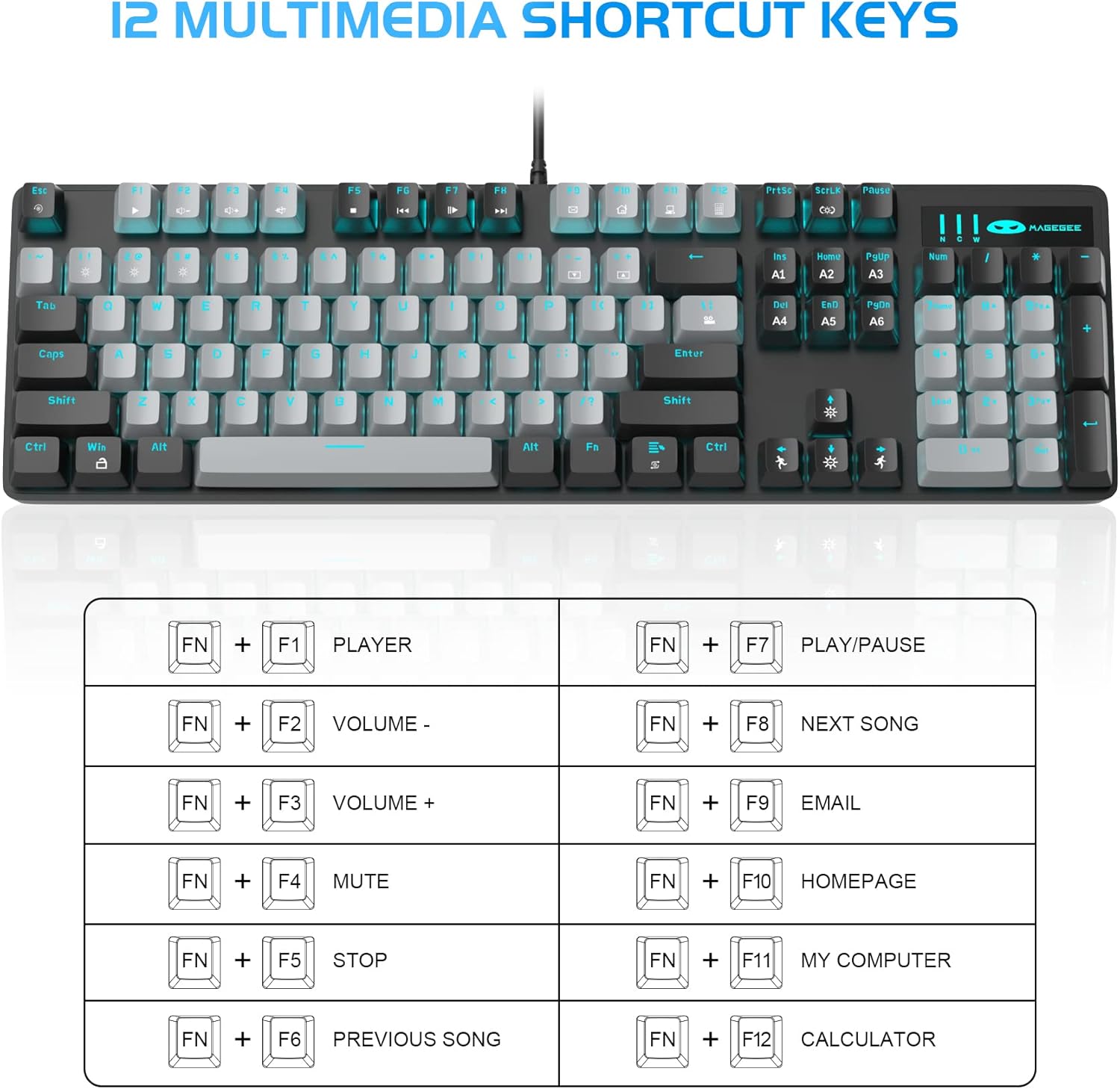
- 12 Multimedia Combination Keys: Quick operations via FN+ F1~F12 for media control and office functions.
- Nhazi Ergonomic: Premium metal panel construction for stability. Ergonomic key layout and two-step adjustable feet for comfortable typing angles.
- Ndakọrịta sara mbara: USB wired connection compatible with Windows 2000/Vista/Win7/Win8/Win10/MAC/Linux.

3. Ihe ngwugwu
The MageGee MK-Storm Mechanical Gaming Keyboard package includes the following items:
- MageGee Mechanical Gaming Keyboard (MK-Storm)
- USB Wired Cable (attached to keyboard)
- Ngwá ọrụ ndọta igodo okpu
- 16 Extra Keycaps (color scheme varies by keyboard variant)
- Akwụkwọ ntuziaka onye ọrụ
4. Nhazi
- Jikọọ ahụigodo: Plug the USB connector of the keyboard cable into an available USB port on your computer (PC, laptop, or desktop).
- Nwụnye ọkwọ ụgbọala: The keyboard is plug-and-play. Your operating system should automatically detect and install the necessary drivers. No additional software installation is typically required for basic functionality.
- Dezie akụkụ ahụigodo: Flip out the two-step feet on the underside of the keyboard to adjust the typing angle to your preference.

5. Ntuziaka ọrụ
Njikwa ọkụ azụ 5.1
The MK-Storm keyboard features a single blue backlight with multiple modes and adjustable settings.
- Gbanwee Ụdị Ọkụ Azụ: Pịa FN + INS iji gbaa okirikiri site na ụdị ọkụ azụ iri na itoolu dị iche iche.
- Gbanwee ihie: Pịa FN + ↑ (Up Arrow) to increase brightness (5 levels). Press FN + ↓ (Ụda ala) iji belata nchapụta.
- Gbanwee ọsọ: Pịa FN + ← (Left Arrow) to decrease animation speed (5 levels). Press FN + → (Right Arrow) to increase animation speed.
- Turn Off Backlight: The backlight can be turned off by cycling through the brightness levels until it is off, or by selecting a mode that has no illumination.

5.2 igodo mgbasa ozi
Access multimedia and system functions quickly using the FN key in combination with the F1-F12 keys.
| Ngwakọta igodo | Ọrụ |
|---|---|
| FN + F1 | Onye ọkpụkpọ |
| FN + F2 | Mpịakọta - |
| FN + F3 | Mpịakọta + |
| FN + F4 | Ogbi |
| FN + F5 | Kwụsị |
| FN + F6 | Abụ gara aga |
| FN + F7 | Gwuo/kwụsịtụ |
| FN + F8 | Abụ na-abịa |
| FN + F9 | |
| FN + F10 | Ibe mbụ |
| FN + F11 | Kọmputa m |
| FN + F12 | Ihe mgbako |
5.3 Custom Profiles (If applicable)
The keyboard supports custom lighting profiles. Refer to the manufacturer's website or included software (if any) for detailed instructions on programming and saving custom lighting zones or key assignments. Once programmed, these profiles can often be accessed directly from the keyboard using FN key combinations (e.g., FN+1, FN+2, FN+3 for different profiles).
6. Nhazi
The MageGee MK-Storm keyboard allows for customization of keycaps and switches.
- Ndochi igodo isi: Use the included keycap puller tool to carefully remove existing keycaps. Align the new keycap with the switch stem and press down gently until it clicks into place.
- Ndochi Mgbanwe: The keyboard comes with extra brown switches. To replace a switch, first remove the keycap. Then, use a switch puller (not included, but often similar to a keycap puller) to gently extract the switch from the PCB. Insert the new switch, ensuring the pins align correctly, and press firmly until it seats properly.


7. Nlekọta
- Nhicha: The floating keys design makes cleaning easier. Use a soft brush or compressed air to remove dust and debris from between the keycaps. For stubborn dirt, remove keycaps using the provided tool and wipe the keyboard surface with a slightly damp cloth. Ensure the keyboard is disconnected before cleaning.
- Nchekwa: Store the keyboard in a dry, cool place away from direct sunlight and extreme temperatures.
- Nlekọta USB: Zere ịgbagọ ma ọ bụ ịgbagọ eriri USB gabiga ókè iji gbochie mmebi.
8. Nchọpụta nsogbu
- Ahụigodo Anaghị aza:
- Gbaa mbọ hụ na etinyere eriri USB na nchekwa na ma ahụigodo na kọmputa.
- Gbalịa itinye ahụigodo ahụ n'ọdụ ụgbọ mmiri USB dị iche na kọmputa gị.
- Malitegharịa ekwentị gị na kọmputa.
- Nwalee ahụigodo na kọmpụta ọzọ ka ịwepụ ihe gbasara sistemụ.
- Ìhè azụ anaghị arụ ọrụ/adịghị mma:
- Ensure the backlight is not turned off (FN + ↓ to increase brightness).
- Cycle through backlight modes using FN + INS.
- Check if any specific software is interfering with the lighting settings.
- Igodo anaghị edebanye aha:
- Hichaa gburugburu igodo ahụ metụtara iji hụ na ihe ọ bụla na-egbochi mgbanwe ahụ.
- If a specific switch is faulty, consider replacing it with one of the spare switches provided, following the customization instructions.
9. Nkọwapụta
| Njirimara | Nkọwa |
|---|---|
| Ụdị | MageGee |
| Nọmba nlereanya | MK-Storm |
| Igodo okirikiri | Igodo 104 (Nha zuru oke) |
| Ngbanwe Ụdị | Mechanical Brown Switches |
| Ìhè azụ | Blue Backlit (20 modes, 5 brightness, 5 speed) |
| Njikọta | eriri USB |
| Mgbochi mmụọ | N-Igodo Rollover zuru ezu |
| Multimedia Igodo | 12 (FN + F1-F12) |
| Ihe onwunwe | Metal Panel Construction |
| Ngwa dakọtara | Laptọọpụ, PC |
| Sistemu eji arụ ọrụ | Windows 2000/Vista/Win7/Win8/Win10/MAC/Linux |
| Ibu Ibu | 2.77 pound |
| Akụkụ ngwugwu | 17.63 x 12.36 x 1.89 sentimita asatọ |

10. Akwụkwọ ikike na nkwado
For warranty information, technical support, or any product-related inquiries, please contact MageGee customer service through the retailer where the product was purchased or visit the official MageGee websaịtị. Debe akwụkwọ nnata ịzụrụ maka akwụkwọ ikike.


