Okwu mmalite
Thank you for choosing the Tibuta K7 Kids Tablet. This device is designed to provide a safe and engaging digital experience for children, featuring parental controls, educational content, and entertainment options. This manual will guide you through the initial setup, operation, and maintenance to ensure optimal performance and longevity of your tablet.
Kedu ihe dị na Igbe ahụ
Biko chọpụta na ihe niile dị na ngwugwu:
- Tibuta K7 Kids Tablet
- Drop-proof Silicone Protective Case
- Ụdị-C USB
- chaja
- Akwụkwọ ntuziaka onye ọrụ

Image: Contents of the Tibuta K7 Kids Tablet package. This image displays the tablet, its protective case, a USB-C charging cable, a power adapter, and the user manual, illustrating all items included with the product.
Ngwaahịa gafereview
The Tibuta K7 Kids Tablet features a 7-inch HD display, a durable silicone protective case, and an Android 12 Go operating system. It is equipped with dual cameras and supports Wi-Fi connectivity.

Foto: ihu na azụ view of the Tibuta K7 Kids Tablet. The tablet is shown in a pink protective case with a handle and kickstand, displaying a colorful children's cartoon on its screen.
Ngwa mbadamba

Image: Diagram of the Tibuta K7 Kids Tablet's external features. This illustration points out the front camera, 3.5mm headphone port, TF card slot, USB 2.0 OTG port, rear camera, volume buttons, power ON/OFF/Reset button, and speaker.
- Igwefoto ihu: Maka oku vidiyo na selfie.
- Ọdụ ekweisi 3.5mm: Maka ijikọ ekweisi.
- Oghere TF Kaadị: For expanding storage with a microSD card (up to 128GB).
- USB 2.0 OTG Port (Type-C): Maka ịchaji na ịnyefe data.
- Igwefoto azụ: Maka ise foto na vidiyo.
- Bọtịnụ olu: Gbanwee olu ọdịyo.
- Power ON/OFF/Reset Button: Powers the tablet on/off or performs a reset.
- Ọkà okwu: Maka mmepụta ọdịyo.
Ntuziaka nhazi
1. Nchaji mbụ
Before first use, fully charge the tablet. Connect the provided Type-C cable to the tablet's USB port and the charger to a power outlet. The charging indicator will show the charging status.
2. Ịgbanye / gbanyụọ
- Iji gbanye: Pịa ma jide bọtịnụ ike ruo mgbe ihuenyo gbanye ọkụ.
- Iji gbanyụọ: Pịa ma jide bọtịnụ ike, wee họrọ "Ike gbanyụọ" site na nhọrọ.
- Ka Malitegharịa ekwentị: Pịa ma jide bọtịnụ ike, wee họrọ "Malitegharịa ekwentị" site na nhọrọ.
3. Njikọ Wi-Fi
- Gaa na Ntọala > Netwọk & ịntanetị > Wi-Fi.
- Gbanwee Wi-Fi On.
- Họrọ netwọk Wi-Fi nke ịchọrọ na listi ahụ.
- Tinye paswọọdụ netwọk ma ọ bụrụ na ịchọrọ, wee pịa Jikọọ.
4. Kidoz Parental Control App Setup
The tablet comes pre-installed with the Kidoz parental control application. This app allows you to manage content, screen time, and access for your child.
- Mwepụta ahụ Kidoz app from the home screen.
- Follow the on-screen instructions to create a parent account and set up child profiles.
- Configure settings such as screen time limits, content filtering, and application access.

Image: Parents setting up the Kidoz parental control app on the Tibuta K7 Kids Tablet. The image illustrates a family interacting with the tablet, highlighting features like screen time limits and content filtering.
Ntuziaka ọrụ
Nsoro ụzọ
- Ihuenyo mmetụ aka: Tap, swipe, and pinch to navigate the interface.
- Ihuenyo ụlọ: Nweta ngwa na wijetị ndị a na-ejikarị eme ihe.
- Amamọkwa: Si n'elu ihuenyo gaa ala view ọkwa na ntọala ngwa ngwa.
Using Kidoz and Applications
The Kidoz app provides a child-friendly interface and access to pre-approved content. Parents can manage available applications and content through the parental control settings.
- Ịnweta ngwa: Within the Kidoz environment, children can access approved games, educational apps, and media.
- Downloading New Apps: Parents can download additional applications from the Google Play Store, which can then be added to the child's approved list within Kidoz.
- Nzacha ọdịnaya: Kidoz allows for filtering of inappropriate content, ensuring a safe browsing and viewahụmahụ.
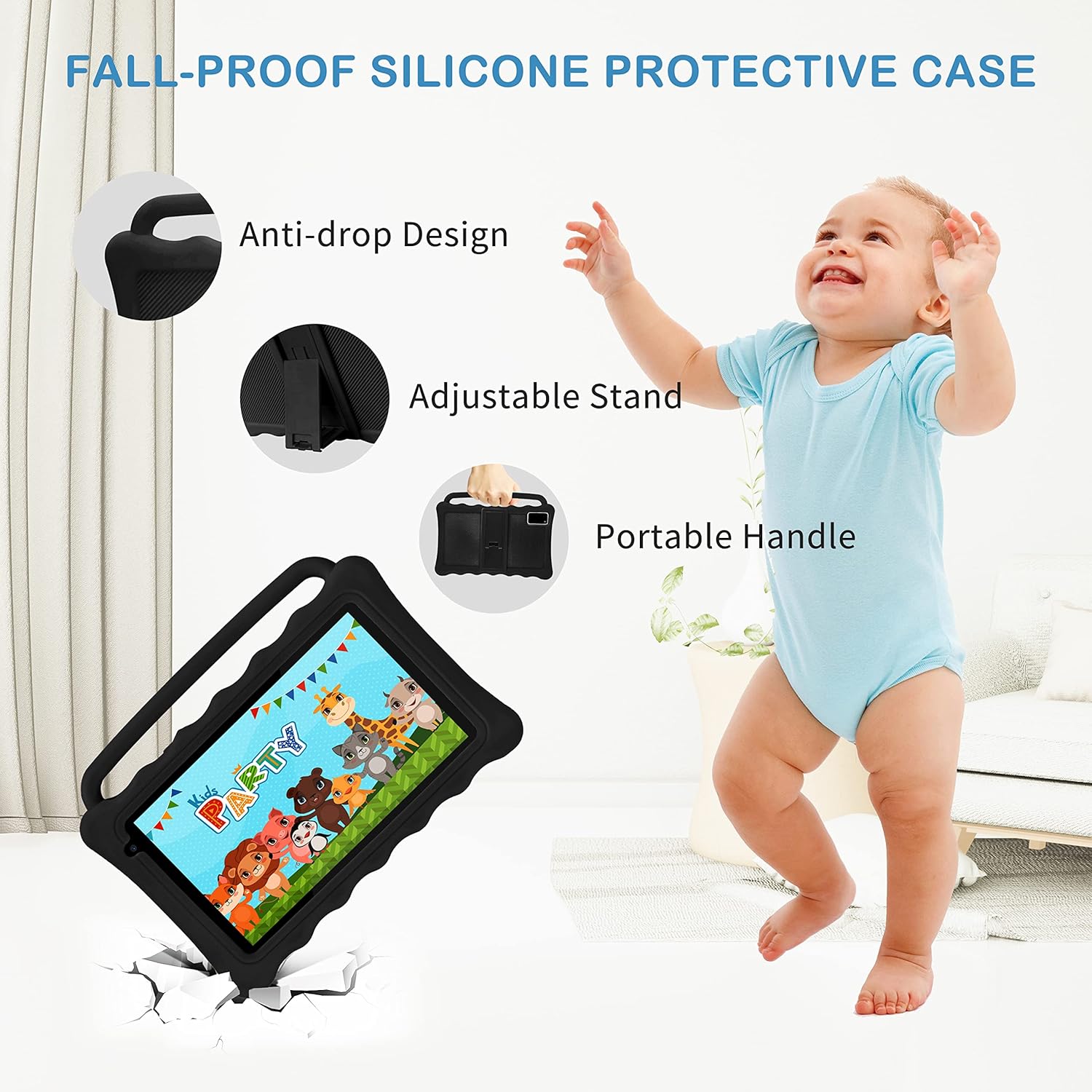
Image: The Tibuta K7 Kids Tablet showcasing its multi-functional capabilities for children. This image highlights pre-installed applications like ABCMouse, YouTube, Netflix, Google Play, and various games, books, and art tools.
Ụdị Nchekwa Anya
The 7-inch LCD screen is equipped with Low Blue Light technology to protect children's eyes. Activate the reading mode in settings to reduce screen flicker and harmful blue light, providing a more comfortable viewahụmahụ.

Image: Two children using the Tibuta K7 Kids Tablet, demonstrating the eye protection feature. The image emphasizes the 1024x600 HD screen and its low blue light technology for comfortable viewing.
Ojiji igwefoto
The tablet features a 2MP front camera and a 5MP rear camera for capturing photos and videos.
- Mepee Igwefoto ngwa.
- Pịa bọtịnụ mkpọchi iji see foto ma ọ bụ malite/kwụsị ndekọ vidiyo.
- Switch between front and rear cameras using the camera icon on the screen.

Image: Children smiling and looking into the Tibuta K7 Kids Tablet camera. This image highlights the tablet's dual cameras (2MP front, 5MP rear) for capturing fun moments.
Nlekọta
Nhicha Mbadamba ahụ
- Jiri akwa dị nro na-enweghị lint hichaa ihuenyo na ahụ nke mbadamba ihe.
- Maka isi ike smudges, ntakịrị dampen akwa na mmiri ma ọ bụ ihe nchacha ihuenyo e mere maka ngwá electronic.
- Zere iji kemịkalụ siri ike, ihe nchacha abrasive, ma ọ bụ aerosol sprays.
Nlekọta batrị
- Charge the tablet regularly, but avoid leaving it fully charged or fully depleted for extended periods.
- Use only the provided charger and cable to prevent damage to the battery.
- Zere ikpughe mbadamba ahụ n'ọnọdụ okpomọkụ dị oke njọ, n'ihi na nke a nwere ike imetụta ndụ batrị.
Okwu nchekwa
The silicone protective case is designed to safeguard the tablet from drops and impacts. Ensure the tablet is properly seated within the case at all times. The adjustable stand and portable handle enhance usability and portability.

Image: The Tibuta K7 Kids Tablet in a red protective case. This image highlights the anti-drop design, adjustable stand, and portable handle of the silicone case, demonstrating its protective and ergonomic features.
Nchọpụta nsogbu
- Mbadamba anaghị agbanyụ:
- Ensure the tablet is fully charged. Connect it to the charger and wait a few minutes before attempting to power it on again. If unresponsive, press and hold the Power button for 10-15 seconds to force a restart.
- Ihuenyo anaghị aza ozi:
- Restart the tablet. If the issue persists, ensure the screen is clean and free of debris. If the problem continues, a factory reset might be necessary (data will be lost).
- Nsogbu njikọ Wi-Fi:
- Check if Wi-Fi is enabled in settings. Restart your Wi-Fi router. Forget the network on the tablet and reconnect. Ensure you are within range of the Wi-Fi signal.
- Kidoz app not working correctly:
- Ensure the Kidoz app is updated to the latest version. Clear the app's cache and data in Ntọala > Ngwa > Kidoz > Nchekwa. If problems persist, reinstall the app or contact Kidoz support.
- Tablet runs slowly or freezes:
- Close unnecessary background applications. Clear cache for frequently used apps. Consider uninstalling unused apps to free up storage. If the issue is severe, a factory reset may resolve it.
Nkọwapụta
| Njirimara | Nkọwa |
|---|---|
| Ụdị | Tibuta |
| Aha Nlereanya | K7 |
| Sistemụ nrụọrụ | Android 12 Go |
| Akara nhazi | Onye mmeri |
| Nha ihuenyo | 7 sentimita asatọ |
| Mkpebi ihuenyo | 1024 x 600 pikselụ |
| RAM | 2 GB |
| Ike nchekwa | 32 GB (expandable up to 128 GB via Micro SD) |
| Njikọta | Wi-Fi (802.11g), Bluetooth |
| Igwefoto | N'ihu: 2MP, n'azụ: 5MP |
| Ndụ batrị | Over 5 hours (usage dependent) |
| Agba | Rose (as per product listing, other colors may vary) |


