1. Okwu mmalite
Thank you for choosing the IMILAB 64GB microSDXC UHS-I Memory Card. This card is specifically designed to provide reliable local storage for your IMILAB security cameras, offering seamless integration and high performance. With its plug-and-play functionality and robust design, it ensures your surveillance footage is securely stored without the need for recurring subscriptions.

The IMILAB 64GB microSDXC Memory Card, designed for reliable local storage.
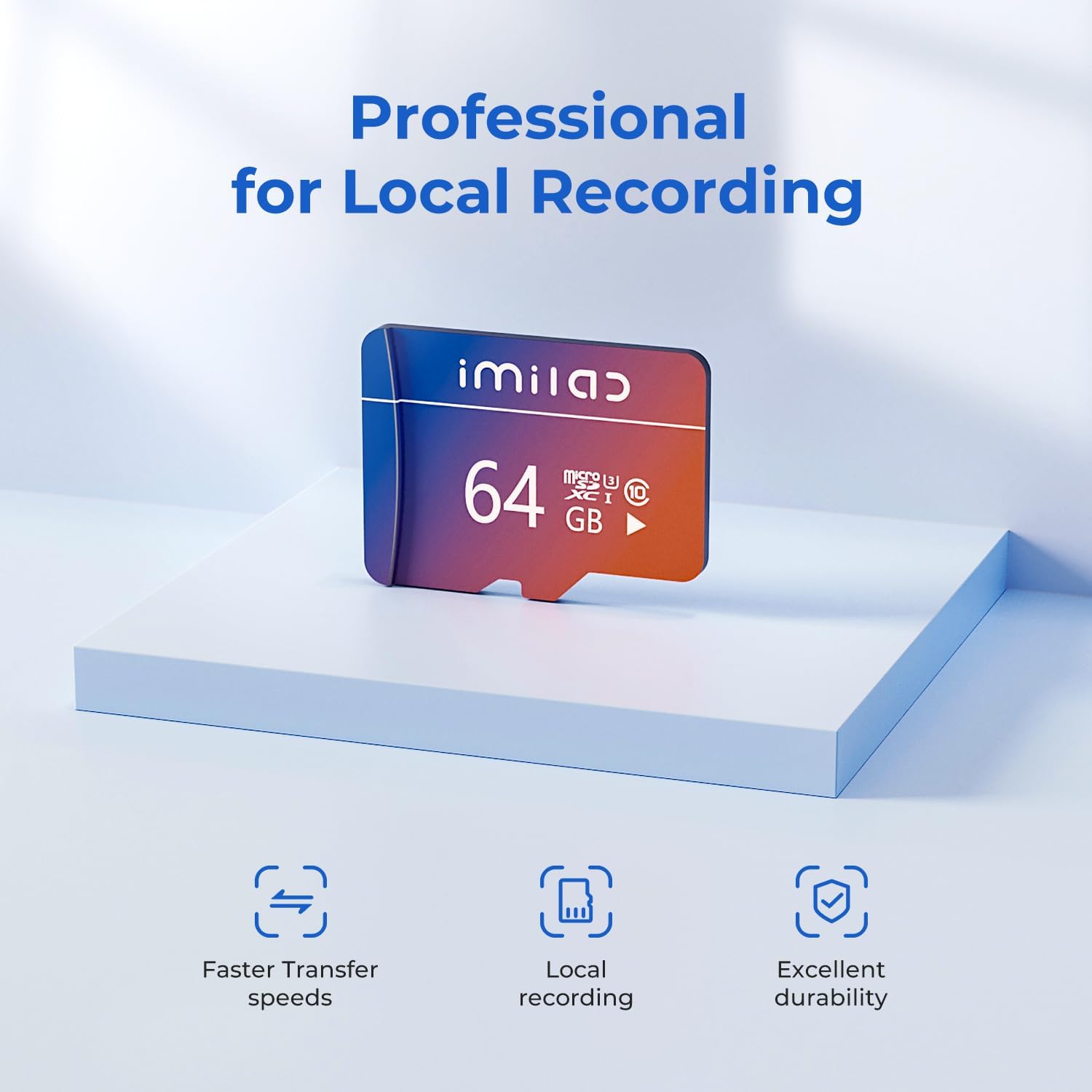
Professional design for local recording, offering faster transfer speeds, local recording capability, and excellent durability.
2. Atụmatụ igodo
- Nkwụnye ma kpọọ: Simply insert the SD card into compatible IMILAB products to enable local storage, eliminating the need for subscriptions or monthly fees.
- Designed for IMILAB Products: Specifically engineered for use with IMILAB's indoor cameras (C21/C22/C30 Dual/C40) and outdoor cameras (EC5/EC6 Dual/EC6 Panorama).
- Two Recording Modes: Offers flexibility to choose between continuous recording or detected motion recording via the Mi Home APP. Continuous recording is the default mode.
- Automatic Overwrite: When the memory card reaches its full capacity, it automatically overwrites older footage, ensuring continuous recording without manual deletion.
- Ịrụ Ọsọ Ọsọ Dị Elu: Features an Ultra High Speed Chip for efficient data handling.

The IMILAB microSD card features an Ultra High Speed Chip, providing 100MB/s Read Speed and 30MB/s Write Speed.
3. Ntọala na nwụnye
Installing your IMILAB microSD card is a straightforward process. Follow these steps to ensure proper setup:
- Locate the SD Card Slot: Identify the microSD card slot on your IMILAB security camera. Refer to your camera's specific user manual for the exact location.
- Tinye Kaadị ahụ: Gently insert the IMILAB microSD card into the slot until it clicks into place. Ensure the card is oriented correctly.
- Power On/Restart: If your camera was off, power it on. If it was already on, a restart might be required for the camera to recognize the new storage.
- Format the Card (Recommended): For optimal performance and compatibility, it is recommended to format the microSD card using the Mi Home APP. Navigate to the camera settings within the app and look for storage or SD card options to perform a FAT32 format. This ensures the card is properly initialized for your camera.
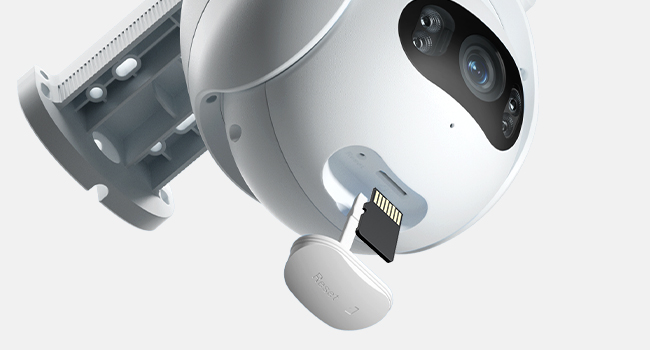
Insert the microSD card into the designated slot on your IMILAB camera.
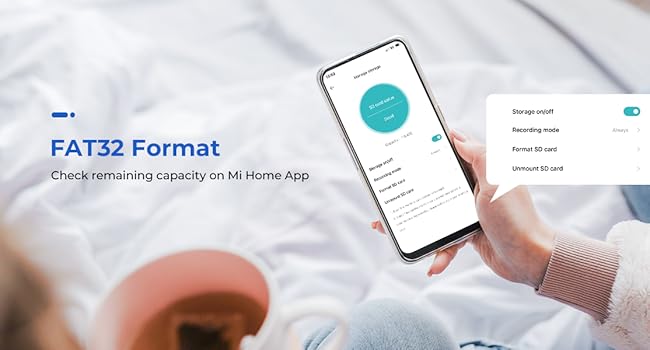
Check remaining capacity and format the card to FAT32 using the Mi Home App for optimal performance.
4. Operating Modes and Playback
The IMILAB microSD card enhances your camera's functionality by enabling local video storage and playback through the Mi Home APP.
Ụdị ndekọ:
You can configure your camera's recording behavior within the Mi Home APP:
- Ndekọ na-aga n'ihu: The camera records continuously, overwriting the oldest footage when the card is full. This is the default setting.
- Detected Motion Recording: The camera records only when motion is detected, saving storage space and making it easier to review specific events.
Nkpọghachi:
Iji view edekọ footage:
- Open the Mi Home APP and select your IMILAB camera.
- Navigate to the playback section, typically labeled 'Playback' or 'SD Card'.
- Use the timeline or event filters (e.g., motion detected, person detected, loud noise) to find and review kpọmkwem ndekọ.

Ọ dị mfe view surveillance history and playback recorded footage through the Mi Home App.

The Mi Home App allows filtering playback by events such as motion detected, person detected, or loud noise.
5. Mmezi na Ogologo Oge
The IMILAB microSD card is built with multiple protections to ensure long-term reliability and performance in various conditions. While designed to be robust, proper handling can extend its lifespan.
Njirimara nchedo:
- High & Low Temperature Resistant: Operates reliably in extreme temperatures.
- Ihe mgbochi mmiri: Designed to withstand accidental exposure to water.
- Ihe mgbochi uzuzu: Protected against dust ingress, ensuring consistent performance.
- Anti-static: Resistant to electrostatic discharge.
- Anti-Magnetic: Shielded against magnetic interference.
- Nchọpụta X-ray: Safe for airport X-ray scanners.
- Ihe akaebe: Durable against minor abrasions.
General Nlekọta:
- Zere ịgbagọ ma ọ bụ itinye ike gabigara ókè na kaadị ahụ.
- Keep the gold contact pins clean and free from debris.
- Debe kaadị ahụ n'ime igbe nchekwa mgbe a naghị eji ya.
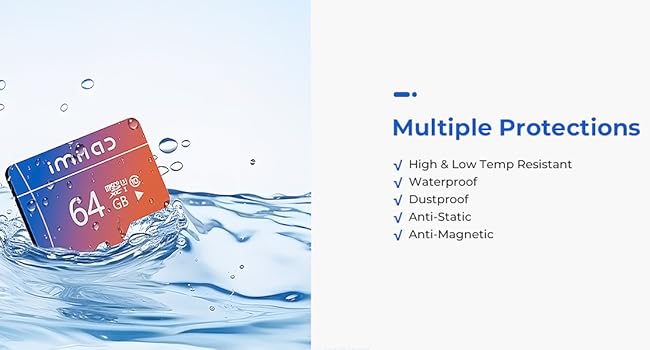
The IMILAB microSD card offers multiple protections including high & low temperature resistance, waterproofing, dustproofing, anti-static, and anti-magnetic properties.
6. Nkọwapụta
Detailed technical specifications for the IMILAB 64GB microSDXC Memory Card:
| Njirimara | Nkọwa |
|---|---|
| Aha Nlereanya | 64GB Card (IMI) |
| Ụdị ebe nchekwa Flash | Micro SD, microSDXC |
| Ike Nchekwa ebe nchekwa | 64 GB |
| Gụọ Ọsọ | Ruo 100 MB / s |
| Dee ọsọ ọsọ | Ruo 30 MB / s |
| Klas Ọsọ Njikọ Dijitalụ echekwara | Class 10, U3, A2, V30 |
| Ngwa dakọtara | IMILAB Cameras & Doorbell |
| Atụmatụ pụrụ iche | Dust Proof, Lightweight, Magnetic Proof, Scratch Proof, Water Proof, X-Ray Proof |
| Ibu Ibu | 0.5 ounces |
| Onye nrụpụta | Shanghai lmilab Technology Co., Ltd |

IMILAB microSD cards are available in various capacities, including 64GB, 128GB, and 256GB, offering different recording durations.
7. Nchọpụta nsogbu
If you encounter issues with your IMILAB microSD card, consider the following common solutions:
- Amaghị kaadị ahụ:
- Ensure the card is fully inserted into the camera's slot.
- Restart your IMILAB camera.
- Try formatting the card using the Mi Home APP (this will erase all data).
- Verify that your camera model is listed as compatible with IMILAB microSD cards.
- Okwu ndekọ:
- Check if the card is full. The automatic overwrite feature should handle this, but a full card might cause temporary issues.
- Ensure the recording mode (continuous or motion-detected) is correctly configured in the Mi Home APP.
- Confirm the card is formatted to FAT32.
- Ịrụ ngwa ngwa:
- Ensure the card is genuine IMILAB and not a counterfeit.
- Performance can be affected by the camera's settings (e.g., video resolution).
If problems persist, please refer to your IMILAB camera's specific user manual or contact IMILAB customer support.
8. Akwụkwọ ikike na nkwado
The IMILAB 64GB microSDXC Memory Card comes with a Akwụkwọ ikike nwere oke. For specific details regarding the warranty period and coverage, please refer to the warranty information provided with your purchase or visit the official IMILAB websaịtị.
For technical support, product inquiries, or warranty claims, please visit the official IMILAB website or contact their customer service channels. Always provide your product model number (IMI) and purchase details when seeking support.
Thank you for choosing IMILAB.


