Ngwaahịa gafereview
The Thomson RC112A Android TV Remote Control is designed to provide seamless control over your Thomson Android TV. This official replacement remote offers a blend of sophisticated design and practical functionality, ensuring a comfortable and intuitive user experience. It features an ergonomic design, backlit buttons for low-light conditions, integrated voice control via Google Assistant, and a customizable favorite apps button.

Foto: N'ihu view of the Thomson Android TV Remote Control, showcasing its sleek black design and button layout.
Ntọlite na ojiji mbụ
1. Ntinye batrị
The remote control requires two (2) AAA batteries for operation. Ensure correct polarity when inserting the batteries.
- Chọta mkpuchi mkpuchi batrị n'azụ nke njikwa anya.
- Mịpụ mkpuchi ahụ n'ala ma ọ bụ n'akụkụ nke akụ gosiri iji mepee ya.
- Tinye batrị AAA abụọ, nke kwekọrọ na njedebe dị mma (+) na nke na-adịghị mma (-) dịka egosiri n'ime ngalaba ahụ.
- Dochie mkpuchi nke batrị batrị, hụ na ọ pịrị na ebe nchekwa.
2. Pairing with your Android TV
This remote control connects to your Thomson Android TV via Bluetooth. The pairing process may vary slightly depending on your TV model. Generally, follow these steps:
- Ensure your Thomson Android TV is powered on.
- On your TV, navigate to Ntọala > Remotes & Ngwa or Ntọala Bluetooth.
- Họrọ Tinye ngwa or Jikọta ngwaọrụ ọhụrụ.
- On the Thomson remote control, press and hold the Ụlọ bọtịnụ na Azu button simultaneously for a few seconds until the LED indicator on the remote starts blinking, indicating it's in pairing mode.
- On your TV screen, select "Thomson RC112A" or a similar name from the list of available devices.
- Confirm the pairing on your TV if prompted. The LED on the remote will stop blinking and remain solid for a moment, indicating successful pairing.
If pairing fails, ensure the remote is close to the TV and repeat the steps. Refer to your TV's user manual for specific pairing instructions if needed.
Na-arụ ọrụ Remote Control
The Thomson RC112A remote control features a comprehensive set of buttons for navigating your Android TV. Below are the primary functions:
- bọtịnụ ike (●): Gbanyụọ ma ọ bụ gbanyụọ TV.
- Nọmba akara (0-9): Direct channel selection or input.
- Mpempe igodo nsoroụzọ (elu, ala, aka ekpe, aka nri, OK): Maka igodo menu na nhọrọ.
- Bọtịnụ azụ (←): Na-alaghachi na ihuenyo gara aga ma ọ bụ menu.
- Bọtịnụ ụlọ (⌂): Na-enweta ihuenyo ụlọ Android TV.
- Mpịakọta Elu/Mbelata (V+/V-): Na-edozi olu TV.
- Ọwa elu/ala (P+/P-): Na-agbanwe ọwa TV.
- bọtịnụ ogbi (🔇): Mebie ma ọ bụ mebie ụda olu TV.
- Bọtịnụ Onye Enyemaka Google (🎤): Activates voice control. Press and hold to speak commands.
- Favorite Apps Button (⭐): Customizable button to quickly launch your preferred application. Refer to your TV's settings to assign an app to this button.
- Dedicated App Buttons (e.g., YouTube, Netflix, Prime Video, Disney+, Google Play): Direct access to these streaming services.
Atụmatụ pụrụ iche
Ergonomic imewe
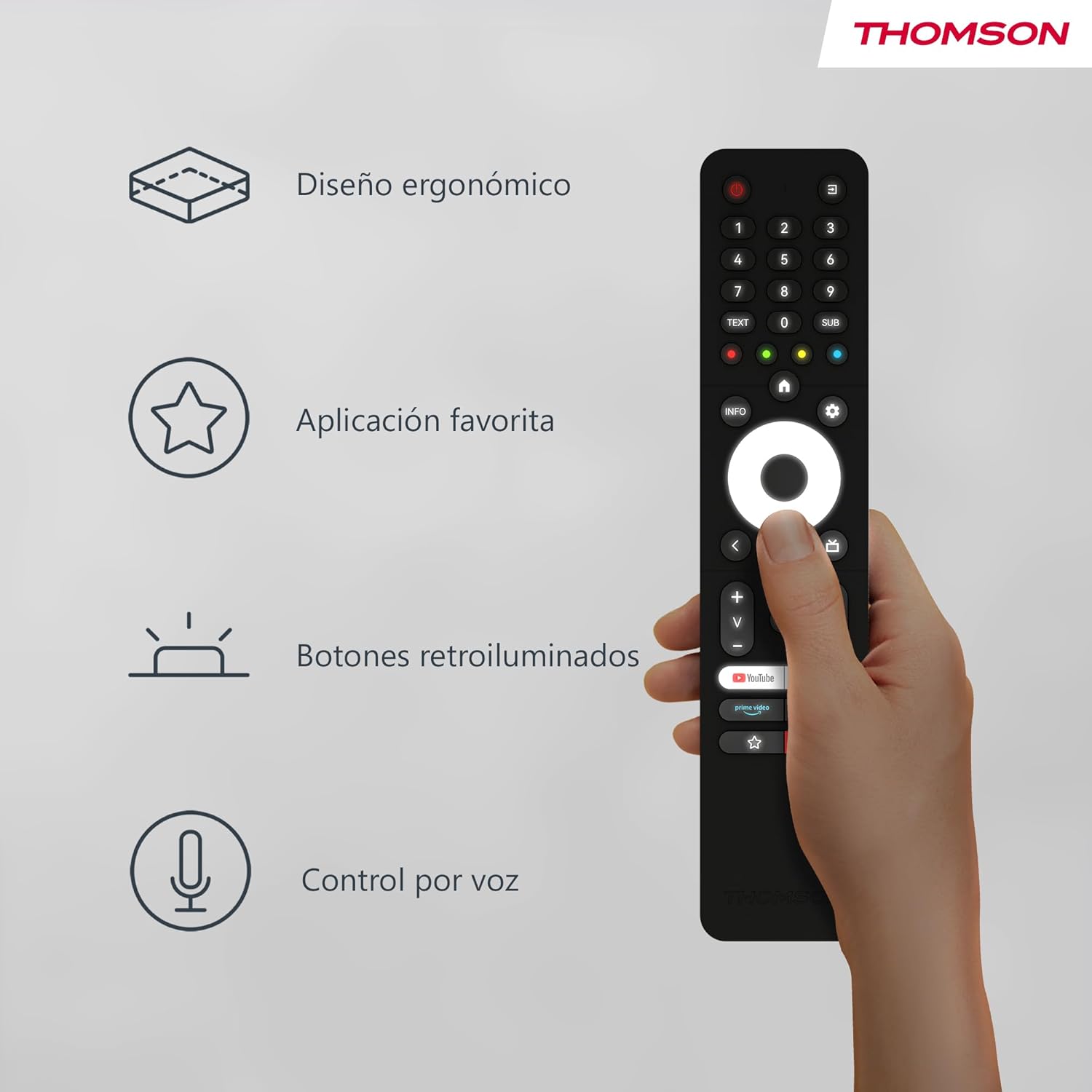
The remote control is designed to fit comfortably in your hand, making prolonged use easy and reducing fatigue. Its sleek profile and balanced weight contribute to a pleasant user experience.
Image: A hand holding the Thomson remote control, illustrating its comfortable ergonomic design and highlighting key features like voice control and favorite apps.
bọtịnụ azụ azụ

The buttons on the remote control illuminate, making it easy to locate and press the correct buttons in dimly lit environments. This feature prevents accidental key presses and enhances usability during night-time viewing.
Foto: Abụọ views of the Thomson remote control side-by-side, one showing the buttons unlit and the other showing them illuminated, demonstrating the backlit feature for low-light use.
Voice Control (Google Assistant)
With the integrated Google Assistant, you can control your TV using voice commands. Press and hold the Google Assistant button, then speak clearly into the remote. You can:
- Adjust volume (e.g., "Volume up", "Set volume to 20").
- Chọọ maka content (e.g., "Find action movies", "Play [Movie Title]").
- Open applications (e.g., "Open Netflix", "Launch YouTube").
- Ask questions (e.g., "What's the weather like?").
- Jikwaa ngwaọrụ ụlọ smart dakọtara.
Nlekọta
Ngbanwe batrị
Replace batteries when the remote's performance degrades or if the LED indicator does not light up during use. Always replace both batteries simultaneously with new AAA alkaline batteries.
Nhicha
Iji hichaa njikwa dịpụrụ adịpụ, jiri akwa dị nro ma kpọọ nkụ. Maka unyi isi ike, ntakịrị dampen the cloth with water or a mild, non-abrasive cleaner. Do not use harsh chemicals or abrasive materials, as they may damage the remote's surface or internal components. Avoid getting moisture into the battery compartment or button crevices.
Nchekwa
Store the remote control in a cool, dry place away from direct sunlight, extreme temperatures, and high humidity. If the remote will not be used for an extended period, it is recommended to remove the batteries to prevent leakage and potential damage.
Nchọpụta nsogbu
| Nsogbu | Ihe nwere ike ime | Ngwọta |
|---|---|---|
| Remote anaghị aza. | Batrị dị ala ma ọ bụ nke nwụrụ anwụ; Imechi anya anaghị ejikọ; Ihe mgbochi n'etiti imechi anya na TV. | Replace batteries; Re-pair the remote with the TV (see "Pairing" section); Ensure no objects are blocking the signal (though Bluetooth is less sensitive to this, direct line of sight can sometimes help with initial pairing). |
| Njikwa olu anaghị arụ ọrụ. | Microphone blocked; Remote not properly paired for voice; Internet connection issue on TV. | Ensure nothing is covering the microphone hole; Re-pair the remote; Check TV's internet connection. |
| Backlight not illuminating. | Batteries are low; Feature is disabled (if applicable, though usually automatic). | Replace batteries. The backlight feature is typically automatic and activates when the remote is moved or a button is pressed. |
| Favorite app button not launching desired app. | App not assigned or incorrectly assigned. | Go to your TV's settings and re-assign the desired application to the favorite app button. |
Nkọwapụta
- Akara: Thomson
- Nọmba nlereanya: RC112A
- Agba: Nwa
- Atụmatụ pụrụ iche: Ergonomic, Backlit, Voice Search (Google Assistant)
- Ngwa dakọtara: Thomson Android TVs
- Ụdị batrị: Batrị 2 x AAA (anaghị etinye ya)
- Oke oke: 10 mita
- Njikọta: Bluetooth
Akwụkwọ ikike na nkwado
Warranty information for your Thomson RC112A remote control is typically provided with your purchase documentation or can be found on the official Thomson websaịtị. Biko dowe ihe akaebe nke ịzụrụ ihe maka akwụkwọ ikike.
For technical support, troubleshooting assistance beyond this manual, or to inquire about replacement parts, please visit the official Thomson support website or contact their customer service. Contact details are usually available on the manufacturer's official websaịtị ma ọ bụ na nkwakọ ngwaahịa gị.
Note: Availability of spare parts information is not provided in the product details.


