1. Ngwaahịa gafereview
The Dzees Wireless Security Camera is designed to provide robust and reliable home security with its advanced features and flexible installation options. This battery-powered camera offers 4MP resolution for clear imaging, AI motion detection, two-way audio communication, and color night vision, ensuring comprehensive surveillance day and night.

Image: Dzees Wireless Security Cameras with Magnetic Mount. The image shows two white security cameras, one attached to a black magnetic base, and a smartphone screen above them displaying a live video feed of children playing outdoors.
Akụkụ ndị bụ isi:
- No-Hole Magnetic Mount: Offers easy installation and repositioning without drilling.
- Real-Time Siren & Two-Way Talk: Deter intruders and communicate with visitors directly via the built-in siren and two-way audio.
- Advanced AI Motion Detection: Accurately tracks people and objects, sending instant notifications to your app.
- High-Definition 2.5K Resolution: Provides clear and detailed images with a 120-degree wide field of view.
- Agba Ọhụụ abalị: Ensures clear, full-color images even in low-light conditions.
- Nhọrọ Nchekwa na-agbanwe agbanwe: Supports both cloud storage (including a 2-year free 3-day rolling cloud option) and local SD card storage (up to 128GB).
- IP66 Weatherproof Rating: Designed to withstand harsh outdoor conditions, including dust, rain, and snow.
2. Ihe ngwugwu
Biko lelee igbe maka ihe ndị a:
- Dzees Wireless Security Camera Unit(s)
- Magnetic Mount(s)
- Igwe nchaji USB
- Mounting Screws and Anchors (for optional screw mount)
- Ntuziaka mmalite ngwa ngwa
3. Ntọala na nwụnye
3.1 Ịchaji igwefoto
Before initial use, fully charge the camera using the provided USB charging cable. Connect the cable to the camera's charging port and a standard USB power adapter (not included). The charging indicator light will show the charging status.
3.2 Ntinye na Mmepụta Akaụntụ Ngwa
Download the "DzeesHome" or "Vicohome" app from your smartphone's app store (iOS or Android). Follow the on-screen instructions to create an account and log in.
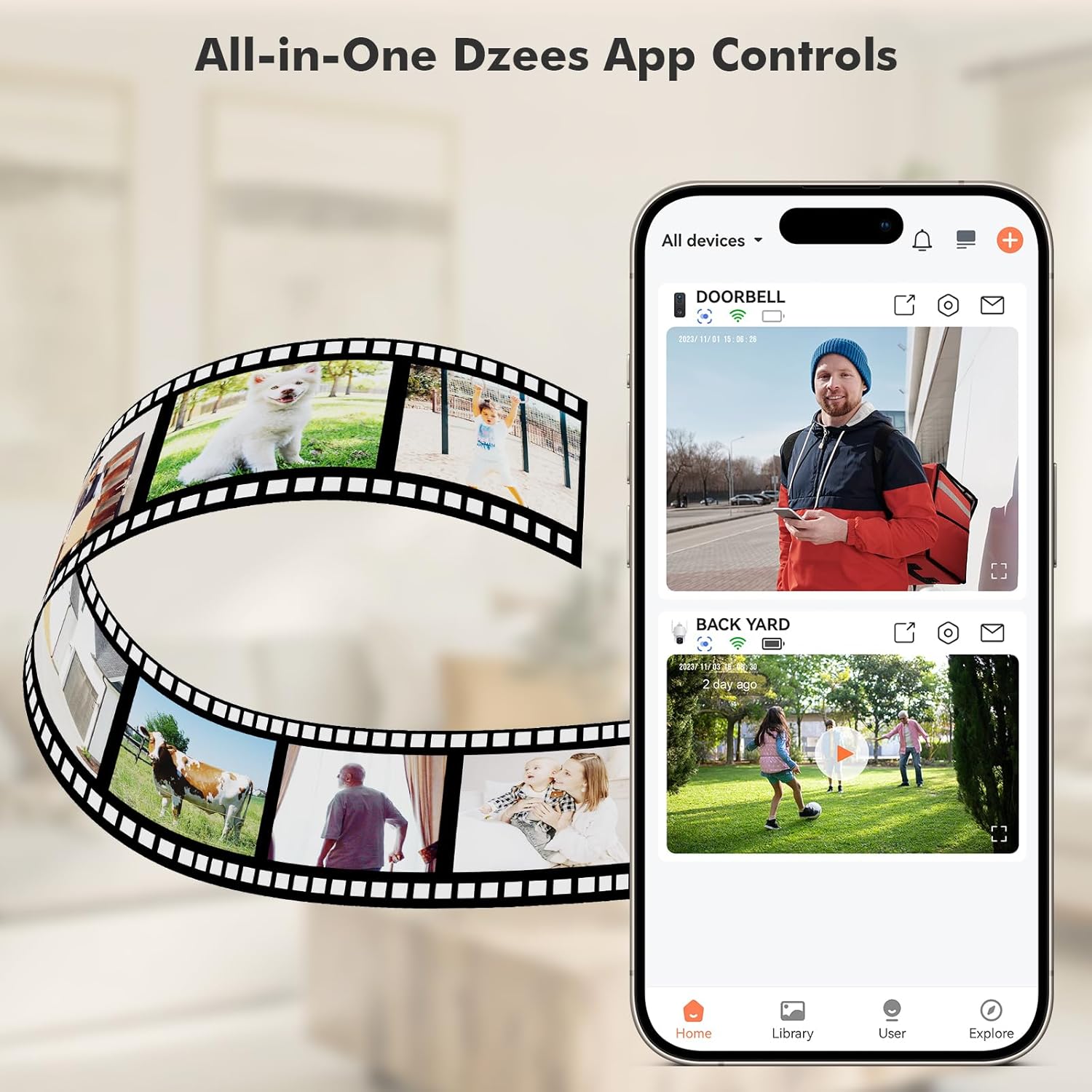
Image: All-in-One Dzees App Controls. The image shows a smartphone displaying the DzeesHome application, with a list of connected devices and live video feeds, demonstrating centralized control.
3.3 Connecting the Camera to Wi-Fi
- Open the DzeesHome/Vicohome app and tap the "+" icon to add a new device.
- Select your camera model from the list.
- Power on the camera. The camera will enter pairing mode (indicated by a flashing LED).
- Follow the app's instructions to connect the camera to your 2.4GHz Wi-Fi na netwọk. Note: This camera is not compatible with 5GHz Wi-Fi networks.
- Scan the QR code displayed on your phone screen with the camera lens. You will hear a confirmation sound once connected.

Image: 2.4GHz Wifi Only. This diagram shows a house with a Wi-Fi router and a Dzees camera, indicating that the camera only supports 2.4GHz Wi-Fi, not 5GHz.
3.4 na -arịgo igwefoto
The Dzees camera offers versatile mounting options:
- Ugwu magnetik: For easy, drill-free installation and repositioning. Simply attach the magnetic base to a clean, flat surface using the adhesive pad, then snap the camera onto the magnetic ball joint.
- Nwụnye skru: For a more permanent installation, use the provided screws and anchors to secure the mount to a wall or ceiling.

Image: Flexibility In Installation. A woman is shown adjusting a Dzees security camera mounted on an outdoor wall, while holding a smartphone, illustrating the ease of installation and positioning.

Image: Stand, Wall Mount, Ceiling Mount. This composite image displays three different ways to install the Dzees camera: on a flat surface using its base, mounted on a wall, and mounted on a ceiling.
4. Ọrụ
4.1 Ndụ View na Ndekọ
Access the DzeesHome/Vicohome app to view ndu footage from your camera. You can manually record video or capture screenshots directly from the live view interface.
4.2 Nchọpụta na Ịdọ Aka Ná Ntị
The camera features advanced AI motion detection. When motion is detected, the camera will automatically record and send instant notifications to your smartphone. You can customize activity zones within the app to minimize unwanted alerts.

Image: Instant Security Alerts. A smartphone screen shows a notification from the Dzees app indicating motion detection, with a person standing at a front door in the background.

Image: Customizable Zone to Minimize Unwanted Alerts. This image illustrates a house with its surrounding area divided into three distinct zones (Zone 1, Zone 2, Zone 3), demonstrating how users can customize detection areas to reduce false alarms.
4.3 Two-Way Audio and Siren
Use the two-way talk feature in the app to communicate with people near the camera. You can also remotely activate the built-in siren to deter unwanted visitors.
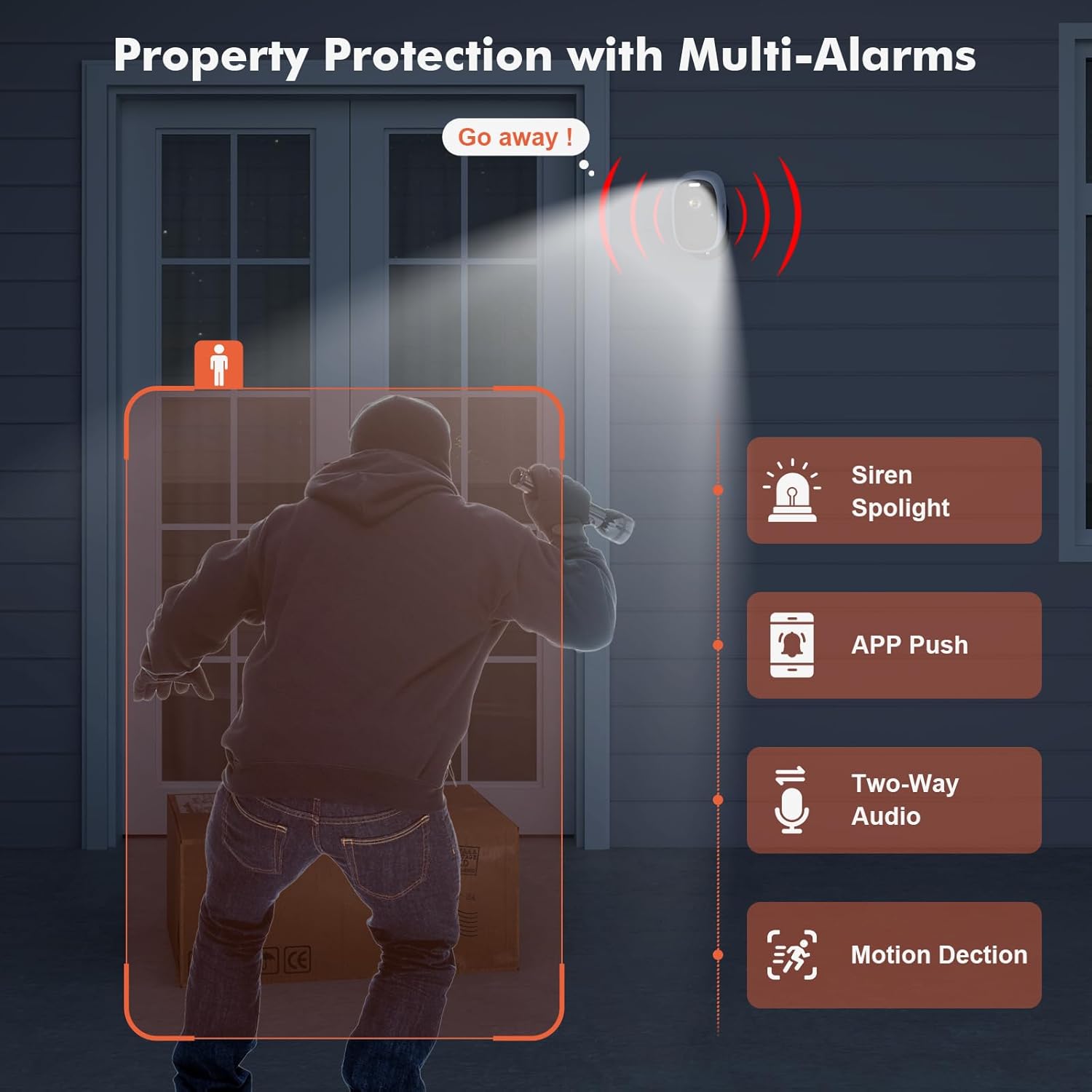
Image: Property Protection with Multi-Alarms. This image depicts a security camera deterring an intruder with a spotlight and siren, alongside icons representing app push notifications, two-way audio, and motion detection.
4.4 Ọhụụ abalị
The camera is equipped with color night vision, providing clear, full-color images even in very low light conditions, enhancing visibility and identification at night.
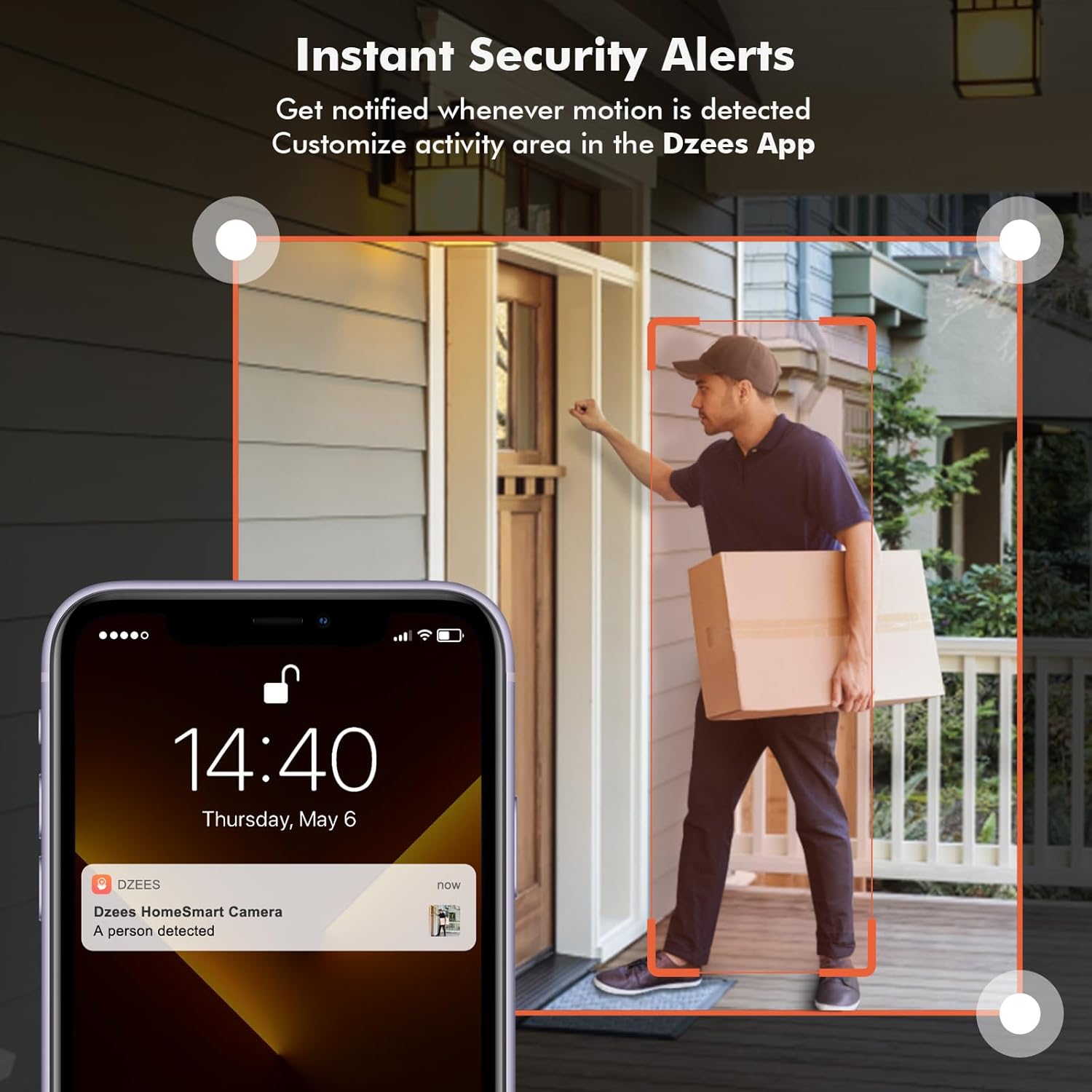
Image: Color Night Vision. This split image compares traditional black-and-white night vision with the Dzees camera's color night vision, showing a house at night in both modes.
4.5 Njikwa nchekwa
Your camera supports two storage methods:
- Nchekwa igwe ojii: Enjoy a 2-year free 3-day rolling cloud storage cycle. Optional paid plans are available for extended storage and AI recognition features.
- Nchekwa kaadị SD: Insert a microSD card (up to 128GB, not included) into the camera's SD card slot for local video storage.

Image: Dzees Cloud, Privacy, Storage Card. This image shows three distinct panels: one for Dzees Cloud storage with a "FREE 3 DAYS Video History" label, another for privacy protection with a shield icon, and a third for "Up to 128 GB" storage via an SD card.
5. Nlekọta
5.1 Njikwa batrị
The camera is powered by a 6700 mAh rechargeable battery. Battery life varies based on usage (e.g., frequency of motion detection, live view access). Recharge the camera when the battery level is low, typically every few weeks to months depending on activity.
5.2 Nhicha
To ensure optimal performance, periodically clean the camera lens and body with a soft, dry cloth. Avoid using harsh chemicals or abrasive materials.
5.3 Mgbochi ihu igwe
With an IP66 rating, your Dzees camera is designed to withstand dust, rain, and snow. However, avoid submerging the camera in water or exposing it to extreme temperatures beyond its operating range.

Image: IP66 for harsh outdoor conditions. This image shows a Dzees camera, with one half depicting it in rainy and dusty conditions and the other half in snowy conditions, emphasizing its IP66 weather resistance.
6. Nchọpụta nsogbu
| Nsogbu | Ihe nwere ike ime | Ngwọta |
|---|---|---|
| Camera won't connect to Wi-Fi. | Wi-Fi band na-ezighi ezi (5GHz), akara adịghị ike, paswọọdụ na-ezighi ezi. | Ensure your router is broadcasting a 2.4GHz network. Move the camera closer to the router. Double-check your Wi-Fi password. |
| Ndụ batrị dị mkpụmkpụ. | Frequent motion detection, extensive live view usage, cold weather. | Reduce motion detection sensitivity or frequency. Limit live view sessions. Ensure camera is fully charged. Consider a solar panel accessory if available. |
| Enweghị ọkwa nchọpụta mmegharị. | Motion detection disabled, incorrect sensitivity, app notifications off. | Check motion detection settings in the app. Adjust sensitivity. Enable app notifications for DzeesHome/Vicohome. |
| Imagedị mma adịghị mma. | Lensi ruru unyi, ọnọdụ ọkụ dị ala, nsogbu bandwidth netwọk. | Clean the camera lens. Ensure adequate lighting for optimal color night vision. Check your internet connection speed. |
7. Nkọwapụta
| Njirimara | Nkọwa |
|---|---|
| Aha Nlereanya | G1-D |
| Ojiji ime ime/n'èzí | Ime ụlọ, n'èzí |
| Mkpebi ịse vidiyo | 4MP (2.5K) |
| Teknụzụ Njikọta | Wireless (Wi-Fi 2.4GHz only) |
| Isi Iyi Ike | Akwanyere batrị |
| Ike batrị | 6700 ndeampOge elekere (mAh) |
| Ụdị njikwa | DzeesHome, Vicohome |
| Ụdị nkwụnye | Magnetic, Screw (anywhere) |
| Atụmatụ pụrụ iche | 2-Way Audio, Built-In Light, HD Resolution, Motion Sensor, Night Vision (Color) |
| Ogo nchekwa mba ụwa | IP66 |
| Akụkụ ngwaahịa | 4.84 x 3.7 x 5.94 sentimita asatọ |
| Ibu Ibu | 2.64 pound |
| Nhọrọ nchekwa | Cloud, SD Card (up to 128GB) |
8. Akwụkwọ ikike na nkwado
Dzees is committed to providing excellent customer service and product support.
- Akwụkwọ ikike ndụ: Dzees offers a lifetime warranty on its products, ensuring long-term reliability.
- Lifetime Trade-in: Benefit from a lifetime trade-in program for future upgrades.
- Nkwado nka na ụzụ ọkachamara: Access a professional technical team for assistance.
- Nzaghachi ngwa ngwa: Expect prompt responses to your inquiries.
For further assistance, please visit the official Dzees Store on Amazon: Dzees Store.


