1. Okwu mmalite
This manual provides instructions for the safe and efficient operation of the Chainway C71 Android Barcode Scanner. The C71 is a robust and versatile handheld device designed for various applications, including warehouse inventory management and forklift operations. It features a Zebra SE55 long-range 2D/1D/QR code reader, runs on Android 13, and offers comprehensive connectivity options.
Please read this manual thoroughly before using the device and retain it for future reference.
2. Ngwaahịa gafereview
2.1 Atụmatụ
- Nhazi siri ike ma dị iche iche: Suitable for both indoor and outdoor environments, ideal for warehouse inventory and forklift scanning.
- Zebra SE55 Long Range Scanner: Capable of scanning 2D, 1D, and QR codes from distances up to 40 feet (depending on barcode size and media).
- Sistemụ arụmọrụ Android 13: Provides access to the latest Android features and the Google Play Store for application downloads.
- Ikuku Njikọ: Features fast and reliable WiFi, Bluetooth 5.0, NFC, and GPS for seamless data transmission and real-time updates.
- Large Vivid Screen: A bright and clear display for easy reading and interaction in various lighting conditions.
- Batrị nwere ike dị elu: Equipped with a 5000mAh battery for extended operational periods.
- Ihe nhazi Octa-isi: Ensures fast and responsive performance for demanding applications.
2.2 Ngwa ngwaọrụ
The Chainway C71 scanner features a robust design with an integrated display, scanning engine, and various ports and buttons.
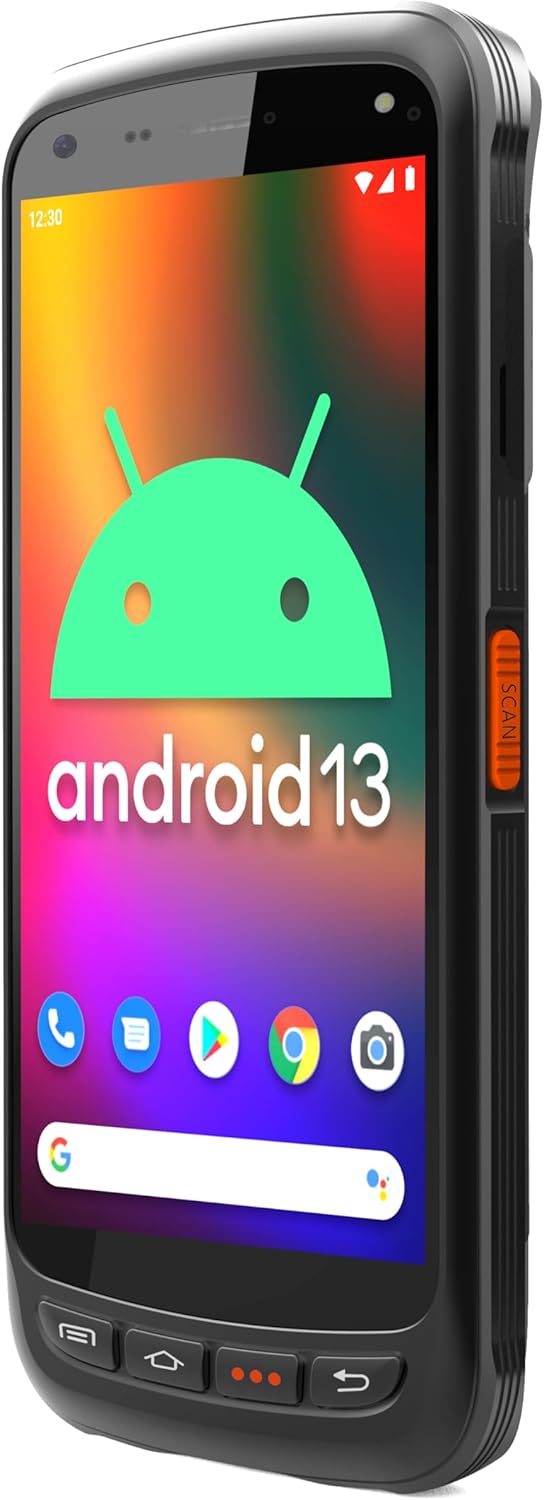
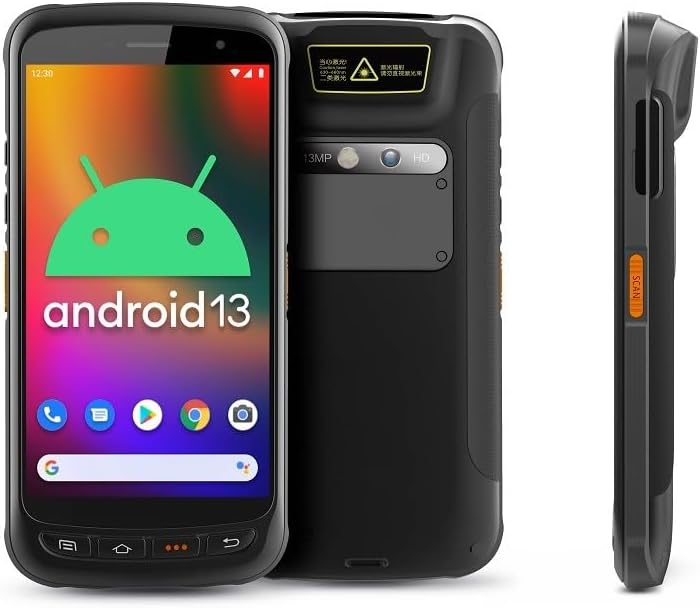
- Ngosipụta: Large vivid touchscreen for user interaction.
- Bọtịnụ nyocha: Located on the side for convenient barcode scanning activation.
- Zebra SE55 Scan Engine: Integrated at the top rear for long-range barcode capture.
- Igwefoto azụ: For image capture (13MP).
- Igwefoto ihu: For video calls or selfies (5MP).
- Bọtịnụ anụ ahụ: Power, volume, and programmable function keys.
- ọdụ ụgbọ mmiri: USB-C for charging and data transfer.
3. Nhazi
3.1 Ntinye batrị na Nchaji
The Chainway C71 requires one Lithium Ion battery for operation. Ensure the battery is correctly installed before first use.
- Chọta mkpuchi nke ebe batrị dị n'azụ ngwaọrụ ahụ.
- Open the cover and insert the Lithium Ion battery, ensuring the contacts align correctly.
- Mechie mkpuchi nke batrị batrị nke ọma.
- Connect the device to a power source using the provided USB-C cable and power adapter. The device will begin charging.

3.2 Ike mbido
- Press and hold the Power button (usually on the side) until the device vibrates and the screen illuminates.
- Follow the on-screen prompts to complete the initial Android 13 setup, including language selection, Wi-Fi connection, and Google account login.
4. Ntuziaka ọrụ
4.1 Barcode Scanning with Zebra SE55 Engine
The Chainway C71 is equipped with a powerful Zebra SE55 scan engine for efficient barcode capture.
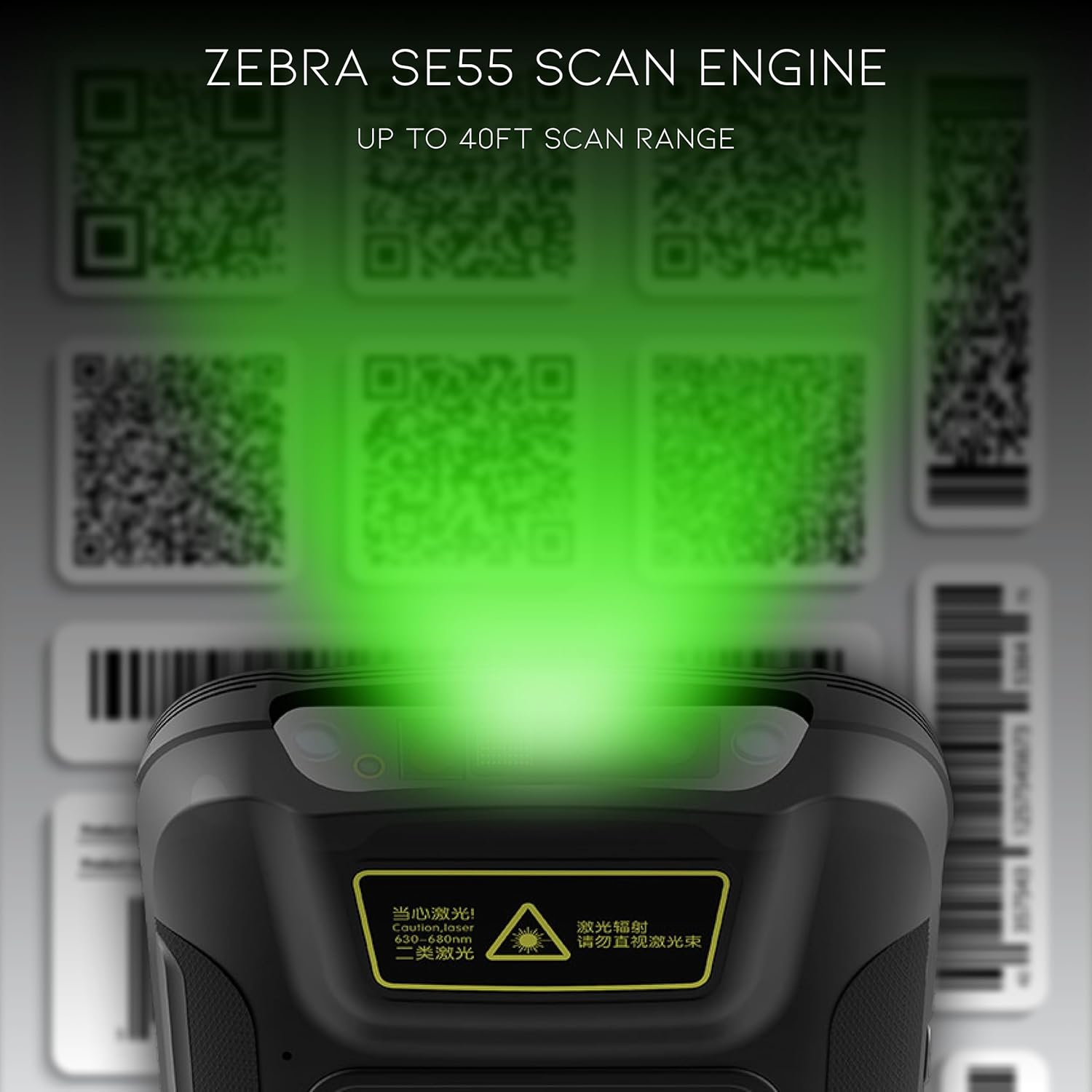
- Open the desired application that requires barcode scanning (e.g., inventory management app).
- Point the top of the device, where the scan engine is located, towards the barcode.
- Press the dedicated scan button on the side of the device. A green aiming pattern will appear.
- Align the aiming pattern with the barcode. The device will emit a sound or vibrate upon successful scan.
- The scanned data will be input into the active field of your application.
Mara: The Zebra SE55 can scan barcodes from up to 40 feet away, depending on the barcode size and quality. For optimal performance, ensure clear line of sight and adequate lighting.
4.2 Android 13 Sistemụ arụmọrụ
The C71 runs on Android 13, providing a familiar and intuitive user experience. You can navigate the interface using touch gestures.

- Ihuenyo ụlọ: Access your installed applications and widgets.
- Amamọkwa: Si n'elu ihuenyo gaa ala view ọkwa na ntọala ngwa ngwa.
- Ụlọ ahịa Google Play: Download and install additional applications relevant to your workflow.
4.3 Njikọta
The device supports multiple connectivity options for data transfer and communication.
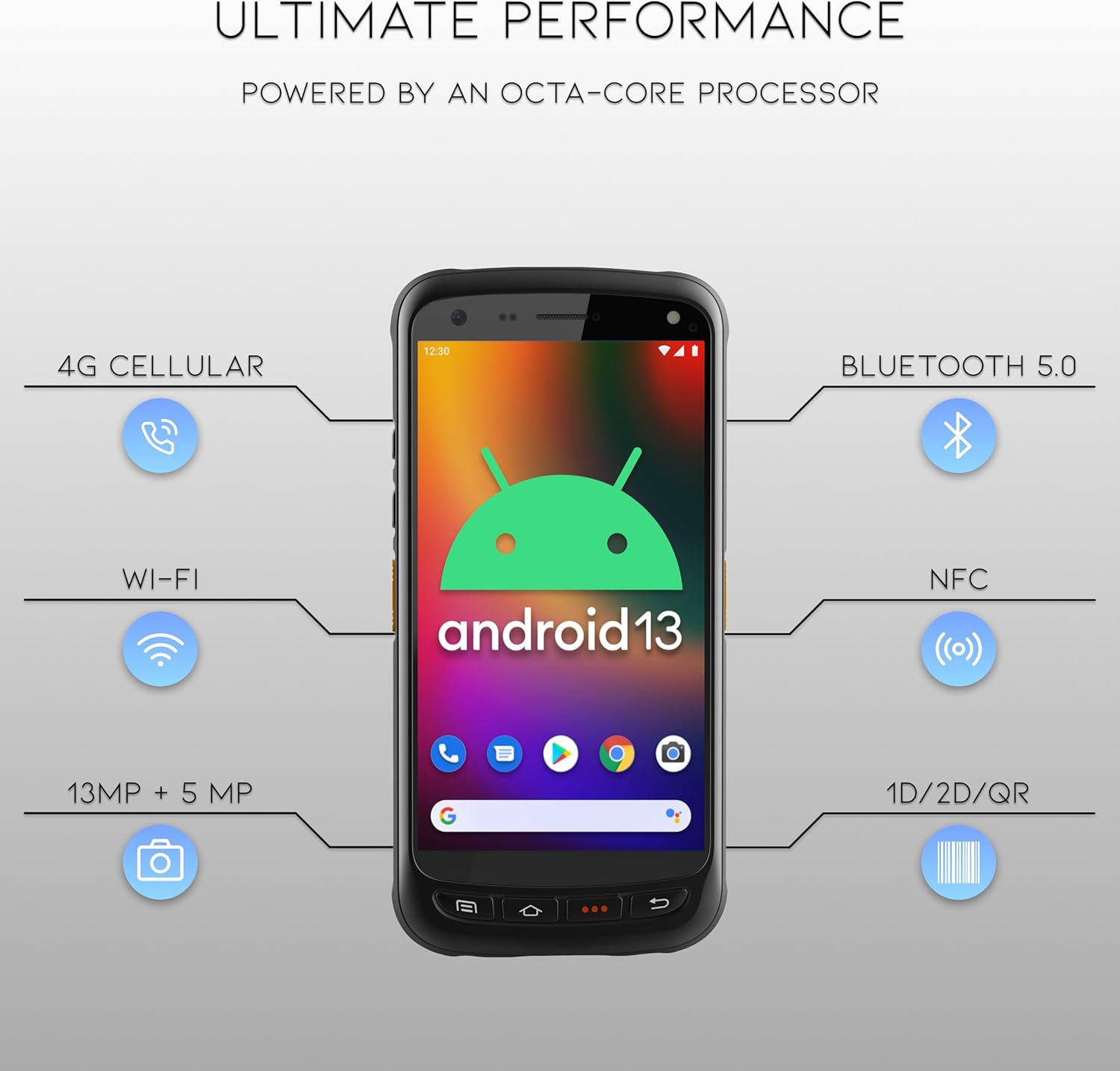
- Wi-Fi: Connect to wireless networks for internet access and data synchronization. Go to Ntọala> Netwọk & ịntanetị> Wi-Fi.
- Bluetooth Bluetooth: Pair with Bluetooth-enabled devices such as headsets or printers. Go to Ntọala > Ngwaọrụ ejikọrọ > Bluetooth.
- NFC: Maka ngwa nkwukọrịta dị nso n'ọhịa.
- GPS: For location-based services.
- 4G Cellular: (If equipped with SIM card slot) For mobile data connectivity.
5. Nlekọta
5.1 Na-ehicha ngwaọrụ
- Jiri akwa dị nro na-enweghị ntụpọ dampened with water or a mild, non-abrasive cleaning solution to clean the screen and exterior.
- Ejila kemịkalụ siri ike, ihe mgbaze, ma ọ bụ ihe ndị na-emebi ihe, n'ihi na ihe ndị a nwere ike imebi ngwaọrụ ahụ.
- Ensure no liquid enters the ports or openings.
5.2 Nlekọta batrị
- Avoid exposing the battery to extreme temperatures (hot or cold).
- Na-anya batrị mgbe niile, mana zere ịhapụ ya kpamkpam ruo ogologo oge.
- Use only the manufacturer-approved charging accessories.
6. Nchọpụta nsogbu
This section addresses common issues you might encounter with your Chainway C71 scanner.
6.1 Ngwaọrụ anaghị agba ọkụ
- Gbaa mbọ hụ na etinyere batrị nke ọma yana chajịkwa ya nke ọma.
- Connect the device to the charger and attempt to power it on after a few minutes.
- Ọ bụrụ na nsogbu ahụ ka dị, kpọtụrụ nkwado ndị ahịa.
6.2 Barcode Not Scanning
- Verify that the scanning application is open and ready to receive input.
- Ensure the barcode is clean, undamaged, and within the scanner's range (up to 40 feet).
- Check for adequate lighting; extreme glare or insufficient light can affect scanning performance.
- Confirm the scan engine is pointed directly at the barcode.
6.3 Okwu Njikọta Wi-Fi
- Check if Wi-Fi is enabled in the device settings.
- Ensure you are within range of a known Wi-Fi network.
- Verify the Wi-Fi password if connecting to a new network.
- Restart the device and the Wi-Fi router if necessary.
7. Nkọwapụta
Technical specifications for the Chainway C71 Android Barcode Scanner.
| Njirimara | Nkọwa |
|---|---|
| Nọmba nlereanya | C71 |
| Sistemụ nrụọrụ | Android 13 |
| Ihe nyocha Barcode | Zebra SE55 (2D/1D/QR, up to 40ft range) |
| Nhazi | 2.0 GHz Octa-Core Processor |
| Batrị | 5000mAh Lithium Ion (1 required) |
| Njikọta | Wi-Fi, Bluetooth 5.0, NFC, GPS, 4G Cellular (optional) |
| Igwefoto | 13MP n'azụ, 5MP n'ihu |
| Ngwa dakọtara | Smartphone, Tablet (as a handheld device) |
| Isi Iyi Ike | Akwanyere batrị |
| Onye nrụpụta | Chainway |

8. Akwụkwọ ikike na nkwado
For warranty information and technical support, please contact the seller, BARCODE-USA. Details regarding specific warranty periods and coverage will be provided at the point of purchase or upon request from the seller.
Onye na-ere ahịa: BARCODE-USA
For assistance, refer to your purchase documentation or visit the BARCODE-USA store page on Amazon: BARCODE-USA Store


