1. Okwu mmalite
Thank you for choosing the LYEAA KS42 Wireless Dual-Color Game Controller. This manual provides detailed instructions on how to set up, operate, maintain, and troubleshoot your new gamepad. Designed for seamless compatibility with Nintendo Switch, Switch OLED, and Switch Lite, the KS42 offers a precise and immersive gaming experience with its 6-axis gyroscope and comfortable design.
Ọdịnaya ngwugwu:
- 1 x LYEAA KS42 Wireless Game Controller
- 1 x 1M Data Cable (USB-C)
- 1 x Akwụkwọ ntuziaka

Image 1.1: The LYEAA KS42 Wireless Dual-Color Game Controller, showcasing its black finish and ergonomic design.
2. Ngwaahịa gafereview
The LYEAA KS42 controller features a split design, allowing for flexible use. Each half is equipped with essential controls for an optimal gaming experience.

Image 2.1: Icons representing key features of the LYEAA KS42 controller: Wireless Connection, Motion Sensing, Vibration Feedback, TURBO Function, and Precise Joysticks.
Controller Components:
- Onye njikwa aka ekpe: Directional Pad (D-Pad), Left Analog Stick, L/ZL Buttons, Capture Button, Minus (-) Button.
- Onye njikwa aka nri: A/B/X/Y Buttons, Right Analog Stick, R/ZR Buttons, Home Button, Plus (+) Button.
- Ngalaba etiti: Indicator Lights, Charging Port (USB-C).
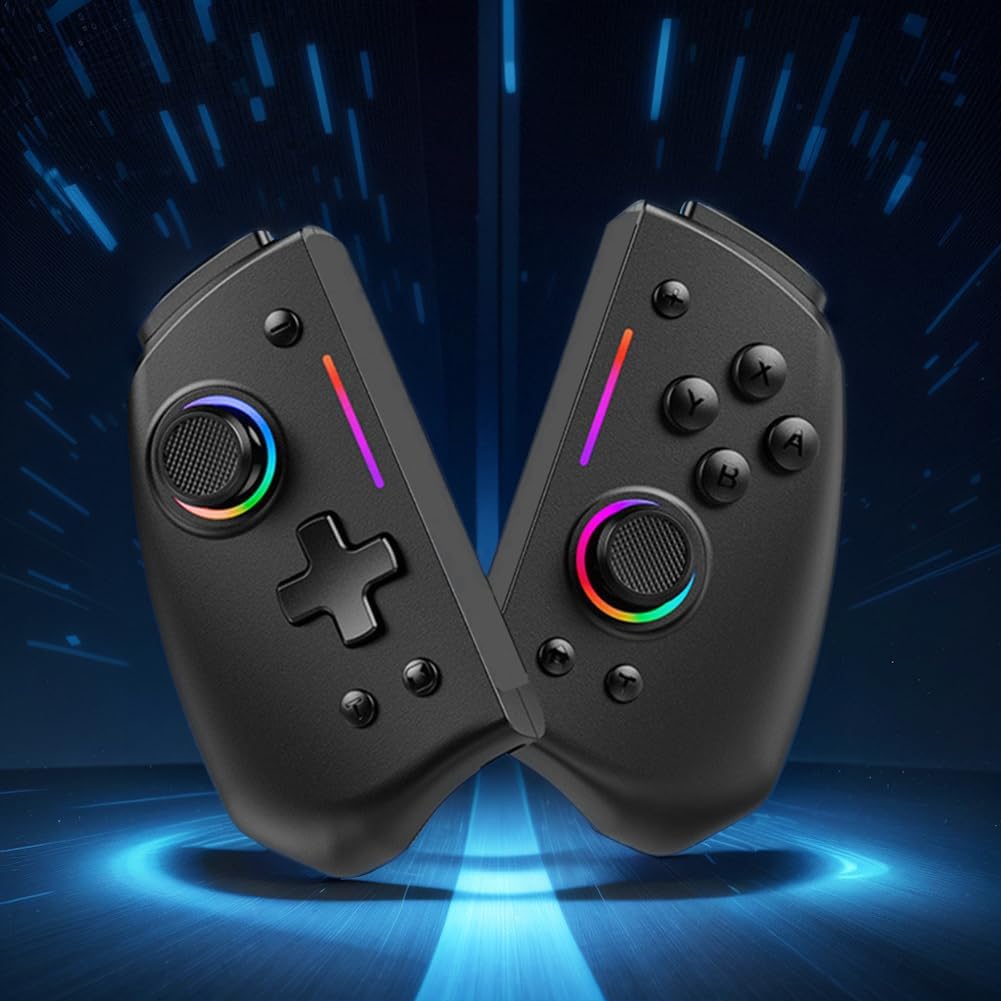
Foto 2.2: A view of the LYEAA KS42 controller split into its two halves, highlighting its modular design.
3. Nkọwapụta
| Njirimara | Nkọwa |
|---|---|
| Nlereanya | KS42 |
| Ndakọrịta | Nintendo Switch, Switch OLED, Switch Lite |
| Njikọta | Ikuku |
| Ike batrị | 500 mAh |
| Oge Nchaji | Ihe dị ka awa 3 |
| Oge egwuregwu | Ruo awa iri abụọ |
| Ibu ngwaahịa | 178g (0.39 lbs) |
| Product Dimensions (Single Side) | 109.00 x 65.00 x 54.00 mm (4.29 x 2.56 x 2.13 inch) |
| Akụkụ ngwugwu | 145 x 145 x 65 mm (5.71 x 5.71 x 2.56 inch) |
| Atụmatụ pụrụ iche | 6-axis Gyroscope, Vibration Feedback, TURBO Function |
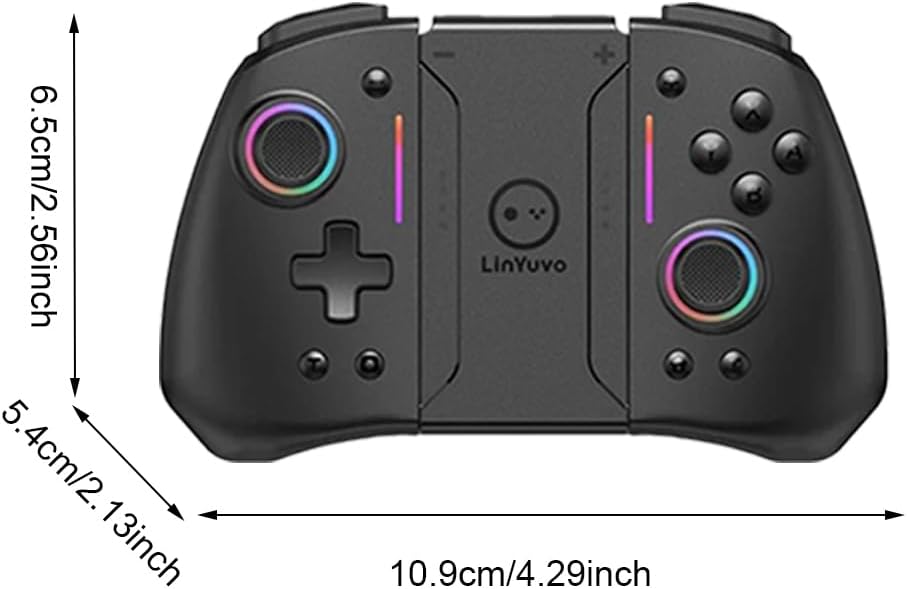
Image 3.1: Diagram illustrating the dimensions of the LYEAA KS42 controller in centimeters and inches.
4. Nhazi
4.1 Ịchaji njikwa
Before first use, fully charge the controller. Use the provided USB-C data cable to connect the controller to a USB power source (e.g., Nintendo Switch dock, computer USB port, or a USB wall adapter).
- The indicator lights on the controller will show charging status.
- Nchaji na-ewekarị ihe dịka awa 3 maka ụgwọ zuru ezu.
- Once fully charged, the indicator lights will change or turn off, depending on the controller's state.
4.2 Connecting to Nintendo Switch/OLED/Lite
The LYEAA KS42 controller connects wirelessly to your Nintendo Switch console.
- Na njikwa Nintendo Switch gị, gaa na NchNhr ỤLỌ.
- Họrọ "Ndị njikwa", mgbe ahụ "Gbanwee njide/Iwu".
- While on this screen, press and hold the Bọtịnụ ụlọ on the LYEAA KS42 controller for a few seconds until the indicator lights start flashing rapidly.
- The controller will automatically pair with your Switch. Once connected, the indicator lights will become solid.
- You can now detach the Joy-Cons from your Switch (if applicable) and insert the Switch console into the LYEAA KS42 controller's central slot for handheld mode, or use it wirelessly.
Note: The controller supports automatic power-on and connectivity once paired.
5. Ntuziaka ọrụ
5.1 Njikwa ntọala
Familiarize yourself with the standard button layout:
- Mkpisi analog: Maka njikwa mmegharị na igwefoto.
- D-Pad: For directional input, menu navigation.
- Bọtịnụ A/B/X/Y: Action buttons, typically for confirm, cancel, jump, etc.
- L/R/ZL/ZR Buttons: Shoulder and trigger buttons for various in-game actions.
- Bọtịnụ tinyere (+) / Mbelata (-): Equivalent to Start/Select or menu buttons.
- Bọtịnụ ụlọ: Returns to the Switch HOME Menu.
- Bọtịnụ ijide: Takes screenshots or video clips (game dependent).

Image 5.1: A user holding the LYEAA KS42 controller, demonstrating its comfortable grip during gameplay.
5.2 Atụmatụ dị elu
- Gyroscope nke 6-Axis: The controller features a built-in 6-axis gyroscope for precise motion control. This allows for immersive gameplay in titles that support motion sensing. No special setup is required; the gyroscope activates automatically when supported by the game.
- Nzaghachi nke ịma jijiji: Experience enhanced immersion with haptic feedback. The controller's vibration motors provide tactile responses to in-game events. This feature is automatically enabled.
- Ọrụ TURBO: The TURBO function allows for rapid, automatic pressing of a button.
- To activate TURBO: Press and hold the desired action button (e.g., A, B, X, Y, L, R, ZL, ZR), then press the TURBO bọtịnụ (refer to controller diagram for location, typically a dedicated button or a combination).
- To deactivate TURBO: Repeat the same process.

Image 5.2: The LYEAA KS42 controller positioned with various game screenshots floating above, illustrating its compatibility with diverse gaming titles.
6. Nlekọta
Proper care will extend the life of your LYEAA KS42 controller.
- Nhicha: Jiri ákwà dị nro ma kpọọ nkụ hichaa ihe njikwa ahụ. Maka unyi siri ike, jiri obere d hichaa ya.ampen the cloth with water or a mild electronic cleaner. Avoid excessive moisture. Do not use harsh chemicals or abrasive materials.
- Nchekwa: Store the controller in a cool, dry place away from direct sunlight and extreme temperatures. When not in use for extended periods, ensure the controller is fully charged before storing.
- Nlekọta batrị: To maintain battery health, avoid completely draining the battery frequently. Recharge the controller when the low battery indicator appears. If storing for a long time, charge it at least once every three months.
- Ijikwa: Avoid dropping the controller or subjecting it to strong impacts. Do not attempt to disassemble the controller, as this will void any potential warranty.
7. Nchọpụta nsogbu
| Nsogbu | Ihe kpatara/ Ngwọta nwere ike ime |
|---|---|
| Controller does not connect to Switch. |
|
| Controller does not charge. |
|
| Bọtịnụ ma ọ bụ joystick anaghị anabata. |
|
| Motion control (gyroscope) is not working. |
|
8. Akwụkwọ ikike na nkwado
LYEAA products are designed for reliability and performance. While specific warranty details are not provided in this manual, please retain your proof of purchase for any potential warranty claims. For product support, troubleshooting assistance beyond this manual, or inquiries about returns, please contact the seller or refer to the retailer's return policy where you purchased the product. Amazon.es typically offers a 30-day return policy for eligible items.
For the latest information and support, please visit the official LYEAA website or contact their customer service directly if available.