1. Okwu mmalite
This manual provides detailed instructions for the installation, operation, and maintenance of your AZDOME GS63H 4K WiIFi Dash Cam. Please read this manual thoroughly before using the device to ensure proper function and safety.

Image 1.1: AZDOME GS63H Dash Cam, showing the device, its suction mount, a smartphone displaying the companion app, and the included 128GB SD card.
2. Ihe ngwugwu
Chọpụta na ihe niile edepụtara n'okpuru dị na ngwugwu gị:
- AZDOME GS63H Dash Cam
- Mmiri mgbodo
- Kaadị ebe nchekwa 128GB
- Power Cable (Car Charger)
- USB data USB
- Akwụkwọ ntuziaka onye ọrụ

Image 2.1: The included 128GB SD card, designed for fast data transfer speeds, compatible with the AZDOME GS63H dash cam.
3. Ngwaahịa gafereview na Atụmatụ
The AZDOME GS63H is a 4K WiIFi Dash Cam designed to record driving footage. Key features include:
- 4K UHD Recording: Captures video at 2880x2160P resolution for detailed footage.
- WiFi arụnyere n'ime: Allows connection to a smartphone via the AZDOME app for video management.
- GPS arụnyere: Records driving speed, route, latitude, and longitude data.
- Super Night Vision: Equipped with WDR (Wide Dynamic Range) and a SONY IMX335 sensor for clear recording in low-light conditions.
- Ndekọ loop: Na-edegharị nke kacha ochie na-akpaghị aka files mgbe kaadị ebe nchekwa jupụtara.
- G-ihe mmetụta: Detects sudden movements or collisions and locks the current video file to prevent overwriting.
- Nyochaa ebe ndọba ụgbọala: Records automatically when motion or impact is detected while parked (requires hard-wire kit, sold separately).
- Nchọpụta ngagharị: Initiates recording when movement is detected in front of the camera.

Image 3.1: Visual representation of the AZDOME GS63H dash cam's core features, including 4K Ultra HD video, WiFi connectivity, GPS, and various recording modes.
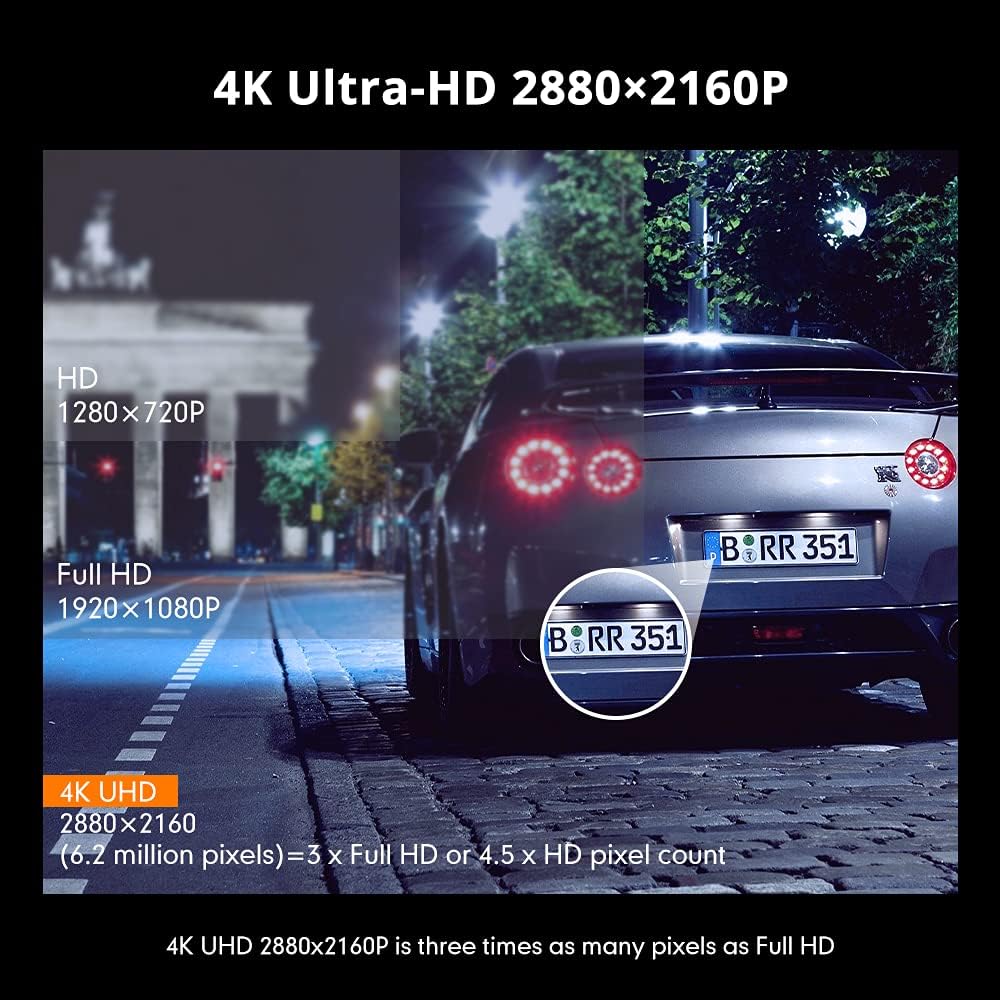
Image 3.2: Comparison illustrating the higher detail of 4K Ultra-HD (2880x2160P) resolution compared to Full HD (1920x1080P) and HD (1280x720P).
4. Nhazi
4.1. Ịkwanye igwefoto Dash
- Hichaa ebe ikuku ikuku ebe ịchọrọ ịkwanye cam dash.
- Attach the suction bracket to the dash cam.
- Pịa iko mmiri ahụ nke ọma n'akụkụ windo windo ahụ wee tụgharịa ihe nkwụnye ahụ iji jide ya.
- Hazie akụkụ igwefoto ahụ iji hụ na ọ doro anya view nke okporo ụzọ.
4.2. Ịtinye kaadị SD
- Hụ na agbanyụrụ dashcam ahụ.
- Locate the SD card slot on the side of the dash cam.
- Insert the 128GB SD card with the gold contacts facing the back of the camera until it clicks into place.
- Iji wepụ ya, jiri nwayọ pịa kaadị ahụ ruo mgbe ọ ga-apụta.
4.3. Ijikọ Ike
- Connect the car charger to the dash cam's power input port.
- Tinye nsọtụ nke ọzọ nke chaja ụgbọala ahụ n'ime oghere ike 12V nke ụgbọala gị (oghere ọkụ siga).
- The dash cam will automatically power on and begin recording when the vehicle's ignition is turned on.
5. Ntuziaka ọrụ
5.1. Ndekọ Isi
Once powered on, the dash cam will automatically start recording. The recording indicator light will flash. Videos are saved in segments (loop recording) to the SD card.
5.2. Ntugharị menu
Use the physical buttons on the dash cam to navigate through the menu options. Refer to the on-screen icons for specific functions such as video playback, settings, and mode switching.
5.3. WiFi Connection and AZDOME App
The built-in WiFi allows you to connect your smartphone to the dash cam for live view, video playback, download, and settings adjustment.
- Download the 'AZDOME' app from the Apple App Store or Google Play Store.
- On the dash cam, enable WiFi mode (refer to the dash cam's display for the WiFi icon).
- On your smartphone, go to WiFi settings and connect to the AZDOME dash cam's WiFi network (SSID and password will be displayed on the dash cam screen).
- Open the AZDOME app to access the dash cam's functions.

Image 5.1: Illustration of the built-in WiFi functionality, showing the AZDOME app on a smartphone connected to the dash cam for video management.
5.4. GPS nsochi
The integrated GPS module records your driving route, speed, and coordinates. This data can be viewed using the dedicated AZDOME GPS Player software on a computer.
- Download the AZDOME GPS Player from the official AZDOME websaịtị.
- Transfer recorded video files site na kaadị SD na kọmputa gị.
- Mepee vidiyo files using the AZDOME GPS Player to view synchronized video and GPS data (route map, speed, etc.).

Image 5.2: A laptop screen displaying the AZDOME GPS Player interface, showing a recorded video alongside a map with the tracked driving route and speed information.
5.5. Ụdị ndekọ dị elu
- G-ihe mmetụta: When a sudden impact or collision is detected, the G-Sensor automatically locks the current video file, na-egbochi ka e jiri ndekọ akaụntị degharịa ya.
- Nyochaa ebe ndọba ụgbọala: If connected to a hard-wire kit (sold separately), the dash cam can detect motion or impact while the vehicle is parked and automatically start recording for a short duration.
- Nchọpụta ngagharị: When enabled, the camera will start recording if it detects movement in its field of view while stationary.
- WDR (Ogologo Ebe Dị omimi): This feature enhances video quality in challenging lighting conditions by balancing bright and dark areas of the image.

Image 5.3: Visual explanation of the dash cam's multifunctional capabilities, including Motion Detection, WDR for balanced exposure, G-Sensor for impact detection, and Parking Monitor.
6. Nlekọta
6.1. SD Card Formatting
It is recommended to format the SD card regularly (e.g., once a month) to ensure optimal performance and prevent data corruption. Formatting can be done through the dash cam's menu settings.
6.2. Na-ehicha ngwaọrụ
Use a soft, dry cloth to clean the dash cam's lens and body. Avoid using abrasive cleaners or solvents that could damage the device.
7. Nchọpụta nsogbu
- Dash cam does not power on: Ensure the power cable is securely connected to both the dash cam and the vehicle's 12V power outlet. Check if the vehicle's power outlet is functioning.
- Ndekọ kwụsịrị na mberede: Format the SD card. Ensure the SD card is a high-speed card (Class 10 or higher).
- Video quality is poor: Clean the camera lens. Ensure the protective film has been removed from the lens. Check video resolution settings.
- Nsogbu njikọ WiFi: Ensure the dash cam's WiFi is enabled. Keep the smartphone within 9 feet (3 meters) of the dash cam.
- GPS data not recording: Gbaa mbọ hụ na dash cam doro anya view of the sky for GPS signal reception.
8. Nkọwapụta
| Njirimara | Nkọwapụta |
|---|---|
| Ụdị | AZDOME |
| Aha Nlereanya | GS63H |
| Mkpebi ịse vidiyo | 2160p (4K UHD) |
| Teknụzụ Njikọta | Wi-Fi |
| Ụdị ebe nchekwa Flash | SD (Supports up to 128GB) |
| Ụdị nkwụnye | Mmiri ara |
| Usoro njikwa | Ngwa |
| Servicedị Ọrụ hicgbọ | Ụgbọ ala |
| Ngwa gụnyere | Memory Card, Suction Bracket |
9. Akwụkwọ ikike na nkwado
For warranty information and technical support, please refer to the official AZDOME website or contact AZDOME customer service directly. Keep your purchase receipt as proof of purchase.


