1. Okwu mmalite
The Microsoft Surface Pro 10 is a versatile 2-in-1 device designed to adapt to various work styles, offering the functionality of both a tablet and a laptop. It features an Intel Core Ultra 5 processor, providing robust performance for daily tasks and advanced applications. This manual provides essential information to help you set up, operate, and maintain your device, ensuring optimal performance and longevity.
2. Kedu ihe dị na Igbe ahụ
Carefully unpack your Surface Pro 10 and ensure all items are present. The standard package includes:
- Microsoft Surface Pro 10 Device
- Ngalaba Na-enye Ike
- Microsoft Surface Pro Keyboard
- Microsoft Surface Pro Slim Pen
- Ntuziaka mmalite ngwa ngwa
- Safety and Warranty Documents
3. Ngwaọrụ gafereview
Familiarize yourself with the physical components of your Surface Pro 10.

Foto 3.1: N'ihu view of the Surface Pro 10 with the keyboard attached, showcasing nhazi ihuenyo na keyboard.

Foto 3.2: Akụkụ view of the Surface Pro 10 in laptop configuration, highlighting the adjustable kickstand and connected keyboard.
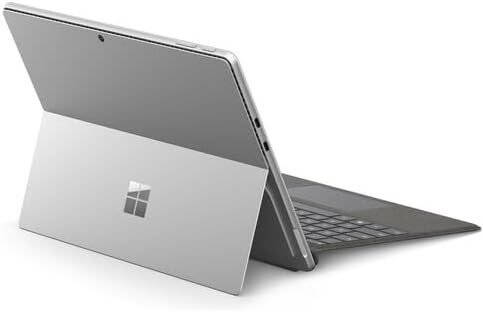
Foto 3.3: N'azụ view of the Surface Pro 10 with the kickstand deployed, revealing the device's sleek design and the iconic Microsoft logo.
Isi ihe:
- 13-inch PixelSense Flow Display: High-resolution touchscreen for vibrant visuals and touch interaction.
- Igwefoto chere ihu: For video calls and facial recognition (Windows Hello).
- Igwefoto chere ihu n'azụ: Maka ịse foto na vidiyo.
- Bọtịnụ ike: Dị n'akụkụ, a na-eji ya agbanyụ/gbanyụọ ngwaọrụ ahụ ma ọ bụ mee ka ọ hie ụra.
- Bọtịnụ olu: Located on the side, for adjusting audio levels.
- Ọdụ ụgbọ mmiri USB-C: For charging, data transfer, and connecting external displays or accessories.
- Port Njikọ elu: For charging and connecting to Surface Dock accessories.
- Agba mgba: Integrated into the back, allows for multiple viewakụkụ .
- Igwe okwu: For voice commands and audio recording.
4. Nhazi
4.1 Nchaji izizi
- Connect the power supply to the Surface Connect port or one of the USB-C ports on your Surface Pro 10.
- Tinye ọkụ eletrik n'ime oghere mgbidi.
- Allow the device to charge for at least 30 minutes before first use, or until the battery indicator shows sufficient charge.
4.2 Gbanyụọ/ gbanyụọ
- Iji gbanye: Press and hold the Power button until the Microsoft logo appears on the screen.
- Iji gbanyụọ: From the Windows desktop, select Malite > Ike > Mechie. Alternatively, press and hold the Power button for a few seconds, then slide down to shut down.
- Ịrahụ Ụra: Briefly press the Power button. Press it again to wake the device.
4.3 Mbido Windows Mmalite
Upon first power-on, you will be guided through the Windows 11 setup process. Follow the on-screen prompts to:
- Họrọ asụsụ na mpaghara gị.
- Jikọọ na netwọk Wi-Fi.
- Nabata usoro ikike.
- Banye na akaụntụ Microsoft gị ma ọ bụ mepụta nke ọhụrụ.
- Set up Windows Hello (facial recognition or fingerprint, if available).
- Hazie ntọala nzuzo.
4.4 Attaching the Surface Pro Keyboard
Align the magnetic connector on the keyboard with the corresponding port at the bottom edge of your Surface Pro 10. The keyboard will snap into place magnetically. You can adjust the keyboard to lie flat or tilt it slightly for a more ergonomic typing experience.
4.5 Pairing the Surface Pro Slim Pen
The Surface Pro Slim Pen typically pairs automatically when first used with your Surface Pro 10. If not, follow these steps:
- Gaa na Malite > Ntọala > Bluetooth & ngwaọrụ > Tinye ngwaọrụ > Bluetooth.
- Press and hold the top button on your Slim Pen for 5-7 seconds until the LED light flashes white.
- Select your Surface Slim Pen from the list of available devices and follow any on-screen prompts.
5. Operating Your Surface Pro 10
5.1 Switching Between Tablet and Laptop Modes
- Ụdị laptọọpụ: Attach the Surface Pro Keyboard and adjust the kickstand for a traditional laptop experience.
- Ụdị mbadamba: Detach the keyboard or fold it back completely. Windows will automatically switch to Tablet Mode, optimizing the interface for touch input.
5.2 Iji ihuenyo mmetụ ahụ
The PixelSense Flow Display supports multi-touch gestures:
- Kpatụ: Họrọ otu ihe ma ọ bụ mepee ngwa.
- Kpatụ ma jide: Access context menus (right-click equivalent).
- Tụọ ka ọ bụrụ mbugharị: Bugharịa ma ọ bụ pụta na onyonyo na web ibe.
- Swipe from Edges: Access quick settings, notifications, or switch between apps.
5.3 Using the Surface Pro Slim Pen
The Slim Pen allows for precise input and creative tasks:
- Ọdee/ise: Use the pen directly on the screen in compatible apps like Microsoft Whiteboard or OneNote.
- Ịhọrọ: Tap with the pen to select items.
- Nchicha: Use the eraser button on the pen to erase digital ink.
- Bọtịnụ kacha: Customizable for quick access to apps like OneNote or screenshots.
5.4 Basic Windows 11 Navigation
- Mmalite menu: Access apps, settings, and power options.
- Ogwe ọrụ: Pin frequently used apps and view imeghe ngwa.
- Ebe ime ihe: Swipe in from the right edge (or click the icon) for quick settings and notifications.
- Wijetị: Swipe in from the left edge (or click the icon) for personalized information.
6. Nlekọta
6.1 Na-ehicha ngwaọrụ gị
- Jiri akwa dị nro na-enweghị ntụpọ dampejiri mmiri ma ọ bụ ihe nhicha ihuenyo akwadoro hichaa ihe ngosi ahụ.
- For the body of the device and keyboard, use a soft, dry cloth.
- Avoid harsh chemicals, abrasive cleaners, or excessive moisture.
6.2 Nlekọta batrị
- Zere ịchaji batrị ugboro ugboro.
- Chekwaa ngwaọrụ ahụ n'ebe dị jụụ, kpọrọ nkụ mgbe ọ naghị eji ya ogologo oge.
- Use only the official Microsoft power supply or certified compatible chargers.
6.3 Mmelite ngwanrọ
Na-enyocha ma wụnye mmelite Windows mgbe niile iji hụ na ngwaọrụ gị nwere ihe ndozi nchekwa kachasị ọhụrụ, atụmatụ, na mmezi arụmọrụ. Gaa na Malite > Ntọala > Mmelite Windows.
7. Nchọpụta nsogbu
7.1 Ngwaọrụ anaghị agbanwu
- Ensure the device is charged. Connect the power supply and wait a few minutes before attempting to power on.
- Perform a force restart: Press and hold the Power button for 15-20 seconds, then release and press it again briefly to turn on.
7.2 Screen Issues (No Display, Flickering)
- Malitegharịa ngwaọrụ ahụ.
- Ensure display drivers are up to date via Windows Update.
- If connected to an external display, try disconnecting it.
7.3 Wi-Fi or Bluetooth Connectivity Problems
- Check if Wi-Fi or Bluetooth is enabled in Quick Settings or Windows Settings.
- Restart your Surface Pro 10 and your router/modem.
- Forget the network/device and try reconnecting.
- Update network drivers via Windows Update.
7.4 Performance Issues (Slowdowns, Freezes)
- Mechie ngwa na-adịghị mkpa na-agba n'azụ.
- Check for and install all available Windows updates.
- Run a disk cleanup and optimize drives.
- Hụ na ebe nchekwa zuru oke.
8. Nkọwapụta
The following table outlines the key technical specifications for the Microsoft Surface Pro 10 (Intel Core Ultra 5, 16GB RAM, 256GB SSD) model:
| Njirimara | Nkọwapụta |
|---|---|
| Aha Nlereanya | Surface Pro 10 (ZEA-00001) |
| Ngosipụta ihuenyo guzoro ọtọ | 13 sentimita asatọ |
| Mkpebi ihuenyo | 2880 x 1920 pikselụ |
| Mkpebi ihuenyo kacha | 2880x1920 |
| Nhazi | 1.4 GHz Intel Core Ultra 5 |
| Draịvụ ike | 256 GB SSD |
| Ogo etinyere ebe nchekwa RAM | 16 GB DDR5 RAM |
| Sistemụ nrụọrụ | Windows 11 Pro |
| Chipset ika | Intel |
| Nkọwa kaadị eserese | Ejikọtara |
| Ụdị ikuku | 802.11ax |
| Agba | Platinum |
| Akụkụ ngwaahịa | 11.3 x 8.2 x 0.4 sentimita asatọ |
| Batrị | 1 batrị lithium ion (gụnyere) |
9. Akwụkwọ ikike na nkwado
Your Microsoft Surface Pro 10 comes with a limited hardware warranty. For detailed warranty information, please refer to the documentation included with your device or visit the official Microsoft Support website. For technical assistance, troubleshooting guides, and driver downloads, please visit support.microsoft.com/surface.


