Okwu mmalite
This manual provides detailed instructions for the TECPHILE iPad Keyboard Case, Model T5509D. It covers setup, operation, maintenance, and troubleshooting to ensure optimal use of your device. Please read this manual thoroughly before using the product.
Ndakọrịta
The TECPHILE iPad Keyboard Case (Model T5509D) is specifically designed for the following iPad Pro 12.9-inch models:
- iPad Pro 12.9-inch (6th Generation, 2022): Models A2436, A2764, A2437, A2766
- iPad Pro 12.9-inch (5th Generation, 2021): Models A2378, A2379, A2461, A2462
- iPad Pro 12.9-inch (4th Generation, 2020): Models A2233, A2229, A2069, A2232
- iPad Pro 12.9-inch (3rd Generation, 2018): Models A1876, A2014, A1895, A1983
This case is not compatible with any other iPad models.

Image: Compatibility chart for TECPHILE iPad Keyboard Case. Please verify your iPad model number on the back of your device to ensure compatibility.
Ihe ngwugwu
Mgbe ị meghere ngwugwu ahụ, biko hụ na ihe niile dị:
- TECPHILE iPad Keyboard Case (with integrated kickstand and pencil holder)
- Detachable Wireless Backlit Keyboard
- USB-C eriri USB
- Akwụkwọ ntuziaka (akwụkwọ a)
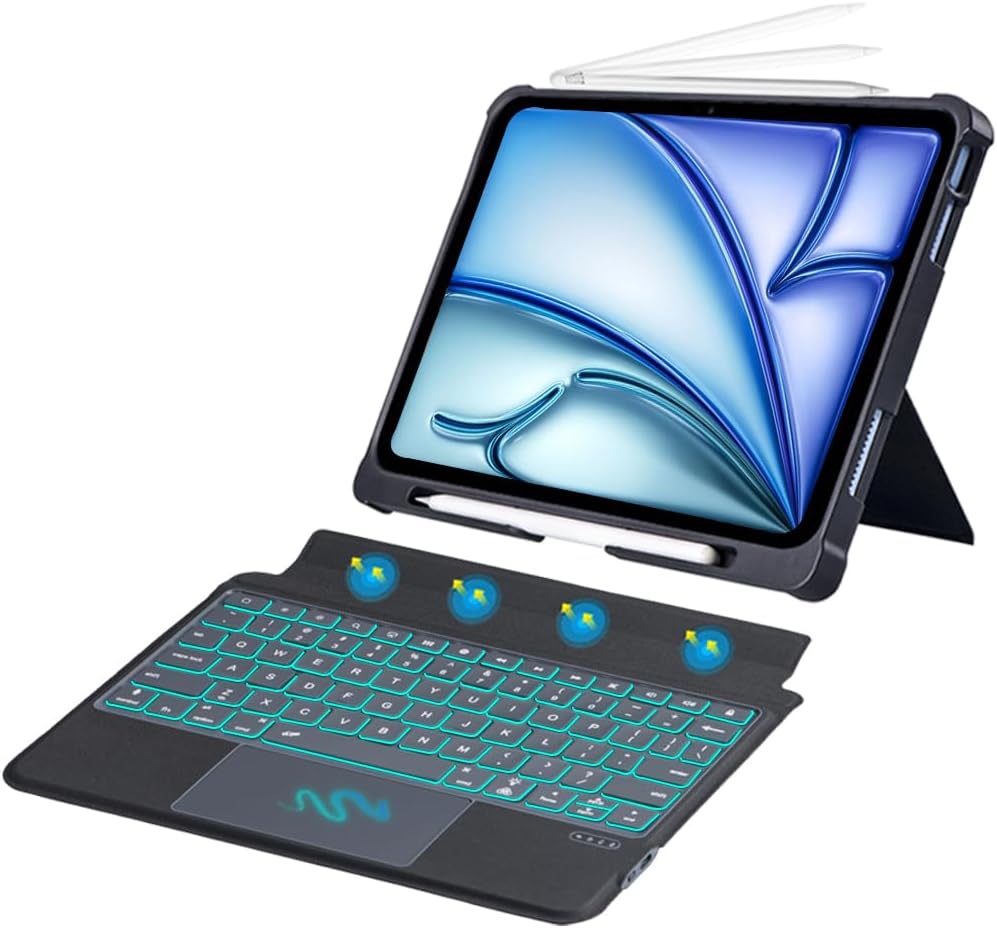
Foto: Ofeview of the TECPHILE iPad Keyboard Case components, including the case with an iPad and the detached wireless keyboard.
Ntuziaka nhazi
1. Ịtinye iPad gị na akpa ahụ
- Gently align your iPad Pro 12.9-inch with the case.
- Insert the iPad into the protective shell, ensuring all corners are securely fitted. The case provides full protection and features honeycomb heat release design.
- The case includes a dedicated pencil holder and supports wireless charging for your Apple Pencil.
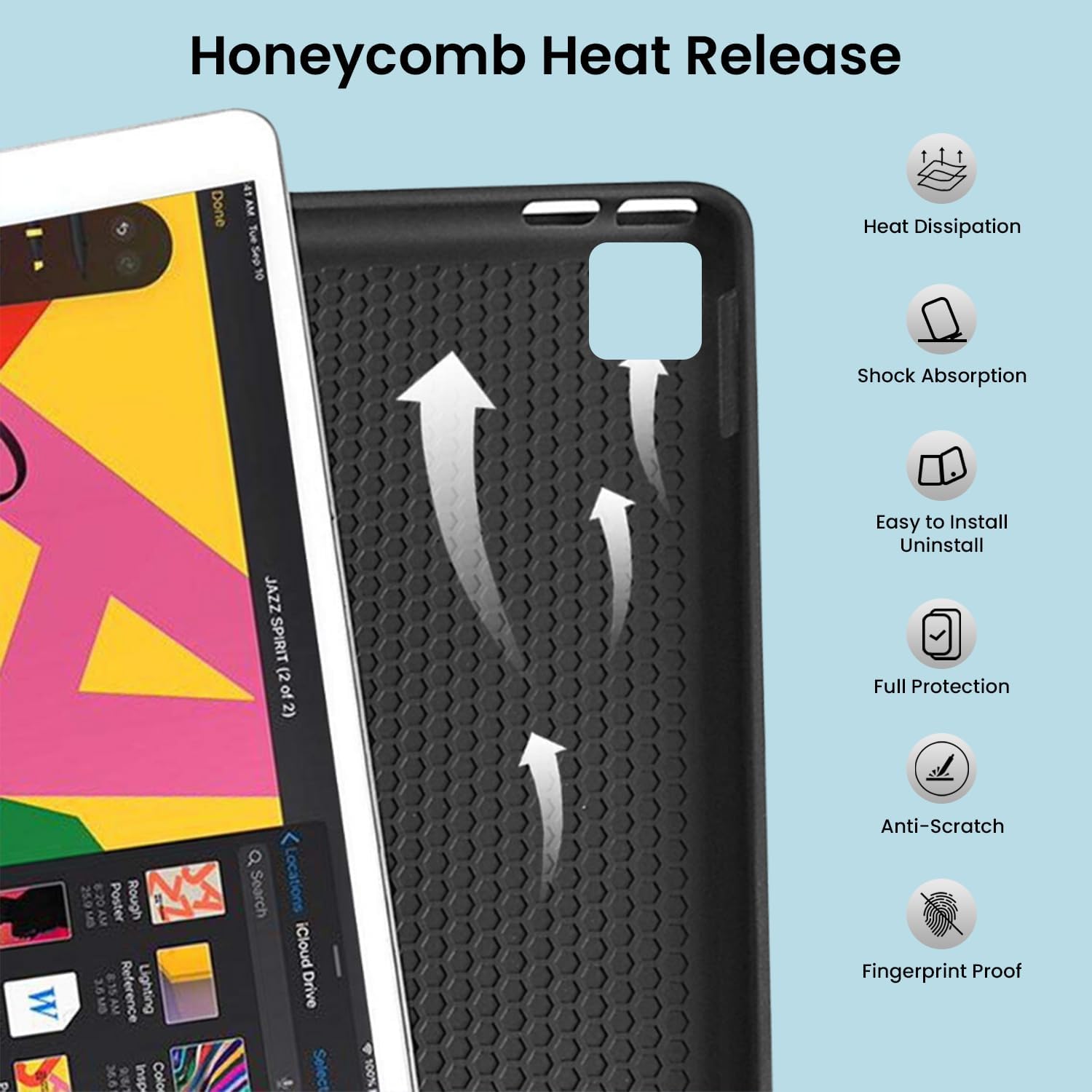
Image: Detail of the case's honeycomb structure for heat dissipation and protective features.

Image: Illustrates the wireless charging capability for the Apple Pencil and the integrated pencil holder.
2. Ịchaji ahụigodo
Before initial use, fully charge the keyboard. The keyboard has a 500mAh battery capacity.
- Locate the USB-C charging port on the side of the keyboard.
- Connect the provided USB-C cable to the keyboard and a power source (e.g., USB wall adapter, computer USB port).
- The charging indicator light will illuminate. Once fully charged, the light may change or turn off.
A full charge provides approximately 80 hours of use without backlight or 5 hours with backlight enabled.

Image: Keyboard charging port and battery performance details.
3. Connecting the Keyboard via Bluetooth
Igodo ahụ na-ejikọ na iPad gị site na Bluetooth na-enweghị eriri.
- Gbaa mbọ hụ na agbanyere na agbanyere ahụigodo.
- Na ahụigodo, pịa Fn + Z keys simultaneously. The Bluetooth indicator light will start blinking, indicating it's in pairing mode.
- Na iPad gị, gaa na Ntọala > Bluetooth.
- Gbanye Bluetooth. iPad gị ga-achọ ngwaọrụ dị.
- Locate and tap "Bluetooth Keyboard" (or similar name) in the list of devices to connect.
- Ozugbo ejikọtara ya, ọkụ ihe ngosi Bluetooth na ahụigodo ga-akwụsị ihichapụ.

Image: Visual guide for Bluetooth pairing process.
Ntuziaka ọrụ
Ọrụ ahụigodo
The detachable keyboard features a QWERTY layout with additional function keys for iPad control.
- Njikwa ọkụ azụ: Pịa Fn + 💡 (light bulb icon) to turn on/off the backlight and cycle through 7 different colors. Press Fn + ☀️ (sun icon) to adjust the 3 levels of brightness.
- Full Shortcut Row: Access common iPad functions directly from the top row of keys.
- Intelligent Voice Input Function: Utilize the dedicated key for voice input.

Foto: Zuru ezu view of the keyboard's backlit keys and function controls.
Smart Multi-Gesture Trackpad
The integrated large trackpad supports multi-touch gestures for enhanced navigation.
- Nsoro ụzọ: Move the cursor by sliding your finger across the trackpad.
- Click Functions: Supports right and left click functions.
- Multi-Finger Gestures: Utilize native iPad multi-finger gestures for scrolling, swiping, and other actions. Refer to your iPad's settings for a full list of supported gestures.
- Turn On/Off Trackpad: Pịa Fn + 🖱️ (trackpad icon) to enable or disable the trackpad.
Adjustable Kickstand and Usage Modes
The case features an adjustable kickstand that allows for multiple viewing angles and usage modes.
- Ụdị Ụdị: Position the iPad upright with the keyboard attached for a laptop-like experience.
- View Ụdị: Adjust the kickstand to a comfortable angle for watching videos or presentations without the keyboard.
- Gụọ Ọnọdụ: Fold the keyboard behind the iPad for a tablet-like reading experience.
- Ụdị eserese: Lower the angle for drawing or writing with the Apple Pencil.
The kickstand offers a seamless range of angles, smoothly reclining from 30° to 160° while maintaining stability.

Image: Various usage modes enabled by the adjustable kickstand and detachable keyboard.
Auto Wake/Sleep Function
The keyboard case includes an auto wake/sleep function to conserve battery life. Closing the case will put your iPad to sleep, and opening it will wake it up.
Nlekọta
- Nhicha: Jiri nwayọọ, damp cloth to wipe the exterior of the case and keyboard. Avoid harsh chemicals or abrasive materials.
- Nchekwa: When not in use for extended periods, store the keyboard case in a cool, dry place. Ensure the keyboard is turned off to preserve battery life.
- Nlekọta batrị: Iji mee ka batrị dị ogologo, zere iwepụ ike niile na kiiboodu ahụ mgbe niile. Chajie ya mgbe niile.
Nchọpụta nsogbu
Ahụigodo Anaghị ejikọta
- Lelee Ike: Hụ na etinyere ahụigodo ahụ ma nwee ike ịnweta batrị zuru oke.
- Tinyegharịa Bluetooth:
- Na iPad gị, gaa na Ntọala > Bluetooth.
- Forget or unpair the "Bluetooth Keyboard" if it appears in "My Devices".
- Malitegharịa ekwentị gị iPad.
- Put the keyboard into pairing mode (press Fn + Z).
- Chọọ maka and connect to the keyboard again on your iPad.
- Ntinye aka: Wepụ na ngwaọrụ ikuku ndị ọzọ nwere ike ịkpata ndabichi.
Igodo anaghị aza
- Ọkwa batrị: Chajie ahụigodo nke ọma.
- Njikọ Bluetooth: Gbaa mbọ hụ na ejikọrọ ahụigodo nke ọma site na Bluetooth.
- Malitegharịa: Turn the keyboard off and on again.
Trackpad Not Working
- Enable Trackpad: Ensure the trackpad is enabled by pressing Fn + 🖱️ (trackpad icon).
- Ntọala iPad: Check iPad accessibility settings for pointer control.
- Clean Trackpad: Ensure the trackpad surface is clean and free of debris.
Nkọwapụta
| Aha Nlereanya | T5509D |
| Ndakọrịta | iPad Pro 12.9" (6th, 5th, 4th, 3rd Gen) |
| Njikọta | Bluetooth |
| Nhazi ahụigodo | QWERTY |
| Ìhè azụ | 7 Colors, 3 Brightness Levels |
| Trackpad | Large Multi-Gesture Trackpad |
| Ike batrị | 500mAh (Lithium Ion) |
| Battery Life (Non-backlight) | Ruo awa iri abụọ |
| Battery Life (Backlight) | Ruo awa iri abụọ |
| Nchaji ọdụ ụgbọ mmiri | USB-C |
| Akụkụ ngwaahịa | 29 x 24 x 2 cm |
| Ibu Ibu | 735 g |
| Ihe onwunwe | Leatherite and ABS Plastic |
| Atụmatụ pụrụ iche | Adjustable Kickstand (30°-160°), Detachable Keyboard, Pencil Holder, Wireless Pencil Charging Support, Auto Wake/Sleep, Honeycomb Heat Release |
Akwụkwọ ikike na nkwado
For warranty information or technical support, please refer to the documentation included with your purchase or contact TECPHILE customer service through the retailer where the product was purchased. Please have your model number (T5509D) and purchase details ready when contacting support.
