Okwu mmalite
This manual provides detailed instructions for the setup, operation, and maintenance of your KEFEYA S6 15.6-inch Portable Monitor. Please read this manual thoroughly before using the product to ensure proper functionality and to maximize your user experience. Keep this manual for future reference.

Image: KEFEYA S6 Portable Monitor in a triple-screen configuration with a laptop.
Ihe ngwugwu
Nyochaa na etinyere ihe niile edepụtara n'okpuru na ngwugwu gị. Ọ bụrụ na ihe ọ bụla na-efu ma ọ bụ mebie, biko kpọtụrụ nkwado ndị ahịa.
Image: KEFEYA S6 Portable Monitor and its main components.
- Triple Screen Monitor
- Akpa na-ebu
- Ntuziaka mmalite ngwa ngwa
- Akwụkwọ ntuziaka onye ọrụ
- Nkwụdo ihuenyo
- HDMI to TYPE-C Cable (for video only) x 1
- TYPE-C to TYPE-C Cable x 2
- USB-A to TYPE-C Cable x 2
Ngwaahịa gafereview
The KEFEYA S6 Portable Monitor is designed to extend your laptop's display, offering enhanced productivity and versatility. It features a 15.6-inch FHD 1080P IPS display with 120% sRGB color gamut, providing vibrant and accurate visuals.
Akụkụ ndị bụ isi:
- Ngosipụta dị elu: 15.6-inch FHD (1920x1080) IPS panel with 120% sRGB color coverage, 300 nits brightness, and 1000:1 contrast ratio.
- Flexible and Portable Design: Supports 11 DIY configurations, horizontal/vertical rotation, and a foldable stand for stability and easy transport.
- Ergonomic Controls: Multifunctional adjustment button for brightness, tint, and volume.
- Ụdị ngosi ọtụtụ: Supports copy, extend, and mirror modes for various multitasking needs.
- Ndakọrịta Universal: Plug and Play with Windows, macOS, Chrome, Xbox, PS5, Switch via HDMI, USB-C, and USB-A.

Image: Display specifications of the KEFEYA S6 Portable Monitor.

Image: Flexibility and stability features of the monitor, showing rotation capabilities.

Image: Detachable monitor feature, allowing for single or dual screen use.

Image: Enhanced productivity with the KEFEYA S6 Portable Monitor.
Ntọala na Njikọ
Follow these steps to connect your KEFEYA S6 Portable Monitor to your device.
Installation for All Laptop Sizes:
The monitor is designed for easy installation. Simply stretch the portable display to match the width of your laptop and attach it. No permanent fixation is required on your laptop.

Image: Installation guide for attaching the monitor to a laptop.
Ụzọ njikọ:
The KEFEYA S6 supports various connection types for broad compatibility.
Image: Connection setup for the KEFEYA S6 Portable Monitor.
- For Laptops with 2 Full Function Type-C Ports: Use the provided Type-C to Type-C cables to connect directly from your laptop's Type-C ports to the monitor's Type-C ports. This typically provides both video and power.
- For Laptops with HDMI and USB-A/USB-C:
- Connect one screen to the monitor using a Type-C cable (if your laptop has a full-featured Type-C port).
- Connect the other screen using an HDMI to Type-C cable for video, and a USB-A to Type-C cable for power.
- Mara: Ensure the HDMI cable is connected to the USB-C and DP ports on the extender for proper functionality.
The monitor is Plug & Play, meaning no additional drivers are typically required for most operating systems (Windows, macOS, Chrome OS).
Ntuziaka ọrụ
The KEFEYA S6 offers various display modes and adjustable settings to optimize your viewahụmahụ.
Ụdị ngosi:
Enhance your workflow with multiple display configurations:
- Mirror Display: Duplicates your laptop's screen content on the portable monitor.
- Extended Display: Extends your desktop across multiple screens, allowing for increased workspace.
- Portrait Display: Rotate the monitor to a vertical orientation for tasks like coding, document review, or social media feeds.
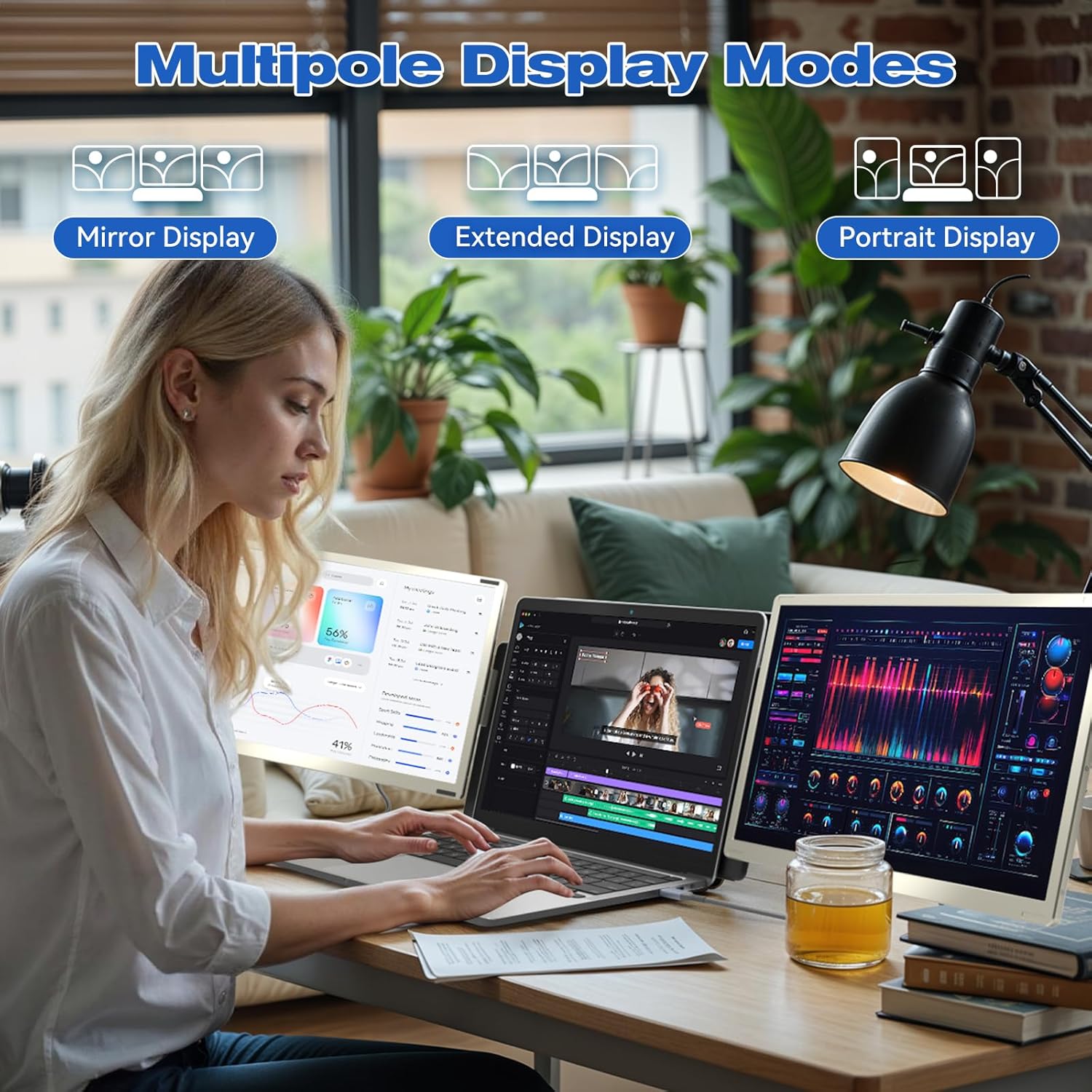
Foto: Examples of Mirror, Extended, and Portrait display modes.

Image: Multiple configurations for different usage scenarios.

Image: Usage scenarios for the KEFEYA S6 Portable Monitor.
Ndozi:
Use the multifunctional adjustment button on the monitor to customize settings:
- Icha ọkụ: Adjust the screen's luminance for optimal viewing na ọnọdụ ọkụ dị iche iche.
- Agba: Fine-tune color balance.
- Olu: Control the audio output if the monitor's built-in speakers are used.
Nlekọta
To ensure the longevity and optimal performance of your KEFEYA S6 Portable Monitor, follow these maintenance guidelines:
- Nhicha: Use a soft, lint-free cloth to gently wipe the screen and exterior. For stubborn marks, slightly dampJiri mmiri ma ọ bụ ihe nhicha dị mma kpuchie ákwà ahụ. Zere kemịkalụ siri ike ma ọ bụ ihe ndị na-emebi emebi.
- Nchekwa: When not in use, store the monitor in its provided carrying bag to protect it from dust, scratches, and impacts.
- Ijikwa: Handle the monitor with care. Avoid dropping it or subjecting it to excessive force.
- gburugburu: Operate and store the monitor in a dry environment, away from extreme temperatures, direct sunlight, and high humidity.
Nchọpụta nsogbu
If you encounter issues with your KEFEYA S6 Portable Monitor, refer to the following common solutions:
- No Signal / Black Screen:
- Ensure all cables (USB-C, HDMI, USB-A for power) are securely connected to both the monitor and your laptop.
- Verify that your laptop's display settings are configured to detect and extend/mirror to an external display.
- If using HDMI, ensure the USB-C cable is also connected for power.
- Try connecting to a different port on your laptop or a different device to rule out port or device issues.
- Compatibility Issues (e.g., MacBook M1/M2/M3):
- MacBook M1/M2/M3 models may require a docking station or a compatible H5-T hub cable for dual-screen functionality. Contact customer support for assistance with compatible accessories.
- Image Quality Issues (Flickering, Distorted Colors):
- Lelee njikọ eriri maka ikesa ma ọ bụ mmebi.
- Adjust the monitor's settings (brightness, contrast, tint) using the multifunctional button.
- Ensure your laptop's graphics drivers are up to date.
- Enweghị ọdịyo:
- Increase the monitor's volume using the adjustment button.
- Check your laptop's audio output settings to ensure the monitor is selected as the playback device.
Ọ bụrụ na usoro ndị a akwụsịghị nsogbu a, biko rụtụ aka na ngalaba akwụkwọ ikike na nkwado maka enyemaka ọzọ.
Nkọwapụta
| Njirimara | Nkọwapụta |
|---|---|
| Ụdị | KEFEYA |
| Nọmba nlereanya | S6 |
| Nha ihuenyo | 15.6 sentimita asatọ |
| Ụdị ihuenyo | LCD ma ọ bụ LED |
| Mkpebi | 1920 x 1080 (FHD 1080p) |
| Akụkụ akụkụ | 16:9 |
| Ọnụọgụ ọdịiche | 1000:1 |
| Oge nzaghachi | 2 millisekọnd |
| Ọnụego ume ọhụrụ | 60 Hz |
| Agba Gamut | 120% sRGB |
| Icha ọkụ | 300 nits |
| Ngwaọrụ Akụrụngwa | HDMI, USB, USB Type C |
| Ọnụọgụ nke ọdụ ụgbọ mmiri HDMI | 1 |
| Ọnụọgụ nke ọdụ ụgbọ mmiri USB 3.0 | 2 |
| Ụdị njikọ | HDMI, USB Type A, USB Type C |
| Ngwa dakọtara | Laptọọpụ |
| Akụkụ (L x W x H) | 36 x 21.6 x 4.5 centimita |
| Ibu ngwaahịa | 2.39 kilogram |
| Atụmatụ pụrụ iche | 120% sRGB, Energy Efficiency, Blue Light Filter, Anti-glare Screen |
Akwụkwọ ikike na nkwado
The KEFEYA S6 Portable Monitor comes with a one-year warranty from the date of purchase. For any product-related inquiries, technical assistance, or warranty claims, please contact KEFEYA customer support.
We offer 24/7 online assistance to resolve compatibility issues, signal problems, or dual-screen configurations. If you require specific accessories like the H5-T cable, please reach out to our customer service team.
For support, please visit our official website or contact us via the details provided in your Quick Start Guide.


