Okwu mmalite
Welcome to your new THOMSON 55-inch QLED Plus Google Smart TV. This manual provides essential information for setting up, operating, and maintaining your television. Enjoy stunning 4K Ultra HD resolution, vibrant QLED colors, immersive Dolby Vision and Dolby Atmos audio, and the smart features of Google TV.
Ngwaahịa gafereview
Atụmatụ igodo
- Teknụzụ QLED: Quantum Dot nanocrystals deliver vibrant, realistic colors and balanced brightness.
- Mkpebi UHD 4K: Experience crystal-clear images with four times the detail of Full HD (3840 x 2160).
- Google TV: Access over 400,000 movies and shows from various apps, personalized content recommendations, Google Assistant voice control, and built-in Chromecast for wireless streaming.
- Ọhụụ Dolby & Dolby Atmos: Enhanced brightness and contrast with Dolby Vision, and immersive, room-filling sound with Dolby Atmos.
- Integrated Front Speaker: Designed for clear and dynamic audio output.
- Tuner Triple: Supports reception via satellite (DVB-S2), terrestrial antenna (DVB-T2), or cable (DVB-C).
- Njikọta: Built-in Wi-Fi and Bluetooth 5.1 for seamless wireless connections.
- Akwụkwọ ikike nke onye nrụpụta otu afọ: Provides extended assurance of product reliability.
Isi ihe imewe
- Sleek, frameless design on three sides for an immersive viewahụmahụ.
- Swivel stand allows for flexible viewing angles to suit your room layout.
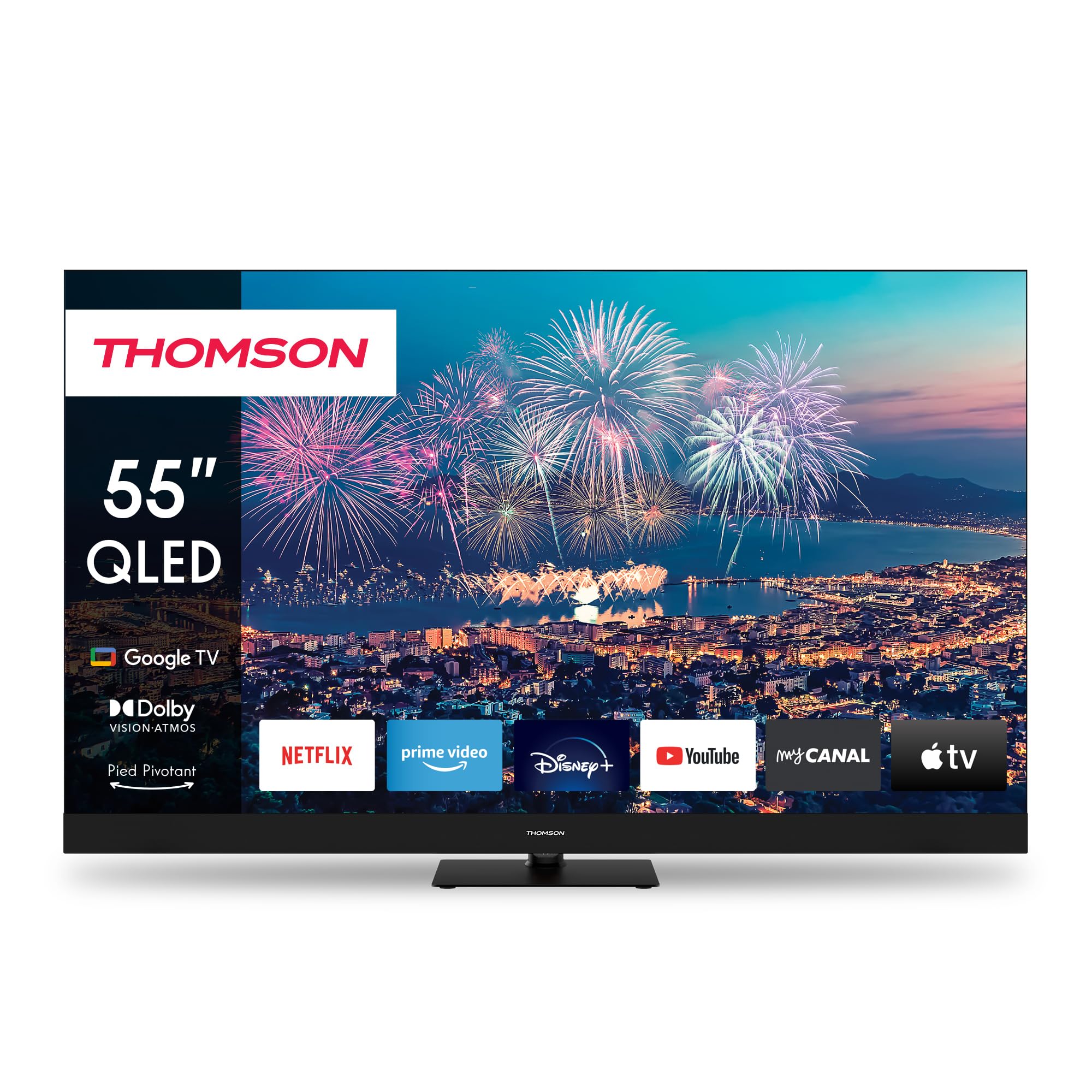
Foto 1: N'ihu view of the THOMSON 55-inch QLED Google TV, showcasing its vibrant display and integrated smart features.
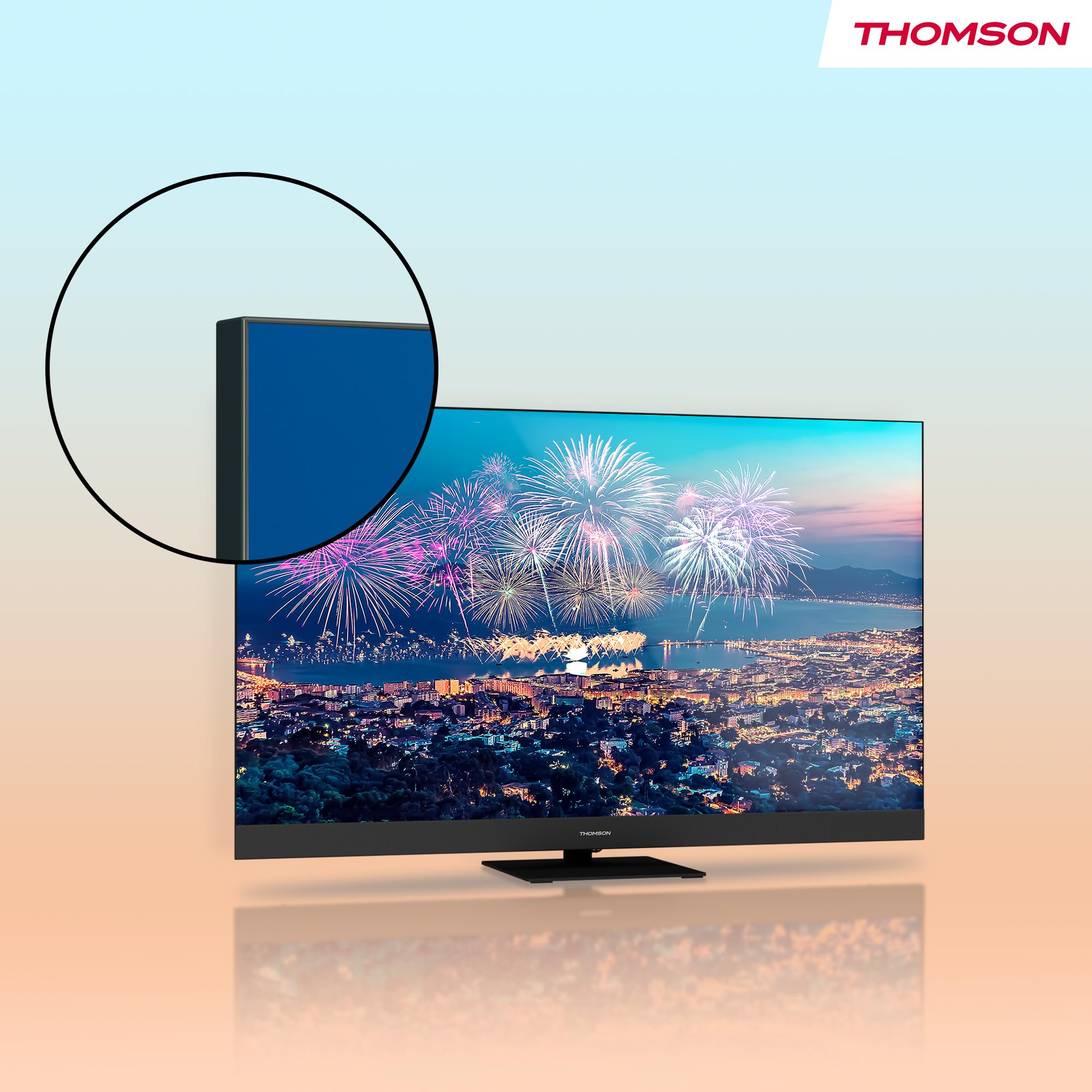
Ọgụgụ 2: nso nso view highlighting the TV's ultra-thin bezel, providing a more expansive screen area.
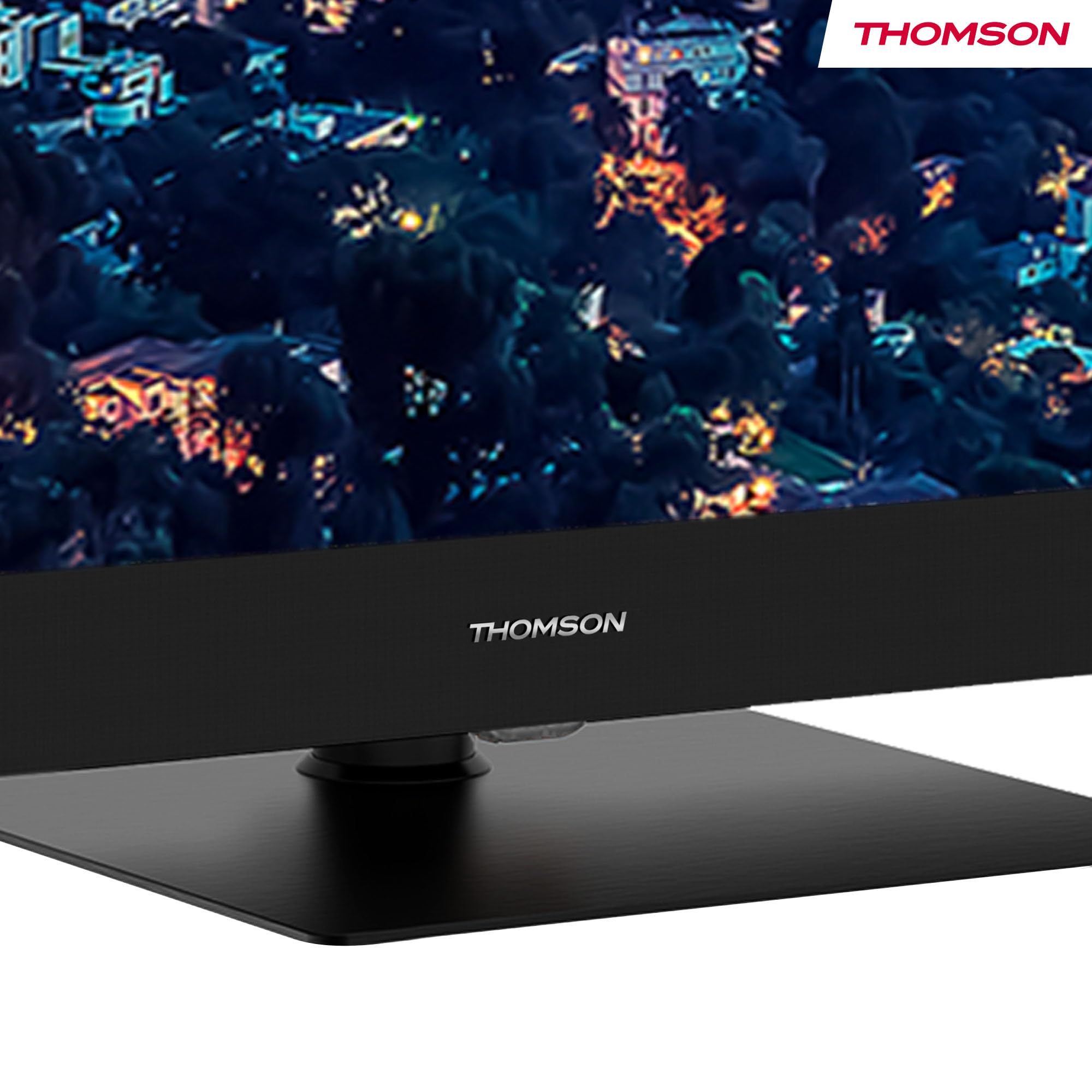
Figure 3: The elegant stand featuring the THOMSON brand logo, ensuring stable support for the television.
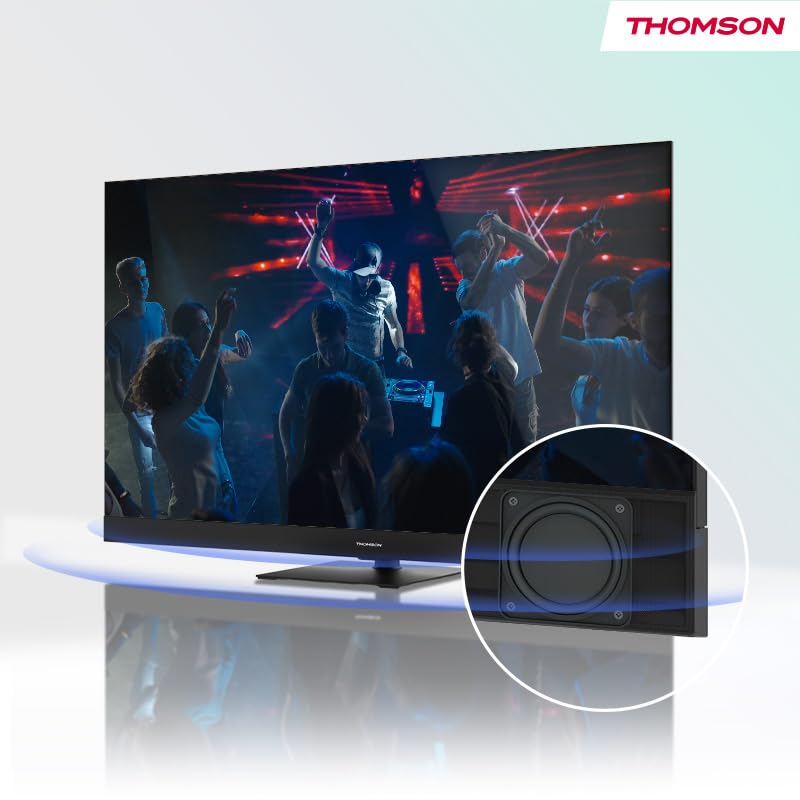
Figure 4: Illustration of the TV's integrated front speaker, designed to deliver clear and direct audio.

Figure 5: A diagram demonstrating the swivel functionality of the TV stand, allowing for flexible screen positioning.
Ntuziaka nhazi
1. Iwepu ngwongwo
Carefully remove the TV from its packaging. It is recommended to have two people for this process due to the size and weight of the unit. Retain all packaging materials for future transport or service needs.
2. Guzosie nwụnye
Attach the table stand to the bottom of the TV using the provided screws. Ensure the stand is securely fastened before placing the TV on a stable, flat surface. Refer to the included quick start guide for detailed visual instructions on stand assembly.
3. Ijikọ Ngwaọrụ
Tupu ijikọ eriri ọ bụla, hụ na agbanyụrụ TV na ngwaọrụ mpụga niile.
- Ike: Jikọọ eriri ọkụ na ntinye ike TV wee tinye ya na mgbidi.
- Antenna/Cable: Connect your terrestrial antenna, cable, or satellite dish to the appropriate input ports (DVB-T2/C/S2) on the back of the TV.
- Ngwa HDMI: Connect Blu-ray players, game consoles, or other HDMI devices to the HDMI ports. This model features 2x HDMI 2.1 (including eARC) and 2x HDMI 2.0 ports.
- Ngwa USB: Connect USB drives for media playback or software updates to the USB ports (2x USB 2.0, 1x USB 3.0).
- LAN: For a stable internet connection, connect an Ethernet cable from your router to the LAN port.
- Mwepụta ọdịyo dijitalụ: Jikọọ na ihe nkwụnye ụda ma ọ bụ ihe nnata ọdịyo maka ụda ka mma.
- AV n'ime: Maka ngwaọrụ ochie na-eji vidiyo mejupụtara na ọdịyo stereo.
- CI+ oghere: Insert your CI+ module for encrypted digital channels.
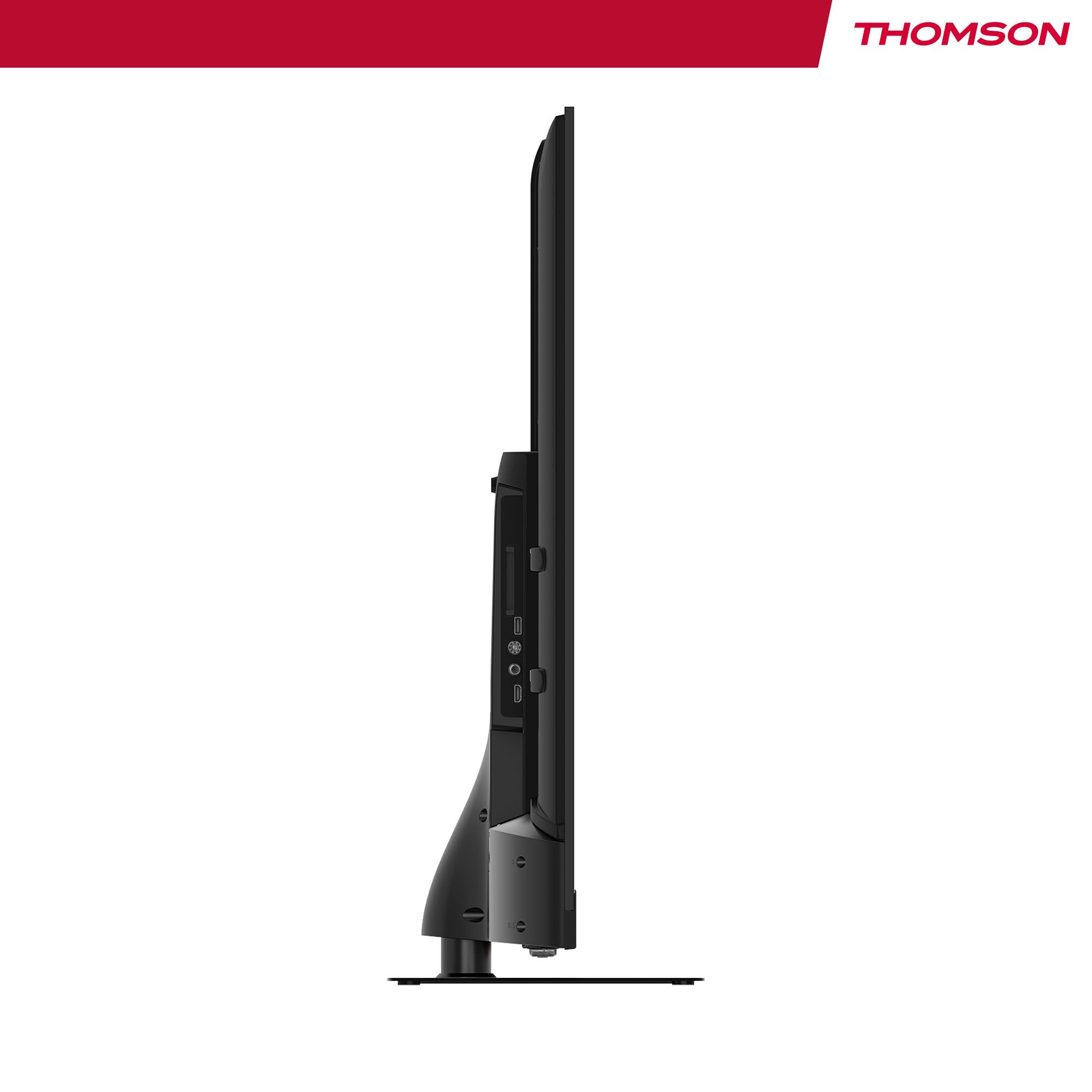
Ọgụgụ 6: Akụkụ profile of the television, illustrating its slim design and the depth required for connections.
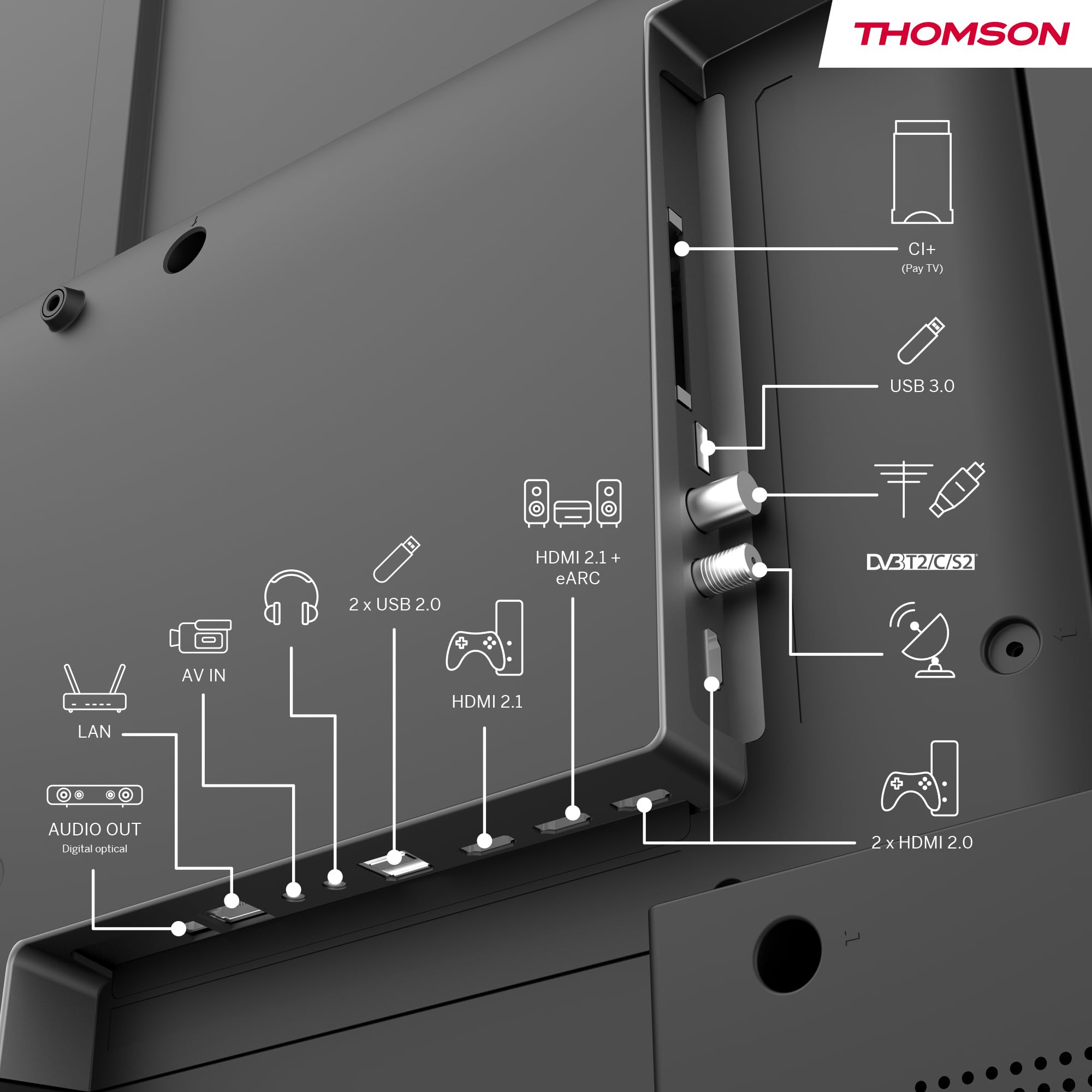
Ọgụgụ 7: Zuru ezu n'azụ view of the TV, clearly labeling all input and output ports for easy connection of external devices.
Ntuziaka ọrụ
1. Initial Power On & Google TV Setup
After connecting all necessary cables, plug in the TV and press the power button on the remote control. Follow the on-screen instructions to complete the initial setup, which includes selecting your language, connecting to your Wi-Fi network, and logging into your Google account. This process will personalize your Google TV experience.
2. Navigating Google TV
Google TV organizes content from your apps and subscriptions. Use the directional buttons on your remote to navigate through the home screen, discover new content, and access your favorite streaming services such as Netflix, Prime Video, YouTube, Disney+, and Canal+.

Figure 8: The intuitive Google TV home screen, showcasing a wide array of available streaming applications.
3. Njikwa olu site na iji Google Assistant
Your TV comes with Google Assistant built-in. Press the Google Assistant button on your remote and speak into the microphone to control your TV, search for content, get recommendations, and even control compatible smart home devices.

Figure 9: A user demonstrating the voice control feature using the TV remote, powered by Google Assistant.
4. E wuru Chromecast n'ime ya
Easily cast movies, music, and videos from your compatible smartphone, tablet, or computer directly to your TV using the built-in Chromecast feature. Ensure your device and TV are connected to the same Wi-Fi network.
5. Triple Tuner Usage
To switch between different input sources (Antenna, Cable, Satellite), use the 'Source' button on your remote control. The TV will automatically scan for available channels during the initial setup. You can also manually scan for channels in the TV settings menu.
6. Audio & Video Settings
Access the TV's settings menu to adjust picture modes (e.g., Standard, Vivid, Movie), sound profiles (e.g., Standard, Music, Movie), and enable or disable Dolby Vision and Dolby Atmos for an optimized viewahụmahụ ing na ntị.
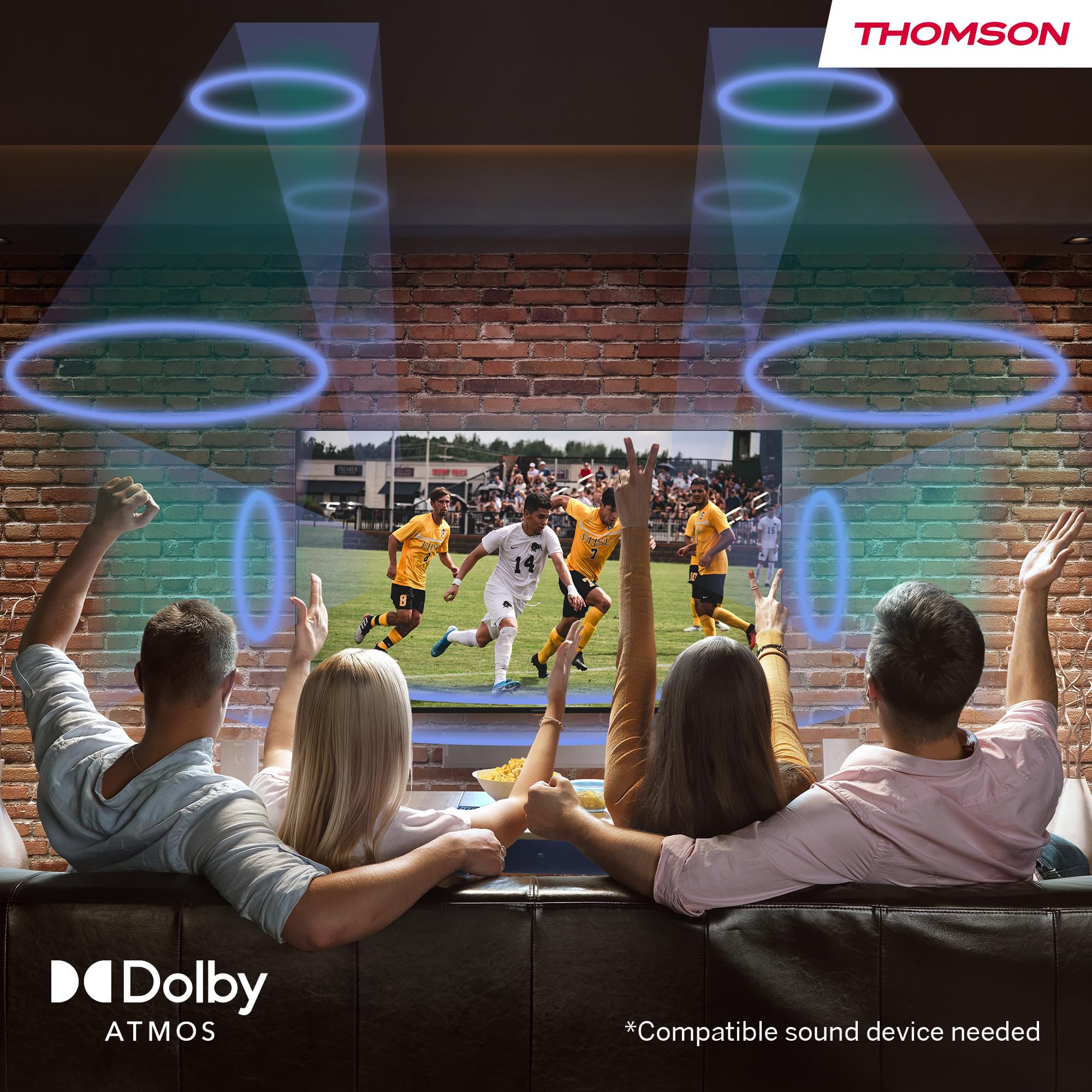
Figure 10: Visual representation of the immersive Dolby Atmos sound experience, surrounding viewers with dynamic audio.
Nlekọta
1. Na-ehicha ihuenyo
Jiri nwayọ hichaa ihuenyo ahụ na akwa microfiber dị nro, kpọrọ nkụ. Maka isi ike smudges, dị obere dampJiri mmiri ma ọ bụ ihe nhicha pụrụ iche kpuchie ákwà ahụ. Efesala mmiri ozugbo na ihuenyo ahụ.
2. Na-ehicha kabinet
Wipe the TV cabinet and stand with a soft, damp cloth. Avoid using abrasive cleaners, waxes, or solvents as they can damage the finish.
3. Nlekọta n'ozuzu
- Kwụpụ TV na oghere ọkụ n'oge oké ifufe ma ọ bụ mgbe a ga-ahapụ ya n'echeghị ya ruo ogologo oge.
- Zere ikpughe TV ahụ n'ebe anwụ na-acha kpọmkwem, oke okpomọkụ, ma ọ bụ oke iru mmiri dị elu.
- Do not block the ventilation openings on the back of the TV.
Nchọpụta nsogbu
If you encounter any issues with your TV, please refer to the following common problems and solutions before contacting customer support.
| Nsogbu | Ihe nwere ike ime | Ngwọta |
|---|---|---|
| Enweghị ike | Akwụsịla eriri ọkụ eletrik; Nsogbu nke mwepụta ọkụ eletrik. | Gbaa mbọ hụ na ejikọrọ eriri ọkụ na nchekwa. Jiri ngwaọrụ ọzọ nwalee ọpụpụ ahụ. |
| Enweghị Foto / Foto adịghị mma | Incorrect input source; Loose cable connection; Resolution settings. | Select correct input source. Check HDMI/antenna cable connections. Adjust picture settings. |
| Enweghị ụda / ụda adịghị mma | Volume too low or muted; External audio system issues. | Increase volume, check mute status. Verify external audio connections and settings. |
| Remote Anaghị aza | Batrị nwụrụ anwụ; Ihe mgbochi n'etiti igwe anya na TV. | Replace batteries. Ensure clear line of sight to the TV's IR receiver. |
| Okwu Njikọ netwọkụ | Incorrect Wi-Fi password; Router issues. | Re-enter Wi-Fi password. Restart your router. Try a wired LAN connection if possible. |
Nkọwapụta
Below are the detailed technical specifications for the THOMSON 55QG6C14 QLED Plus Google Smart TV.
| Njirimara | Nkọwapụta |
|---|---|
| Ụdị | Thomson |
| Nọmba nlereanya | 55QG6C14 |
| Nha ihuenyo | sentimita iri atọ na abụọ (sentimita iri asatọ na otu) |
| Ngosipụta teknụzụ | QLED |
| Mkpebi | 3840 x 2160 (4K Ultra HD) |
| Ọnụego ume ọhụrụ | 60 Hz |
| Nhazi ọdịyo | 5.1 Surround (Dolby Audio, Dolby Atmos) |
| Njikọta | Wi-Fi, Bluetooth 5.1, HDMI (2x 2.1, 2x 2.0), USB (2x 2.0, 1x 3.0), LAN, Digital Optical Out, AV In, CI+ |
| Akụkụ (L x W x H) | 8 x 123 x 78 cm |
| Ibu | 15 kilogram |
| Ụdị nwụnye | Ugwu okpokoro |
| Akụkụ akụkụ | 16:9 |
| Klas arụmọrụ ike | F |

Figure 11: Official product data sheet providing detailed technical specifications and compliance information.
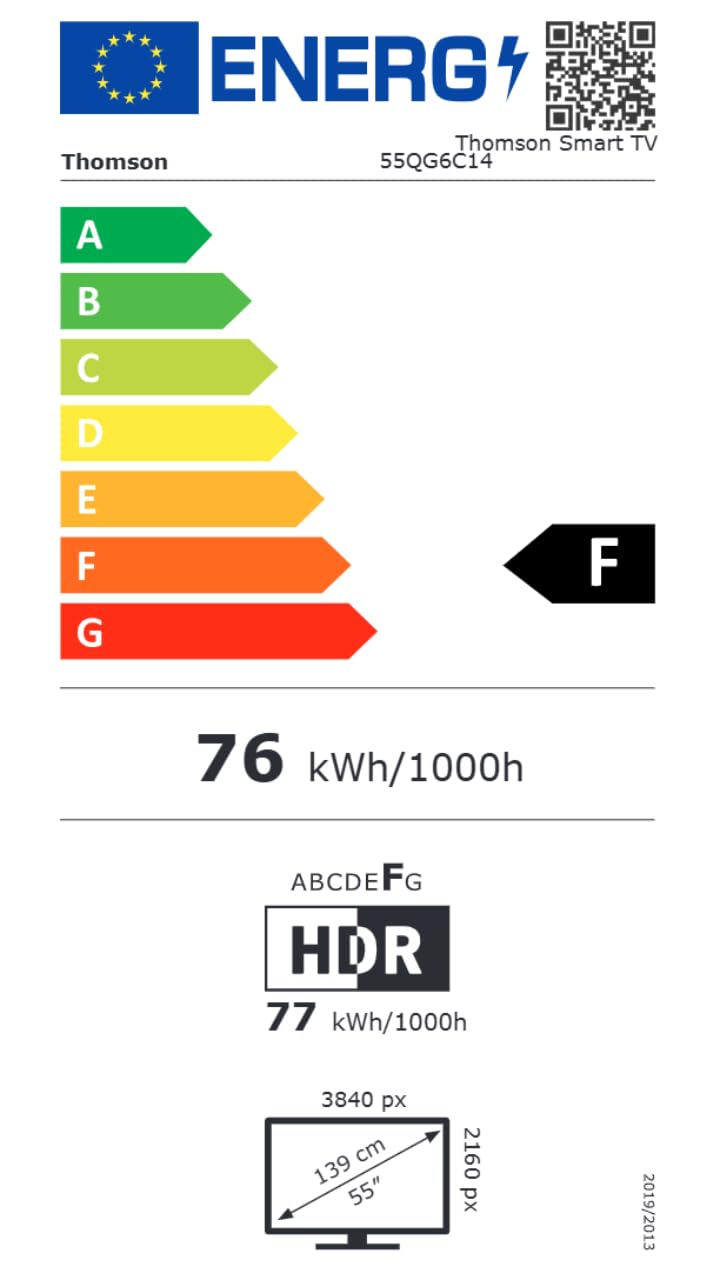
Figure 12: The energy efficiency label for the THOMSON 55QG6C14, indicating its energy consumption rating.
For more detailed product information, please visit the official EPREL database: Ozi ngwaahịa EPREL
Akwụkwọ ikike na nkwado
Ozi akwụkwọ ikike
Your THOMSON 55-inch QLED Plus Google Smart TV is covered by a comprehensive 3-year manufacturer warranty. This warranty covers defects in materials and workmanship under normal use. Please retain your proof of purchase for warranty claims.
Nkwado ndị ahịa
If you require further assistance, have questions not covered in this manual, or need to make a warranty claim, please contact THOMSON customer support. Refer to the contact information provided with your product packaging or visit the official THOMSON websaịtị maka nkọwa nkwado.


