1. Okwu mmalite
The LEVN Wireless Headset LE-HS011 is designed for clear communication and comfortable wear, ideal for work-from-home professionals, call centers, and PC users. Featuring Bluetooth 5.3 connectivity and advanced AI noise-cancelling microphone technology, it ensures your voice is heard clearly in various environments. Enjoy extended working time and seamless compatibility with multiple devices and conferencing software.

Figure 1: LEVN Wireless Headset LE-HS011 with included USB dongle.
2. Kedu ihe dị na Igbe ahụ
- LEVN Wireless Headset (Model: LE-HS011)
- USB Dongle (2.4G)
- USB-A ka eriri USB-C
- Akwụkwọ ntuziaka (akwụkwọ a)
3. Ngwaahịa gafereview
3.1 Ihe Ndị E Ji Ekweisi Mee
- Adjustable Headband: For a comfortable and secure fit.
- Soft, Breathable Earmuffs: Designed for all-day wear without pressure.
- 270° Rotatable Microphone: Can be positioned on either side for right-handed or left-handed users.
- Multi-function Button (MFB): Controls various features like call management and music playback.
- Volume Up/Down Buttons: Adjusts audio volume.
- Mute Button: Located on the microphone boom for quick privacy control.
- USB-C Charging Port: For recharging the headset battery.

Figure 2: Headset design emphasizing comfort features.
4. Nhazi
4.1 Ịchaji ekweisi
Before first use, fully charge the headset. Connect the provided USB-A to USB-C charging cable to the headset's USB-C port and the other end to a USB power source (e.g., computer USB port, wall adapter). The LED indicator will show charging status and turn off when fully charged.
4.2 Gbanyụọ ma ọ bụ gbanyụọ
- Ike Na: Press and hold the Multi-function Button (MFB) for approximately 3 seconds until you hear a voice prompt indicating "Power On" and "Pairing". The LED indicator will flash.
- Gbanyụọ: Press and hold the Multi-function Button (MFB) for approximately 3 seconds until you hear a voice prompt indicating "Power Off". The LED indicator will turn off.
4.3 Njikọta
The LEVN Wireless Headset offers two primary connection methods: Bluetooth 5.3 and a 2.4G USB dongle. Only one device can be connected at a time.
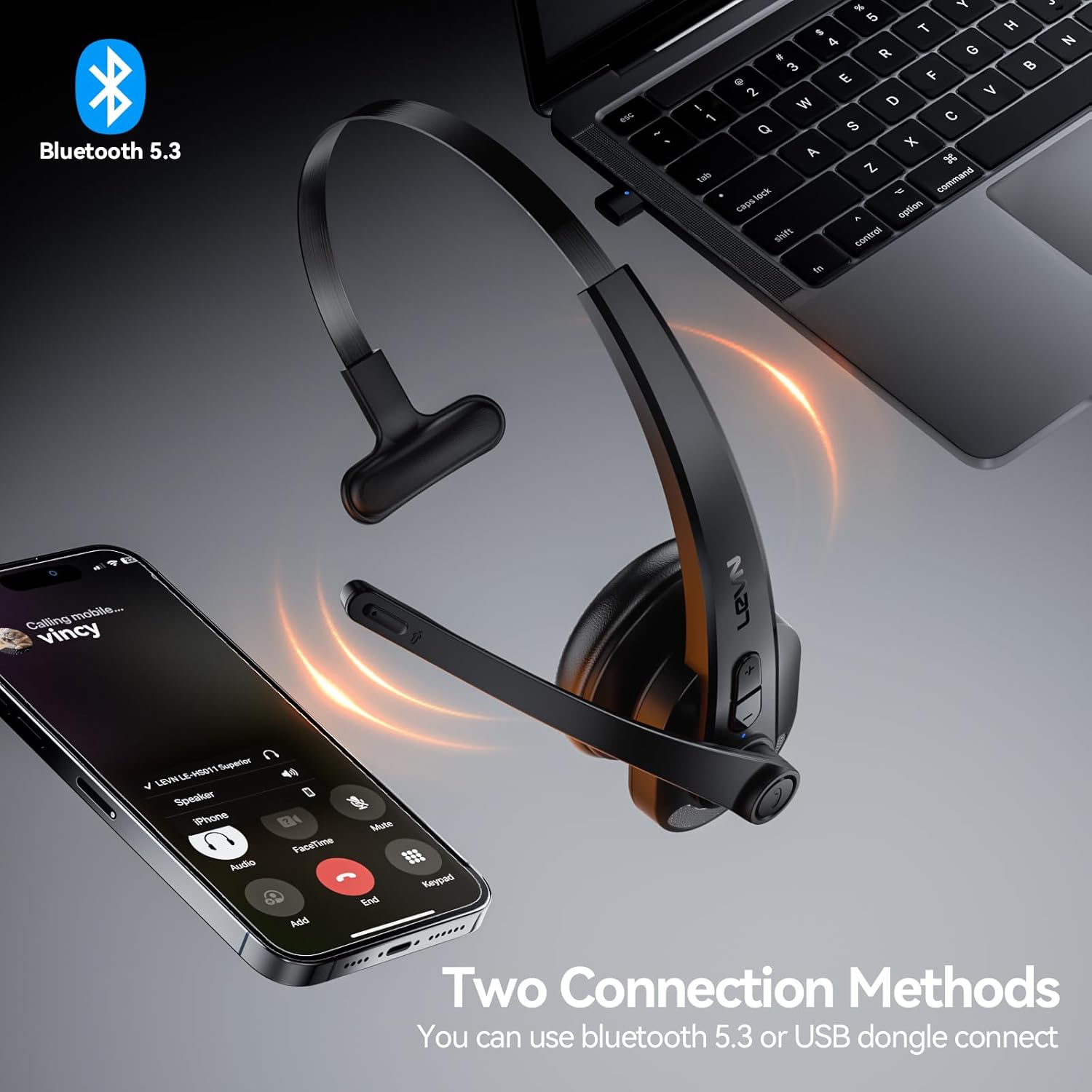
Figure 3: Two connection methods: Bluetooth and 2.4G USB dongle.
4.3.1 Bluetooth Pairing (for Phones, Tablets, Bluetooth-enabled Computers)
- Gbaa mbọ hụ na agbanyụrụ ekweisi.
- Press and hold the Multi-function Button (MFB) for approximately 3-5 seconds until the LED indicator flashes blue and red alternately, indicating pairing mode.
- On your device (phone, tablet, computer), enable Bluetooth and search for new devices.
- Select "LEVN LE-HS011" from the list of available devices.
- Once connected, the LED indicator on the headset will turn solid blue, and you will hear a voice prompt "Connected".
4.3.2 2.4G USB Dongle Connection (for Computers without Bluetooth)
- Tinye eriri USB 2.4G n'ime ọdụ ụgbọ USB dị na kọmputa gị.
- Power on the LEVN headset (refer to Section 4.2). The headset and dongle will automatically pair.
- Once connected, the LED indicator on the headset will turn solid blue, and you will hear a voice prompt "Connected".
- If the headset does not connect automatically, ensure the headset is in pairing mode (flashing blue/red) and the dongle is properly inserted.
5. Ntuziaka ọrụ
5.1 Njikwa oku
- Azịza/Kwụsị Oku: Press the Multi-function Button (MFB) once.
- Jụ oku: Press and hold the Multi-function Button (MFB) for 2 seconds.
- Nọmba Ikpeazụ emegharịgharịrị: Double-press the Multi-function Button (MFB).
5.2 Music Playback (Mobile Phones Only)
- Gwuo/kwụsịtụ: Press the Multi-function Button (MFB) once.
- Track na-esote: Press and hold the Volume Up button for 2 seconds.
- Gara aga Track: Press and hold the Volume Down button for 2 seconds.
5.3 Igwe okwu anaghị agba ogbi
To mute or unmute the microphone during a call, press the dedicated Mute Button located on the microphone boom. You will hear a voice prompt indicating "Mute On" or "Mute Off".

Figure 4: Microphone mute function for privacy during calls.
5.4 Njikwa olu
Press the Volume Up (+) or Volume Down (-) buttons on the headset to adjust the listening volume. You can also control the volume directly from your connected device.
6. Nlekọta
- Nhicha: Jiri akwa dị nro dị nro hichaa ekweisi. Ejila kemịkalụ siri ike ma ọ bụ ihe abrasive.
- Nchekwa: When not in use, store the headset in a cool, dry place away from direct sunlight and extreme temperatures.
- Nlekọta batrị: To prolong battery life, avoid fully discharging the battery frequently. Charge it regularly, even if not in constant use.
7. Nchọpụta nsogbu
| Nsogbu | Ihe nwere ike ime | Ngwọta |
|---|---|---|
| Igweisi anaghị agba ọkụ. | Batrị dị ala. | Chajie ekweisi ahụ nke ọma. |
| Enweghị ike ijikọ na ngwaọrụ. | Ekweisi adịghị n'ụdị njikọta; Bluetooth agbanyụrụ ngwaọrụ; ndabichi. | Ensure headset is in pairing mode (flashing blue/red). Turn device Bluetooth off/on. Move closer to the device. |
| Enweghị ụda ma ọ bụ ụda olu adịghị mma. | Volume too low; incorrect audio output selected; connection issue. | Increase headset and device volume. Check device's audio settings to ensure LEVN LE-HS011 is selected. Reconnect the headset. |
| Microphone not working or buzzing noise. | Microphone muted; incorrect input selected; environmental noise. | Ensure microphone is not muted. Check device's audio input settings. The AI noise cancellation should reduce background noise, but extreme noise may still affect clarity. |
| Njikọ na-adịte aka. | Enweghị ike iru ya; nnyonye anya; obere batrị. | Stay within 49 feet (15 meters) of the connected device. Avoid strong electromagnetic interference. Ensure headset is fully charged. |
8. Nkọwapụta
| Njirimara | Nkọwa |
|---|---|
| Aha Nlereanya | LE-HS011 |
| Ụdị | LEVN |
| Teknụzụ Njikọta | Ikuku, Wired |
| Teknụzụ nzikọrịta ozi ikuku | Bluetooth, RF |
| Ụdị Bluetooth | 5.3 |
| Igwe okwu | Ịkagbu mkpọtụ AI |
| Oge ọrụ | Up to 65 Hours (as per product title, though specifications list 8 hours, using title for user benefit) |
| Ndakọrịta | Smartphones, Computers, Communication Software (Zoom, Microsoft Teams, WebEx, Jabber, Skype, FaceTime, etc.) |
| Ụdị njikwa | Njikwa Mgbasa Ozi, Metụ Aka |
| Ntinye ntị | Na Ntị |
| Ibu Ibu | 7 ounces |
| Onye nrụpụta | LEVN |
9. Akwụkwọ ikike na nkwado
For warranty information and customer support, please refer to the documentation included with your product or visit the official LEVN websaịtị. Debe akwụkwọ nnata ịzụrụ maka akwụkwọ ikike.


