1. Okwu mmalite
This manual provides instructions for the NYXI Striker Retro Mechanical Gaming Keyboard (Model: CA01). This keyboard features multi-device connectivity, hot-swappable switches, RGB backlighting, and a customizable display screen. It is compatible with Windows, macOS, and iOS systems.

Image 1.1: The NYXI Striker Retro Mechanical Gaming Keyboard, showcasing its GameCube-inspired design and full layout.
2. Ihe ngwugwu
Chọpụta na ihe niile dị na ngwugwu:
- NYXI Striker Retro Mechanical Gaming Keyboard
- Onye na-adọkpụ igodo
- Eriri USB (USB-C gaa na USB-A)
- Additional Switches (5x Red, 5x Blue)
- 2.4GHz Wireless Receiver (stored in keyboard compartment)

Image 2.1: All components included with the NYXI Striker Retro Mechanical Gaming Keyboard.
3. Ngwaahịa gafereview
The NYXI Striker keyboard features a 97-key layout with several distinct components:
- Isi igodo: Dual-color keycaps for a comfortable typing experience.
- Mgbanwe igwe: Hot-swappable switches for customization.
- RGB ọkụ azụ: Per-key RGB illumination with various effects.
- Ngosipụta ihuenyo: A pixelated dot matrix screen for animations and status.
- Mpịakọta olu: A dedicated roller for audio adjustment.
- Connectivity Switch: Located on the side/back for switching between wired, 2.4G, and Bluetooth modes.
- Ọdụ USB-C: Maka njikọ wired na ịchaji.
- 2.4GHz Receiver Compartment: A dedicated slot to store the wireless receiver.
- Ụkwụ na-agbanwe agbanwe: Atọ-stage tilt stands for ergonomic positioning.

Foto 3.1: Elu view of the keyboard, showing the full key layout and integrated display screen.

Foto 3.2: Akụkụ profile nke ahụigodo.

Image 3.3: Location of the 2.4GHz wireless receiver compartment.

Image 3.4: Three-level adjustable tilt stand for ergonomic comfort.
4. Nhazi
4.1 Nchaji izizi
Before first use, connect the keyboard to a USB power source using the provided USB-C cable to ensure it is fully charged. The keyboard can be used while charging in wired mode.
4.2 Ụdị Njikọta
The NYXI Striker keyboard supports three connection modes: Bluetooth 5.0, 2.4GHz wireless, and USB wired. Use the switch located on the keyboard to select your desired mode.
- Ụdị eriri USB:
- Set the mode switch on the keyboard to the wired (USB) position.
- Jikọọ njedebe USB-C nke eriri na kiiboodu yana njedebe USB-A na kọmputa gị.
- The keyboard will be recognized automatically by your operating system.
- Ọnọdụ ikuku 2.4GHz:
- Retrieve the 2.4GHz USB receiver from its compartment on the keyboard.
- Set the mode switch on the keyboard to the 2.4G wireless position.
- Tinye eriri USB 2.4GHz n'ọdụ ụgbọ mmiri dị na kọmputa gị.
- Ahụigodo kwesịrị jikọọ na akpaghị aka.
- Ụdị Bluetooth 5.0:
- Set the mode switch on the keyboard to the Bluetooth position.
- The keyboard supports up to 5 Bluetooth channels. Press Fn + 1/2/3/4/5 to select a Bluetooth channel. The display screen will indicate the selected channel.
- Ka ịbanye ọnọdụ njikọta, pịa ma jide Fn + 1/2/3/4/5 for 3-5 seconds until the indicator light flashes rapidly or the display screen shows a pairing icon.
- On your device (computer, tablet, phone), go to Bluetooth settings and search for new devices.
- Select "NYXI Striker" from the list of available devices to pair.
- Once paired, the indicator light will become solid, and the display screen will confirm the connection.

Image 4.1: Compatible operating systems for the keyboard.
5. Ntuziaka ọrụ
5.1 Gbanyụọ ma ọ bụ gbanyụọ
The keyboard powers on automatically when connected via USB or when a wireless mode is selected and the battery has charge. To conserve battery, ensure the keyboard is switched off when not in use for extended periods.
5.2 Switching Between Devices/Modes
To switch between connected Bluetooth devices, press Fn + 1/2/3/4/5 to select the desired paired channel. To switch between wired, 2.4G, and Bluetooth modes, use the physical switch on the keyboard.
5.3 RGB njikwa ọkụ azụ
The keyboard features 22 RGB lighting modes. Use the following key combinations to control the backlighting:
- Fn + Ctrl aka ekpe: Gbasaa site na mmetụta ọkụ RGB dị iche iche.
- Fn + Arrow Up/Down: Gbanwee ọkwa nchapụta.
- Fn + Arrow Left/Right: Adjust lighting effect speed.

Image 5.1: RGB Hybrid Underglow lighting in action.
5.4 Display Screen Operation
The integrated display screen can show various animations and status indicators. Use the NYXI Driver App for advanced customization of the display screen content.
5.5 Mpempe akwụkwọ mpịakọta
Rotate the dedicated roller on the top right of the keyboard to adjust the system volume. Pressing the roller typically mutes/unmutes audio.
6. Atụmatụ igodo
The NYXI Striker keyboard is designed with several advanced features to enhance your user experience:
- Njikọ ọtụtụ ngwaọrụ: Supports Bluetooth 5.0, 2.4GHz wireless, and USB wired modes. It also features a built-in five-channel mode for seamless switching between multiple devices (Windows, Android, macOS, iOS, iPad systems).
- Hot-Swappable and Gasket Structure: The keyboard supports hot-swappable switches, allowing for easy replacement without soldering. Its gasket structure, constructed with PC+ABS material, provides a soft and elastic typing feel, reducing noise and improving overall acoustics.
- Personalized Aesthetics: Features 22-color RGB backlighting with various glow modes and effects. The display screen supports 4 dynamic matrix display modes, which can be customized further via software.
- NYXI Driver App - Macro Customization: A dedicated software application allows for extensive macro customization, key remapping, and lighting management. This app supports wired, 2.4G, and Bluetooth connections for flexible setup.
- Nkasi obi Integrates a precision volume roller, anti-slip silicone pads for stability, and a three-stage tilt stand for adjustable ergonomic comfort during extended use.

Image 6.1: Gasket structure for enhanced typing experience.

Image 6.2: Hot-swappable PCB for easy switch replacement.
6.1 Using the NYXI Driver App
The NYXI Driver App provides advanced customization options for your keyboard. Download the application from the official NYXI websaịtị.
- Macro Customization: Create and assign complex macros to keys.
- Ntọala ọkụ: Fine-tune RGB effects, colors, and animations.
- Display Screen Customization: Upload custom images or animations to the dot matrix display.

Image 6.3: NYXI Driver App interface for macro customization.
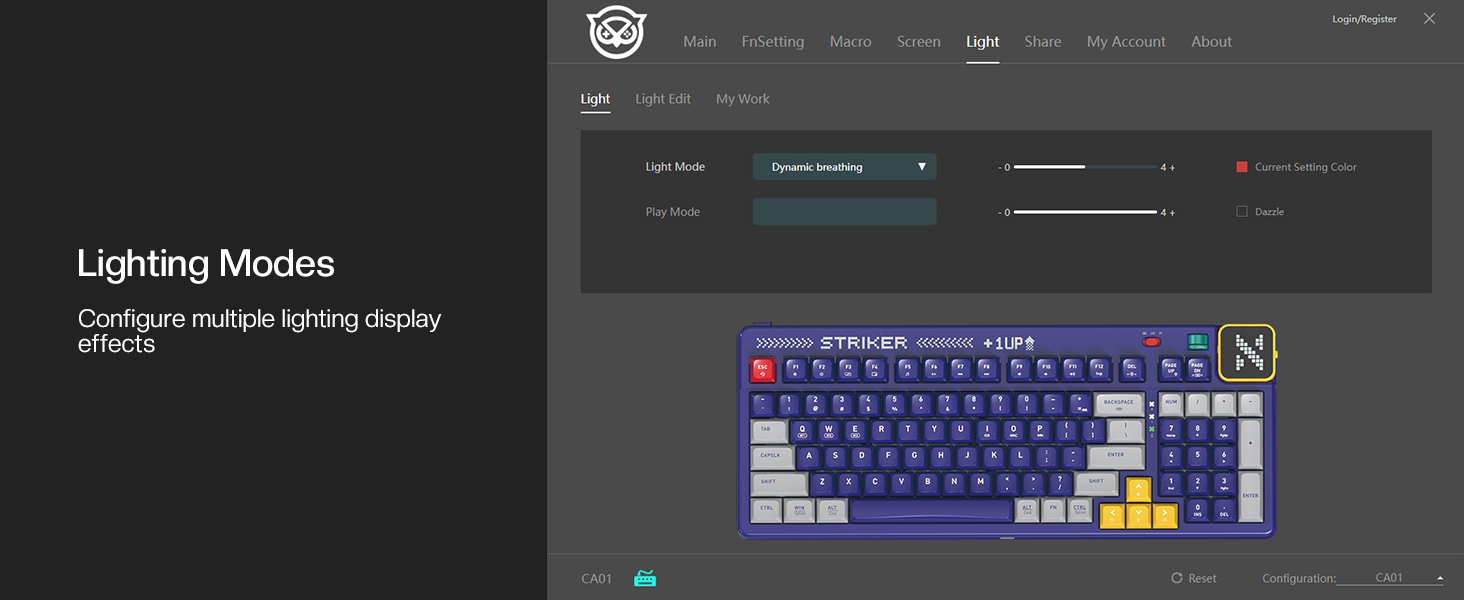
Image 6.4: NYXI Driver App interface for lighting mode configuration.

Image 6.5: NYXI Driver App interface for dot matrix screen customization.
7. Nlekọta
7.1 Nhicha
- Use a soft, dry cloth to wipe the keyboard surface.
- For deeper cleaning, use the provided keycap puller to remove keycaps and clean dust or debris with compressed air.
- Avoid using harsh chemicals or abrasive materials that could damage the keyboard finish or keycap legends.
7.2 Nchekwa
Store the keyboard in a cool, dry place away from direct sunlight and extreme temperatures. If storing for an extended period, ensure the keyboard is fully charged and then powered off.
8. Nchọpụta nsogbu
- Ahụigodo anaghị aza:
- Ensure the keyboard is powered on and the correct connectivity mode (wired, 2.4G, or Bluetooth) is selected.
- For wireless modes, check battery level. Recharge if necessary.
- For 2.4GHz, ensure the receiver is properly plugged into a USB port.
- For Bluetooth, ensure it is paired correctly and the selected channel (Fn + 1-5) matches the paired device. Try re-pairing.
- Try connecting via USB wired mode to rule out wireless issues.
- RGB lights not working/displaying correctly:
- Ensure RGB is enabled (check the NYXI Driver App if installed).
- Jiri usoro ọkụ mee okirikiri Fn + ekpe Ctrl.
- Gbanwee nchapụta site na iji Fn + akụ elu.
- Igodo anaghị edebanye aha:
- If a specific key is not working, the switch might be faulty. Utilize the hot-swappable feature to replace the switch with one of the spares provided.
- Gbaa mbọ hụ na ọnweghị ihe mkpofu etinyere n'okpuru okpu igodo ma ọ bụ ngbanwe.
- Nsogbu njikọ (nkwụsị, nkwụsịtụ):
- For wireless modes, ensure the keyboard is within range of the receiver/device and there are no significant obstructions.
- Wedata ndabichi sitere na ngwaọrụ ikuku ndị ọzọ.
- Ensure the keyboard's battery is sufficiently charged.
If issues persist, please refer to the Warranty & Support section for further assistance.
9. Nkọwapụta
| Njirimara | Nkọwa |
|---|---|
| Nọmba nlereanya | CA01 |
| Teknụzụ Njikọta | Ikuku 2.4G, Bluetooth 5.0, eriri USB-C |
| Nkọwa ahụigodo | Mechanical |
| Ọnụọgụ igodo | 97 igodo |
| Ngwa dakọtara | macOS, Windows 7 or later, iOS |
| Atụmatụ pụrụ iche | Backlit (RGB), Customizable Display Keys, Gasket Structure, Hot-Swappable |
| Nkwado agba azụ azụ kiiboodu | RGB (ụdị 22) |
| Ụdị | NGC Retro |
| Akụkụ ngwaahịa | 15.32"L x 6.08"W x 1.3"H (38.91 x 15.44 x 3.3 cm) |
| Ibu Ibu | 3.56 pound (1.61 n'arọ) |
| Onye nrụpụta | NYXI |
10. Akwụkwọ ikike na nkwado
10.1 Ozi akwụkwọ ikike
NYXI products are covered by a limited warranty against defects in materials and workmanship. Please refer to the official NYXI website or your purchase documentation for specific warranty terms and conditions, including duration and coverage details.
10.2 Nkwado ndị ahịa
For technical assistance, troubleshooting, or warranty claims, please contact NYXI customer support through their official website. You may need to provide your product model number (CA01) and proof of purchase.
Thank you for choosing the NYXI Striker Retro Mechanical Gaming Keyboard.


