1. Okwu mmalite
The Logitech Keys-to-GO 2 is a slim, portable wireless keyboard designed for on-the-go productivity. It offers a comfortable typing experience across multiple operating systems and features a built-in protective cover.
Akụkụ ndị bụ isi:
- Types Beautifully: Perfectly spaced scissor keys for a roomy, comfortable typing experience.
- For Any Screen, Any OS: Compatible with Windows, Android, macOS, and ChromeOS.
- Keeps You Covered: Built-in cover protects the compact keyboard from damage.
- Ultra Portable Keyboard: Super slim, lightweight design for easy transport.
- Pair up to Three Devices: Seamlessly switch between three different devices with a single key tap.

Figure 1: Logitech Keys-to-GO 2 Portable Compact Wireless Keyboard with its cover open, showcasing its slim design.
2. Ntọala na Njikọ
2.1. Mbido Mbido
- Wepụ ihe mkpuchi ahụigodo ahụ n'ime ngwugwu ya.
- Ensure the pre-installed coin cell batteries are properly seated.
- Locate the On/Off switch on the keyboard and slide it to the 'On' position.
2.2. Njikọ Bluetooth
The Keys-to-GO 2 can connect to up to three devices simultaneously via Bluetooth. Follow these steps to pair your keyboard:
- Turn on the keyboard using the On/Off switch.
- Press and hold one of the Easy-Switch keys (labeled 1, 2, or 3) for three seconds until the LED indicator above the key starts blinking rapidly. This indicates the keyboard is in pairing mode.
- On your device (tablet, phone, or computer), navigate to the Bluetooth settings.
- Select "Keys-to-GO 2" from the list of available devices.
- If prompted, enter the pairing code displayed on your screen using the Keys-to-GO 2 keyboard and press Enter.
- Once paired, the LED indicator will glow solid for a few seconds and then turn off, indicating a successful connection.
2.3. Ịgbanwe n'etiti Ngwaọrụ
To switch between paired devices, simply press the corresponding Easy-Switch key (1, 2, or 3) for the desired device. The keyboard will automatically connect to that device.
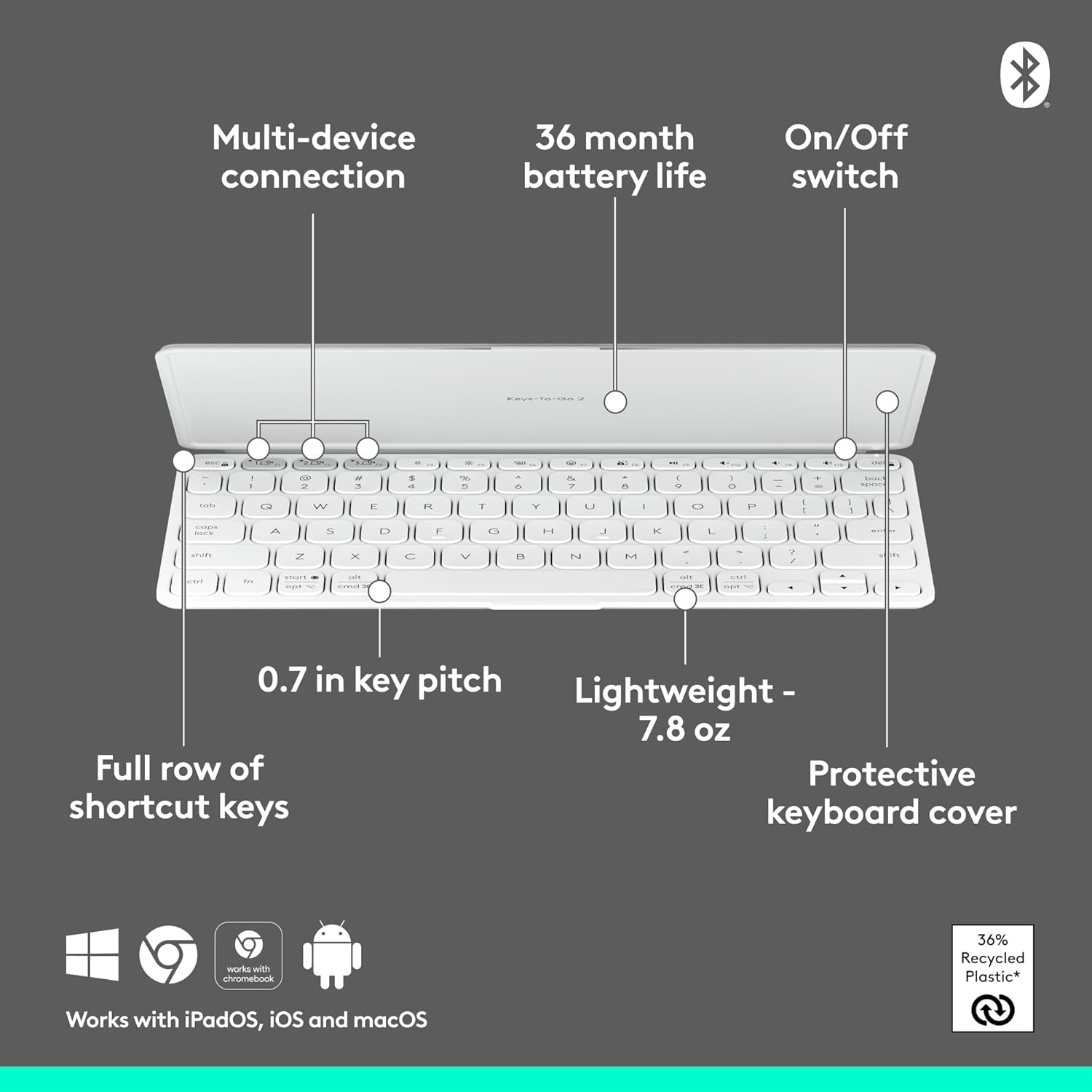
Figure 2: Diagram highlighting key features including multi-device connection and On/Off switch for easy setup.
3. Na-arụ ọrụ ahụigodo
3.1. Typing Experience
The Keys-to-GO 2 features well-spaced scissor keys designed for comfortable and efficient typing. The low-profile keys provide a satisfying tactile response, making it ideal for extended use.

Figure 3: User typing comfortably on the Keys-to-GO 2 keyboard, highlighting its ergonomic design.
3.2. Ụzọ mkpirisi igodo
The keyboard includes a full row of shortcut keys for quick access to various functions, such as media controls, screen brightness, and more. These keys are customizable on Windows and macOS for personalized workflow.
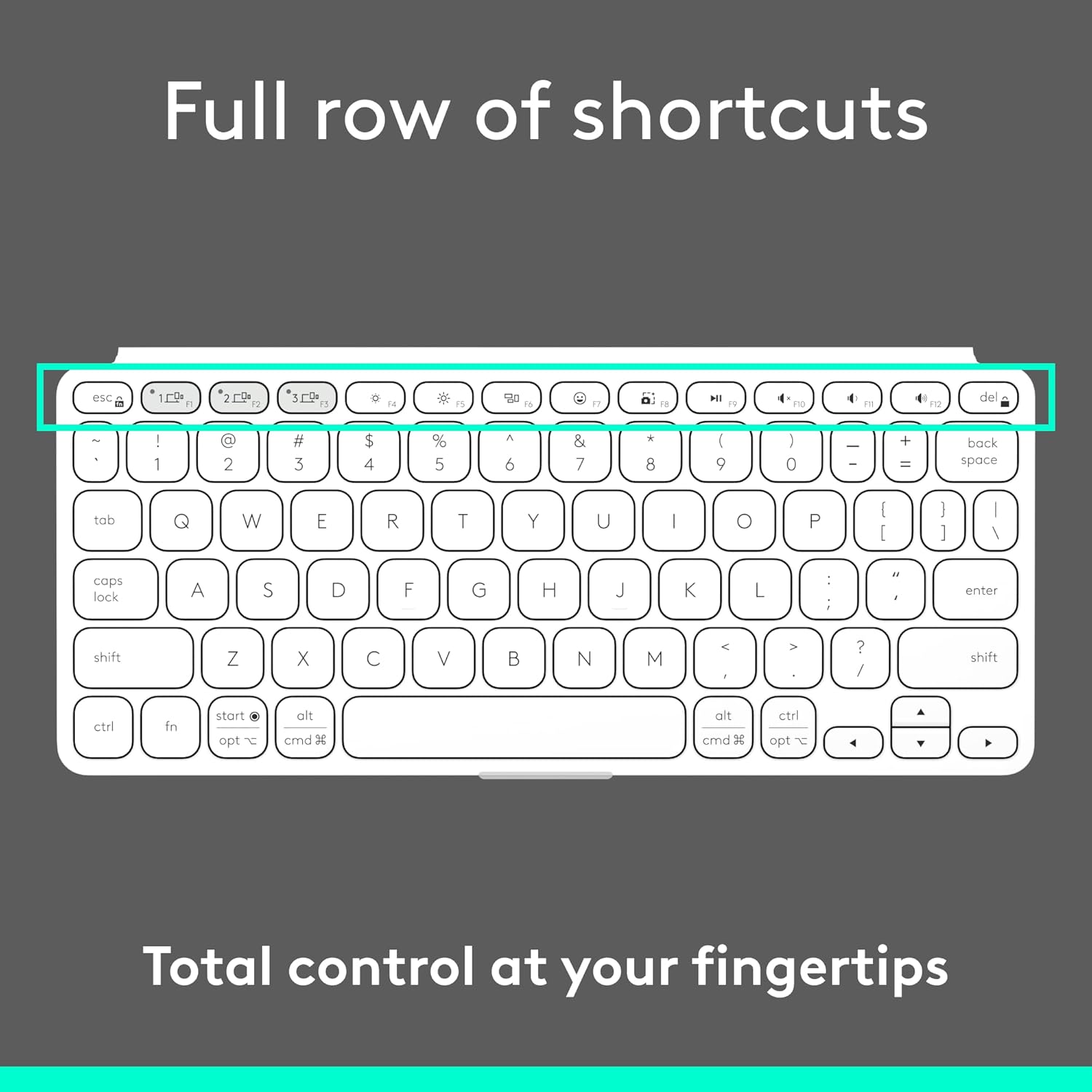
Ọgụgụ 4: Zuru ezu view of the full row of shortcut keys on the Keys-to-GO 2, offering total control at your fingertips.
3.3. Ndakọrịta nke ọtụtụ sistemụ arụmọrụ
The Keys-to-GO 2 is designed to work seamlessly with a variety of operating systems, ensuring broad compatibility across your devices:
- Android
- ChromeOS
- Windows
- iPadOS
- iOS
- macOS

Figure 5: The Keys-to-GO 2 keyboard connected to a tablet, illustrating its versatile multi-OS support.
4. Nlekọta
4.1. Battery Life and Replacement
The Keys-to-GO 2 is powered by pre-installed coin cell batteries, offering up to 3 years of battery life under typical usage conditions. When the battery is low, the LED indicator will signal this. To replace the batteries:
- Locate the battery compartment on the keyboard.
- You will need a T5 screwdriver to open the battery compartment.
- Carefully remove the old coin cell batteries.
- Insert new coin cell batteries, ensuring correct polarity.
- Securely close the battery compartment using the T5 screwdriver.
Note: Battery life may vary based on usage and computing conditions.

Figure 6: The Keys-to-GO 2 is designed for long battery life, allowing for extended use without frequent battery changes.
4.2. Nhicha
To clean your keyboard, gently wipe the surface with a soft, damp akwa . Zere iji kemịkalụ siri ike ma ọ bụ ihe na-emebi emebi.
5. Nchọpụta nsogbu
| Nsogbu | Ihe nwere ike ime | Ngwọta |
|---|---|---|
| Ahụigodo anaghị agbanwuo. | Battery is dead or improperly seated. | Check the On/Off switch. Replace batteries if necessary, ensuring they are correctly inserted. |
| Enweghị ike ijikọ na ngwaọrụ. | Keyboard not in pairing mode; Bluetooth off on device; device too far. | Ensure keyboard is in pairing mode (blinking LED). Turn on Bluetooth on your device. Move keyboard closer to device. |
| Keys are unresponsive or typing errors occur. | Low battery; interference; software issue on device. | Replace batteries. Move away from other wireless devices. Restart your device. Re-pair the keyboard. |
| Ahụigodo na-akwụsị ugboro ugboro. | Low battery; interference; device power saving settings. | Replace batteries. Reduce interference. Check device power saving settings that might disconnect Bluetooth devices. |
6. Nkọwapụta
- Akara: Logitech
- Ụdị: Keys-To-Go 2 Universal Pale Gray
- Teknụzụ Njikọta: Bluetooth
- Ndakọrịta sistemụ arụmọrụ: Android, iOS, macOS, Windows, ChromeOS
- Ibu ihe: 7.8 ounces (ihe dị ka 222g)
- Akụkụ ngwaahịa (LxWxH): 4.13 x 0.17 x 9.84 sentimita asatọ
- Ọnụọgụ nke igodo: 78
- Nkọwa ahụigodo: Membrane
- Isi mmalite ike: Battery Powered (1 Nonstandard Battery included)
- Ndụ batrị: Up to 3 years (pre-installed coin cell batteries)
- Ihe: Plastic (36% recycled plastic)
- Agba: Acha ntụ ntụ
7. Akwụkwọ ikike na nkwado
Maka ozi gbasara akwụkwọ ikike na nkwado teknụzụ, biko gaa na nkwado Logitech gọọmentị websaịtị ma ọ bụ kpọtụrụ ndị ahịa ha ọrụ. Debe akwụkwọ nnata ịzụrụ maka akwụkwọ ikike.
Nkwado Logitech gọọmentị: www.logitech.com/support


