1. Okwu mmalite
Thank you for choosing the Reobiux 2K Outdoor WiFi Surveillance Camera. This camera is designed to provide comprehensive and reliable outdoor monitoring with advanced features such as dual lenses, 360° PTZ control, 2K resolution, color night vision, motion detection, two-way audio, and IP66 waterproofing. This manual will guide you through the installation, operation, and maintenance of your new security camera.
2. Ihe ngwugwu
Please check the package contents carefully. If any items are missing or damaged, please contact customer support.
- 1 x Reobiux 2K Outdoor WiFi Surveillance Camera
- 1 x 3m Power Adapter
- 1 x Akwụkwọ ntuziaka onye ọrụ
- 1 x Nhazi nke skru na-arị elu
3. Akụrụngwa Ngwaahịa
3.1 Dual Lens 2-in-1 & 360° View
The camera features two lenses for a comprehensive 360° panoramic view. The fixed lens provides a wide overview, while the rotating lens offers flexible pan (355° horizontal) and tilt (90° vertical) capabilities to cover every corner of your surveillance area without delay.

Image: Illustration of the camera's dual lens system and PTZ (Pan-Tilt-Zoom) functionality.
3.2 2K Resolution & Color Night Vision
Experience remarkably clear images with 2K resolution, capturing every detail with impressive clarity. The camera offers three night vision modes: infrared mode for black and white clarity in total darkness, full-color mode for vivid night images, and an alarm siren mode for deterrence.

Image: Demonstrates the difference between infrared and full-color night vision modes.

Image: Visual comparison highlighting the enhanced detail provided by the 2.5K QHD resolution over standard 1080P.
3.3 Motion Detection & 24/7 Recording
The camera features intelligent motion detection. Upon detecting a moving object, it sends real-time notifications to your device. Continuous video recording to an SD card (up to 128GB) ensures you can review footage anytime without missing important details.
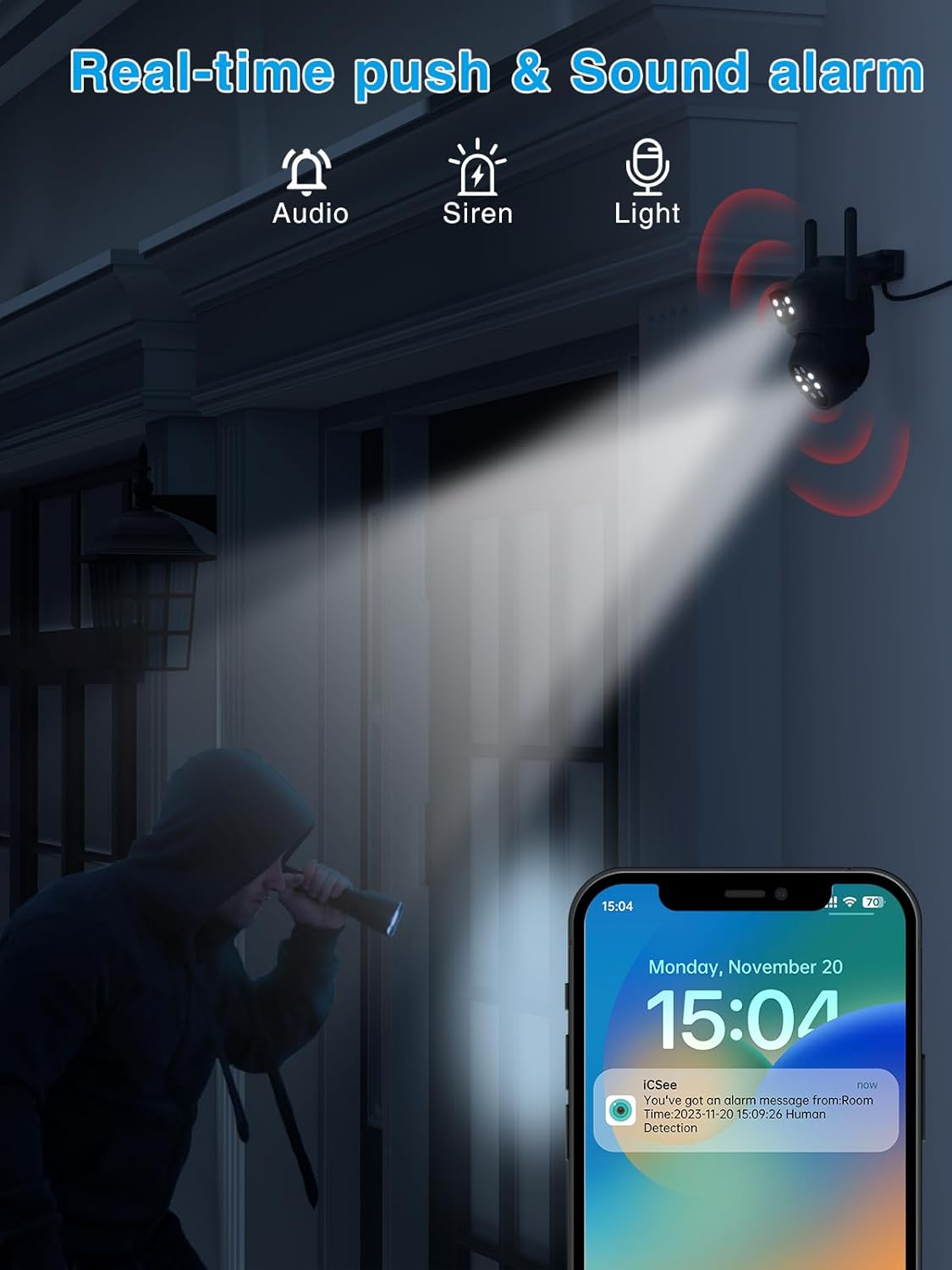
Image: Depicts the camera's motion detection and real-time alarm notification feature.
3.4 Two-Way Audio & Alarm Siren
Communicate with visitors or deter intruders using the built-in two-way audio function. The integrated alarm siren can be remotely activated upon detection of suspicious activity, alerting neighbors and enhancing home security.

Image: Illustrates the two-way audio communication capability of the camera.
3.5 IP66 Waterproof & Multi-User Access
With an IP66 waterproof rating, the camera is designed to withstand various weather conditions, including rain and snow. It also supports multi-user access, allowing multiple family members or colleagues to monitor the outdoor space simultaneously.

Image: Shows the camera's durability and IP66 waterproof design in outdoor conditions.
4. Ntuziaka Nhazi
4.1 Ntinye
- Choose a suitable outdoor location for mounting the camera, ensuring a clear view nke mpaghara ịchọrọ inyocha.
- Use the included mounting screws to securely attach the camera to a wall or desired surface.
- Connect the 3m power adapter to the camera and plug it into a power outlet.
4.2 App Connection (iCSee App)
- Download the 'iCSee' app from your smartphone's app store (iOS or Android).
- Debanye aha akaụntụ ọhụrụ ma ọ bụ banye ma ọ bụrụ na ị nwere otu.
- Tap the '+' icon to add a new device.
- Follow the on-screen instructions to connect the camera to your Wi-Fi network. This typically involves scanning a QR code on the camera or using an AP hotspot connection.
- Once connected, you can name your camera and begin live viewing.
5. Ntuziaka ọrụ
5.1 Ndụ View na Njikwa PTZ
- Open the iCSee app and select your camera from the device list.
- Use the on-screen joystick or swipe gestures to control the camera's pan (horizontal) and tilt (vertical) movements.
- Tap the screen to zoom in or out (digital zoom).
5.2 Ndekọ na ịkpọghachi
- Insert a Micro SD card (up to 128GB, not included) into the camera's SD card slot for local storage.
- In the app settings, configure recording modes (e.g., continuous, motion-triggered).
- Iji view edekọ footage, go to the 'Playback' section in the app and select the desired date and time.
5.3 Audio ụzọ abụọ
- Mgbe na ndụ view, kpatụ akara igwe okwu iji kwuo okwu site na igwe okwu.
- Ensure the speaker icon is enabled to hear audio from the camera's microphone.
5.4 Mkpu na Ọkwa
- Enable motion detection and push notifications in the app settings to receive alerts on your phone.
- You can also manually activate the alarm siren from the app when suspicious activity is detected.
6. Nlekọta
- Nhicha: Jiri ákwà dị nro ma kpọọ nkụ hichaa anya igwefoto mgbe niile iji hụ na onyonyo ahụ doro anya. Ejila kemịkalụ siri ike.
- Mmelite femụwe: Check the iCSee app periodically for firmware updates. Keeping your camera's firmware up-to-date ensures optimal performance and security.
- Ịnye ọkụ: Ensure the power adapter and cable are not damaged and are securely connected.
7. Nchọpụta nsogbu
| Nsogbu | Ihe nwere ike ime | Ngwọta |
|---|---|---|
| Igwefoto na-anọghị n'ịntanetị | Enweghị ike; Wi-Fi kwụsịrị; Nsogbu rawụta | Check power connection; Restart camera and router; Reconnect camera to Wi-Fi via app. |
| No recording to SD card | SD card full/faulty; Recording settings incorrect | Format or replace SD card; Check recording schedule in app. |
| Imagedị mma adịghị mma | Lensi ruru unyi; Ọkụ dị ala; bandwidth netwọk | Clean the lens; Ensure adequate lighting for color night vision; Check Wi-Fi signal strength. |
| Enweghị ike ijikọ na Wi-Fi | Incorrect password; Weak signal; Router compatibility | Double-check Wi-Fi password; Move camera closer to router; Try 2.4GHz Wi-Fi band. |
8. Nkọwapụta
| Njirimara | Nkọwa |
|---|---|
| Nọmba nlereanya | REO-A9HQ-6MP |
| Mkpebi vidiyo | 2K (2.5K QHD) |
| Oke ọhụụ abalị | 15 mita |
| Ogologo Pan/Tilt | Pan 355°, gbadaa 90° |
| Njikọta | Ikuku (Wi-Fi) |
| Mmiri Nguzogide | Ihe mgbochi mmiri IP66 |
| Nchekwa | Kaadị Micro SD (ruo 128GB, etinyeghị ya) |
| Audio Ụzọ Abụọ | Ee |
| Nchọpụta ngagharị | Ee |
| Isi Iyi Ike | Electric Cable (12 Volts, 5 Watts) |
| Ihe onwunwe | Plastic |
| Akụkụ (L x W x H) | 12 x 12 x 10 cm |
| Ibu | 630 grams |
| Ụdị nwụnye | Wall Mount (Screw-in) |
| Ụdị njikwa | iCSee ngwa |
9. Akwụkwọ ikike na nkwado
Reobiux products come with a standard manufacturer's warranty. For specific warranty details, please refer to the warranty card included in your package or visit the official Reobiux website. If you encounter any issues or have questions regarding your camera, please contact Reobiux customer support through the contact information provided on our website or within the iCSee app.
Biko dowe ihe akaebe nke ịzụrụ ihe maka akwụkwọ ikike.


