1. Okwu mmalite
This manual provides essential information for the safe and efficient use of your Mediacom SmartPad 4 4G Azimut 4 tablet. Please read this manual thoroughly before operating the device and retain it for future reference.
2. Ozi nchekwa
- Nchekwa batrị: Do not attempt to replace the internal battery. Do not expose the device to extreme temperatures or direct sunlight.
- Nguzogide mmiri: Ngwaọrụ a anaghị egbochi mmiri. Zere ikpughe na mmiri mmiri.
- Ịchaji: Jiri naanị chaja mbụ na eriri e nyere na ngwaọrụ ahụ.
- Nchedo Ntị: Zere ige ntị ogologo oge n'ogo dị elu iji gbochie mmebi ntị.
- mkpofu: Dispose of the device and its battery according to local regulations. Do not dispose of with household waste.
3. Ihe ngwugwu
Gbaa mbọ hụ na ihe niile dị na ngwugwu:
- Mediacom SmartPad 4 4G Azimut 4 Tablet
- USB-C eriri USB
- Ihe nkwụnye ọkụ
- Ntuziaka mmalite ngwa ngwa (ọ bụrụ na etinyere ya)
- SIM Ejector Tool (if included)
4. Nhazi ngwaọrụ
Familiarize yourself with the physical components of your tablet.
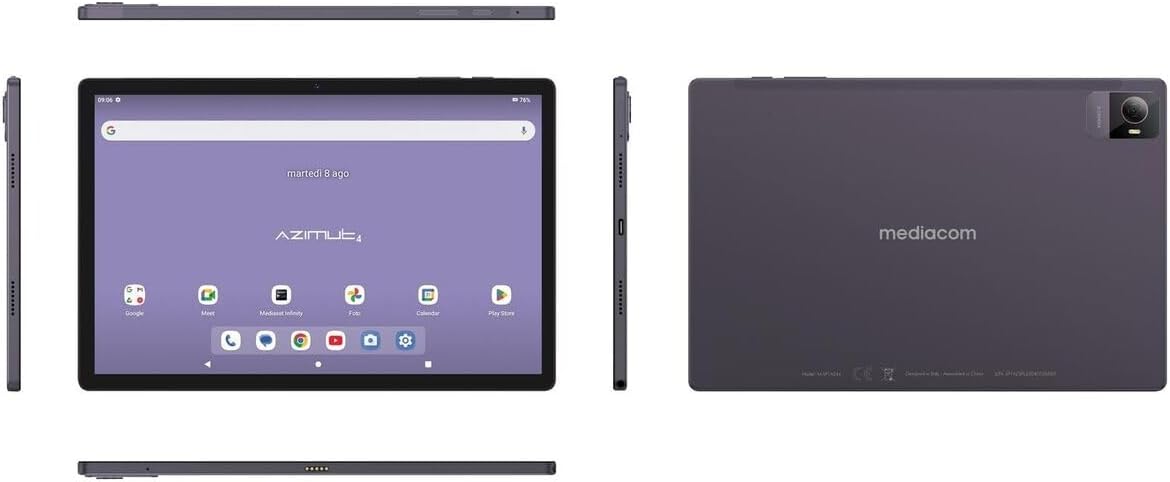
Foto nke 4.1: Otutu views of the Mediacom SmartPad 4 4G Azimut 4 tablet, illustrating the front display, rear camera, and various side ports and buttons. This includes the power button, volume rocker, USB-C port, headphone jack, and SIM/microSD card slot.
- Igwefoto ihu: Located at the top center of the display when held in landscape orientation.
- Ngosipụta: 10.51-inch IPS screen.
- Bọtịnụ ike: Typically located on the side, used to turn the device on/off or wake/sleep the screen.
- Bọtịnụ olu: Located near the power button, used to adjust audio volume.
- Ọdụ USB-C: Maka ịchaji na ịnyefe data.
- Jack ekweisi: Mbupụta ọdịyo 3.5mm nkịtị.
- Oghere SIM/microSD: Combined slot for Nano-SIM and microSD cards.
- Igwefoto azụ: Located on the back of the tablet, typically with a flash.
- Ndị na-ekwu okwu: Four speakers for immersive audio.
5. Nhazi
5.1 Ịchaji ngwaọrụ
Before first use, fully charge your tablet. Connect the USB-C cable to the tablet's USB-C port and the power adapter. Plug the adapter into a wall outlet. The battery indicator on the screen will show charging status.
5.2 Inserting SIM and MicroSD Cards
- Locate the SIM/microSD card slot on the side of the tablet.
- Jiri ngwaọrụ ejector SIM enyere ka imepe traị.
- Carefully place your Nano-SIM card and/or microSD card into the designated slots on the tray. Ensure correct orientation.
- Jiri nwayọ tụgharịa traị ahụ azụ n'ime oghere ruo mgbe ọ pịrị n'ime ya.
5.3 Ike mbido na ịtọlite
- Press and hold the Power button until the Mediacom logo appears.
- Soro mkpali na ihuenyo ka ịhọrọ asụsụ gị, jikọọ na netwọk Wi-Fi, guzobe akaụntụ Google gị, wee hazie ntọala mbụ ndị ọzọ.
6. Ntuziaka ọrụ
6.1 Nsoro ụzọ
The Mediacom SmartPad 4 4G Azimut 4 uses a multi-touch capacitive touchscreen. Common gestures include:
- Kpatụ: Ka ịhọrọ otu ihe ma ọ bụ mepee ngwa.
- Kpatụ ma jide: Ka ịnweta nchịkọta nhọrọ ma ọ bụ bugharịa akara ngosi.
- Mịpụta: Iji pịgharịa gaa na peeji ma ọ bụ ndepụta.
- Tuo: Ka ibugharị ma ọ bụ pụta na onyonyo na web ibe.
6.2 Jikọọ na Wi-Fi
- Gaa na Ntọala > Netwọk & ịntanetị > Wi-Fi.
- Gbanwee Wi-Fi On.
- Họrọ netwọk ịchọrọ site na ndepụta ahụ wee tinye paswọọdụ ma ọ bụrụ na ịchọrọ.
6.3 Connecting to 4G Cellular Network
If a Nano-SIM card is inserted and activated, your tablet will automatically connect to the 4G network. Ensure mobile data is enabled in Ntọala > Netwọk & ịntanetị > Netwọk mkpanaka.
6.4 Iji igwefoto
Open the Camera app from your home screen or app drawer. You can switch between the 8 MP front camera and the 13 MP rear camera. Tap the shutter button to take photos or record videos.
6.5 Ijikwa Nchekwa
Your tablet has 64 GB of internal storage. You can expand this by up to 128 GB using a microSD card. To view storage usage, go to Ntọala > Nchekwa.
6.6 Njikọ Bluetooth
Iji jikọọ ngwaọrụ Bluetooth:
- Gaa na Ntọala > Ngwa ejikọrọ > Bluetooth.
- Gbanwee Bluetooth On.
- Họrọ ngwaọrụ gị site na ndepụta ngwaọrụ dị ma soro ntuziaka njikọta.
7. Nlekọta
7.1 Na-ehicha ngwaọrụ
Jiri akwa dị nro na-enweghị lint hichaa ihuenyo na ahụ nke mbadamba ihe. Zere iji kemịkalụ siri ike ma ọ bụ ihe na-emebi emebi.
7.2 Nlekọta batrị
- Zere ịchaji batrị ugboro ugboro.
- Do not leave the tablet charging for extended periods after it is fully charged.
- Store the tablet in a cool, dry place when not in use for long periods.
7.3 Mmelite ngwanrọ
Lelee mmelite ngwanrọ kwa oge iji hụ na arụmọrụ na nchekwa kacha mma. Gaa na Ntọala > Sistemu > Mmelite sistemụ.
8. Nchọpụta nsogbu
- Ngwaọrụ anaghị agbanwu: Gbaa mbọ hụ na agbagoro batrị. Jikọọ chaja wee nwaa ọzọ.
- Ihuenyo anaghị anabata: Try restarting the device by holding the Power button for about 10-15 seconds.
- Nsogbu njikọ Wi-Fi: Restart your tablet and your Wi-Fi router. Ensure you are within range and have entered the correct password.
- Ngwa na-akụda: Clear the cache of the problematic app (Settings > Apps > [App Name] > Storage & cache > Clear cache). If the issue persists, try reinstalling the app.
- Ịrụ ọrụ nwayọ: Close unused apps, clear cache, or consider performing a factory reset (backup your data first).
9. Nkọwapụta
| Njirimara | Nkọwapụta |
|---|---|
| Aha Nlereanya | Azimut 4 |
| Sistemụ nrụọrụ | Android 13 |
| Ngosipụta | 10.51" IPS, 1920 x 1200 pixels, Multi-touch 5 points |
| Nhazi | Spreadtrum Tiger T606 (8-core, 1.6 GHz) |
| RAM | 4 GB |
| Nchekwa nke ime | 64 GB |
| Nchekwa enwere ike ịgbasa | microSD ruo 128 GB |
| Igwefoto azụ | 13 Megapixels (with flash) |
| Igwefoto ihu | 8 megapixels |
| Teknụzụ ekwentị | 4G (GSM, WCDMA, FDD-LTE) |
| Ndị otu ekwentị | W-CDMA 900/2100, GSM 850/900/1800/1900, LTE B1/B20/B3/B7 |
| Njikọ ikuku | Wi-Fi (802.11n), Bluetooth 5.0 |
| ọdụ ụgbọ mmiri | 1 x Nano-SIM/microSD combo, 1 x Headphone (3.5mm), 1 x USB-C |
| Batrị | 6000mAh Li-Po |
| Atụmatụ pụrụ iche | 4G Cellular Technology, Ergonomic and Contemporary Design |
10. Akwụkwọ ikike na nkwado
For warranty information and technical support, please refer to the warranty card included in your product packaging or visit the official Mediacom websaịtị. Debe ihe akaebe nke ịzụrụ maka akwụkwọ ikike.
11. Nrube isi n'usoro iwu
This device complies with relevant regulatory standards. For detailed compliance information, please refer to the product packaging or the official Mediacom websaịtị.


