1. Okwu mmalite
This instruction manual provides comprehensive guidance for the DieseRC Smart WiFi Relay Module 1CHx4-TEW. This device allows you to remotely control various electrical appliances and systems via Wi-Fi, Bluetooth, and voice commands. Please read this manual carefully before installation and operation to ensure proper use and safety.
2. Ngwaahịa gafereview
The DieseRC Smart WiFi Relay Module is a versatile control unit designed for integration into various smart home and automation projects. It features stable and reliable performance with high reception sensitivity for 2.4 GHz Wi-Fi networks. The module supports multiple control methods, including a dedicated mobile application, voice assistants, and a Bluetooth remote control.
Akụkụ ndị bụ isi:
- Ikuku Njikọ: Supports 2.4 GHz Wi-Fi for remote control via the eWelink app.
- Njikwa olu: Dakọtara na Amazon Alexa na Google Home maka ọrụ aka na-enweghị aka.
- Ime Bluetooth: Includes a Bluetooth RM2.4G remote control for local operation.
- Ntinye Ike Na-agbanwe Agbanwe: Operates on DC 5V or DC 7V-48V.
- Passive Output: Features a 10A relay with normally open (NO), common (COM), and normally closed (NC) pins for dry contact output.
- Nhazi kọmpat: Small form factor (55x29x17 mm) for easy integration into electrical boxes.
- Ụdị arụ ọrụ ọtụtụ: Configurable for Inching (momentary) or Self-Locking (toggle) modes.
- Scheduling and Timer Functions: Available through the eWelink application.

Image 2.1: The DieseRC Smart WiFi Relay Module (four units shown) alongside its Bluetooth remote control. The remote features four numbered buttons, an 'ALL ON' button, and an 'ALL OFF' button.

Image 2.2: This image illustrates the various control methods for the relay module: APP control via eWelink, voice control with Alexa or Google Assistant, and remote control via 2.4GHz Bluetooth. A detailed view of the module's dimensions (52mm x 30mm x 20mm) is also provided.
3. Nkọwapụta
| Nkọwapụta | Uru |
|---|---|
| Nọmba nlereanya | EW748 |
| Akụkụ (L x W x H) | 55 x 29 x 17 mm (2.2 x 1.1 x 0.7 inch) |
| Ntinye Voltage | DC 5V (via USB) or DC 7V-48V |
| Nleba anya kọntaktị ọsọ ọsọ | 10A (AC 250V, DC 30V) |
| Oriri ike | 480 watts (Max) |
| Ikuku Standard | Wi-Fi 2.4 GHz |
| Ụzọ njikwa | eWelink APP, Bluetooth Remote, Voice Control (Alexa/Google Home) |
| Ụdị arụ ọrụ | Inching (Momentary), Self-Locking (Toggle) |
| Ihe onwunwe | Plastic |
| Asambodo | CE |
4. Ntọala na nwụnye
4.1 Wiring the Relay Module
The relay module offers flexible power input options and passive output contacts. Ensure all power is disconnected before performing any wiring.
- Ntinye ike: The module can be powered via a Micro USB 5V/0.5A input or directly with DC 7V-48V. Connect the positive (+) and negative (-) terminals accordingly for DC 7V-48V input.
- Mpụta mbugharị: The module provides dry contact output through three terminals: Mba (Ọ na-emepekarị), COM (Nkịtị), na NC (Normally Closed). Connect your device's control circuit to these terminals based on your application's requirements.

Image 4.1: This diagram shows the main components and connection points of the relay module. It highlights the Relay Indicator Light, Open Key/Pairing Button, WiFi Network Indicator Light, Input USB 5V/0.5A, and the NO, COM, NC terminals for relay output. Below, an example illustrates connecting the module to a DC 7V-48V power source.

Image 4.2: This image provides wiring examples. The top left shows wiring for a DC device with DC 7V-48V power. The top right shows wiring for a device with 1V-250V AC/DC power. The bottom image illustrates how to make any device an internet device by connecting the module to its control circuit and powering it via USB 5V/0.5A.
4.2 eWelink App Installation
To control the module via Wi-Fi, download and install the eWelink app on your smartphone (Android or iOS).
- Nyochaa koodu QR dị n'okpuru ma ọ bụ gaa http://app.coolkit.cc/dl.html to download the eWelink app.
- Debanye aha akaụntụ wee banye.

Image 4.3: QR code for downloading the eWelink application.
4.3 Pairing the Module with eWelink
Follow these steps to connect your relay module to the eWelink app:
- Power on the relay module.
- Open the eWelink app and tap the '+' icon to add a device.
- Select the appropriate pairing mode (e.g., Quick Pairing Mode).
- Press and hold the 'Open the key / Pairing button' on the module until the Wi-Fi network indicator light blinks rapidly.
- Follow the on-screen instructions in the eWelink app to complete the pairing process, including entering your Wi-Fi network credentials.
5. Ụdị arụ ọrụ
The DieseRC Smart WiFi Relay Module supports two primary operating modes: Inching (Momentary) and Self-Locking (Toggle). These modes can be configured within the eWelink app.
5.1 Inching Mode (Momentary)
In Inching mode, the relay will activate for a set duration (e.g., 0.5 to 3600 seconds) after being triggered, and then automatically deactivate. This is suitable for applications like garage door openers or pulse-triggered devices.
5.2 Self-Locking Mode (Toggle)
In Self-Locking mode, the relay acts like a standard on/off switch. One trigger activates the relay, and it remains active until another trigger deactivates it. This is suitable for controlling lights or other devices that require a continuous on/off state.

Image 5.1: This image illustrates the two operation modes: Inching mode, represented by a momentary push button, and Self-Locking mode, represented by a toggle switch.
5.3 njikwa anya Bluetooth
The included Bluetooth remote control allows for local operation of the relay module. Each button on the remote can be paired to control specific channels or functions (e.g., ALL ON/ALL OFF).
5.4 APP Control (eWelink)
Once paired, you can control the relay module from anywhere using the eWelink app. The app allows you to:
- Turn devices on/off.
- Tọọ usoro oge na oge.
- Share control with family members.
- Configure operating modes (Inching/Self-Locking).
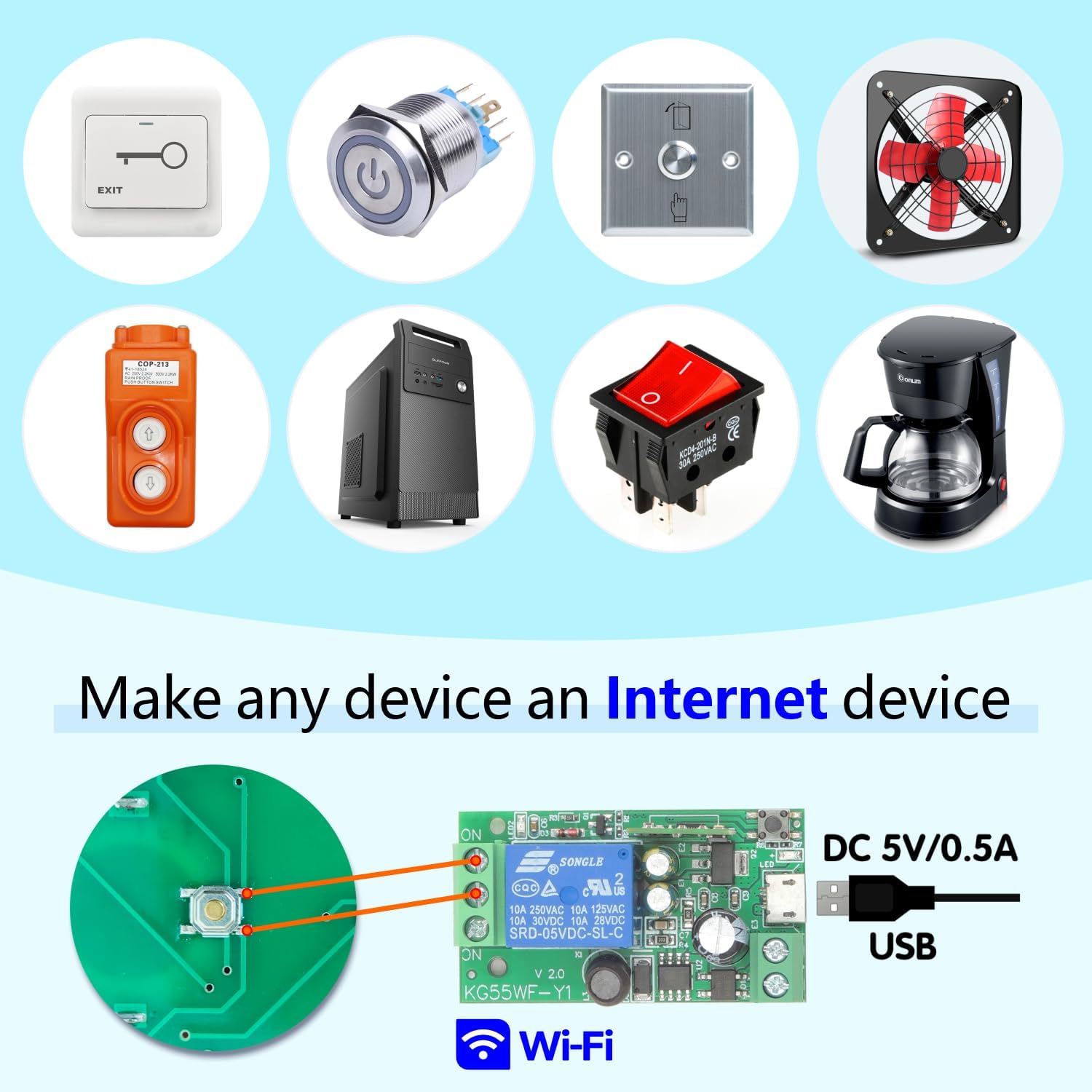
Image 5.2: This image shows a smartphone displaying the eWelink app interface, controlling a device remotely. The text indicates 'No distance limit', emphasizing the global control capability.
5.5 Njikwa olu (Alexa/Google Home)
Integrate the relay module with Amazon Alexa or Google Home for convenient voice control. After linking your eWelink account to your voice assistant, you can use commands such as:
- "Alexa, turn on the light."
- "Ndewo Google, gbanyụọ onye ofufe ahụ."

Image 5.3: This image demonstrates voice control functionality, showing Amazon Alexa and Google Home devices. A speech bubble indicates a command: "Alexa, open the light!"
6. Ngwa
The DieseRC Smart WiFi Relay Module can be used in a variety of settings, including homes, farms, factories, offices, and laboratories. Common applications include:
- Garage door opener systems.
- Electric locks and electromagnetic doors.
- Njikwa ọkụ.
- Controlling contactors.
- DIY remote control switches for various devices.
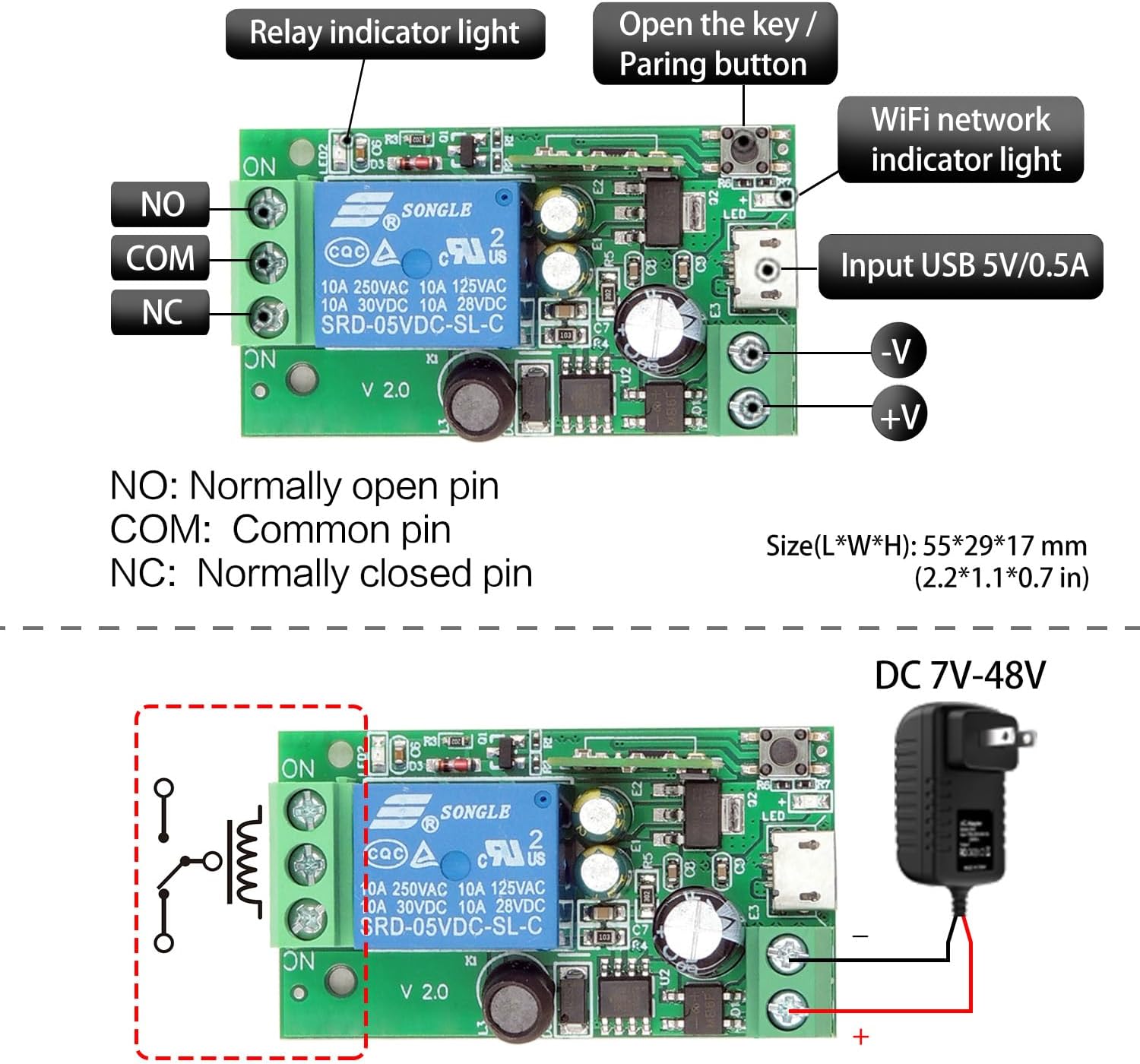
Image 6.1: This image displays various devices that can be controlled by the relay module, including an exit button, a power button, a fan, a coffee maker, and other switches, illustrating its versatility in making any device an internet-connected device.
7. Nlekọta
To ensure the longevity and optimal performance of your DieseRC Smart WiFi Relay Module, follow these maintenance guidelines:
- Debe Ọcha: Regularly clean the module and its surroundings to prevent dust accumulation, which can affect performance.
- Ikuku ikuku nke ọma: Ensure the module is installed in a location with adequate ventilation to prevent overheating.
- Zere mmiri mmiri: Protect the module from water and excessive humidity.
- Njikọ echekwara Lelee njikọ wiwi niile kwa oge iji hụ na echekwara ha na enweghị mmebi.
- Mmelite femụwe: Check the eWelink app for any available firmware updates for the module and install them to benefit from improvements and bug fixes.
8. Nchọpụta nsogbu
If you encounter issues with your DieseRC Smart WiFi Relay Module, refer to the following troubleshooting tips:
- Modul anaghị agba ọkụ:
- Verify that the power supply (DC 5V USB or DC 7V-48V) is correctly connected and providing the specified voltage.
- Check for any loose wiring or damaged cables.
- Enweghị ike ijikọ na Wi-Fi:
- Ensure your Wi-Fi network is 2.4 GHz. The module does not support 5 GHz networks.
- Lelee paswọọdụ Wi-Fi gị maka izi ezi.
- Make sure the module is within range of your Wi-Fi router.
- Try resetting the module and re-attempting the pairing process.
- App Control Not Responding:
- Check your internet connection on your smartphone.
- Ensure the module's Wi-Fi indicator light is solid, indicating a stable connection.
- Restart the eWelink app.
- Njikwa olu anaghị arụ ọrụ:
- Confirm that your eWelink account is correctly linked to Amazon Alexa or Google Home.
- Check the device name in the eWelink app and ensure it matches the name used in voice commands.
- Verify that your voice assistant device is connected to the internet.
- Bluetooth Remote Not Working:
- Ensure the remote's battery is functional.
- Confirm the remote is paired with the module according to the pairing instructions (if applicable, usually automatic for included remotes).
- Ensure the remote is within effective range of the module.
9. Akwụkwọ ikike na nkwado
DieseRC is committed to providing quality products and customer satisfaction. For any technical support or warranty inquiries, please contact DieseRC customer service through the platform where you purchased the product or refer to the official DieseRC websaịtị maka ozi kọntaktị.
Please retain your proof of purchase for warranty claims. Specific warranty terms and conditions may vary by region and retailer.


