Okwu mmalite
This manual provides detailed instructions for the setup, operation, and maintenance of your Turtle Beach Kone XP Air Wireless Customizable Ergonomic RGB Gaming Mouse. Please read this manual thoroughly to ensure optimal performance and longevity of your device.

The Turtle Beach Kone XP Air Wireless Gaming Mouse on its charging dock, showcasing its ergonomic design and RGB lighting.
Ihe ngwugwu
Nyochaa na etinyere ihe niile edepụtara n'okpuru na ngwugwu gị:
- Kone XP Air Gaming Mouse
- Ụgbọ mmiri ngwa ngwa
- Wireless USB-A Transmitter (Dongle)
- PhantomFlex USB-C to USB-A Charging Cable
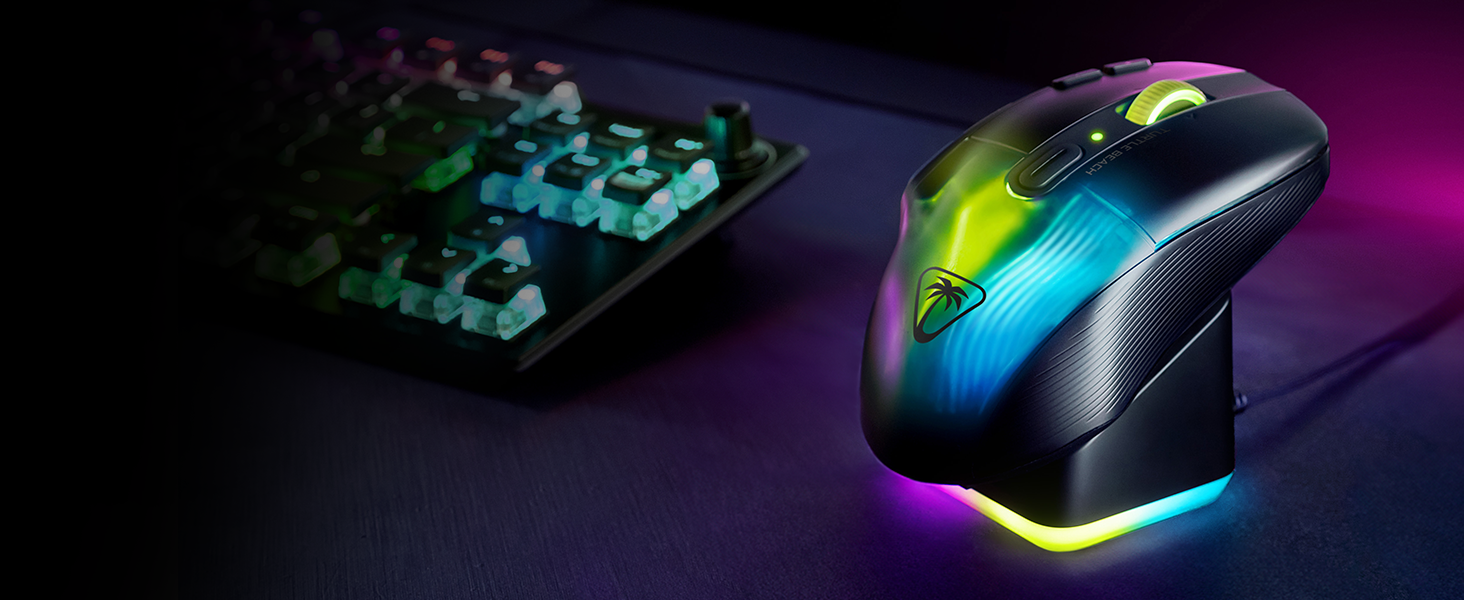
Illustration of the Kone XP Air mouse, Rapid Charge Dock, wireless USB-A transmitter, and PhantomFlex charging cable.
Melite
1. Nchaji mbụ
- Connect the PhantomFlex USB-C to USB-A Charging Cable to the Rapid Charge Dock and a powered USB-A port on your computer or a USB wall adapter.
- Place the Kone XP Air mouse onto the Rapid Charge Dock. Ensure the mouse is properly seated for charging. The mouse and dock RGB lighting will indicate charging status.
- For initial use, it is recommended to fully charge the mouse. A 10-minute charge provides approximately 5 hours of playtime, and a full charge can last up to 100 hours.
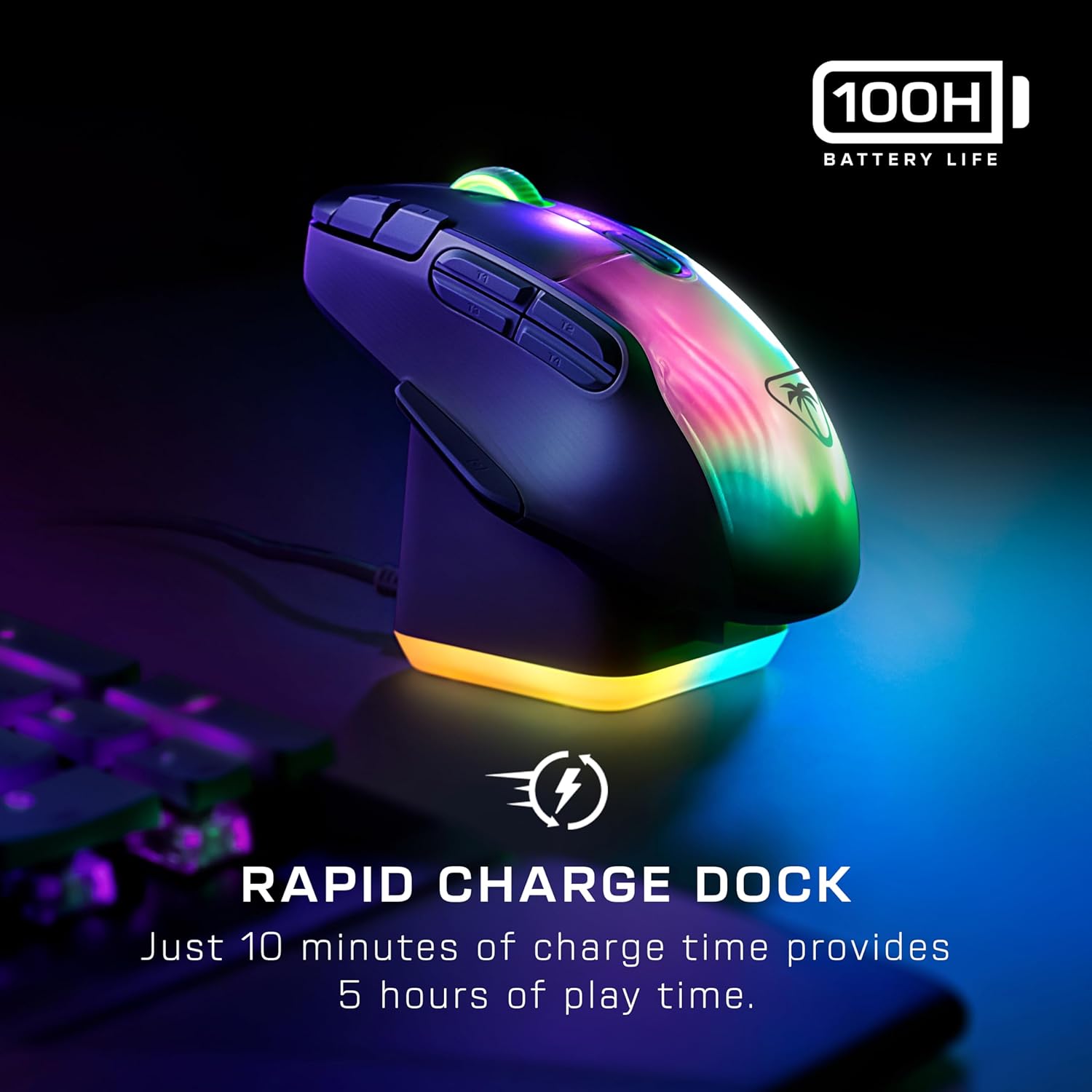
The Kone XP Air mouse securely placed on its Rapid Charge Dock for charging.
2. Ijikọ òké
The Kone XP Air offers two connectivity options: 2.4GHz Wireless (via USB-A Transmitter) and Bluetooth.
2.1. Njikọ Ikuku 2.4GHz (Akwadoro maka Egwuregwu)
- Insert the Wireless USB-A Transmitter into an available USB-A port on your computer. For optimal signal, you can plug the transmitter directly into the USB passthrough port on the front of the Rapid Charge Dock.
- Turn on the mouse using the switch located on the underside.
- The mouse should automatically connect to the transmitter. The LED indicator on the mouse will confirm connection.

The Rapid Charge Dock with the wireless USB-A transmitter inserted into the front USB passthrough port.
2.2. Njikọ Bluetooth
- Turn on the mouse using the switch on the underside.
- Press and hold the Bluetooth pairing button (refer to the mouse diagram for location) until the mouse LED indicator begins to flash, indicating pairing mode.
- On your computer or device, navigate to Bluetooth settings and select "Kone XP Air" from the list of available devices to pair.
- The mouse LED indicator will become solid when successfully paired.
3. Software Installation (SWARM II)
To unlock full customization options, including button remapping, DPI adjustments, and RGB lighting effects, download and install the SWARM II software from the official Turtle Beach website. This software is compatible with Windows 10 and Windows 11.
- Visit the official Turtle Beach support websaịtị.
- Locate the SWARM II software for the Kone XP Air.
- Download and follow the on-screen instructions to install the software.
- Ensure your mouse is connected (preferably via 2.4GHz wireless) during the software setup for proper recognition and firmware updates.
Ntuziaka ọrụ
1. Ergonomic Design and Programmable Buttons
The Kone XP Air features an ergonomic shape designed for comfort during extended use. It includes 10 dedicated buttons and a 4D scroll wheel, which can be expanded to 29 programmable inputs using the Easy-Shift[+] duplicator button.
![Diagram highlighting the 10 buttons and 4D scroll wheel on the Kone XP Air mouse, with an arrow pointing to the Easy-Shift[+] button.](https://m.media-amazon.com/images/I/81ecMkWMzBL._AC_SL1500_.jpg)
gafereview of the Kone XP Air's programmable buttons and the Easy-Shift[+] function.
- Left Click (Button 1)
- Right Click (Button 2)
- Scroll Wheel Click (Button 3)
- Scroll Wheel Tilt Left/Right (Buttons 4 & 5)
- DPI Cycle Button (Default)
- Side Buttons (4 buttons, typically for forward/back, macros)
- Easy-Shift[+] Button: Located on the thumb rest, holding this button activates a secondary function for other buttons, effectively doubling your available inputs. Customize these functions in the SWARM II software.
2. DPI mmezi
The Kone XP Air is equipped with an Owl-Eye 19K DPI optical sensor for precise tracking. Use the dedicated DPI cycle button (usually located behind the scroll wheel) to switch between pre-set DPI stages. Ndị a stages can be customized within the SWARM II software to suit your preferences.

Illustration highlighting the 19K DPI Owl-Eye optical sensor and TITAN Optical Switches.
3. RGB Lighting (AIMO Illumination)
The mouse features 5 customizable RGB lighting zones, including a translucent shell and a 4D wheel, powered by AIMO illumination technology. Lighting effects can be configured and synchronized with other AIMO-enabled devices using the SWARM II software.

The Kone XP Air mouse showcasing its dynamic AIMO RGB lighting.
4. NVIDIA Reflex Compatibility
The Kone XP Air is NVIDIA Reflex compatible, which, when paired with GeForce RTX GPUs and NVIDIA G-SYNC monitors, can help reduce system latency for improved responsiveness in supported games.
Nlekọta
1. Nhicha
- To clean the mouse, use a soft, dry, lint-free cloth.
- Maka unyi isi ike, ntakịrị dampen akwa na mmiri ma ọ bụ a nwayọọ ihicha ngwọta. Zere kemịkalụ siri ike ma ọ bụ ihe na-emebi emebi.
- Do not allow liquids to enter the mouse's internal components.
2. PTFE Glides
The mouse is equipped with heat-treated, pure PTFE glides for smooth movement. These glides are designed for durability but can wear over time with heavy use. Replacement glides may be available from authorized retailers or the Turtle Beach websaịtị.
3. Nlekọta batrị
- Zere ịchaji batrị ugboro ugboro ka ọ gbatịa ndụ ya.
- Debe òké ahụ n'ebe dị jụụ ma kpọọ nkụ mgbe a naghị eji ya ruo ogologo oge.
Nchọpụta nsogbu
1. Mouse Not Responding
- Lelee Ike: Ensure the mouse is turned on and has sufficient battery charge. Place it on the charging dock or connect it via the PhantomFlex cable.
- Lelee Njikọ:
- For 2.4GHz Wireless: Ensure the USB-A transmitter is securely plugged into a working USB port. Try a different USB port.
- For Bluetooth: Verify Bluetooth is enabled on your device and the mouse is paired. Try re-pairing the mouse.
- Malitegharịa ngwaọrụ: Restart your computer or device.
- Ntinye aka na ngwanrọ: Temporarily disable any other mouse software or drivers that might conflict with SWARM II.
2. Buttons Unresponsive or Stuck
- Bọtịnụ dị ọcha: Ensure no debris is lodged around the buttons. Use compressed air to clear any dust.
- Software Check: Open SWARM II and verify button assignments. Reset to default settings if necessary.
- Mmelite firmware: Ensure the mouse firmware is up to date via SWARM II.
3. Inconsistent Tracking or Lag
- Elu: Use the mouse on a clean, uniform surface, preferably a gaming mouse pad.
- Ntọala DPI: Adjust DPI settings in SWARM II to find a comfortable and stable tracking speed.
- Ntinye aka: For 2.4GHz wireless, ensure the transmitter is not obstructed and is close to the mouse. Avoid other wireless devices operating on the same frequency if possible.
- Ọkwa batrị: Low battery can sometimes affect performance. Charge the mouse fully.
4. RGB Lighting Issues
- SWARM II: Ensure SWARM II is running and lighting effects are configured correctly.
- Esemokwu ngwanrọ: Check for other RGB control software that might be conflicting.
- Firmware: Update mouse firmware through SWARM II.
Nkọwapụta
| Njirimara | Nkọwa |
|---|---|
| Nọmba nlereanya | TBM-1101-05 |
| Njikọta | 2.4GHz Wireless (USB-A Transmitter), Bluetooth |
| Sensọ | Owl-Eye 19K DPI Optical Sensor |
| Mgbanwe | TITAN Optical Switches (100 million click lifecycle) |
| Ntinye mmemme | 29 (with Easy-Shift[+]) |
| RGB ọkụ | AIMO Illumination, 5 Zones |
| Ndụ batrị | Ruo awa iri abụọ |
| Ịchaji | Rapid Charge Dock, PhantomFlex USB-C Cable |
| Ndakọrịta sistemụ arụmọrụ | Windows 10, Windows 11 |
| Ibu Ibu | 3.52 ounces (ihe dị ka 100g) |
| Akụkụ ngwaahịa (LxWxH) | 7.09 x 4.92 x 0.1 sentimita (ihe dịka 180 x 125 x 2.5 mm) |
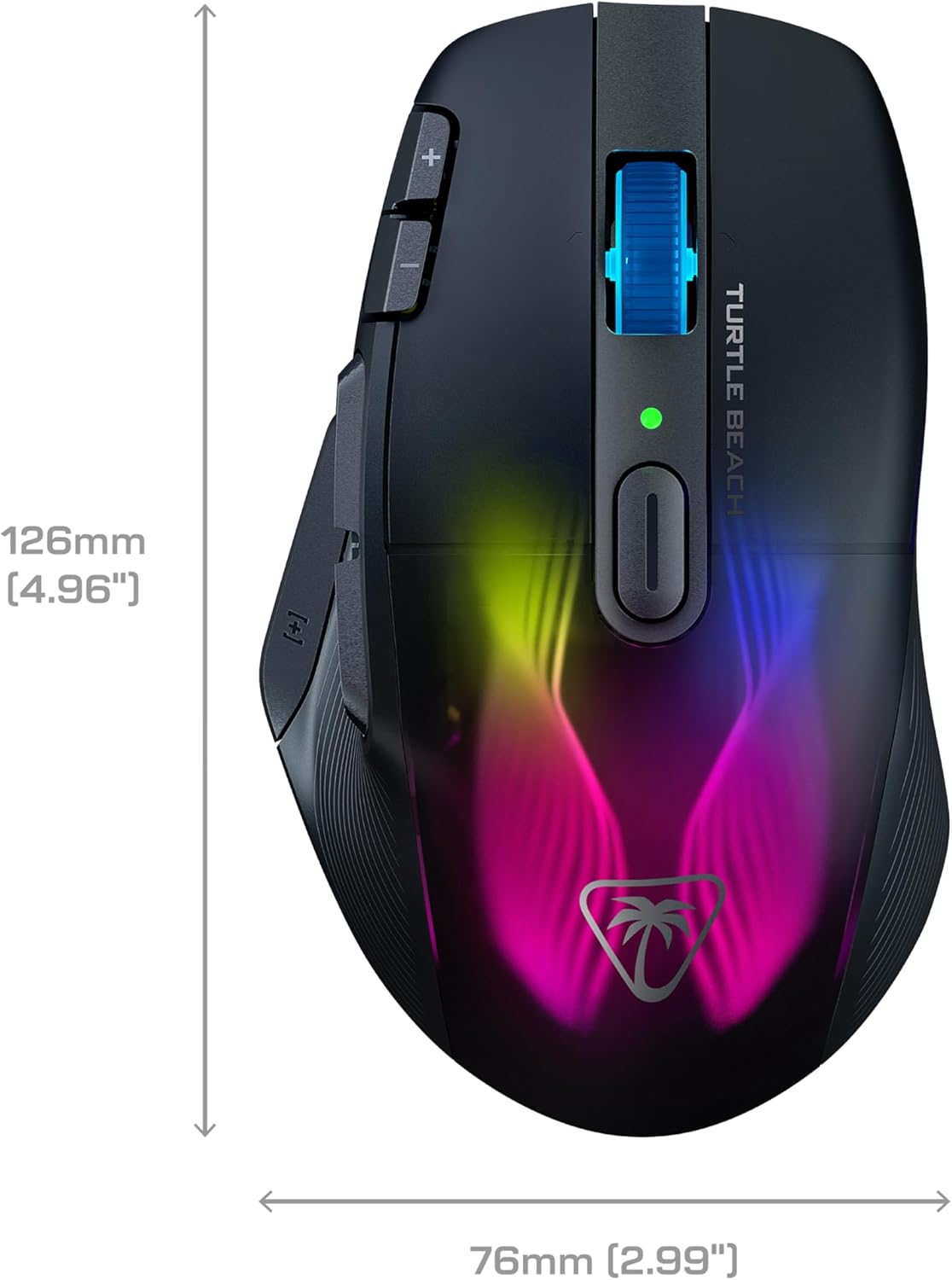
Physical dimensions of the Kone XP Air mouse.
Akwụkwọ ikike na nkwado
1. Akwụkwọ ikike Ozi
For detailed warranty information regarding your Turtle Beach Kone XP Air Wireless Gaming Mouse, please refer to the warranty card included with your product or visit the official Turtle Beach websaịtị. Usoro na ọnọdụ ikike nwere ike ịdị iche site na mpaghara.
2. Nkwado nka na ụzụ
If you encounter any issues not covered in this manual or require further assistance, please visit the Turtle Beach support websaịtị maka Ajụjụ Ndị A Na-ajụkarị, nbudata ndị ọkwọ ụgbọala, na ozi kọntaktị maka nkwado teknụzụ.
Official Turtle Beach Websaịtị: www.turtlebeach.com/support


