Okwu mmalite
The Baseus AeQur GH02 RGB Gaming Headset is designed to provide an immersive audio experience for gaming and multimedia. Featuring high-quality sound drivers, customizable RGB lighting, and versatile connectivity options, this headset offers comfort and performance for extended use. This manual provides detailed instructions on setting up, operating, maintaining, and troubleshooting your headset.

Image: The Baseus AeQur GH02 RGB Gaming Headset, showcasing imewe ojii ya na igwe okwu agbakwunyere.
Ngwaahịa gafereview na Atụmatụ
The AeQur GH02 headset combines advanced audio technology with user-friendly features:
- Ndị ọkwọ ụgbọ ala 40mm: Delivers powerful and clear sound with a frequency range of 20-40,000Hz for an immersive audio experience.
- RGB ọkụ: Customizable RGB illumination to enhance your gaming setup.
- Njikọta dị iche iche: Supports Bluetooth, 3.5mm wired connection, and 2.4GHz wireless via a USB dongle for broad compatibility.
- Removable Microphone: High-sensitivity microphone (-45dB) ensures clear communication and can be detached when not needed.
- Over-Ear Design: Provides acoustic isolation and prolonged comfort during long gaming sessions.
- Ogologo ndụ batrị: Up to 40 hours of playback on a single charge.
- Nkagbu mkpọtụ mkpọtụ: Reduces ambient noise for a more focused listening experience.

Image: Close-up of the headset's ear cup, highlighting the vibrant RGB lighting around the edge, which can be customized for different visual effects.
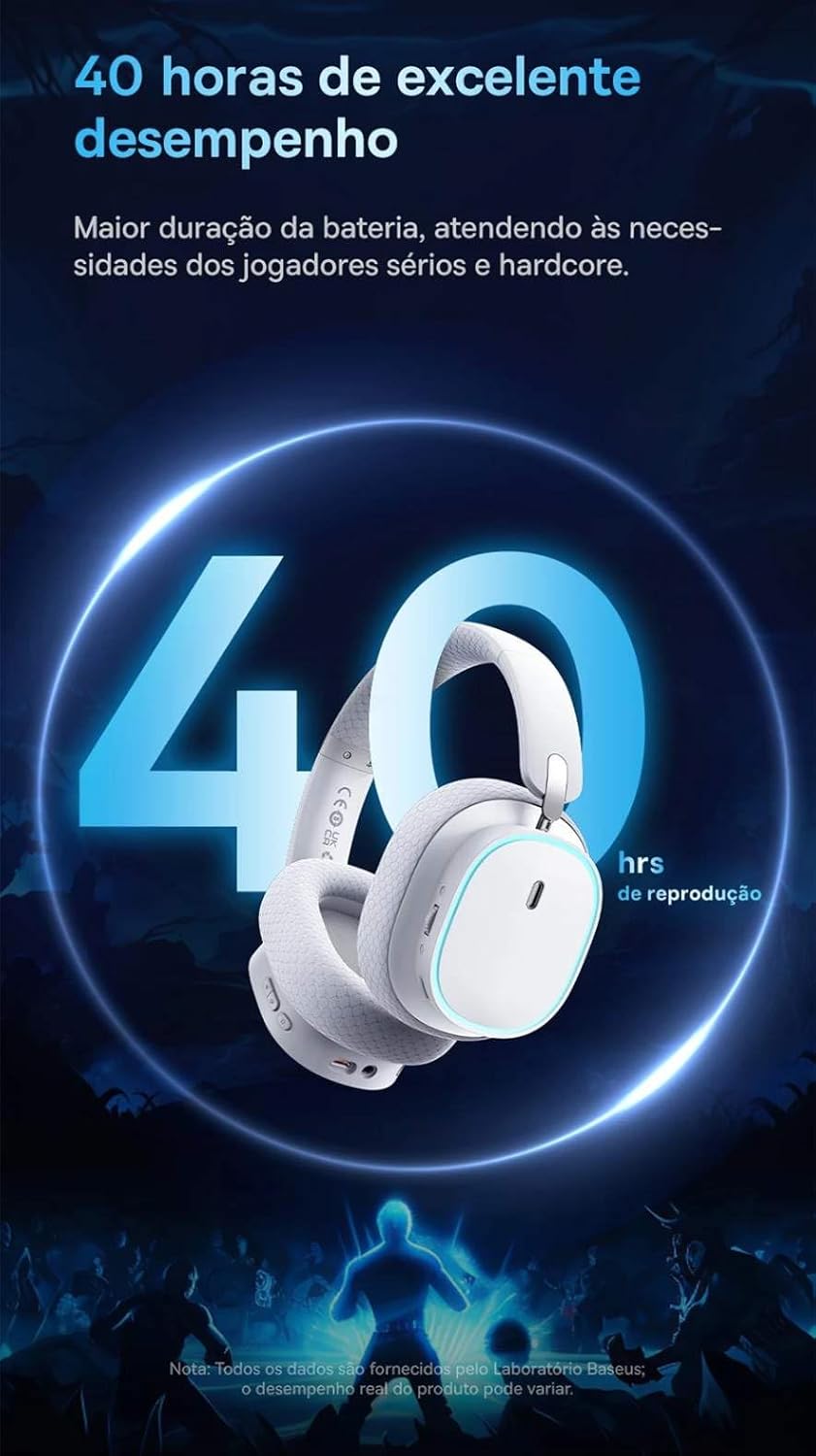
Image: A visual representation of the headset emphasizing its 40-hour battery life, indicating extended usage without frequent recharging.
Melite
1. Ịchaji ekweisi
Before first use, fully charge the headset. Connect the provided USB-C charging cable to the headset's charging port and the other end to a USB power source (e.g., computer USB port, wall adapter). The LED indicator will show charging status and turn off or change color when fully charged.
2. Connecting via 2.4GHz Wireless (Recommended for Gaming)
- Locate the 2.4GHz USB wireless dongle included with your headset.
- Plug the USB dongle into an available USB port on your PC, PlayStation (PS4/PS5), or other compatible gaming device.
- Power on the headset. It should automatically connect to the dongle. The LED indicator will confirm a successful connection.
- Ensure the headset is selected as the audio output and input device in your device's sound settings.
3. Ijikọ site na Bluetooth
- With the headset powered on, activate Bluetooth pairing mode (refer to the operating section for specific button presses). The LED indicator will typically flash to indicate pairing mode.
- On your smartphone, tablet, or PC, go to Bluetooth settings and search for available devices.
- Select "Baseus AeQur GH02" from the list of found devices to pair.
- Once paired, the LED indicator will show a steady light.
4. Connecting via 3.5mm Audio Cable
- Connect one end of the 3.5mm audio cable to the headset's 3.5mm audio jack.
- Connect the other end to the 3.5mm audio output port on your device (e.g., PC, console controller, phone).
- When connected via 3.5mm cable, the headset operates in passive mode, and battery power is not required for audio, though some features like RGB lighting may be disabled.

Image: The Baseus AeQur GH02 headset displayed alongside various compatible gaming and mobile devices, including a PC, PlayStation console, Nintendo Switch, and smartphone, illustrating its broad connectivity.

Image: Icons representing compatibility with Android smartphones/tablets, PCs/notebooks, and gaming consoles like PS5/PS4/Switch/Steam Deck/VR, highlighting the headset's versatile use cases.
Na-arụ ọrụ ekweisi
Njikwa
- Bọtịnụ ike: Press and hold to power on/off. Short press for play/pause (in Bluetooth mode).
- Wheel olu: Roll up to increase volume, roll down to decrease volume.
- Bọtịnụ mechie igwe okwu: Pịa ka ogbi / mebie igwe okwu.
- RGB Lighting Button: Short press to cycle through RGB lighting modes or turn off.
Eji igwe okwu
The microphone is removable. To attach, align the microphone jack with the port on the left ear cup and insert firmly. To remove, gently pull it out. Ensure the microphone is properly inserted for clear voice pickup.
Baseus App Integration
For advanced customization, download the official Baseus app on your smartphone. The app allows you to:
- Adjust EQ settings (Equalizer).
- Hazie mmetụta ọkụ na agba RGB.
- Switch between audio modes (e.g., Normal Mode, Music Mode, Game Mode for spatial acoustics).
- View ọnọdụ batrị.

Image: Screenshots of the Baseus mobile application interface, demonstrating options for spatial acoustics, EQ mode, and lamp effects, allowing users to customize their headset's performance and lighting.
Nlekọta
- Nhicha: Use a soft, dry cloth to clean the headset. For ear cushions, a slightly damp cloth can be used, but ensure they are completely dry before use. Do not use harsh chemicals or abrasive materials.
- Nchekwa: Store the headset in a cool, dry place away from direct sunlight and extreme temperatures. If storing for extended periods, ensure it is partially charged (around 50%) to preserve battery health.
- Ijikwa: Avoid dropping the headset or subjecting it to strong impacts. Do not twist or bend the headband excessively.
Nchọpụta nsogbu
| Nsogbu | Ihe nwere ike ime | Ngwọta |
|---|---|---|
| Enweghị ụda sitere na ekweisi | Headset not powered on; Low battery; Not properly connected (Bluetooth/2.4GHz/3.5mm); Incorrect audio output selected on device. | Ensure headset is powered on and charged. Re-pair Bluetooth or re-plug 2.4GHz dongle/3.5mm cable. Check device's sound settings to ensure "Baseus AeQur GH02" is selected as output. |
| Igwe okwu anaghị arụ ọrụ | Microphone muted; Not properly inserted; Incorrect input device selected; Software issues. | Ensure microphone is not muted (check mute button). Re-insert the removable microphone firmly. Check device's sound settings to ensure "Baseus AeQur GH02" is selected as input. Restart application/game. |
| Headset not pairing/connecting | Out of range; Interference; Headset not in pairing mode; Device's Bluetooth/USB port issue. | Ensure headset is in pairing mode and within range. Turn off other Bluetooth devices. Try connecting to a different USB port or device. Restart headset and device. |
| Ndụ batrị dị mkpụmkpụ | Not fully charged; High volume usage; RGB lighting always on. | Ensure headset is fully charged. Reduce volume. Turn off RGB lighting when not needed. |
| Cannot use while charging | Product design limitation. | The Baseus AeQur GH02 headset is designed not to be used while charging. Please allow the headset to fully charge before resuming use. |
Nkọwapụta
| Njirimara | Nkọwa |
|---|---|
| Aha Nlereanya | AeQur GH02 |
| Teknụzụ Njikọta | Wireless (Bluetooth, Wi-Fi 2.4GHz), Wired (3.5mm) |
| Dayameta ọkwọ ụgbọ ala | 40mm |
| Headphone Frequency | 20-40000Hz |
| Mmetụta igwe okwu | -45dB |
| Njikwa mkpọtụ | Nkagbu mkpọtụ nọ n'ọrụ |
| Ndụ batrị (Ọkara) | Awa 40 |
| Ngwa dakọtara | Mobile Phones, Gaming Consoles (PC, PS5, PS4), Desktops, Laptops |
| Ihe onwunwe | Ọla, plastik |
| Atụmatụ pụrụ iche | Fast charging, Volume control, Noise isolation, Lightweight, Built-in microphone |
| Agba | Nwa |
| Mgbochi | 35 Ohm |
| Asambodo | Anatel: 004842514894 |
Akwụkwọ ikike na nkwado
The Baseus AeQur GH02 RGB Gaming Headset comes with a Akwụkwọ ikike nke onye nrụpụta ọnwa iri na abụọ site na ụbọchị ịzụrụ, na-ekpuchi ntụpọ na ihe na arụ ọrụ n'okpuru ojiji nkịtị. Biko dowe ihe akaebe nke ịzụrụ ihe maka akwụkwọ ikike.
For further support, technical assistance, or warranty inquiries, please visit the official Baseus store or contact their customer service through the details provided on their official websaịtị ma ọ bụ nkwakọ ngwaahịa.
Ị nwekwara ike ịga na Baseus Official Store on Amazon maka ozi ndị ọzọ na akụrụngwa nkwado.


