Okwu mmalite
This manual provides comprehensive instructions for the setup, operation, maintenance, and troubleshooting of your MageGee Moon104 Wireless Mechanical Keyboard. Please read this manual thoroughly to ensure optimal performance and longevity of your device.

Image: The MageGee Moon104 Wireless Mechanical Keyboard, showcasing nhazi ya zuru oke yana nnata USB gụnyere.
Ihe ngwugwu
Mgbe imepechara ngwugwu ahụ, chọpụta na ihe niile dị:
- MageGee Moon104 Wireless Mechanical Keyboard
- USB-C na eriri USB-A
- 2.4GHz USB nnata
- Akwụkwọ ntuziaka (akwụkwọ a)
Nkọwapụta
| Njirimara | Nkọwa |
|---|---|
| Nlereanya | Moon104 |
| Akụkụ (L x W x H) | 16.73" x 16.73" x 0.98" (42.49 cm x 42.49 cm x 2.49 cm) |
| Ibu Ibu | 2.33 pound (1.06 n'arọ) |
| Njikọta | USB-C Wired, Ikuku 2.4GHz, Bluetooth 3.0/5.0 |
| Ụdị ahụigodo | Mechanical, Low Profile |
| Mgbanwe | Brown Mechanical Switches |
| Ịkụ azụ azụ | RGB Backlit (Seven-color breathing system) |
| Ndakọrịta | Windows, macOS |
| Akwadoro ojiji | Ụlọ ọrụ |

Foto: Ofeview of the MageGee Moon104 keyboard's key features, including its tri-mode connectivity, low-profile switches, RGB backlighting, and ergonomic design.
Melite
1. Ịchaji ahụigodo
Tupu e jiri ya na mbụ, a na-atụ aro ka i jiri eriri USB-C enyere chajịa ahụigodo ahụ nke ọma. Jikọọ njedebe USB-C na ahụigodo ahụ, jikọọkwa njedebe USB-A na ọdụ USB dị na kọmputa gị ma ọ bụ ihe nkwụnye mgbidi.

Foto: A nso nso view of the MageGee Moon104 keyboard showing the detachable USB-C cable connected to its port.
2. Jikọọ ahụigodo
The MageGee Moon104 supports three connection modes: USB-C Wired, 2.4GHz Wireless, and Bluetooth.

Image: The MageGee Moon104 keyboard demonstrating its tri-mode connection capabilities, showing both wired USB-C and the 2.4GHz receiver in use.
2.1. Njikọ Waya USB-C
- Connect the USB-C end of the cable to the keyboard's port.
- Jikọọ njedebe USB-A na ọdụ ụgbọ USB dị na kọmputa gị.
- A ga-amata ahụigodo na-akpaghị aka ma dịrị njikere maka ojiji.
2.2. 2.4GHz Njikọ ikuku
- Locate the 2.4GHz USB receiver (usually stored in a compartment on the keyboard or included separately).
- Tinye eriri USB n'ọdụ ụgbọ mmiri dị na kọmputa gị.
- Na ahụigodo, pịa Fn + Q to switch to 2.4GHz wireless mode. The indicator light will confirm the connection.
2.3. Njikọ Bluetooth
- Na ahụigodo, pịa Fn + W or Fn + E to select a Bluetooth channel (BT1 or BT2). The indicator light will flash, indicating pairing mode.
- On your device (computer, laptop, smart TV), enable Bluetooth and search for new devices.
- Select "MageGee Moon104" from the list of available devices to pair.
- Once paired, the indicator light on the keyboard will become solid.
Ntuziaka ọrụ
1. Switching Between Connection Modes
To switch between the three connection modes, use the following key combinations:
- Fn + TAB: Switch to USB-C Wired Mode
- Fn + Q: Switch to 2.4GHz Wireless Mode
- Fn + W: Switch to Bluetooth Channel 1 (BT1)
- Fn + E: Switch to Bluetooth Channel 2 (BT2)
2. Njikwa ọkụ azụ RGB
The keyboard features an RGB backlight system with multiple effects and brightness levels.

Image: The MageGee Moon104 keyboard displaying its vibrant RGB backlighting across the keys.
- Na-edozi ihie: Jiri Fn + ↑ (mee ka ìhè dịkwuo mma) na Fn + ↓ (decrease brightness).
- Ụdị ọkụ na-agbanwe: Jiri Fn + → or Fn + ← to cycle through different RGB effects.
- Ndozi Ọsọ: Jiri Fn + - (decrease speed) and Fn + = (increase speed) for dynamic lighting effects.
3. Windows/macOS Compatibility Switch
The keyboard includes a physical switch to toggle between Windows and macOS layouts for optimal key mapping.

Image: A close-up of the MageGee Moon104 keyboard highlighting the physical switch to select between Windows and Mac operating system compatibility.
- Chọta ebe ahụ WIN/MAC switch on the side or back of the keyboard.
- Slide the switch to the appropriate operating system setting.
4. Igodo Ọrụ (F1-F12)
The F-keys often have secondary functions accessible by pressing them in combination with the Fn key. Refer to the keycaps for specific icons indicating these functions (e.g., media control, volume, brightness).
Ergonomic imewe
The MageGee Moon104 is designed with ergonomics in mind to reduce wrist strain during extended use. It features low-profile mechanical switches and adjustable tilt feet.

Image: The MageGee Moon104 keyboard positioned on a desk, showcasing its ergonomic profile and comfortable typing angle.
- Adjustable Tilt Feet: Extend the feet on the underside of the keyboard to adjust the typing angle to your preference.
- Pro dị alafile Mgbanwe: Obere profile design of the mechanical switches contributes to a flatter keyboard, reducing the need for excessive wrist extension.
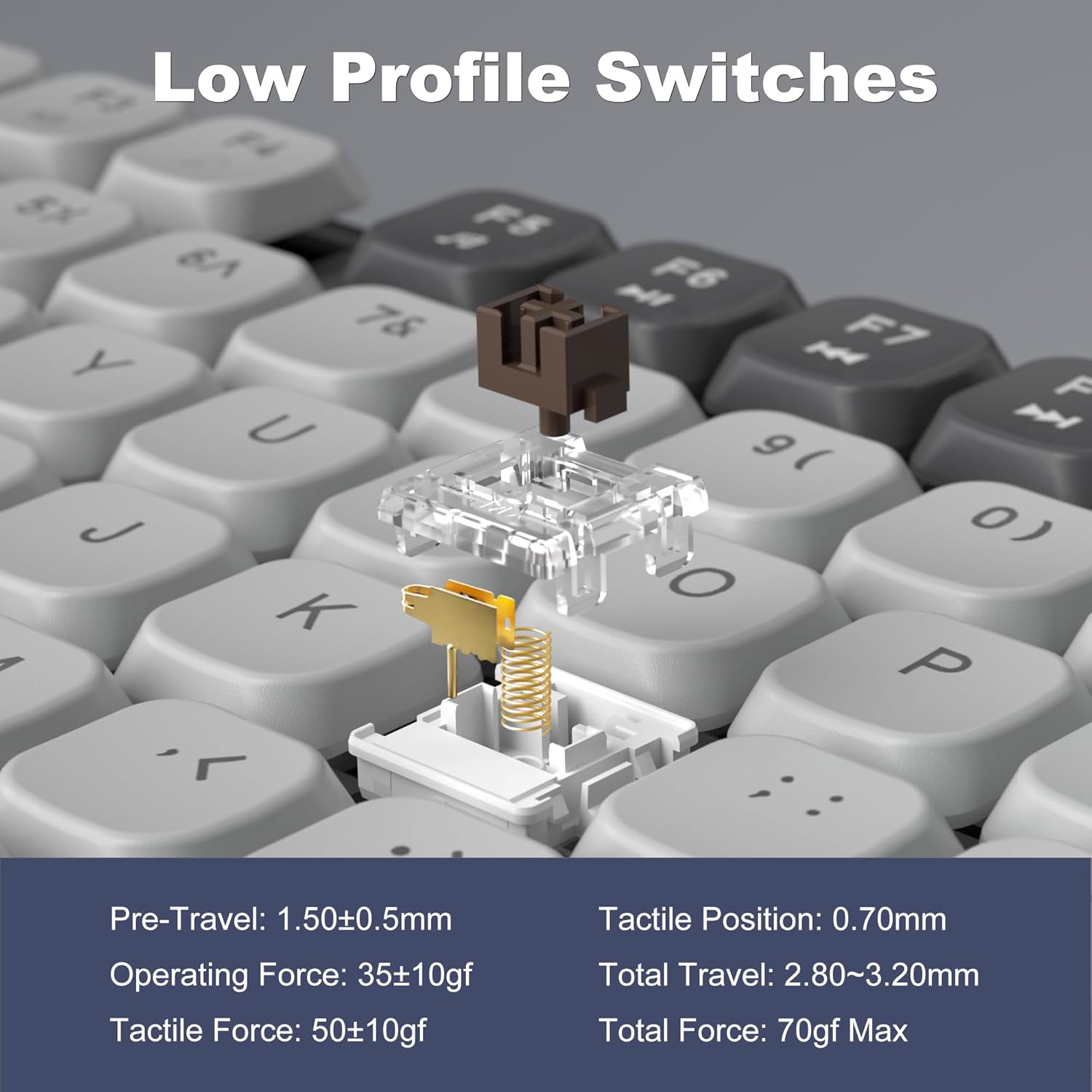
Image: A detailed diagram illustrating the internal structure and operational specifications of the low-profile mechanical switches used in the MageGee Moon104 keyboard.
Nlekọta
Iji hụ na ogologo ndụ na ezigbo arụmọrụ nke ahụigodo gị, soro ntuziaka mmezi ndị a:
- Nhicha: Use a soft, dry cloth to wipe the surface of the keyboard. For deeper cleaning, use compressed air to remove dust and debris from between the keycaps. Avoid using harsh chemicals or abrasive materials.
- Nchekwa: Mgbe ọ naghị eji ya ogologo oge, chekwaa ahụigodo ahụ n'ebe dị jụụ, kpọrọ nkụ na-adịghị na ìhè anyanwụ kpọmkwem na oke okpomọkụ.
- Nlekọta batrị: Avoid fully discharging the battery frequently. Charge the keyboard regularly to maintain battery health.
Nchọpụta nsogbu
If you encounter issues with your MageGee Moon104 keyboard, refer to the following common solutions:
- Ahụigodo Anaghị aza:
- Gbaa mbọ hụ na agbagoro ahụigodo.
- Verify the correct connection mode is selected (Wired, 2.4GHz, or Bluetooth).
- For 2.4GHz, ensure the USB receiver is securely plugged in.
- For Bluetooth, ensure the keyboard is paired and within range of your device. Try re-pairing if necessary.
- If using wired mode, try a different USB port or cable.
- Backlight Not Working or Incorrect:
- Check backlight brightness settings using Fn + ↑.
- Jiri usoro ọkụ mee okirikiri Fn + → or Fn + ←.
- Hụ na batrị ahụigodo ahụ nwere ike ịchaji nke ọma.
- Igodo anaghị edebanye aha ma ọ bụ pịnye ugboro abụọ:
- Clean the affected key with compressed air to remove any debris.
- Gbaa mbọ hụ na agbachara ahụigodo nke ọma.
- If the issue persists, try connecting the keyboard to a different device to rule out software or driver issues on your primary computer.
- Function Keys (F1-F12) Not Working:
- Gbaa mbọ hụ na ị na-pịa Fn key in combination with the desired F-key for secondary functions.
- Verify the keyboard is set to the correct operating system (Windows/Mac) using the physical switch.
Akwụkwọ ikike na nkwado
MageGee provides a 1-year warranty for the Moon104 Wireless Mechanical Keyboard. If you encounter any product issues or have questions, please contact MageGee customer support via Amazon email. They aim to reply within 24 hours and provide a satisfactory solution.
Maka nkwado, biko gaa na Ụlọ Ahịa MageGee dị na Amazon or contact their customer service directly through your Amazon order details.


