1. Okwu mmalite
Thank you for choosing the ATTACK SHARK X85 Gasket Mechanical Keyboard. This manual provides detailed instructions on how to set up, operate, and maintain your new keyboard. Please read this manual thoroughly before use to ensure optimal performance and longevity of your device.

The ATTACK SHARK X85 Gasket Mechanical Keyboard, featuring a compact 75% layout with a multi-function knob.
2. Ihe ngwugwu
Biko chọpụta na agụnyere ihe niile edepụtara n'okpuru na ngwugwu gị:
- ATTACK SHARK X85 Gasket Mechanical Keyboard
- USB-C na eriri USB-A
- Onye na-anata ikuku ikuku 2.4 GHz
- Keycap and Switch Puller Tool
- Additional Keycaps (Purple accent keycaps)
- Akwụkwọ ntuziaka (akwụkwọ a)
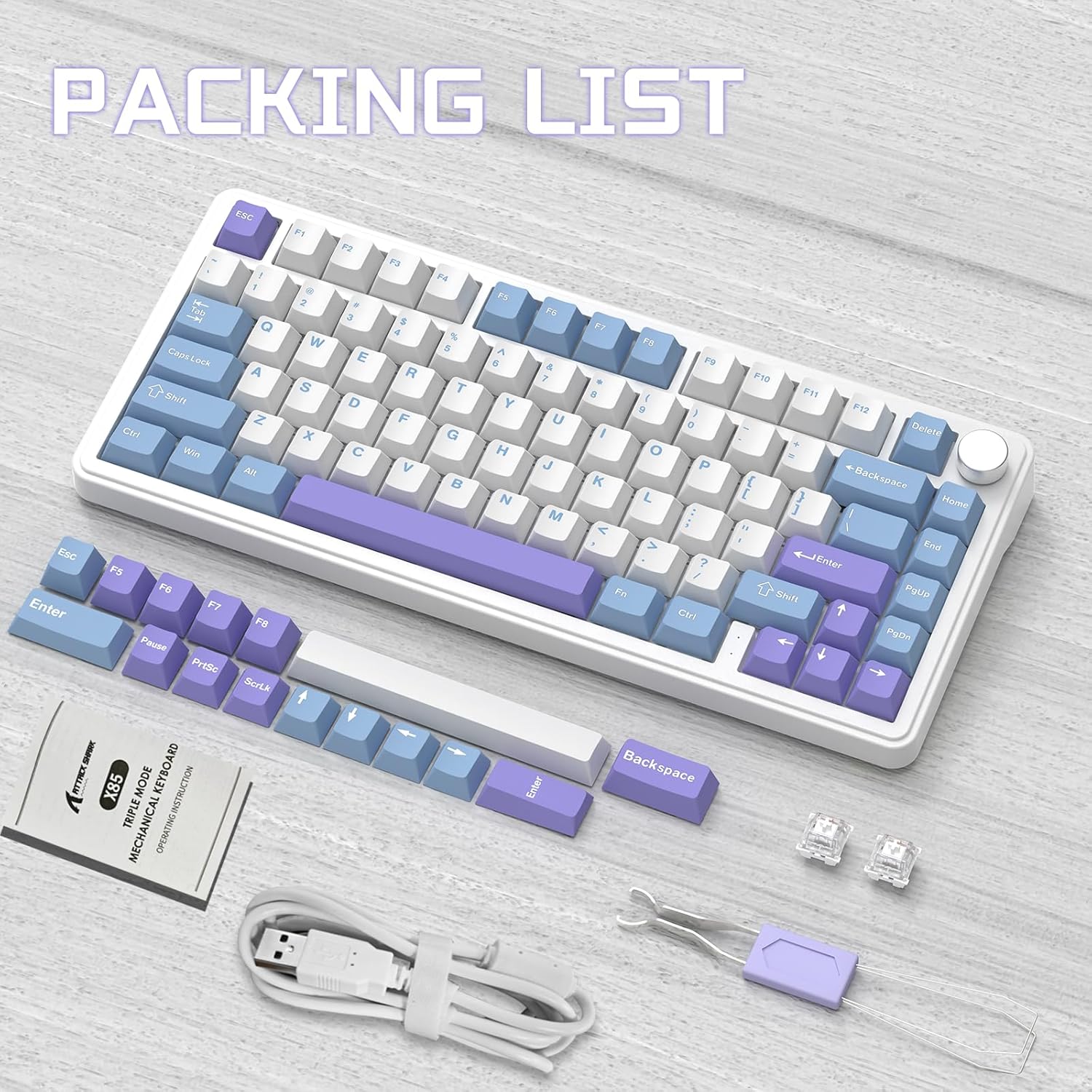
Contents of the ATTACK SHARK X85 keyboard package, including the keyboard, cables, tools, and extra keycaps.
3. Ngwaahịa gafereview
3.1 Atụmatụ
- Nhazi kọmpat 75%: 81-key design maximizing desk space.
- Njikọta ụdị atọ: Supports Bluetooth 5.0, 2.4 GHz wireless, and USB-C wired connections.
- Gasket Mount Design: Five-layer sound and shock-absorbing internal padding (PORON foam, IXPE switch pad, PET sound enhancement pad, bottom silicone pad) for a soft, flexible typing feel.
- Mgbanwe na-ekpo ọkụ nwere ike ịgbanwe: Compatible with most 3-pin mechanical switches for easy customization.
- Mkpọchi ọtụtụ ọrụ: Controls computer volume and keyboard backlight settings.
- Igodo PBT: Durable, wear-resistant keycaps with thick walls.
- RGB ọkụ azụ: 19 RGB modes, 7 monochrome modes, and full-color backlight with adjustable speed and intensity. Customizable via software.
- Batrị 5000mAh: High-capacity battery for extended wireless use with auto-sleep power saving.
- 100% Anti-Ghosting: Ensures all key presses are registered accurately during fast typing or gaming.
- Ndakọrịta sara mbara: Fully compatible with Windows and Mac operating systems.
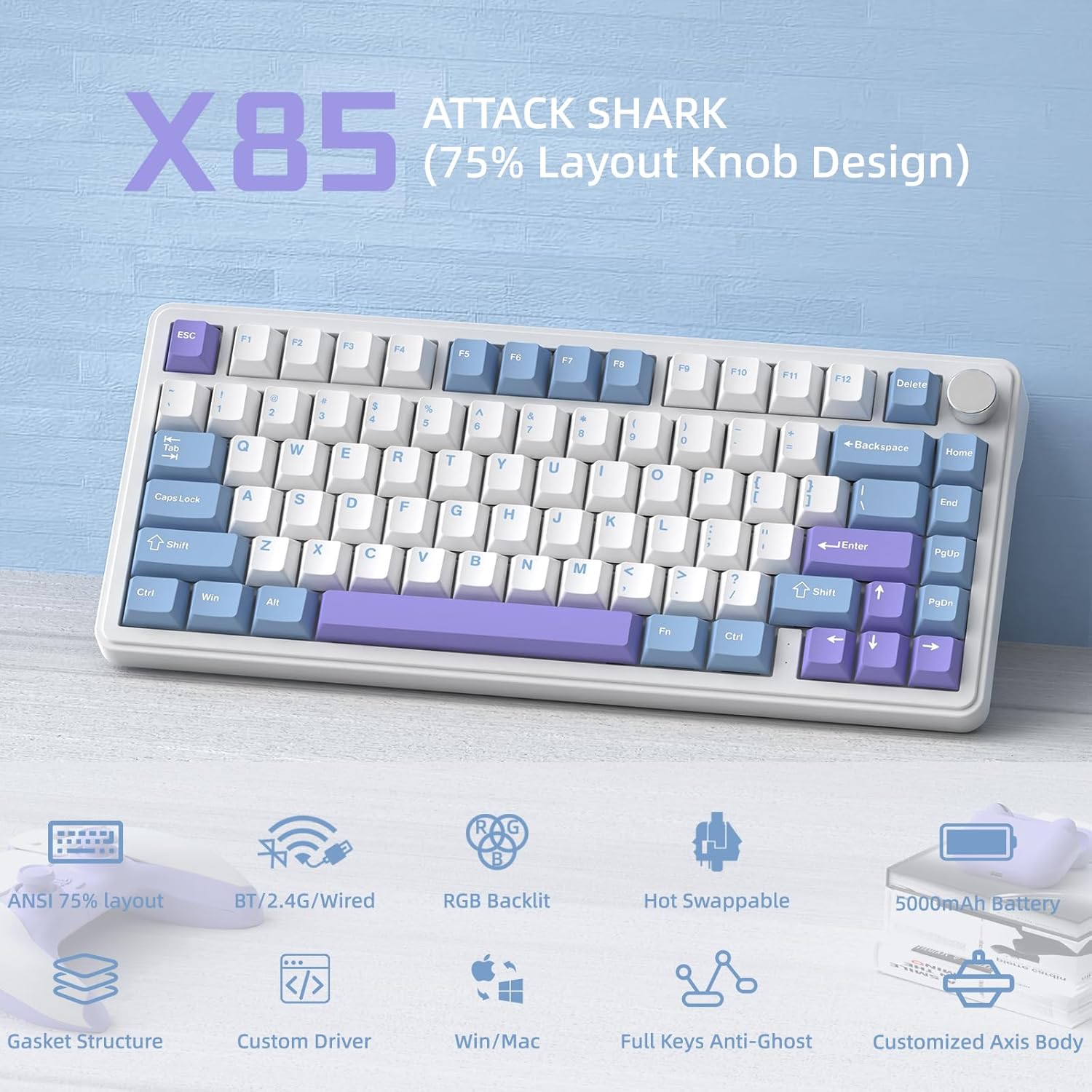
Nfefeview of the ATTACK SHARK X85's key features, including its 75% layout, tri-mode connectivity, RGB lighting, and hot-swappable design.
3.2 Internal Structure (Gasket Mount)
The X85 features an advanced gasket mount design with multiple layers for enhanced acoustics and typing feel:
- Mkpọchi
- PBT igodo
- Ihe mkpuchi elu
- Gbanwee
- PC Horizontal Slotted Positioning Plate
- PORON Quilted Cotton
- IXPE Switch Pad
- PET Sound Enhancement Pad
- Single Key Slotted PCB
- Switch Seat Silencer Bottom Cotton
- Silicone Kedo akwa
- Ikpe ala

Diagram illustrating the five-layer padding and gasket mount structure of the X85 keyboard, showing its various internal components.
4. Nhazi
4.1 Tri-Mode Connection
The ATTACK SHARK X85 keyboard supports three connection modes: Bluetooth, 2.4 GHz wireless, and USB-C wired. The connection mode can be easily switched using the toggle switch on the back of the keyboard.

Visual guide for connecting the ATTACK SHARK X85 keyboard via Bluetooth, 2.4G wireless, and USB-C wired modes.
4.1.1 Njikọ Bluetooth
- Toggle the switch on the back of the keyboard to the "BT" position.
- Pịa ogologo Fn + Q, Fn + W, ma ọ bụ Fn + E for more than three seconds until the corresponding key's backlight flashes rapidly. This indicates pairing mode.
- On your device (computer, tablet, or smartphone), enable Bluetooth and search for "ATTACK SHARK X85".
- Select the keyboard to connect. Once connected, the key's backlight will stop flashing and remain solid.
- You can pair up to three Bluetooth devices and switch between them by pressing Fn + Q, Fn + W, ma ọ bụ Fn + E.
4.1.2 2.4 GHz Wireless Connection
- Locate the 2.4 GHz wireless receiver (dongle) in the package.
- Toggle the switch on the back of the keyboard to the "2.4G" position.
- Plug the 2.4 GHz wireless receiver into an available USB port on your computer.
- The keyboard should automatically connect. If not, ensure the receiver is properly inserted and the keyboard is in 2.4G mode.
4.1.3 Njikọ eriri USB-C
- Toggle the switch on the back of the keyboard to the "Line" (wired) position.
- Jikọọ otu nsọtụ nke eriri USB-C enyere na ọdụ USB-C nke ahụigodo ahụ.
- Jikọọ nsọtụ nke ọzọ nke eriri USB-A na ọdụ ụgbọ USB dị na kọmputa gị.
- The keyboard will be recognized as a standard USB keyboard and is ready for use.
4.2 Ndakọrịta sistemụ arụmọrụ
The ATTACK SHARK X85 keyboard is fully compatible with both Windows and Mac operating systems. Use the toggle switch on the back of the keyboard to select between "Win" and "Mac" modes for optimal key mapping.
5. Ntuziaka ọrụ
5.1 Multi-Function Rotary Knob
The knob on the top right of the keyboard serves multiple functions, controlling both volume and backlight settings.

Instructions for using the multi-function rotary knob to control lighting and sound settings on the X85 keyboard.
- Ụdị mgbanwe: Press and hold the knob for more than three seconds to switch between Light Mode and Sound Mode.
- Ụdị ọkụ:
- Press once to cycle through different backlight modes.
- Turn left to decrease backlight brightness.
- Turn right to increase backlight brightness.
- Ọnọdụ ụda:
- Press once to play/mute audio.
- Turn left to decrease volume.
- Turn right to increase volume.
5.2 RGB Backlighting Customization
The X85 keyboard offers extensive RGB lighting options. You can adjust settings directly on the keyboard or through the dedicated software.
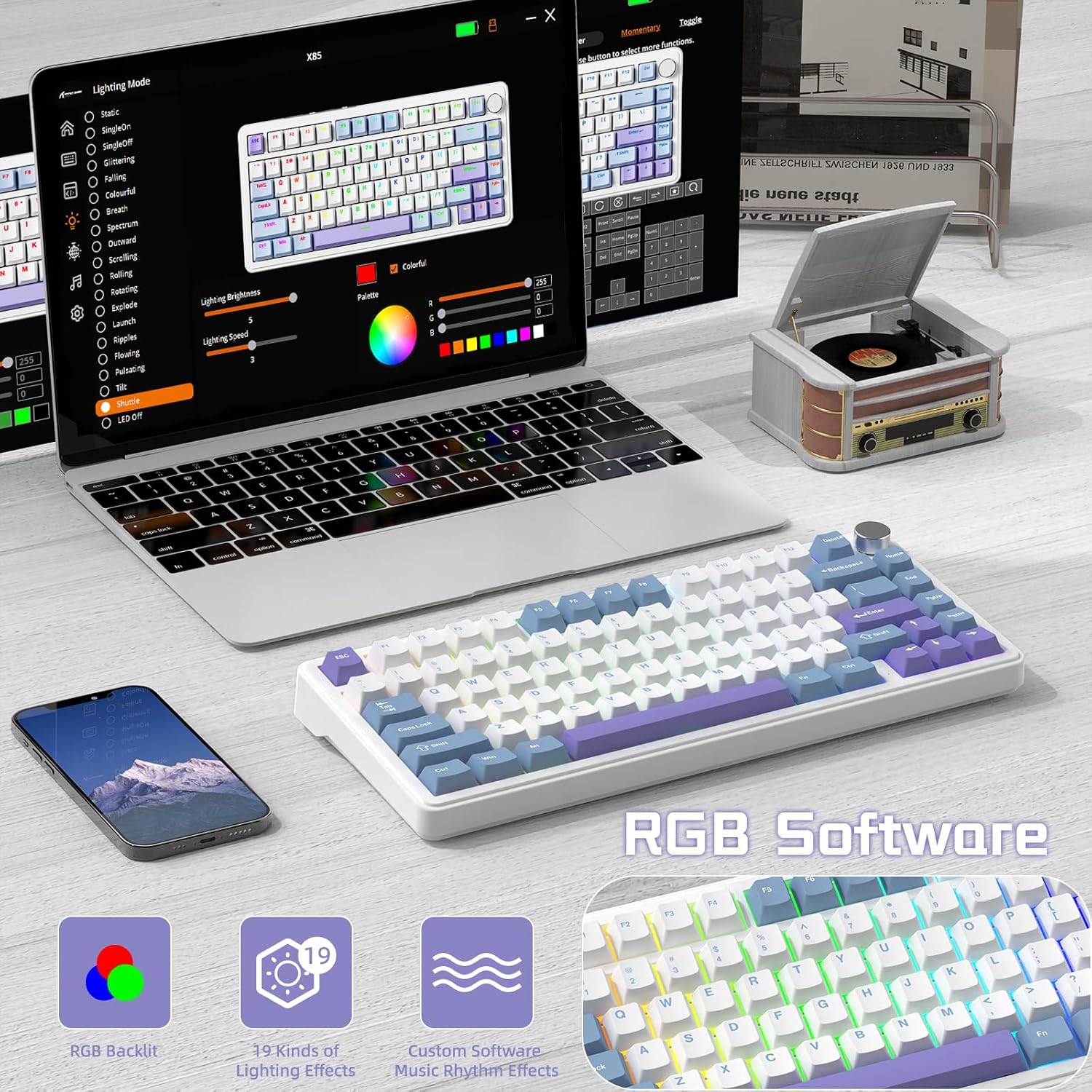
The software interface for customizing RGB lighting and other settings on the ATTACK SHARK X85 keyboard.
- On-Keyboard Controls:
- Use the knob in Light Mode to cycle modes and adjust brightness.
- Refer to the keyboard's quick function keys (usually Fn combinations) for additional lighting effects and speed adjustments.
- Nhazi ngwanrọ:
- Download the official ATTACK SHARK software from the manufacturer's websaịtị.
- The software allows for advanced customization of RGB effects, colors, speed, and brightness. It may also offer key remapping and macro creation.
- Note: The software may default to Chinese. Please navigate to settings within the software to change the language to English if needed.
5.3 Mgbanwe ọkụ-Swappable
The X85 features a hot-swappable PCB, allowing you to easily change mechanical switches without soldering. This enables customization of your typing experience.

Demonstration of the hot-swappable feature of the X85 keyboard, showing how switches can be easily removed and replaced.
- Wepụ mkpuchi igodo: Jiri ngwa ihe ndọta igodo ahụ were nwayọ wepu okpu igodo achọrọ.
- Wepụ Switch: Use the switch puller tool to grasp the top and bottom clips of the switch and gently pull it straight up.
- Fanye Mgbanwe Ọhụrụ: Align the pins of the new 3-pin mechanical switch with the holes on the PCB. Gently push the switch straight down until it clicks into place. Ensure the pins are not bent.
- Dochie Mkpọchi igodo: Tinye mkpuchi igodo ahụ azụ n'elu ogwe mgbanwe ọhụrụ ahụ.
The X85 supports 3-pin mechanical switches. Ensure the replacement switches are compatible to avoid damage.
5.4 100% Anti-Ghosting
The keyboard features 100% anti-ghosting, meaning all simultaneous key presses are registered accurately, which is crucial for fast-paced gaming and typing.
6. Nlekọta
6.1 Cleaning Your Keyboard
- Kwụpụ kiiboodu na kọmputa gị tupu ihicha.
- Jiri mkpọ ikuku amịkọrọ ekpochapụ uzuzu na irighiri ihe dị n'etiti igodo igodo.
- For surface cleaning, gently wipe the keycaps and chassis with a soft, slightly damp, akwa akwa na-enweghị lint. Zere oke mmiri mmiri.
- Ejila kemịkalụ siri ike, ihe nhicha ihe na-eme ka ihe dị nro, ma ọ bụ ihe mgbaze.
6.2 Nlekọta batrị
The X85 keyboard is equipped with a 5000mAh high-capacity battery. To maximize battery life and performance:

Battery life estimates for the ATTACK SHARK X85 keyboard: 35 hours with backlight on, 75 hours with backlight off.
- Chajie ahụigodo nke ọma tupu ojiji mbụ.
- When the battery is low, connect the USB-C cable to charge.
- The keyboard features an auto-sleep power saving technology to conserve battery when idle.
- Zere ikpughe ahụigodo na oke okpomọkụ.
7. Nchọpụta nsogbu
| Nsogbu | Ngwọta enwere ike |
|---|---|
| Ahụigodo anaghị ejikọ site na Bluetooth. |
|
| 2.4 GHz wireless connection is unstable or not working. |
|
| Igodo anaghị aza ma ọ bụ dee na ezighi ezi. |
|
| RGB backlighting is not working or behaving unexpectedly. |
|
| Multi-function knob is not responding. |
|
8. Nkọwapụta
| Njirimara | Nkọwa |
|---|---|
| Ụdị | Mwakpo Shark |
| Nlereanya | X85 |
| Nhazi | 75% (81-key) |
| Njikọta | Bluetooth 5.0, 2.4 GHz Wireless, USB-C Wired |
| Ike batrị | 5000mAh |
| Ihe mkpuchi igodo | Polybutylene terephthalate (PBT) |
| Ngbanwe Ụdị | Hot-swappable (supports 3-pin mechanical switches) |
| Ịkụ azụ azụ | RGB (19 modes, 7 monochrome, full color) |
| Mgbochi mmụọ | 100% Mgbochi Mmụọ |
| Ndakọrịta | Windows, Mac |
| Ibu Ibu | 1.03 n'arọ |
| Akụkụ ngwugwu | 35.6 x 18.6 x 4.9 cm |
9. Akwụkwọ ikike na nkwado
The ATTACK SHARK X85 Gasket Mechanical Keyboard comes with a standard manufacturer's warranty. Please refer to the warranty card included in your package or visit the official ATTACK SHARK websaịtị maka nkọwa na usoro akwụkwọ ikike.
For technical support, troubleshooting assistance, or any inquiries regarding your product, please contact ATTACK SHARK customer service through their official websaịtị ma ọ bụ ozi kọntaktị enyere na ịzụrụ gị.


